> ## Documentation Index
> Fetch the complete documentation index at: https://docs.visitoai.com/llms.txt
> Use this file to discover all available pages before exploring further.
# Connect your agent to an order system
> Set up an order-status action, collect the order number, and trace the HTTP request and response through the conversation.
For general configuration, start with the [API setup guide](/product-guides/ai-agent/custom-tools). This page walks through one practical example.
A customer asks, “Where is my order?” The agent asks for the order number, calls your server, and explains the returned shipping status and delivery estimate. **Connect a system** is the Actions entry point for this kind of HTTP integration.
This walkthrough uses a temporary local server and synthetic orders. The [developer guide](/api-docs/guides/order-status-tool) includes the runnable server and explains its lookup code. Creating the action does not create your backend or connect directly to your database.
## Choose the right connection pattern
| Your system | Approach |
| - | - |
| GET endpoint that accepts query parameters and returns JSON | Match action parameters to the endpoint's query parameters |
| POST endpoint that accepts Visito's request format | Connect it directly with the required authentication |
| Different body format, dynamic paths, rotating OAuth, or several provider calls | Build a small adapter endpoint that translates Visito's request |
| Database without an API | Expose a narrow, authorized lookup endpoint |
Use Knowledge for general policies and FAQs. Use this action for facts that depend on the supplied order number and a current server lookup. Keep refunds, cancellations, and other mutations in separately authorized actions.
## 1. Prepare the server
Use a test workspace, administrator access, a reachable endpoint, and synthetic orders. The demonstrated server accepts `POST /visito/order-status`, checks a Bearer token, reads `arguments.order_number`, and returns one of these results:
| Order number | Result |
| - | - |
| `A-1003` | Shipped with Demo Courier, tracking DEMO1003, estimated delivery October 3, 2026 |
| `A-1004` | Processing, with no carrier or tracking number yet |
| `A-9999` | Lookup succeeds but no order is found |
| `A-5000` | Simulated HTTP 503 service failure |
The fixtures are examples, not real deliveries. Replace dates and records when reusing the demo. The backend URL must be reachable **from Visito's server**, not merely your browser. The screenshots use a local Docker hostname; hosted Visito cannot reach it. See the [network setup](/api-docs/guides/order-status-tool#make-the-endpoint-reachable).
## 2. Create the action
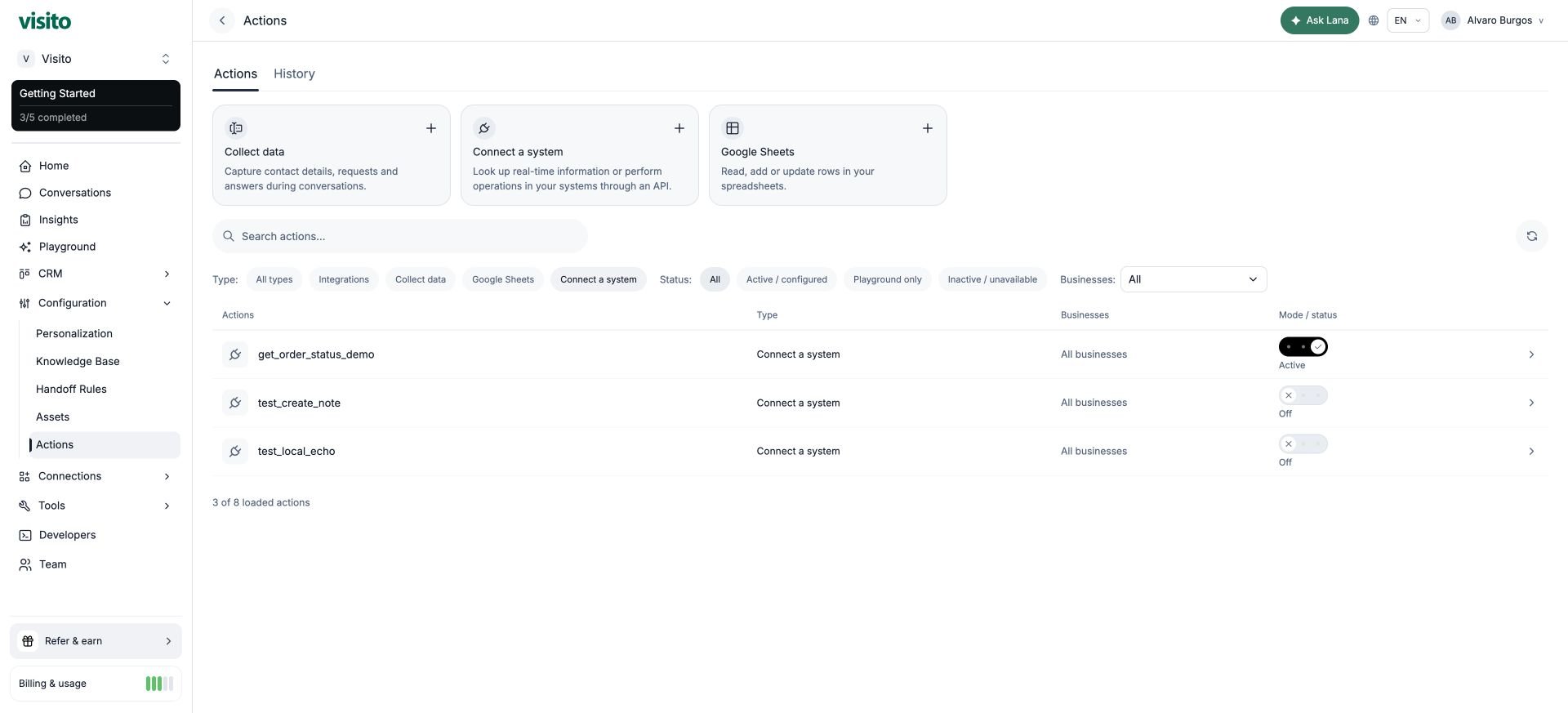
Go to **Configuration → Actions → Connect a system**. The editor is titled **New HTTP action**.
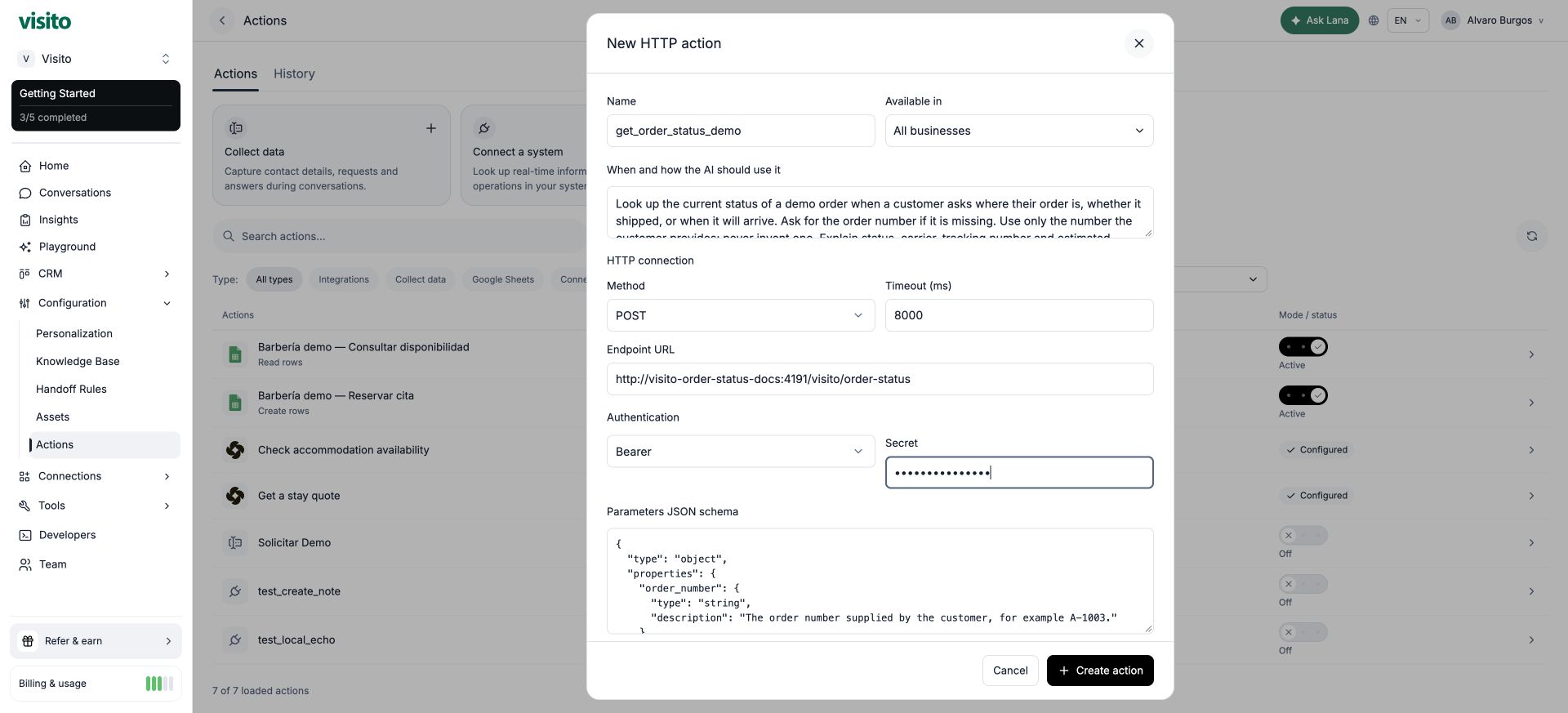 | Field | Value for this example |
| - | - |
| Name | `get_order_status_demo` |
| Available in | Intended businesses; All businesses only for a workspace-wide lookup |
| Method | POST |
| Timeout (ms) | 8000 |
| Endpoint URL | Your reachable URL ending in `/visito/order-status` |
| Authentication | Bearer |
| Secret | Your endpoint's token, without the `Bearer ` prefix |
| Read only | Enabled: the server performs a lookup without changing an order |
Use a clear purpose in **When and how the AI should use it**:
```text theme={null}
Look up an order when a customer asks where it is, whether it shipped,
or when it will arrive. Ask for the order number if it is missing.
Use the customer's number; never invent one. Explain the returned status,
carrier, tracking number, and delivery estimate. An estimate is not a guarantee.
If found is false, ask the customer to check the number.
If the request fails, say the status could not be checked; do not invent facts.
This action does not create, cancel, modify, or refund orders.
```
### Define the information to collect
Paste this into **Parameters JSON schema**:
```json theme={null}
{
"type": "object",
"properties": {
"order_number": {
"type": "string",
"description": "The order number supplied by the customer, for example A-1003."
}
},
"required": ["order_number"],
"additionalProperties": false
}
```
This is an input definition, not the HTTP body itself. The agent fills `order_number` from the conversation. `required` tells it the value is needed; your server must still validate the request.
| Field | Value for this example |
| - | - |
| Name | `get_order_status_demo` |
| Available in | Intended businesses; All businesses only for a workspace-wide lookup |
| Method | POST |
| Timeout (ms) | 8000 |
| Endpoint URL | Your reachable URL ending in `/visito/order-status` |
| Authentication | Bearer |
| Secret | Your endpoint's token, without the `Bearer ` prefix |
| Read only | Enabled: the server performs a lookup without changing an order |
Use a clear purpose in **When and how the AI should use it**:
```text theme={null}
Look up an order when a customer asks where it is, whether it shipped,
or when it will arrive. Ask for the order number if it is missing.
Use the customer's number; never invent one. Explain the returned status,
carrier, tracking number, and delivery estimate. An estimate is not a guarantee.
If found is false, ask the customer to check the number.
If the request fails, say the status could not be checked; do not invent facts.
This action does not create, cancel, modify, or refund orders.
```
### Define the information to collect
Paste this into **Parameters JSON schema**:
```json theme={null}
{
"type": "object",
"properties": {
"order_number": {
"type": "string",
"description": "The order number supplied by the customer, for example A-1003."
}
},
"required": ["order_number"],
"additionalProperties": false
}
```
This is an input definition, not the HTTP body itself. The agent fills `order_number` from the conversation. `required` tells it the value is needed; your server must still validate the request.
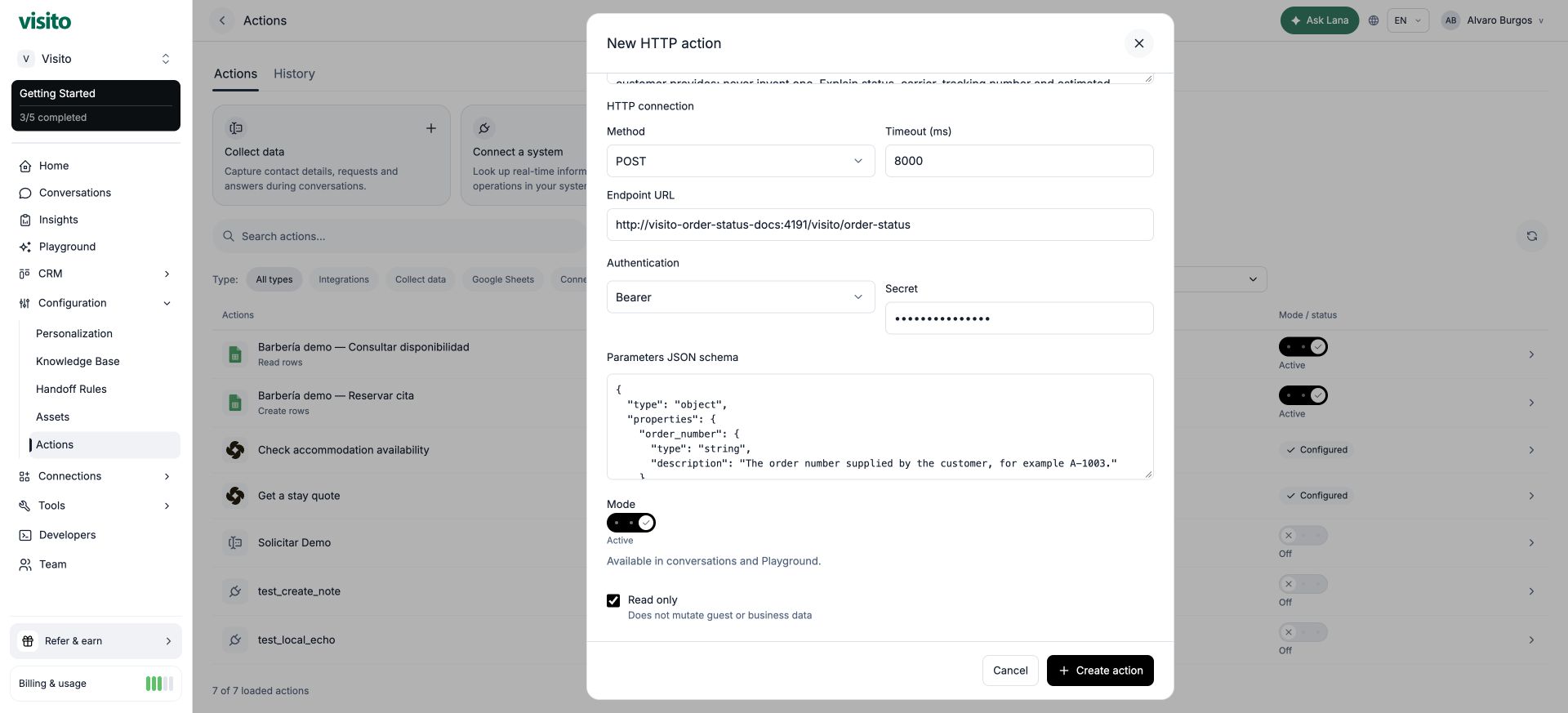 ### Choose a mode
* **Off:** unavailable to the agent.
* **Playground only:** test in Playground without enabling customer channels.
* **Active:** available in eligible customer conversations and Playground.
The screenshots use Active because the controlled test ran through local Webchat. Start your own setup in Playground only. **Read only** describes the operation; it does not stop your server from making changes if you implement it incorrectly. Playground sends real requests to the configured endpoint, so use test data.
Select **Create action**. When editing, leave Secret blank to retain the saved credential. For API key authentication, configure the exact header name expected by your backend. A Visito API key is for calls **to Visito**; it is not the credential for this sample order server.
### Choose a mode
* **Off:** unavailable to the agent.
* **Playground only:** test in Playground without enabling customer channels.
* **Active:** available in eligible customer conversations and Playground.
The screenshots use Active because the controlled test ran through local Webchat. Start your own setup in Playground only. **Read only** describes the operation; it does not stop your server from making changes if you implement it incorrectly. Playground sends real requests to the configured endpoint, so use test data.
Select **Create action**. When editing, leave Secret blank to retain the saved credential. For API key authentication, configure the exact header name expected by your backend. A Visito API key is for calls **to Visito**; it is not the credential for this sample order server.
 ## 3. Understand what is sent to the server
When the customer says “My order number is A-1003,” the generated action input is:
```json theme={null}
{ "order_number": "A-1003" }
```
For POST, Visito puts this input inside **arguments** and adds conversation metadata. A representative body is:
```json theme={null}
{
"arguments": { "order_number": "A-1003" },
"meta": {
"tenantId": "YOUR_TENANT_ID",
"conversationKey": "YOUR_CONVERSATION_KEY",
"conversationId": "YOUR_CONVERSATION_ID",
"channel": "webchat",
"eventId": "YOUR_EVENT_ID"
}
}
```
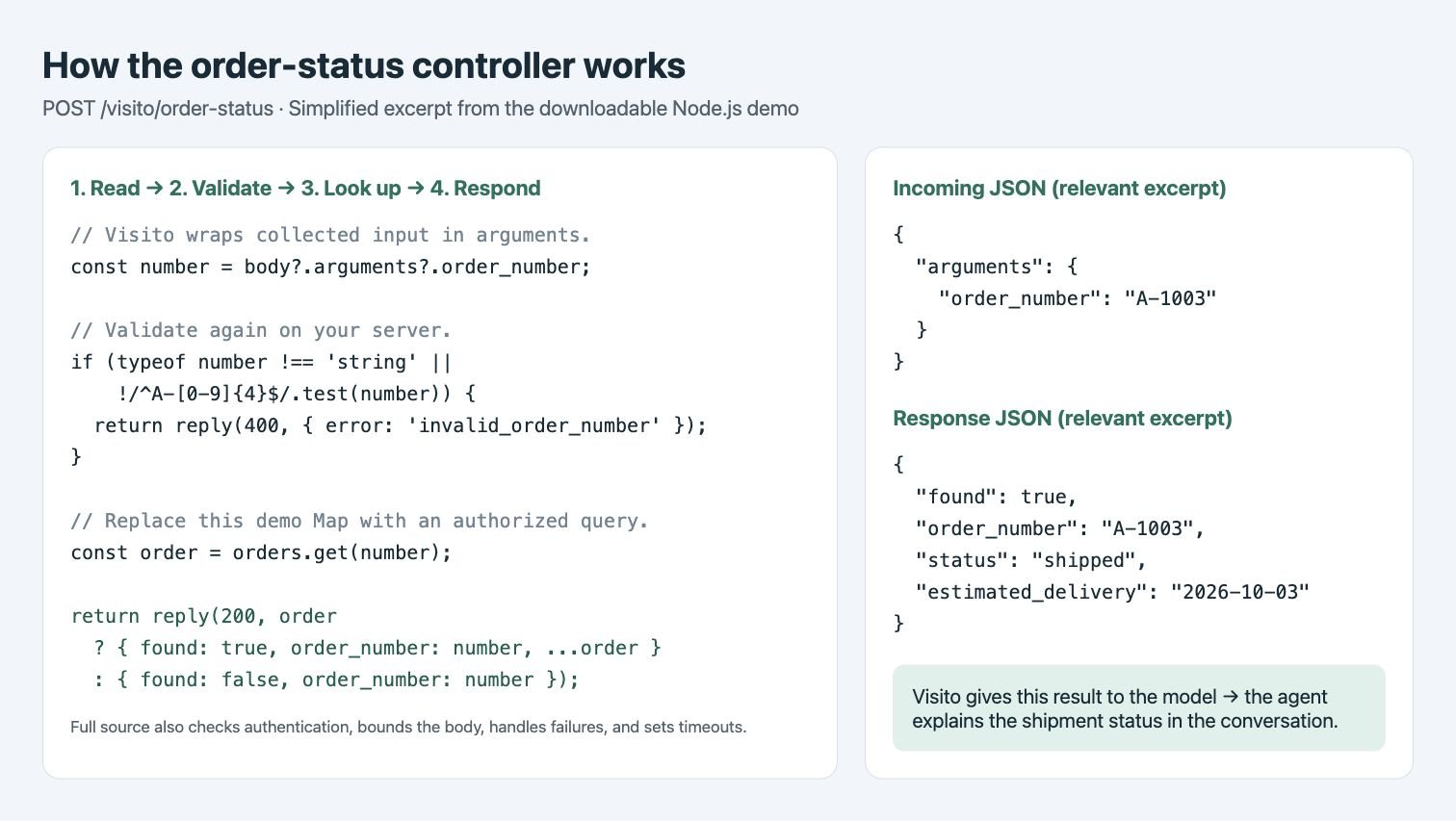
The server reads `body.arguments.order_number`, validates it, looks up that key, and returns facts. The demo uses an in-memory map. In your application, that lookup would query an authorized database record or call your order provider.
```json theme={null}
{
"found": true,
"order_number": "A-1003",
"status": "shipped",
"carrier": "Demo Courier",
"tracking_number": "DEMO1003",
"estimated_delivery": "2026-10-03",
"last_update": "Package left the distribution center."
}
```
Visito returns this structured tool result to the model while continuing the conversation. The model then explains the facts in natural language. The description controls when to use the action; it should not contain the current shipping status. That status comes from the server response.
GET uses query parameters instead. Visito does not substitute `order_number` into an arbitrary URL path or a custom body template. If your provider expects `/orders/A-1003` or a flat body, perform that translation in your adapter. See the [request contract](/api-docs/conversational-ai-api#what-visito-sends-to-your-endpoint).
### See the controller
The illustration below follows the essential code in the downloadable server: extract `body.arguments.order_number`, validate it, look up the record, and return JSON. It is an annotated code excerpt, not a dashboard screen; the full server also handles authentication, bounded bodies, timeouts, and failures.
## 3. Understand what is sent to the server
When the customer says “My order number is A-1003,” the generated action input is:
```json theme={null}
{ "order_number": "A-1003" }
```
For POST, Visito puts this input inside **arguments** and adds conversation metadata. A representative body is:
```json theme={null}
{
"arguments": { "order_number": "A-1003" },
"meta": {
"tenantId": "YOUR_TENANT_ID",
"conversationKey": "YOUR_CONVERSATION_KEY",
"conversationId": "YOUR_CONVERSATION_ID",
"channel": "webchat",
"eventId": "YOUR_EVENT_ID"
}
}
```
The server reads `body.arguments.order_number`, validates it, looks up that key, and returns facts. The demo uses an in-memory map. In your application, that lookup would query an authorized database record or call your order provider.
```json theme={null}
{
"found": true,
"order_number": "A-1003",
"status": "shipped",
"carrier": "Demo Courier",
"tracking_number": "DEMO1003",
"estimated_delivery": "2026-10-03",
"last_update": "Package left the distribution center."
}
```
Visito returns this structured tool result to the model while continuing the conversation. The model then explains the facts in natural language. The description controls when to use the action; it should not contain the current shipping status. That status comes from the server response.
GET uses query parameters instead. Visito does not substitute `order_number` into an arbitrary URL path or a custom body template. If your provider expects `/orders/A-1003` or a flat body, perform that translation in your adapter. See the [request contract](/api-docs/conversational-ai-api#what-visito-sends-to-your-endpoint).
### See the controller
The illustration below follows the essential code in the downloadable server: extract `body.arguments.order_number`, validate it, look up the record, and return JSON. It is an annotated code excerpt, not a dashboard screen; the full server also handles authentication, bounded bodies, timeouts, and failures.
 ## 4. Test the conversation
Start a new conversation in your test channel. In Playground, use Playground-only mode. For a controlled Webchat test, explicitly use Active with a synthetic backend.
1. Ask “Where is my order? Has it shipped yet?” The agent should ask for the order number without calling the lookup with an invented number.
2. Supply `A-1003`. Check that the answer says shipped, uses Demo Courier and DEMO1003, and presents October 3 as an estimate.
3. Ask for `A-9999`. The agent should say it could not find that order and ask you to check the number.
4. Ask for `A-5000`. The agent should explain that it could not check the status, without inventing delivery details.
## 4. Test the conversation
Start a new conversation in your test channel. In Playground, use Playground-only mode. For a controlled Webchat test, explicitly use Active with a synthetic backend.
1. Ask “Where is my order? Has it shipped yet?” The agent should ask for the order number without calling the lookup with an invented number.
2. Supply `A-1003`. Check that the answer says shipped, uses Demo Courier and DEMO1003, and presents October 3 as an estimate.
3. Ask for `A-9999`. The agent should say it could not find that order and ask you to check the number.
4. Ask for `A-5000`. The agent should explain that it could not check the status, without inventing delivery details.
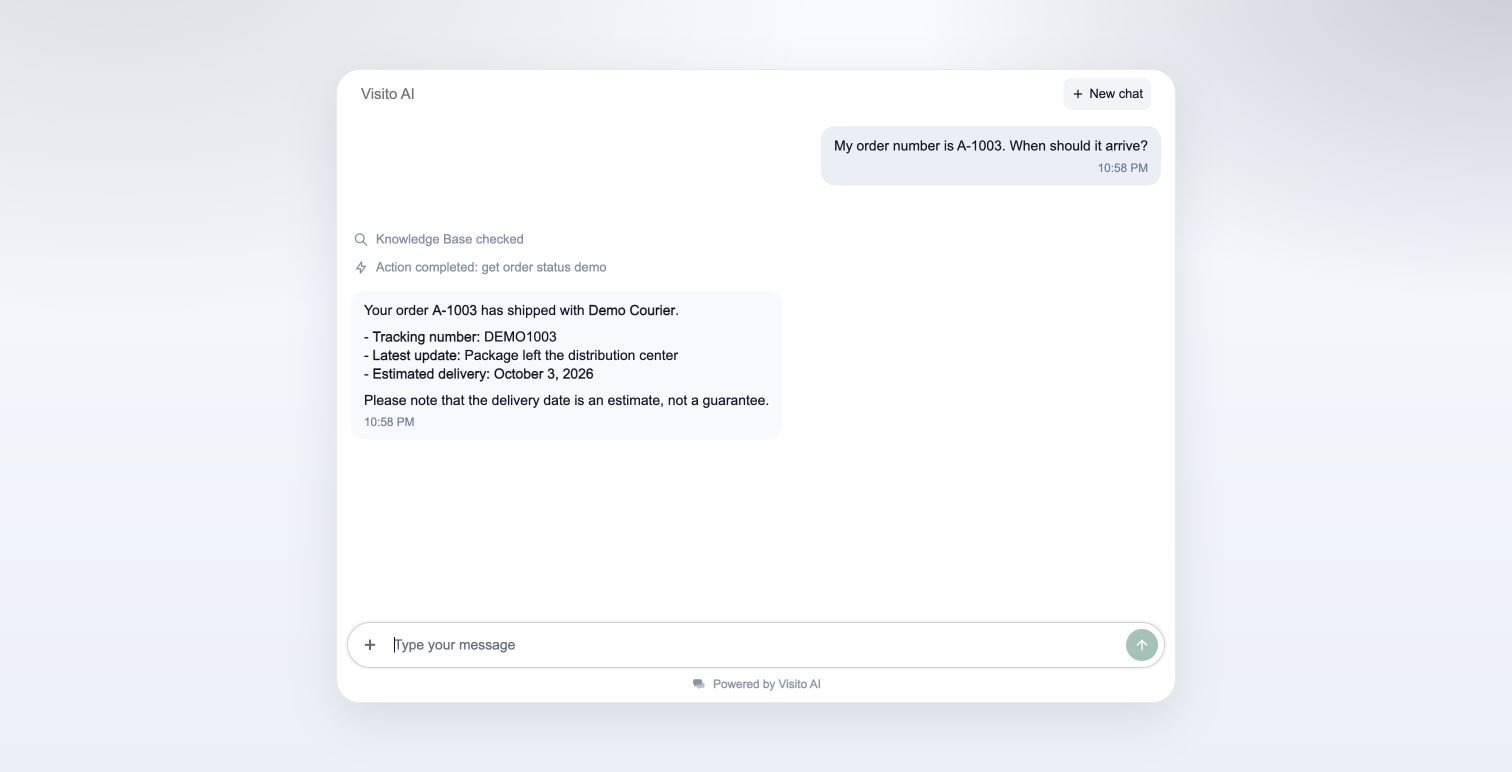
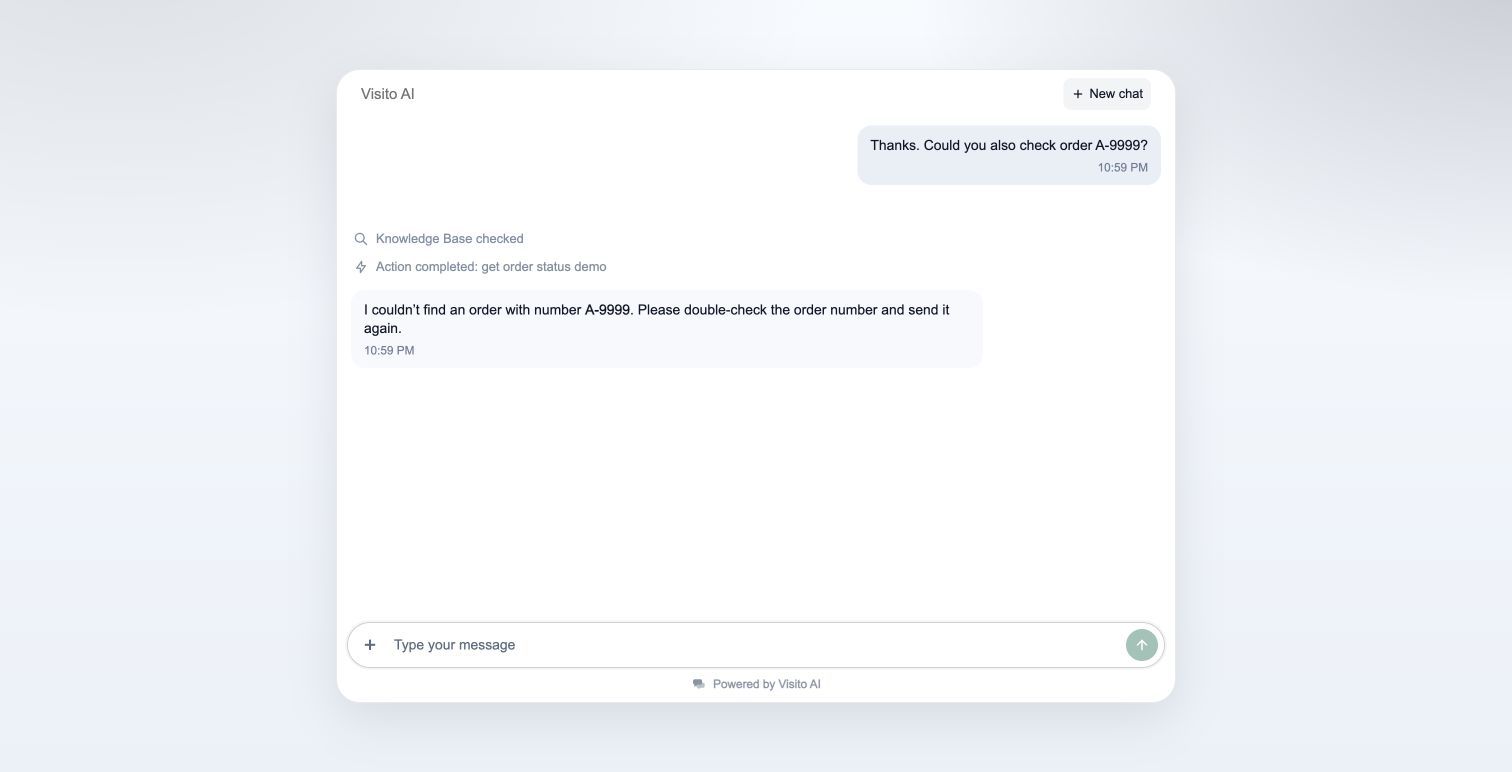
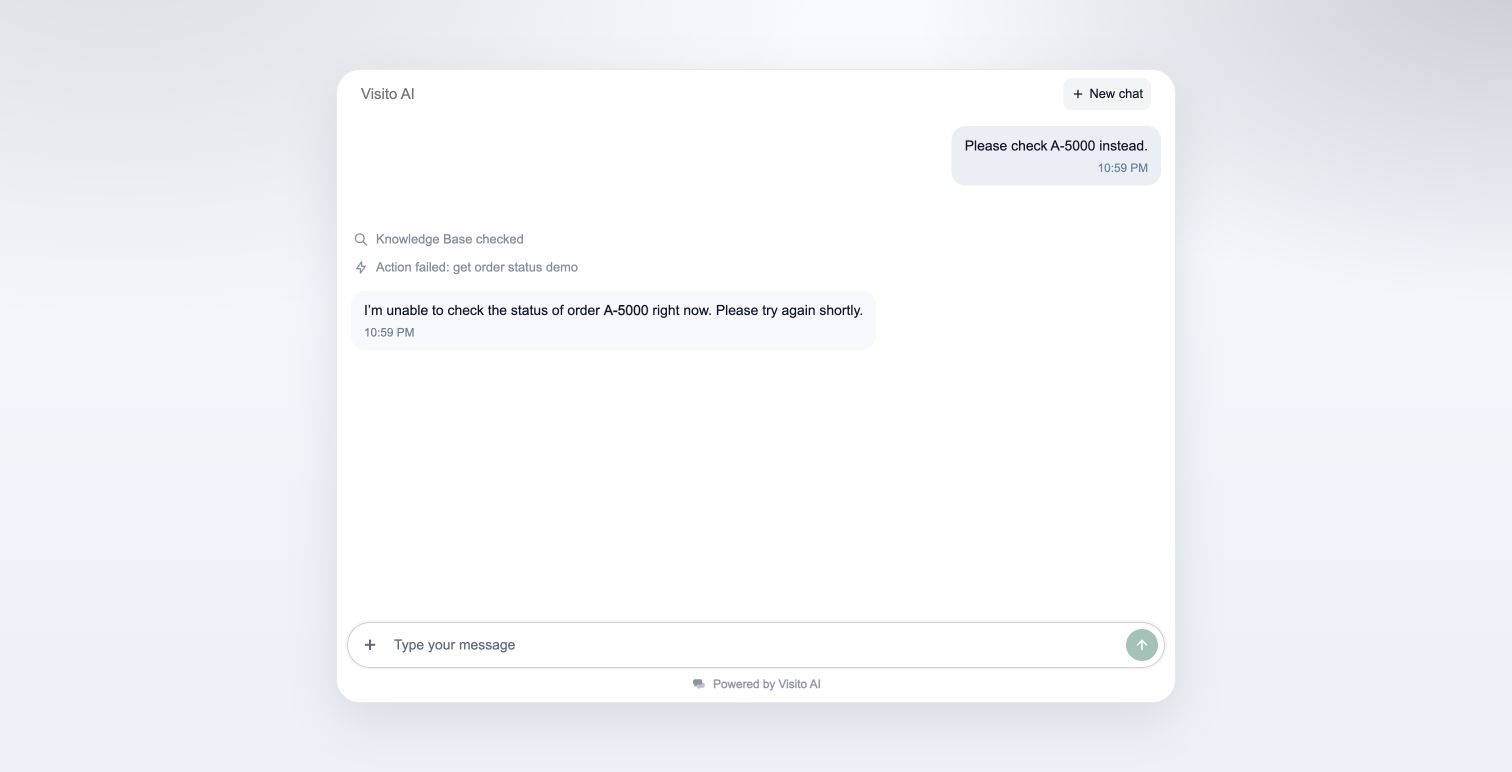 These screenshots were captured from the local test. They do not validate production connectivity or production handoff rules. The local planner was disabled during this isolated test. Test your actual routing before release.
## 5. Review History and conversation details
Go to **Actions → History**, select the environment and action, and open an execution. Match the timestamp and order number to your conversation.
These screenshots were captured from the local test. They do not validate production connectivity or production handoff rules. The local planner was disabled during this isolated test. Test your actual routing before release.
## 5. Review History and conversation details
Go to **Actions → History**, select the environment and action, and open an execution. Match the timestamp and order number to your conversation.
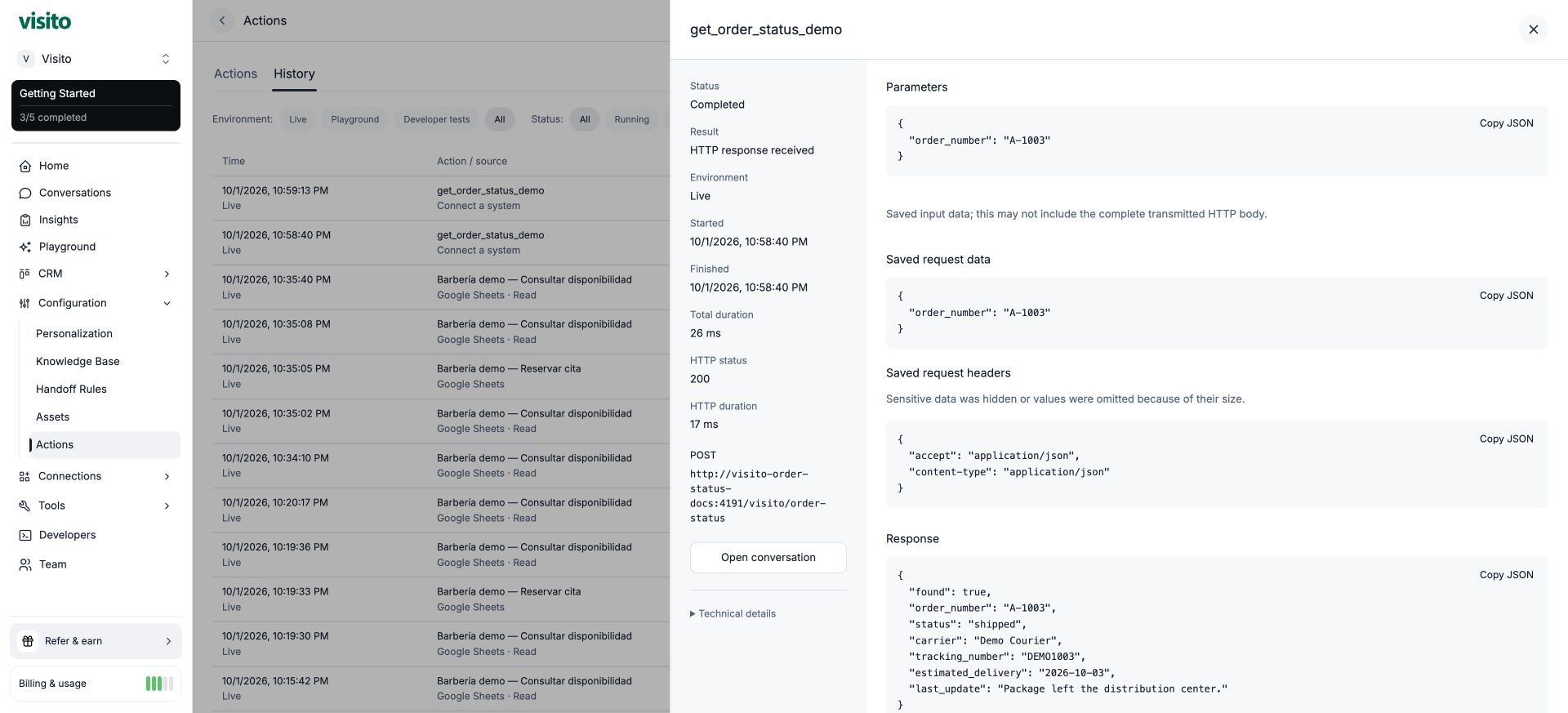 Review **Parameters**, **Saved request data**, **Saved request headers**, and **Response**. The saved request data may contain only the action arguments, not the entire transmitted POST wrapper. Do not mistake `{ "order_number": "A-1003" }` in this panel for the complete body your endpoint must parse. Authentication details are hidden or redacted.
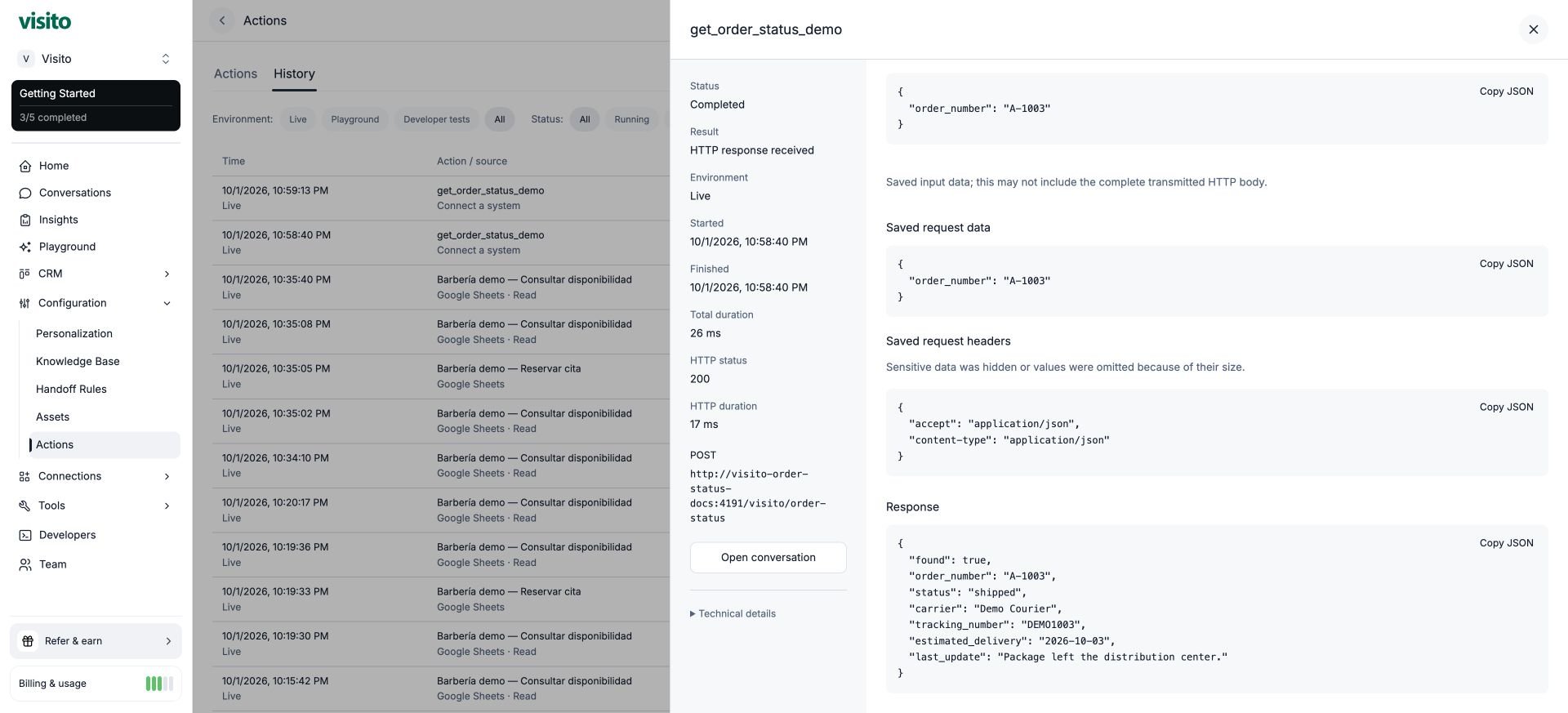 For the demonstrated successful lookup, History showed HTTP 200, 17 ms for HTTP, and 26 ms total. These are observations from one local run, not a latency guarantee.
**HTTP response received** means the request completed. It does not mean the order was found or delivered: inspect `found` and `status`. An unknown order can correctly return HTTP 200 with `found: false`. HTTP 503 represents a failed lookup, not a missing order.
Expand **Technical details** for action and execution identifiers. Select **Open conversation** to follow the execution to the customer exchange. Expand the receipt next to the answer to see the outcome, integration, start time, and duration.
For the demonstrated successful lookup, History showed HTTP 200, 17 ms for HTTP, and 26 ms total. These are observations from one local run, not a latency guarantee.
**HTTP response received** means the request completed. It does not mean the order was found or delivered: inspect `found` and `status`. An unknown order can correctly return HTTP 200 with `found: false`. HTTP 503 represents a failed lookup, not a missing order.
Expand **Technical details** for action and execution identifiers. Select **Open conversation** to follow the execution to the customer exchange. Expand the receipt next to the answer to see the outcome, integration, start time, and duration.
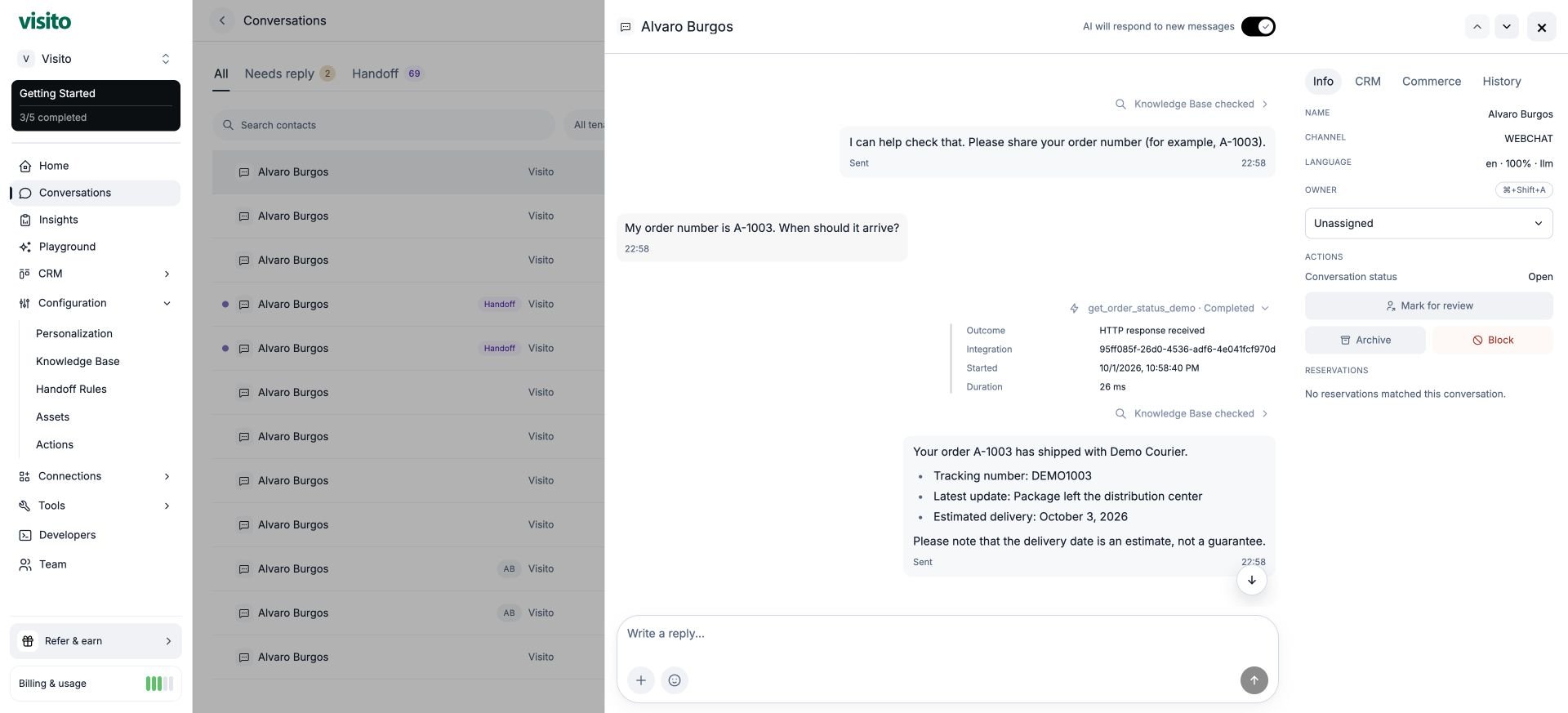 The full JSON lives in **Actions → History**; the receipt in the conversation summarizes the operation. The conversation sidebar's History tab is a separate activity history. Depending on the channel, customers may see a compact activity label, but should receive a useful answer rather than raw diagnostic data.
## 6. Troubleshoot and go live
| Symptom | Check |
| - | - |
| No action called | Mode, business scope, purpose, missing order number, and routing or handoff state |
| HTTP 401/403 | Endpoint credential and expected authentication header |
| HTTP 400 | `arguments.order_number`, format, and server validation |
| Timeout or connection failure | Reachability from the backend, server health, and configured timeout |
| HTTP 200 with `found: false` | The lookup worked but there was no matching record |
| Correct response JSON but incorrect chat answer | Compare fields, remove conflicting instructions, and retest |
Before using real orders, your server must verify which records the requester may access. An order number or conversation metadata alone is not proof of ownership. Return only necessary customer-safe information. Keep production credentials on the server and in the action's authentication configuration, never in prompts.
To stop future calls, set the action to Off; that does not undo an in-flight request. At the end of the demonstration, turn it off before stopping the temporary server. Preserve the history for review.
For API management and tests, use [Actions and execution history](/api-docs/actions-api). Stable HTTP IDs use `http:`. Discovery, management, diagnostics, and customer-parameter access have separate scopes; existing Tools clients remain compatible. Old Developer Tools links redirect to Actions.
The same lookup pattern works for stock: collect `sku`, return `available` and `quantity_available`, and explain the result. A stock lookup does not reserve inventory.
This documentation is built and hosted on [Mintlify](https://mintlify.com), a developer documentation platform.
The full JSON lives in **Actions → History**; the receipt in the conversation summarizes the operation. The conversation sidebar's History tab is a separate activity history. Depending on the channel, customers may see a compact activity label, but should receive a useful answer rather than raw diagnostic data.
## 6. Troubleshoot and go live
| Symptom | Check |
| - | - |
| No action called | Mode, business scope, purpose, missing order number, and routing or handoff state |
| HTTP 401/403 | Endpoint credential and expected authentication header |
| HTTP 400 | `arguments.order_number`, format, and server validation |
| Timeout or connection failure | Reachability from the backend, server health, and configured timeout |
| HTTP 200 with `found: false` | The lookup worked but there was no matching record |
| Correct response JSON but incorrect chat answer | Compare fields, remove conflicting instructions, and retest |
Before using real orders, your server must verify which records the requester may access. An order number or conversation metadata alone is not proof of ownership. Return only necessary customer-safe information. Keep production credentials on the server and in the action's authentication configuration, never in prompts.
To stop future calls, set the action to Off; that does not undo an in-flight request. At the end of the demonstration, turn it off before stopping the temporary server. Preserve the history for review.
For API management and tests, use [Actions and execution history](/api-docs/actions-api). Stable HTTP IDs use `http:`. Discovery, management, diagnostics, and customer-parameter access have separate scopes; existing Tools clients remain compatible. Old Developer Tools links redirect to Actions.
The same lookup pattern works for stock: collect `sku`, return `available` and `quantity_available`, and explain the result. A stock lookup does not reserve inventory.
This documentation is built and hosted on [Mintlify](https://mintlify.com), a developer documentation platform.