> ## Documentation Index
> Fetch the complete documentation index at: https://docs.visitoai.com/llms.txt
> Use this file to discover all available pages before exploring further.
# Capture homebuyer preferences during a conversation
> Create a three-field real estate action, collect missing answers, save a submission, and verify it in History and the conversation CRM panel.
For general configuration, start with the [collection setup guide](/product-guides/ai-agent/collect-data). This page walks through one practical example.
**Collect data** turns answers in a conversation into a structured submission saved in Visito. In this example, a prospective homebuyer shares a New York City neighborhood, a purchase budget, and a timeframe. The agent asks for missing information, confirms the preferences, and saves them.
No spreadsheet, API server, or webhook is needed. This example captures preferences; it does not search listings, qualify a buyer, schedule a viewing, or automatically create a sales opportunity.
Screenshots use the English dashboard and a synthetic local test. The conversation appears under the signed-in test contact; the neighborhood and budget are fictional demonstration values. Use your own business scope and test contact when following along.
## 1. Create the action
Open **Configuration → Actions** and select the **Collect data** card. Give the action a specific name:
```text theme={null}
NYC homebuyer preferences
```
In **When and how the AI should use it**, describe the customer intent, the questions to ask, and the point at which the record should be saved:
```text theme={null}
Use when a customer wants to buy a home in New York City and share their search preferences. Ask for their preferred neighborhood, maximum purchase budget in US dollars, and purchase timeframe: within 3, 6, or 10 months. Collect missing fields naturally; never invent answers. Confirm the three preferences before saving. If a timeframe does not match an option, ask the customer to choose. Save once after confirmation. This records preferences only; it does not find listings, qualify buyers, arrange a viewing, or promise a callback.
```
Choose **Available in** deliberately. This demo uses **All businesses** in a controlled workspace. For a real estate team within a larger workspace, select the relevant business so unrelated conversations do not receive this action.
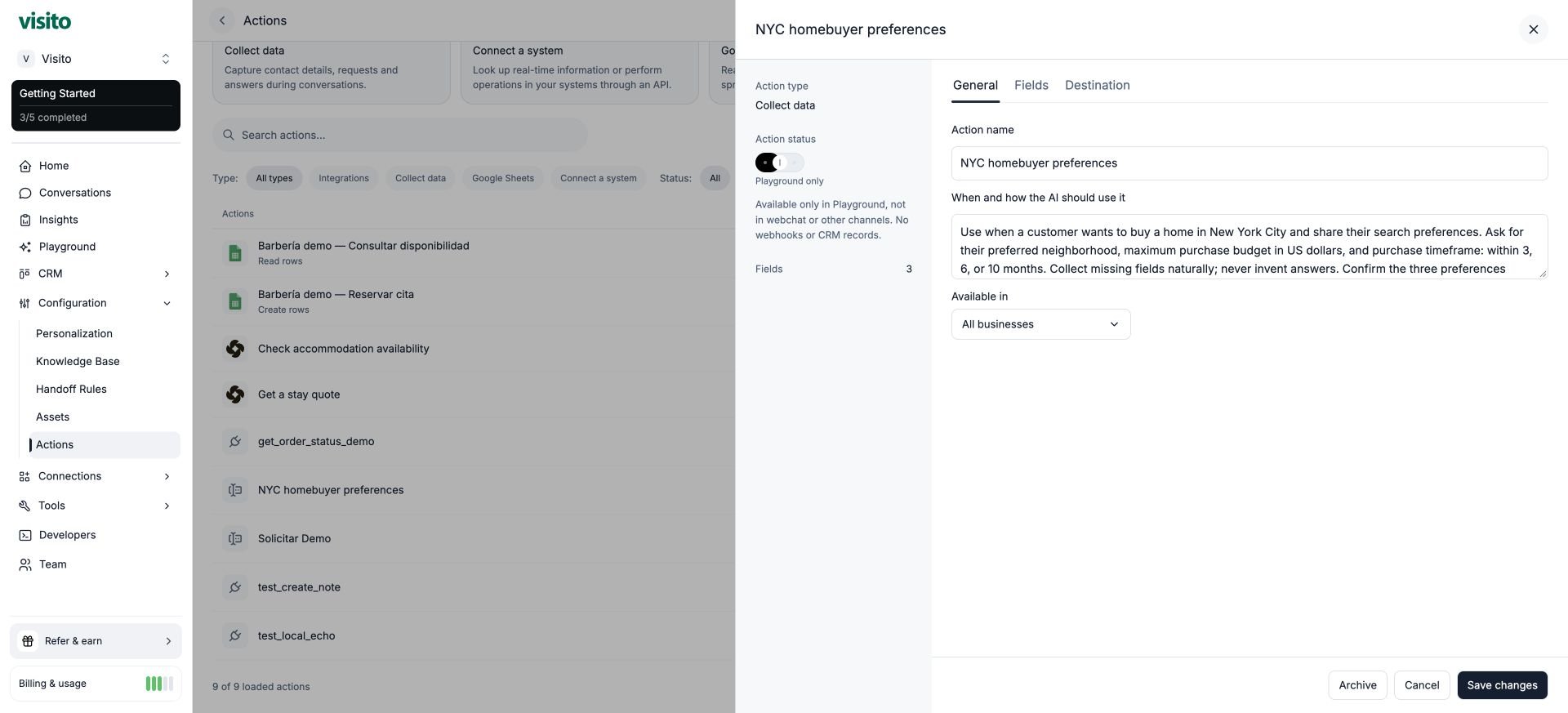 The screenshot shows the saved editor. Creation presents the same general settings together with fields and an optional destination. After creation, reopen the action to use the **General**, **Fields**, and **Destination** tabs.
## 2. Define the three fields
Select **Add field** for each row below. Keep **Required** checked on all three.
| Field name | Type | What the field captures | Example saved value |
| - | - | - | - |
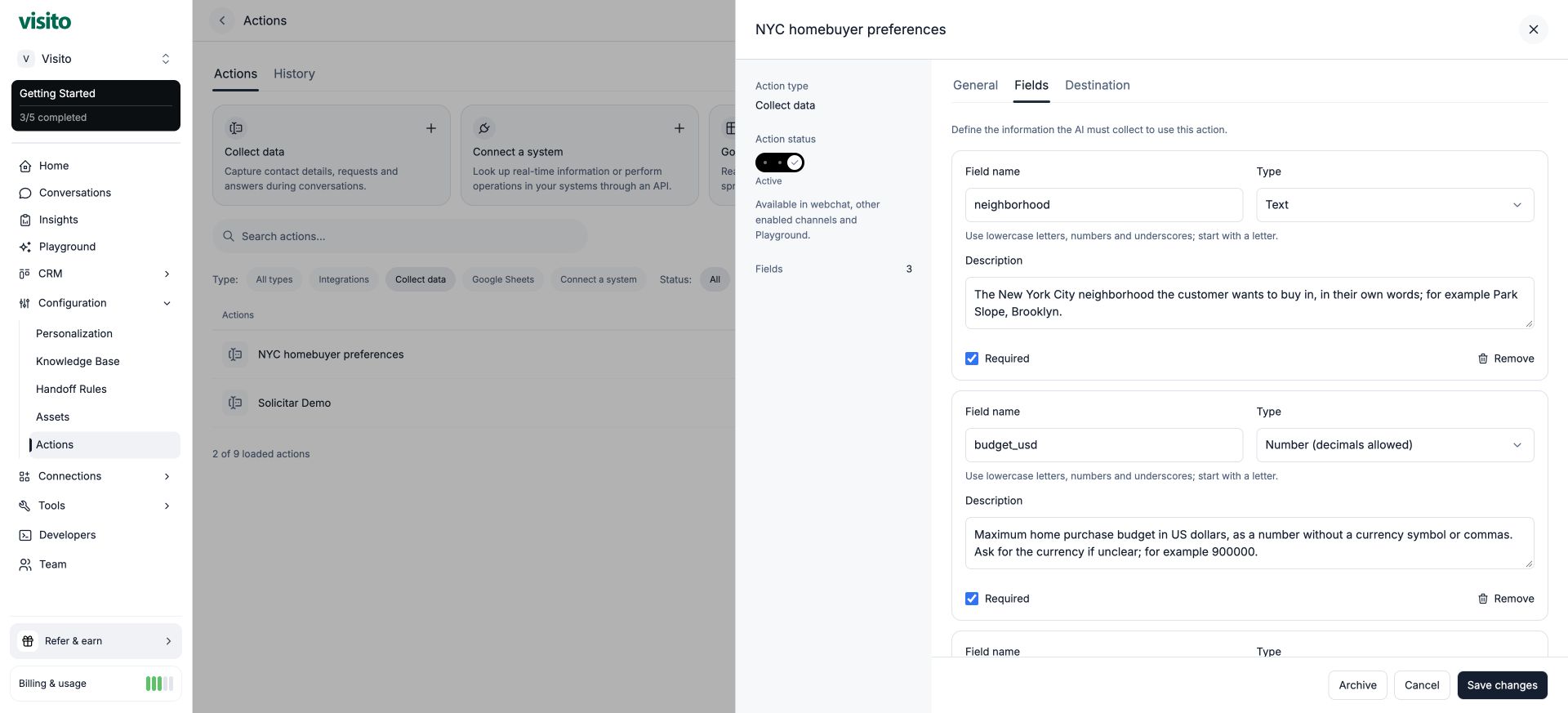
| `neighborhood` | Text | The NYC neighborhood in the customer's own words | `Park Slope, Brooklyn` |
| `budget_usd` | Number (decimals allowed) | Maximum purchase budget in US dollars | `900000` |
| `purchase_timeframe` | Choose one | One agreed purchase timeframe | `Within 6 months` |
Field names are stable identifiers for saved values. Use lowercase letters, numbers, and underscores, starting with a letter. Field descriptions guide the agent; they are more useful than a label alone.
Use these descriptions:
**neighborhood**
```text theme={null}
The New York City neighborhood the customer wants to buy in, in their own words; for example Park Slope, Brooklyn.
```
**budget\_usd**
```text theme={null}
Maximum home purchase budget in US dollars, as a number without a currency symbol or commas. Ask for the currency if unclear; for example 900000.
```
**purchase\_timeframe**
```text theme={null}
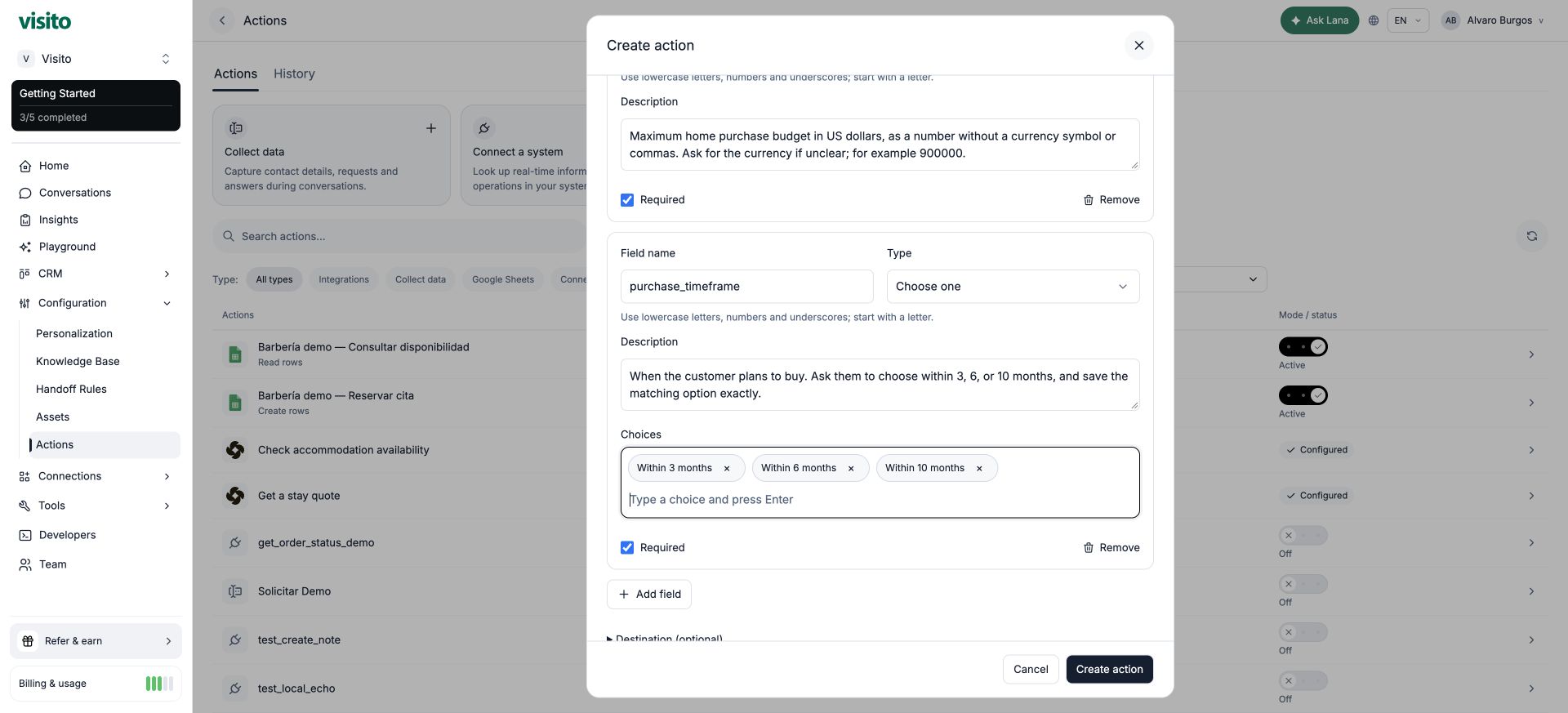
When the customer plans to buy. Ask them to choose within 3, 6, or 10 months, and save the matching option exactly.
```
The screenshot shows the saved editor. Creation presents the same general settings together with fields and an optional destination. After creation, reopen the action to use the **General**, **Fields**, and **Destination** tabs.
## 2. Define the three fields
Select **Add field** for each row below. Keep **Required** checked on all three.
| Field name | Type | What the field captures | Example saved value |
| - | - | - | - |
| `neighborhood` | Text | The NYC neighborhood in the customer's own words | `Park Slope, Brooklyn` |
| `budget_usd` | Number (decimals allowed) | Maximum purchase budget in US dollars | `900000` |
| `purchase_timeframe` | Choose one | One agreed purchase timeframe | `Within 6 months` |
Field names are stable identifiers for saved values. Use lowercase letters, numbers, and underscores, starting with a letter. Field descriptions guide the agent; they are more useful than a label alone.
Use these descriptions:
**neighborhood**
```text theme={null}
The New York City neighborhood the customer wants to buy in, in their own words; for example Park Slope, Brooklyn.
```
**budget\_usd**
```text theme={null}
Maximum home purchase budget in US dollars, as a number without a currency symbol or commas. Ask for the currency if unclear; for example 900000.
```
**purchase\_timeframe**
```text theme={null}
When the customer plans to buy. Ask them to choose within 3, 6, or 10 months, and save the matching option exactly.
```
 For **Choose one**, enter each option in **Add choice** and press **Enter** after each:
```text theme={null}
Within 3 months
Within 6 months
Within 10 months
```
Check that all three appear as separate chips. The customer can say “the next six months”; the saved value must be the configured `Within 6 months` option. Do not silently force an answer outside those choices into the nearest option.
For **Choose one**, enter each option in **Add choice** and press **Enter** after each:
```text theme={null}
Within 3 months
Within 6 months
Within 10 months
```
Check that all three appear as separate chips. The customer can say “the next six months”; the saved value must be the configured `Within 6 months` option. Do not silently force an answer outside those choices into the nearest option.
 The numeric type stores `900000` as a number, not the formatted string `$900,000`. The USD convention comes from your field name and instructions. A number type alone does not explain the currency to the customer.
“Required” means a value must be supplied before submission. Confirmation before saving is part of this action's instructions; the checkbox alone does not add a confirmation step.
## 3. Leave the destination empty
For this example, keep **HTTPS destination** and **Bearer token** empty. The submission stays in Visito.
The numeric type stores `900000` as a number, not the formatted string `$900,000`. The USD convention comes from your field name and instructions. A number type alone does not explain the currency to the customer.
“Required” means a value must be supplied before submission. Confirmation before saving is part of this action's instructions; the checkbox alone does not add a confirmation step.
## 3. Leave the destination empty
For this example, keep **HTTPS destination** and **Bearer token** empty. The submission stays in Visito.
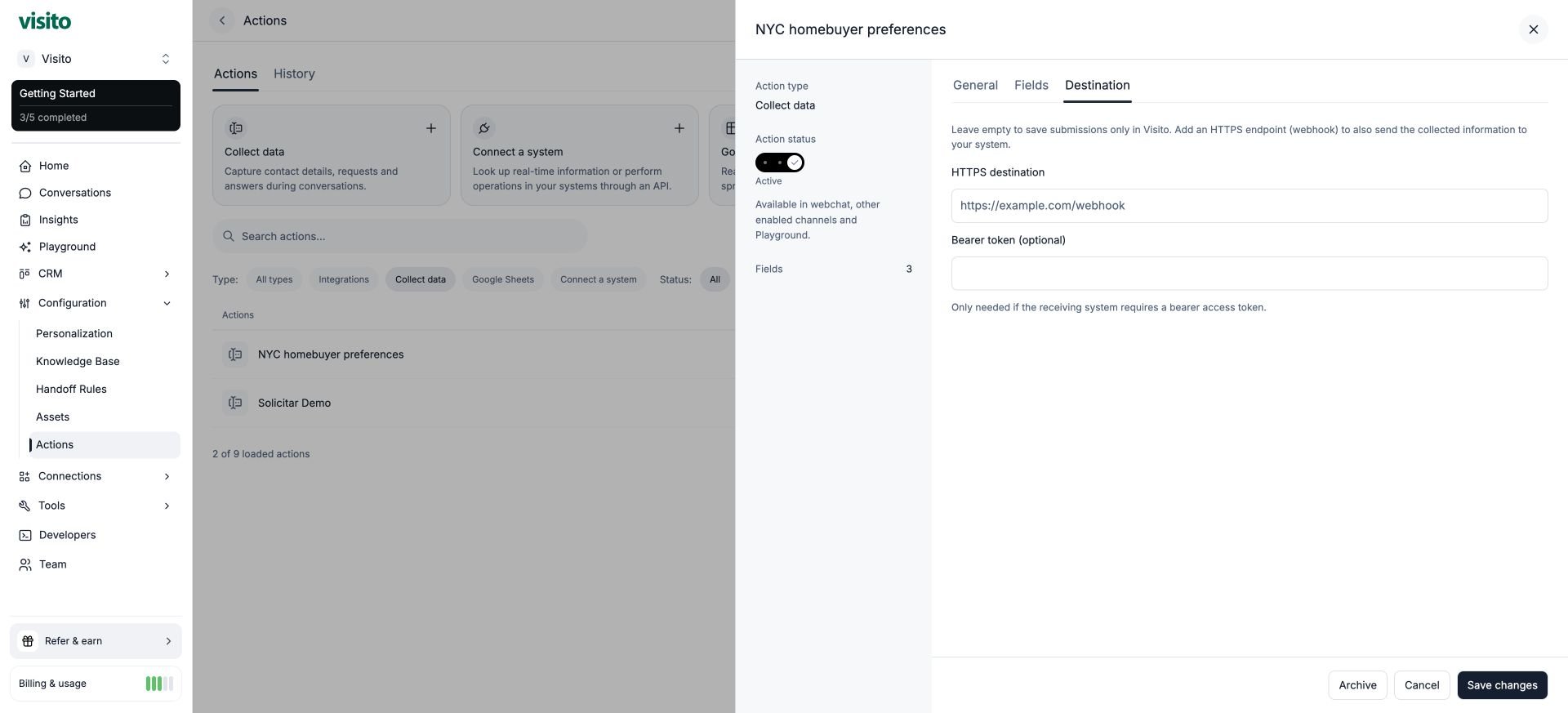 A webhook is optional delivery of collected information to another system. It is separate from a [Connect a system](/product-guides/ai-agent/custom-tools) action that calls an API to obtain a result during the conversation. No webhook was sent in this example.
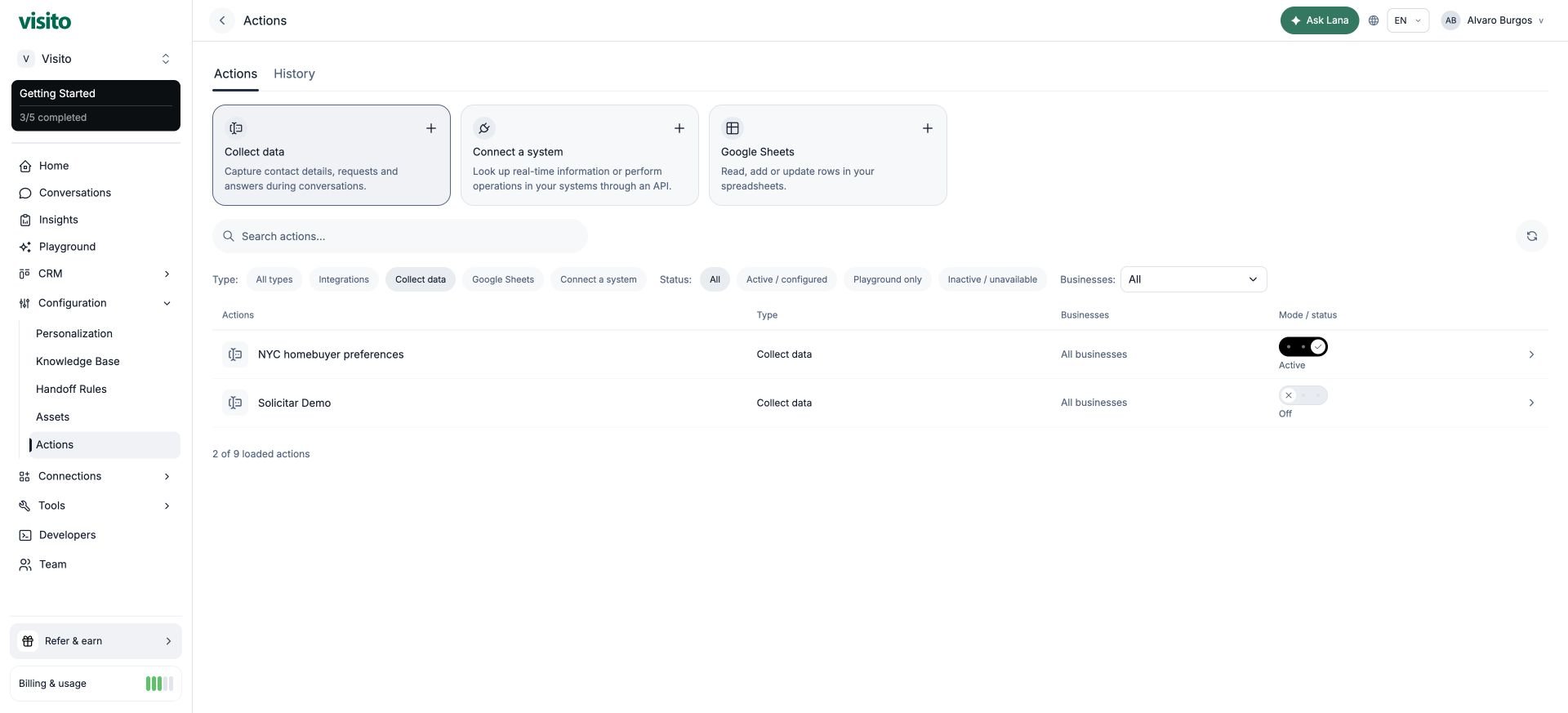
Select **Create action**. New collection actions start in **Playground only**. The status control offers:
| Mode | Behavior |
| - | - |
| Off | Unavailable for new agent executions. Existing history is retained. |
| Playground only | Available for testing; submissions are test-only, with no webhooks or CRM records. |
| Active | Available in enabled live channels, including Webchat, subject to business scope. |
For a controlled Webchat test, reopen the action, choose **Active**, and select **Save changes**. Use synthetic preferences. In this local demonstration, the planner was temporarily disabled to test the response layer's action flow; production routing was not verified.
A webhook is optional delivery of collected information to another system. It is separate from a [Connect a system](/product-guides/ai-agent/custom-tools) action that calls an API to obtain a result during the conversation. No webhook was sent in this example.
Select **Create action**. New collection actions start in **Playground only**. The status control offers:
| Mode | Behavior |
| - | - |
| Off | Unavailable for new agent executions. Existing history is retained. |
| Playground only | Available for testing; submissions are test-only, with no webhooks or CRM records. |
| Active | Available in enabled live channels, including Webchat, subject to business scope. |
For a controlled Webchat test, reopen the action, choose **Active**, and select **Save changes**. Use synthetic preferences. In this local demonstration, the planner was temporarily disabled to test the response layer's action flow; production routing was not verified.
 ## 4. Test a natural conversation
Start a new Webchat conversation. Do not tell the agent an internal tool name: test the customer's normal intent.
1. **Customer:** “Hi! I'm looking to buy a home in New York City. Can I share what I'm looking for?”
2. The agent asks for neighborhood, maximum budget in USD, and timeframe.
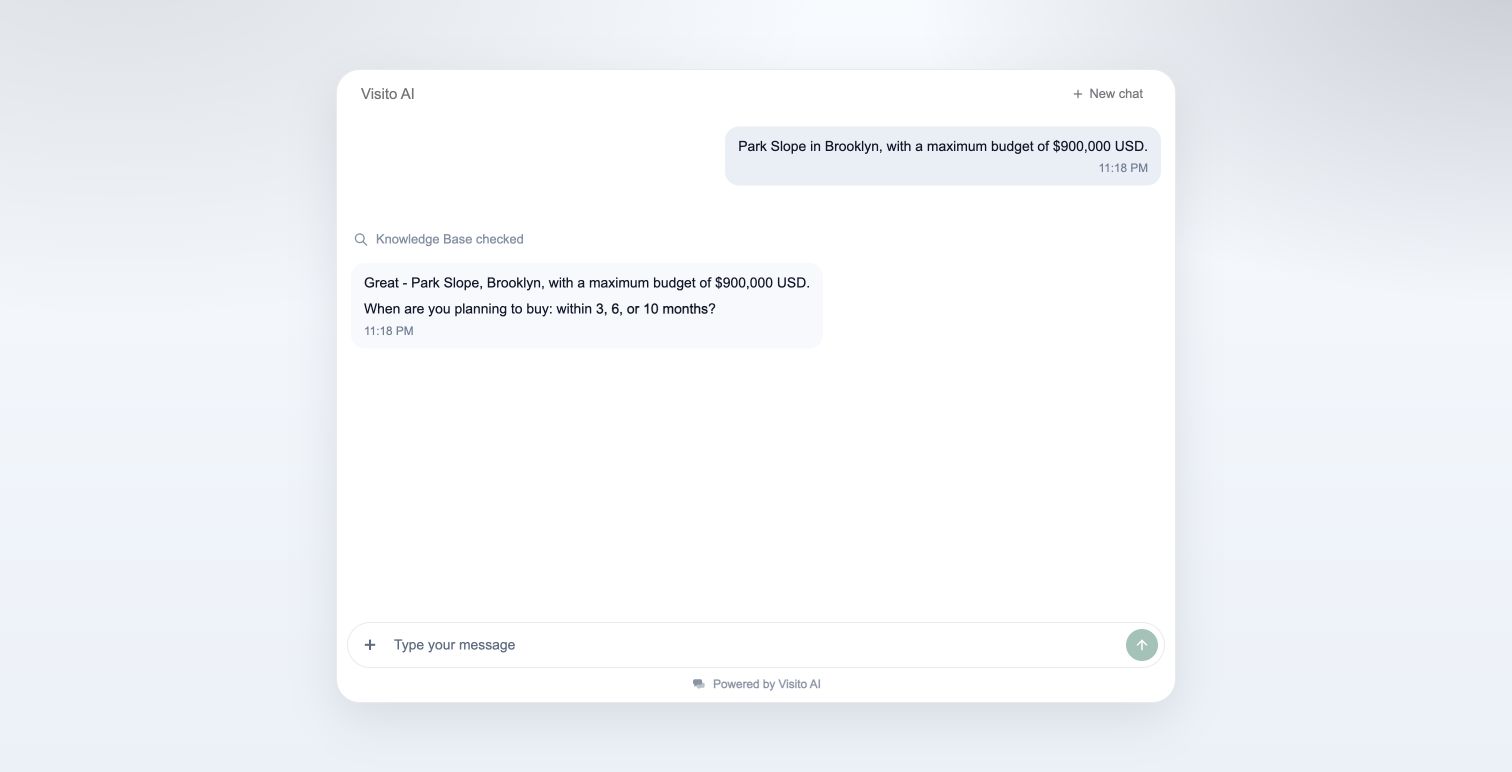
3. **Customer:** “Park Slope in Brooklyn, with a maximum budget of \$900,000 USD.”
4. The agent asks for the missing timeframe instead of saving an incomplete record.
## 4. Test a natural conversation
Start a new Webchat conversation. Do not tell the agent an internal tool name: test the customer's normal intent.
1. **Customer:** “Hi! I'm looking to buy a home in New York City. Can I share what I'm looking for?”
2. The agent asks for neighborhood, maximum budget in USD, and timeframe.
3. **Customer:** “Park Slope in Brooklyn, with a maximum budget of \$900,000 USD.”
4. The agent asks for the missing timeframe instead of saving an incomplete record.
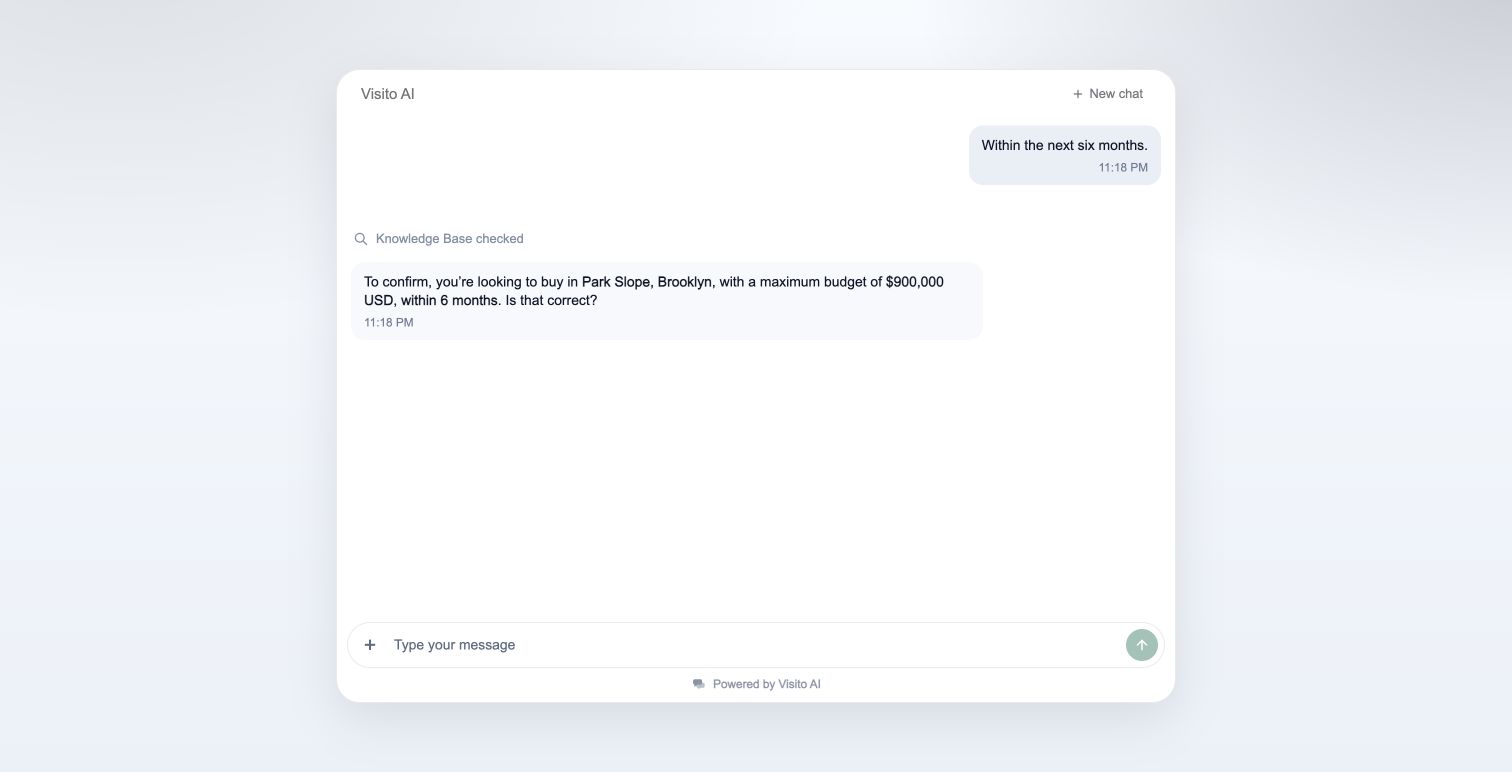
 5. **Customer:** “Within the next six months.”
6. The agent repeats all three preferences and asks whether they are correct.
5. **Customer:** “Within the next six months.”
6. The agent repeats all three preferences and asks whether they are correct.
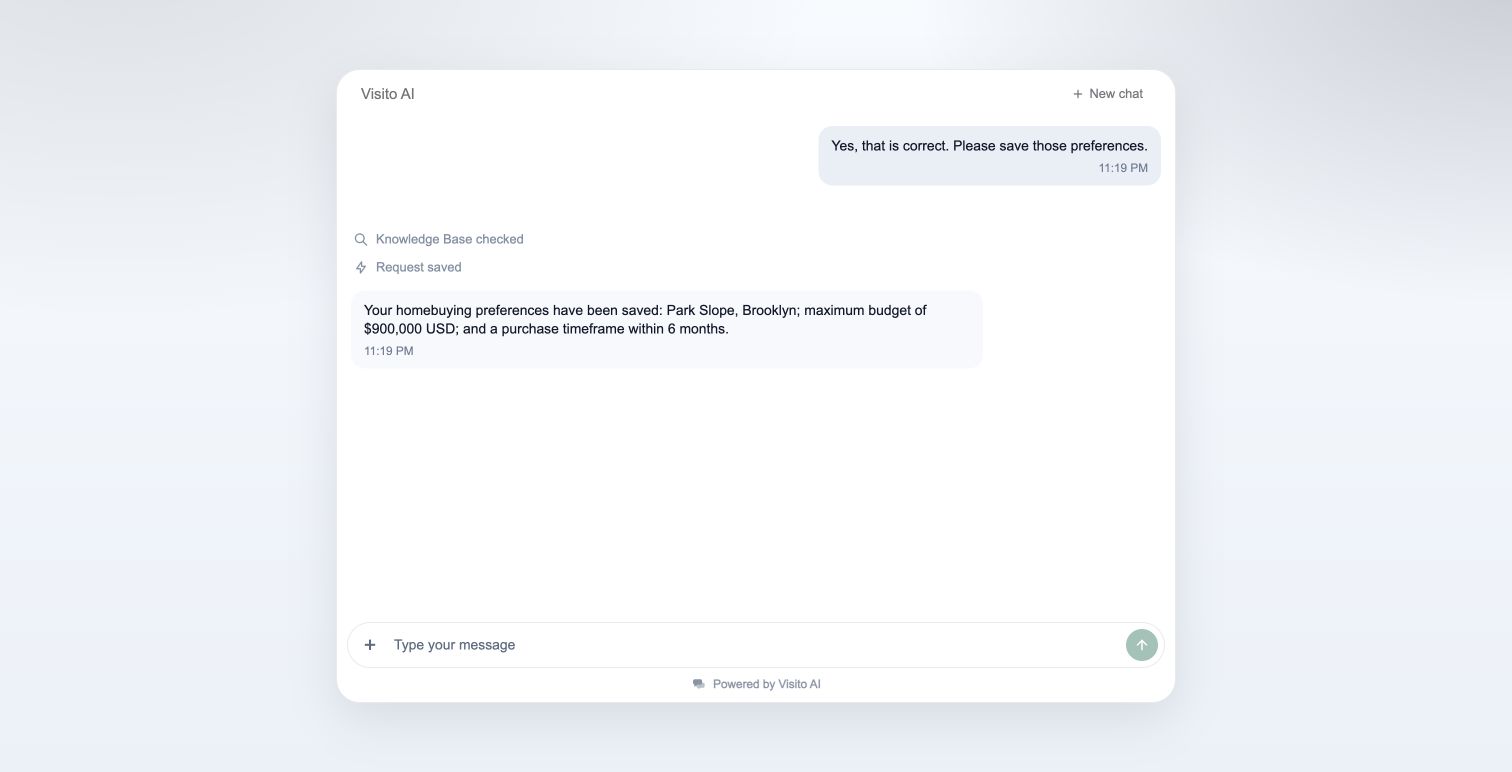
 7. **Customer:** “Yes, that is correct. Please save those preferences.”
8. The action runs, Webchat shows **Request saved**, and the agent confirms the saved preferences.
7. **Customer:** “Yes, that is correct. Please save those preferences.”
8. The action runs, Webchat shows **Request saved**, and the agent confirms the saved preferences.
 This test produced one submission, with these values:
```json theme={null}
{
"neighborhood": "Park Slope, Brooklyn",
"budget_usd": 900000,
"purchase_timeframe": "Within 6 months"
}
```
## 5. Inspect Actions history
Open **Actions → History**, select the action in the **Action** filter, and open the relevant execution. Refresh if the newest execution has not appeared.
The demonstration shows **Completed → Information saved**, environment **Live**, the three parameters, and a response containing `status: submitted` and a `submissionId`. “Live” describes the channel mode; the screenshot is from a local test environment.
This test produced one submission, with these values:
```json theme={null}
{
"neighborhood": "Park Slope, Brooklyn",
"budget_usd": 900000,
"purchase_timeframe": "Within 6 months"
}
```
## 5. Inspect Actions history
Open **Actions → History**, select the action in the **Action** filter, and open the relevant execution. Refresh if the newest execution has not appeared.
The demonstration shows **Completed → Information saved**, environment **Live**, the three parameters, and a response containing `status: submitted` and a `submissionId`. “Live” describes the channel mode; the screenshot is from a local test environment.
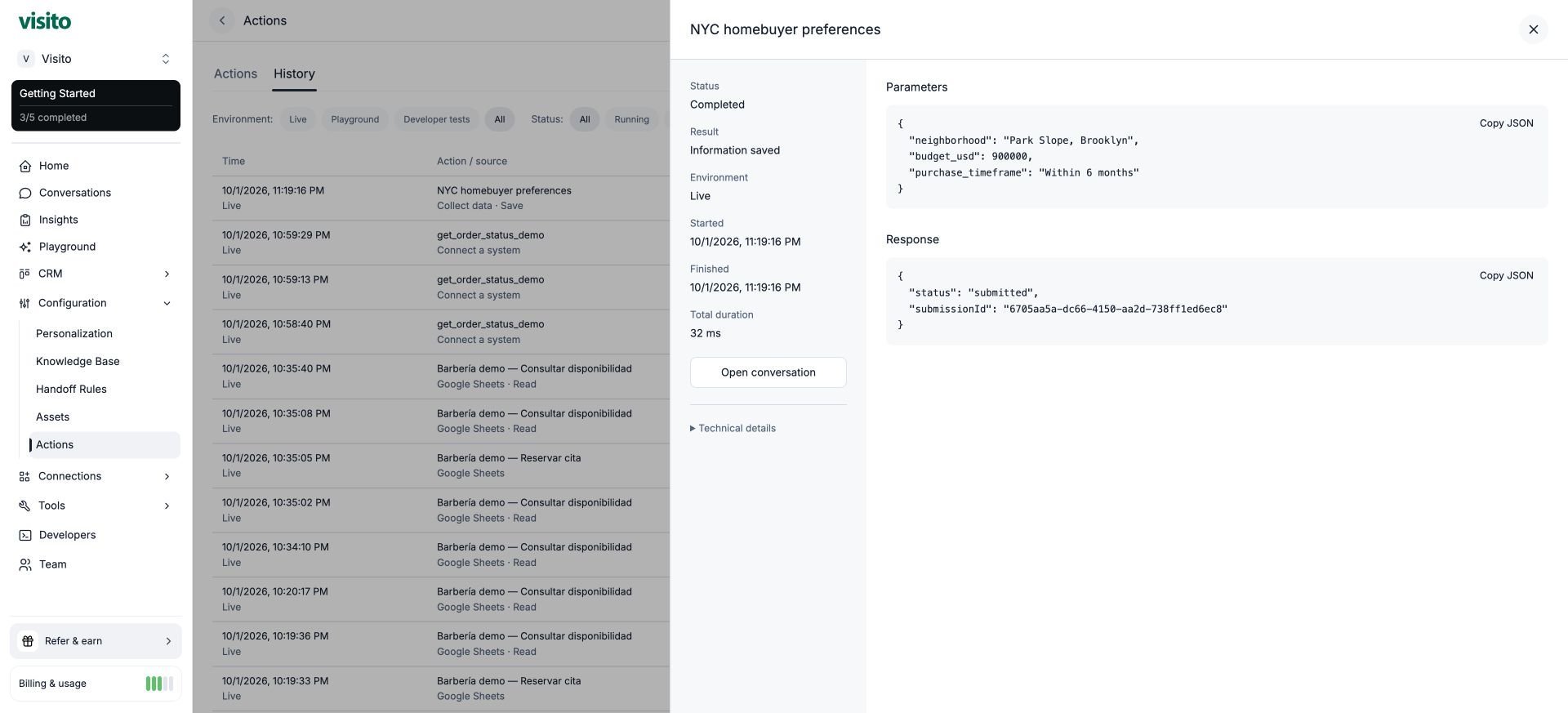 The saved submission ID is the concrete result behind the agent's confirmation. This example's execution took 32 ms in the local environment; that is action execution time, not a promise about full conversation latency.
## 6. Inspect the conversation and saved record
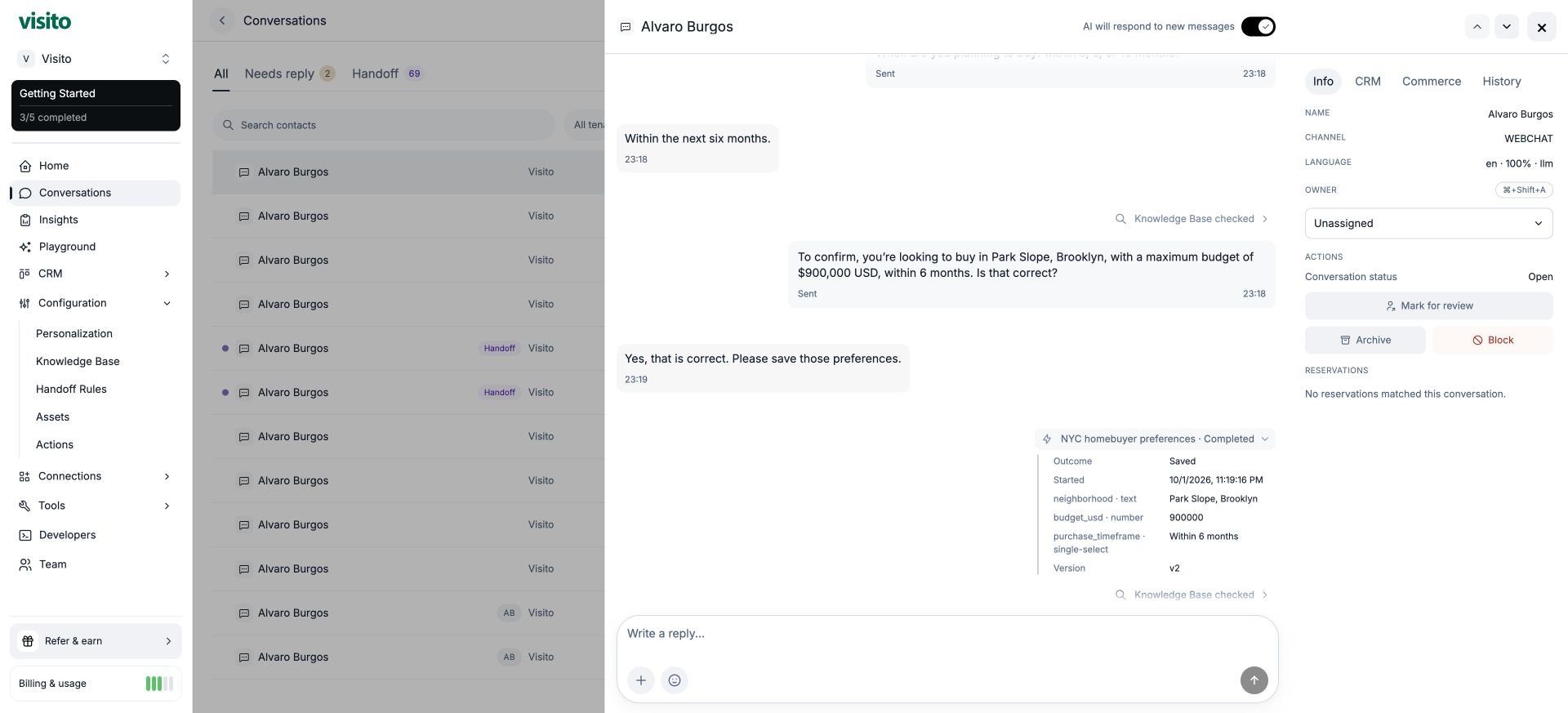
Select **Open conversation** in the execution detail. Expand **NYC homebuyer preferences · Completed** in the transcript. It shows **Outcome: Saved**, the submitted fields and their types, and the action version used.
The saved submission ID is the concrete result behind the agent's confirmation. This example's execution took 32 ms in the local environment; that is action execution time, not a promise about full conversation latency.
## 6. Inspect the conversation and saved record
Select **Open conversation** in the execution detail. Expand **NYC homebuyer preferences · Completed** in the transcript. It shows **Outcome: Saved**, the submitted fields and their types, and the action version used.
 Open the conversation's **CRM** tab. Under **Action submissions**, verify the same neighborhood, numeric budget, and timeframe. **Webhook: Not configured** is expected because the destination was empty.
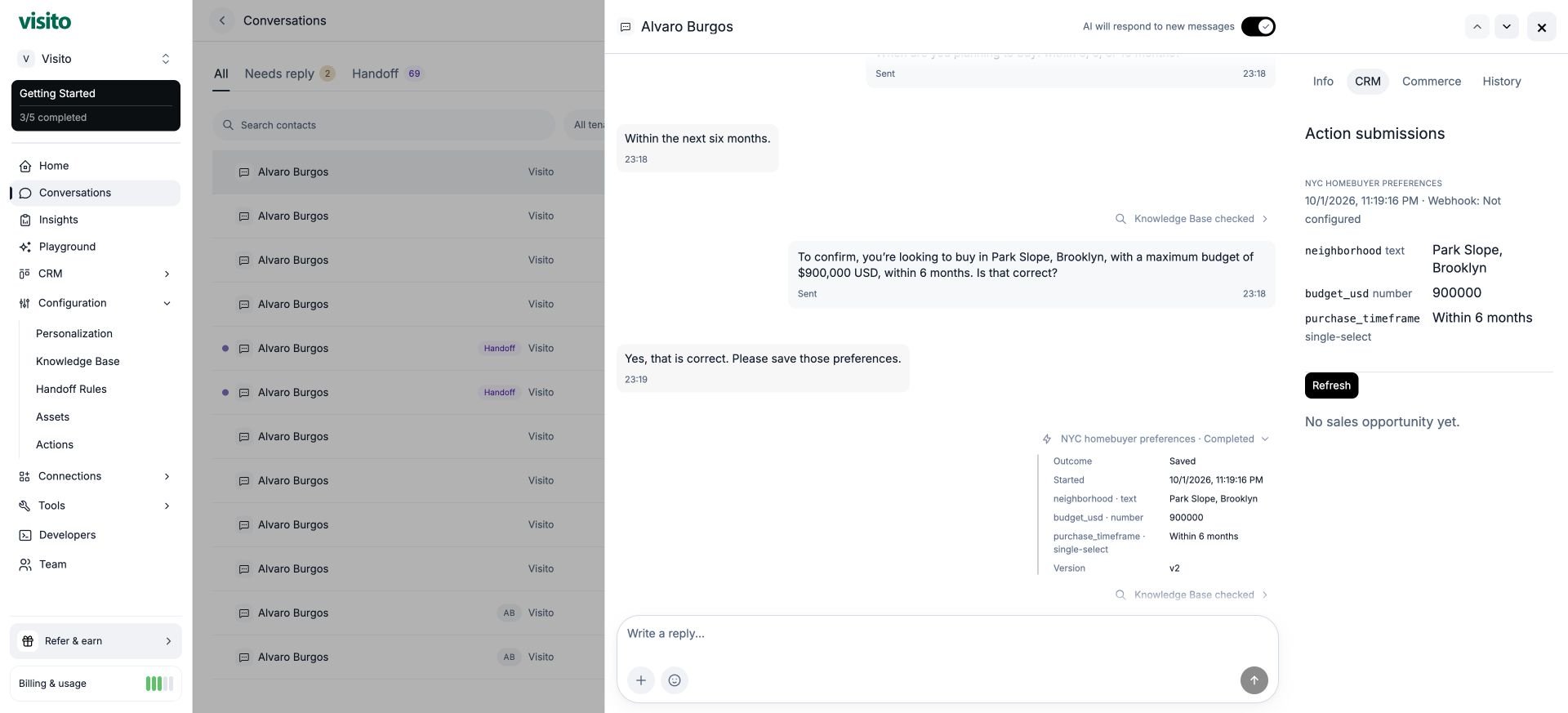 The panel also says **No sales opportunity yet** in this example. A collection submission is not automatically a sales opportunity, a follow-up assignment, or a scheduled callback. Configure those separately if your workflow needs them. For a real lead workflow, add a contact field only if you need it and explain its purpose to the customer.
## Reuse and troubleshoot
* **The agent cannot use it:** check mode, business scope, saved changes, and whether routing handed the conversation to a person before the action could run.
* **No record in CRM after a Playground test:** expected. Playground submissions are isolated from live CRM records.
* **A required answer is missing:** the agent should ask for it. Do not fill gaps with invented values.
* **The customer gives a different timeframe:** ask them to choose a supported option, or intentionally edit the action's choices for your business.
* **The customer corrects a value:** confirm the revised preferences before submission. Do not assume a new invocation edits the earlier record.
* **The answer says saved:** verify the receipt and submission; the natural-language answer alone is not sufficient evidence.
Before publishing your own version, test incomplete answers, ambiguous currency, unsupported choices, corrections before saving, and a complete submission. This walkthrough directly verified missing-field collection, confirmation, numeric/choice normalization, saved history, and the CRM record. It did not test webhook delivery or production routing.
After capturing the local example, return the demo action to **Playground only** to avoid collecting new live submissions unintentionally. The demonstrated record and execution history remain available.
This documentation is built and hosted on [Mintlify](https://mintlify.com), a developer documentation platform.
The panel also says **No sales opportunity yet** in this example. A collection submission is not automatically a sales opportunity, a follow-up assignment, or a scheduled callback. Configure those separately if your workflow needs them. For a real lead workflow, add a contact field only if you need it and explain its purpose to the customer.
## Reuse and troubleshoot
* **The agent cannot use it:** check mode, business scope, saved changes, and whether routing handed the conversation to a person before the action could run.
* **No record in CRM after a Playground test:** expected. Playground submissions are isolated from live CRM records.
* **A required answer is missing:** the agent should ask for it. Do not fill gaps with invented values.
* **The customer gives a different timeframe:** ask them to choose a supported option, or intentionally edit the action's choices for your business.
* **The customer corrects a value:** confirm the revised preferences before submission. Do not assume a new invocation edits the earlier record.
* **The answer says saved:** verify the receipt and submission; the natural-language answer alone is not sufficient evidence.
Before publishing your own version, test incomplete answers, ambiguous currency, unsupported choices, corrections before saving, and a complete submission. This walkthrough directly verified missing-field collection, confirmation, numeric/choice normalization, saved history, and the CRM record. It did not test webhook delivery or production routing.
After capturing the local example, return the demo action to **Playground only** to avoid collecting new live submissions unintentionally. The demonstrated record and execution history remain available.
This documentation is built and hosted on [Mintlify](https://mintlify.com), a developer documentation platform.