> ## Documentation Index
> Fetch the complete documentation index at: https://docs.visitoai.com/llms.txt
> Use this file to discover all available pages before exploring further.
# Ai Escalations
> Automatically hand off a conversation from the AI agent to a human
## How Escalations Work
* Escalations can be **enabled or disabled globally**.
* When enabled, the AI continuously checks each conversation against the escalation rules.
* If a rule is triggered:
* The AI pauses its responses.
* The conversation is escalated to your team.
* A human can continue the interaction manually.
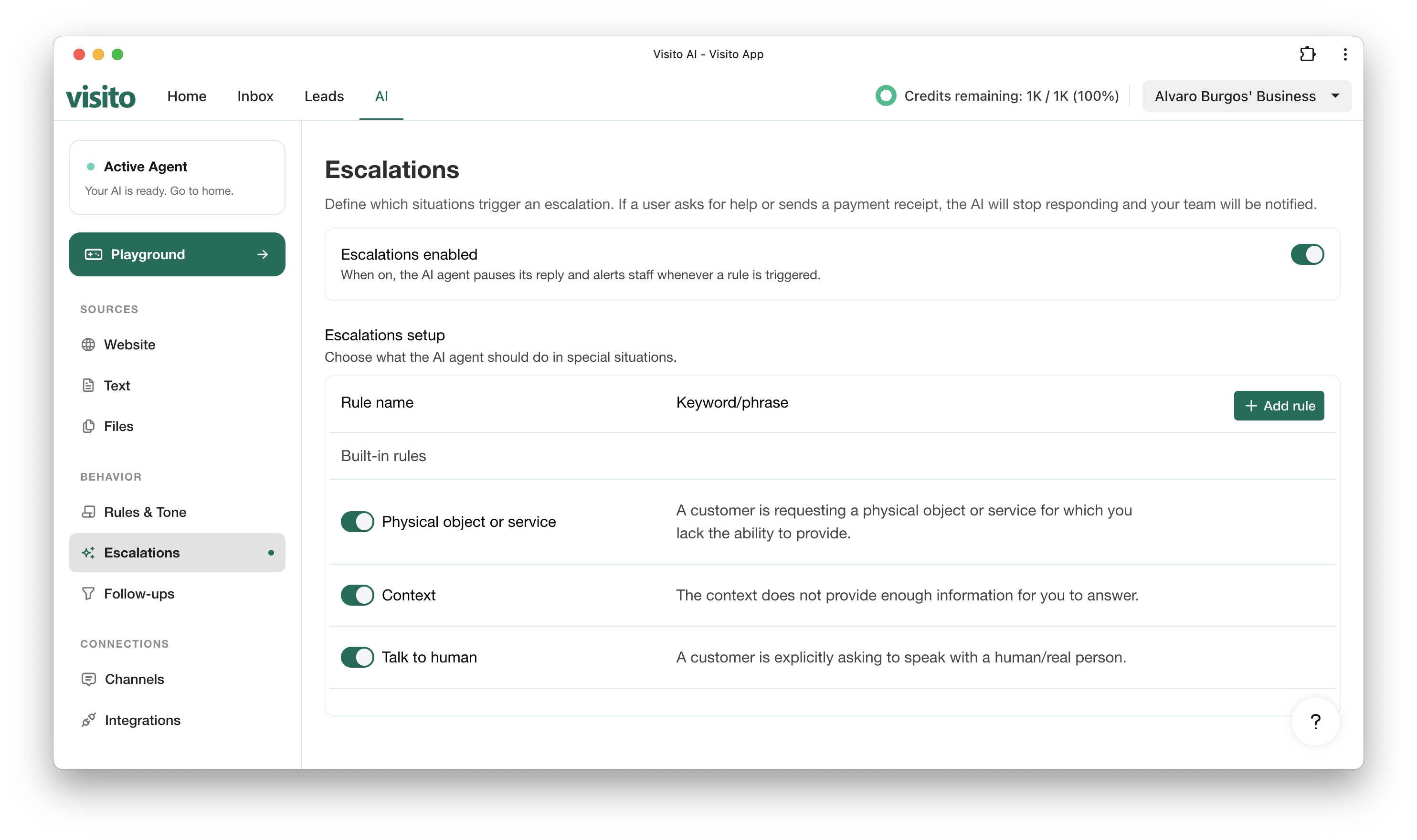 ## Built-in Escalation Rules
Visito provides several built-in rules that cover the most common escalation scenarios:
### 1. Physical Object or Service
Triggered when:
> A customer is requesting a physical object or a service that the AI cannot provide.
**Example:**
* “Can you send me the keys?”
* “I want to buy this product and have it delivered today.”
This prevents the AI from committing to actions it cannot perform.
### 2. Context Missing
Triggered when:
> The AI does not have enough information to answer correctly.
**Example:**
* The user asks about a booking, but no booking data exists.
* The request is ambiguous or lacks required details.
This avoids incorrect or misleading responses.
### 3. Talk to Human
Triggered when:
> A customer explicitly asks to speak with a real person.
**Example:**
* “I want to talk to a human.”
* “Can someone from your team help me?”
This ensures a smooth transition when the user requests human assistance.
## Custom Escalation Rules
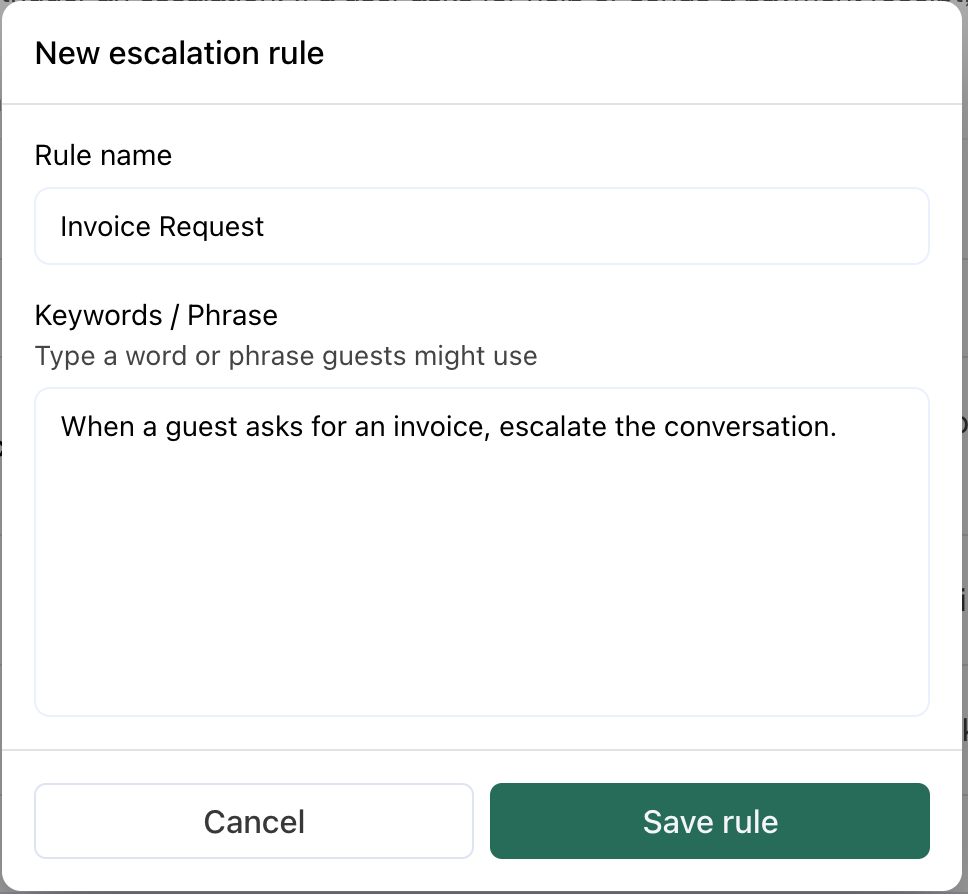
You can also create **custom escalation rules** using keywords or phrases.
**Example use case:**
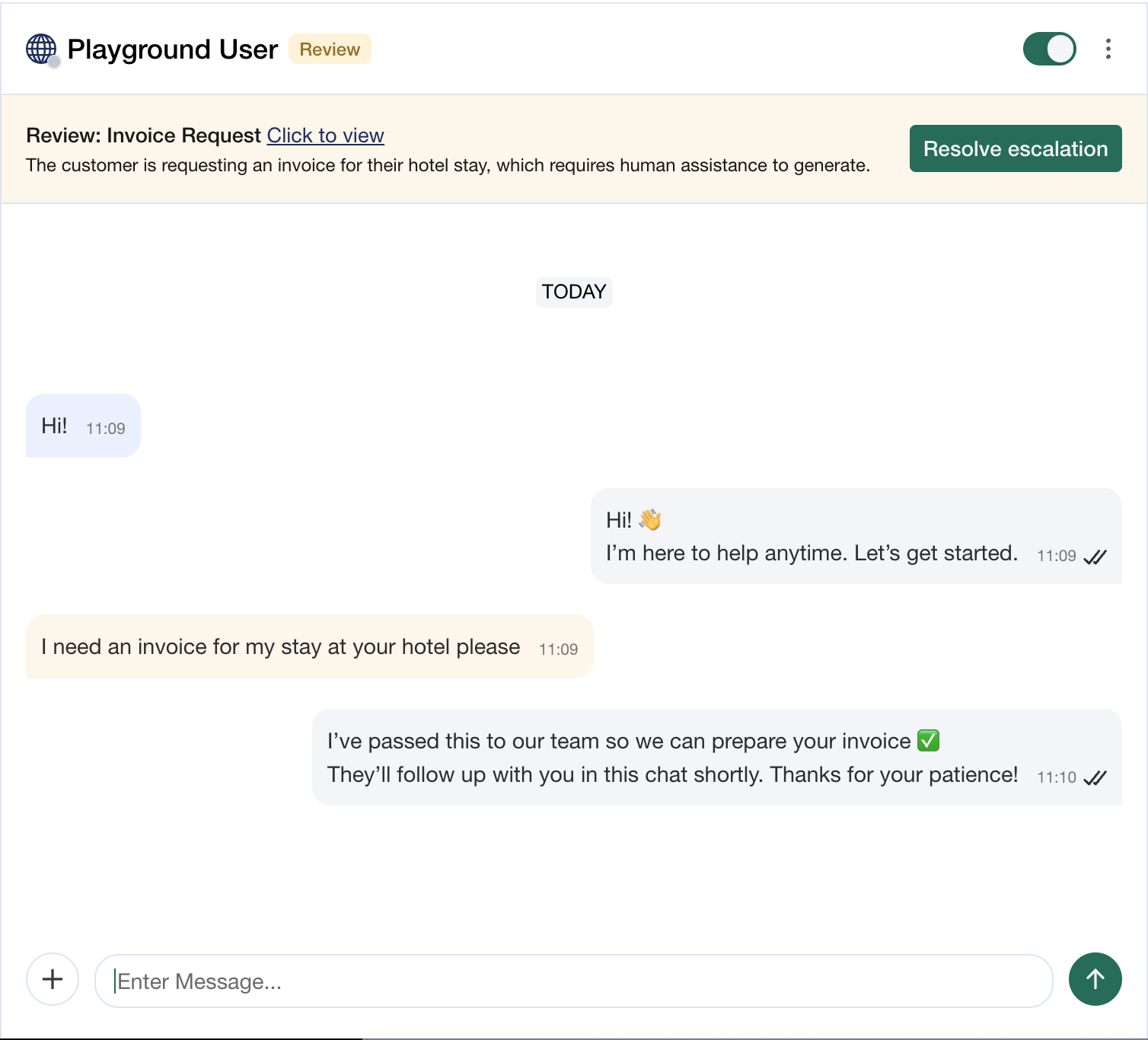
* *Invoice request (Invoice)*
* Rule: When a guest asks for an invoice or factura, escalate the conversation.
* Result: The AI pauses the conversation and notifies a human so the invoice can be reviewed, generated, and sent correctly.
Custom rules give you full control over which scenarios require manual review.
## Built-in Escalation Rules
Visito provides several built-in rules that cover the most common escalation scenarios:
### 1. Physical Object or Service
Triggered when:
> A customer is requesting a physical object or a service that the AI cannot provide.
**Example:**
* “Can you send me the keys?”
* “I want to buy this product and have it delivered today.”
This prevents the AI from committing to actions it cannot perform.
### 2. Context Missing
Triggered when:
> The AI does not have enough information to answer correctly.
**Example:**
* The user asks about a booking, but no booking data exists.
* The request is ambiguous or lacks required details.
This avoids incorrect or misleading responses.
### 3. Talk to Human
Triggered when:
> A customer explicitly asks to speak with a real person.
**Example:**
* “I want to talk to a human.”
* “Can someone from your team help me?”
This ensures a smooth transition when the user requests human assistance.
## Custom Escalation Rules
You can also create **custom escalation rules** using keywords or phrases.
**Example use case:**
* *Invoice request (Invoice)*
* Rule: When a guest asks for an invoice or factura, escalate the conversation.
* Result: The AI pauses the conversation and notifies a human so the invoice can be reviewed, generated, and sent correctly.
Custom rules give you full control over which scenarios require manual review.
 ## When to Use Escalations
Escalations are ideal when:
* A human must approve or complete a process
* Legal, financial, or sensitive topics are involved
* The AI should never fully complete the request on its own
* You want safety and control without blocking automation entirely
## Escalations vs Rules & Tone
* **Escalations** → Transfer the conversation to a human.
* **Rules & Tone** → Control *how* the AI responds without involving a human.
In many cases, both can be used together for maximum control.
## Best Practice
We recommend enabling escalations and starting with the built-in rules, then adding custom rules for your specific business workflows.
This gives you a safe, scalable balance between automation and human oversight.
## When to Use Escalations
Escalations are ideal when:
* A human must approve or complete a process
* Legal, financial, or sensitive topics are involved
* The AI should never fully complete the request on its own
* You want safety and control without blocking automation entirely
## Escalations vs Rules & Tone
* **Escalations** → Transfer the conversation to a human.
* **Rules & Tone** → Control *how* the AI responds without involving a human.
In many cases, both can be used together for maximum control.
## Best Practice
We recommend enabling escalations and starting with the built-in rules, then adding custom rules for your specific business workflows.
This gives you a safe, scalable balance between automation and human oversight.