> ## Documentation Index
> Fetch the complete documentation index at: https://docs.visitoai.com/llms.txt
> Use this file to discover all available pages before exploring further.
# Connect your agent to an order system
> Create your first custom tool, connect a live order lookup, and test the complete customer experience in Playground.
A customer asks, “Where is order A-1003?” Your agent can use a **custom tool** to look up the order in your system and explain its current status in the conversation.
You configure when to use the tool and what information to collect. Your endpoint looks up the order and returns the facts. Visito turns those facts into a reply.
## Choose what to connect
Use **Knowledge** for information such as policies and FAQs. Use a **custom tool** when the answer depends on a fresh lookup: an order status, stock level, appointment slot, or account balance.
| Your system | How to connect it |
| --------------------------------------------------------------------------------------- | ------------------------------------------------------------------------------------------------------------------------- |
| An API that accepts GET query parameters and returns JSON | You may be able to connect it directly. Match the tool's parameter names to the API's query parameters. |
| An API that accepts Visito's POST format | Connect its endpoint and configure its authentication. |
| An API with a different body format, dynamic URL paths, OAuth refresh, or several steps | Have your developer create a small endpoint that translates Visito's request into calls to that system. |
| A database or a system without an API | Have your developer expose a narrow lookup endpoint. Visito does not connect directly to your database through this form. |
For this walkthrough, use one read-only operation: **get the status of one order**. Keep cancellations, refunds, and order updates as separate tools.
## Before you start
You need administrator access to the correct Visito workspace, an endpoint reachable from Visito's backend, and a test order in that system. Use a workspace without live customer channels for your first experiment.
Ask your developer for:
* The endpoint URL, HTTP method, and authentication secret.
* The input field names, such as `order_number`.
* One known order and one unknown order to test.
* A small JSON response with status information that is safe to show to the customer.
Don't have an endpoint yet? Follow the [runnable order-status example](/api-docs/guides/order-status-tool), then return here. The URLs and order data below are examples; replace the endpoint with your own working URL.
Playground sends real requests to your configured endpoint. It does not simulate your order system. The **Active** setting also makes the tool available for live execution; it is not a Playground-only release switch.
## 1. Add the tool definition
Open **Tools → Build → Tool calls → Definitions**, then select **New definition**.
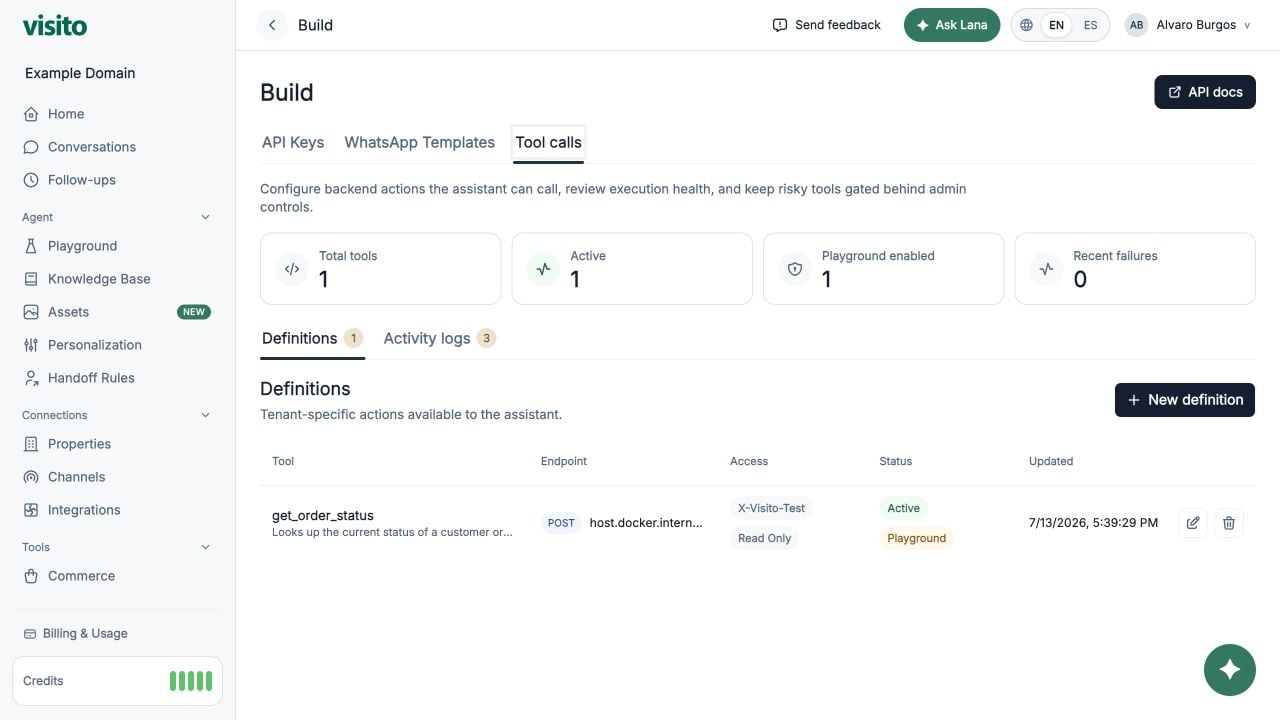 Fill in these fields:
| Field | Value for this example |
| -------------------------- | ---------------------------------------------------------------------------------------------- |
| **Name** | `get_order_status` |
| **Method** | `POST` |
| **Endpoint URL** | Your URL, for example `https://api.example.com/visito/order-status` |
| **Timeout** | `8000` (milliseconds, or 8 seconds) |
| **Description** | Paste the description below. |
| **Parameters JSON schema** | Paste the schema below. |
| **Auth** | `Bearer`, if your endpoint expects a bearer token. |
| **Secret** | The endpoint's token, without the `Bearer ` prefix. |
| **Active** | Off while preparing and testing the endpoint; on before the Playground conversation in step 3. |
| **Read only** | On. Your endpoint must actually perform a lookup without changing data. |
| **Playground** | On for this walkthrough. See the behavior below. |
Use this description to explain when the tool helps and when to ask a follow-up question:
```text theme={null}
Look up the current status of an order when a customer asks where their order
is or whether it has shipped. Ask for the order number if it is missing.
Use the order number supplied by the customer; never invent one.
If found is false, ask the customer to check the number.
This tool does not cancel, modify, or refund orders.
```
The schema describes the information the agent should collect. Paste the schema, not an example order or the whole HTTP request:
```json theme={null}
{
"type": "object",
"properties": {
"order_number": {
"type": "string",
"description": "The order number supplied by the customer, for example A-1003."
}
},
"required": ["order_number"],
"additionalProperties": false
}
```
Save the definition. You can edit it later; leave **Secret** blank to keep the saved value.
### Understand the three switches
* **Active** makes the definition available to the agent. Inactive tools are not available for normal conversations, including Playground.
* **Read only** declares that the endpoint does not change data. It does not enforce that behavior on your server.
* **Playground** allows a tool that changes data to run in Playground. Active read-only tools are already eligible even when this switch is off. Turning it off is not a way to disable testing of a read-only tool.
### Use the right credential
The secret here authenticates **Visito → your system**. A Visito API key authenticates **your application → Visito** and is only needed if you manage or test tools through the API.
For **API key** authentication, enter the exact **Header name** your endpoint expects, such as `X-API-Key`, and its secret. For Bearer authentication, Visito adds `Authorization: Bearer ...` automatically. Keep credentials out of the description, schema, and chat messages.
## 2. Check the endpoint before the conversation
Have your developer send this request to your endpoint with the configured authentication:
```json theme={null}
{
"arguments": {
"order_number": "A-1003"
},
"meta": {
"tenantId": "YOUR_TEST_TENANT_ID",
"source": "developer_test"
}
}
```
For a POST tool, the order number is inside **`arguments`**, not at the top level. A suitable response is HTTP `200` with:
```json theme={null}
{
"found": true,
"order_number": "A-1003",
"status": "out_for_delivery",
"delivery_estimate": "today"
}
```
A normal “order not found” result can also use HTTP `200`:
```json theme={null}
{
"found": false,
"order_number": "A-9999"
}
```
This means the lookup worked but found no matching order. Reserve HTTP errors for failed requests, such as invalid input, authentication failure, or an unavailable order service.
Your developer can also use the [Visito test endpoint](/api-docs/conversational-ai-api#test-a-tool) while the definition is inactive. This checks the saved URL and credentials and creates an activity log. It does not test whether the agent chooses the tool or writes a good answer. There is no separate endpoint-test form in the current Tool calls editor.
## 3. Try the customer experience in Playground
In your test workspace, turn **Active** on and save. Open **Agent → Playground** and select **New chat**.
The following are illustrative conversations using the sample response above. Wording can vary; compare the facts, the tool input, and the outcome.
### A customer supplies the order number
```text theme={null}
Customer: Where is order A-1003?
Operator activity: Running get order status...
Operator activity: Action completed: get order status
Assistant: Order A-1003 is out for delivery, with delivery estimated for today.
```
The running activity may be brief for a fast endpoint. Spaces replace underscores in the displayed tool name.
### A customer doesn't know what to provide
```text theme={null}
Customer: Has my order shipped?
Assistant: What is your order number?
Customer: A-1003
Operator activity: Action completed: get order status
Assistant: Order A-1003 is out for delivery, with delivery estimated for today.
```
Check that the agent asks for the missing number before calling your system. If it guesses a number, improve the description and agent instructions, then start a new chat and retest.
### An order isn't found
```text theme={null}
Customer: Where is order A-9999?
Operator activity: Action completed: get order status
Assistant: I couldn't find order A-9999. Could you check the order number?
```
**Action completed** means the HTTP call succeeded. It does not mean the order exists, has shipped, or has been delivered. The returned data determines the business result.
### The order system is unavailable
```text theme={null}
Customer: Where is order A-1003?
Operator activity: Action failed: get order status
Assistant: I couldn't check your order right now. Please try again shortly.
```
The agent should acknowledge the failed lookup without inventing a status. If you want a human follow-up, configure and test a [handoff rule](/product-guides/ai-agent/ai-escalations).
These activity receipts are for operators. Customers receive the assistant's answer, not the receipt or raw JSON. In live **Conversations**, the success receipt is the compact **Action completed**.
## 4. Inspect what actually happened
Open **Tools → Build → Tool calls → Activity logs**, filter by `get_order_status`, and open the relevant row. Match its time to your test.
Verify the input order number, endpoint and method, HTTP status, response body, duration, and any error. Configured authentication headers are redacted; request and response bodies should contain only necessary data.
| What you observe | What to check next |
| ------------------------------------- | --------------------------------------------------------------------------------------------------------------------------------------------- |
| No tool activity | Confirm the workspace, Active setting, clear description, and a new Playground chat. If configured through the API, check property scope too. |
| Agent asks for the order number | Expected when it is missing. Provide it and continue the conversation. |
| HTTP `401` or `403` | Verify the endpoint's secret and authentication header. |
| HTTP `400` | Check that the endpoint reads `arguments.order_number` for POST and validates the input. |
| Request fails or times out | Check reachability from Visito, endpoint health, and response time. A URL working in your browser may not be reachable from Visito. |
| Completed receipt but wrong answer | Compare the response body with the reply. Clarify ambiguous status fields and remove conflicting instructions or stale knowledge. |
| Completed receipt with `found: false` | The lookup succeeded; check the test number and the system's data. |
Each tool-call attempt consumes one credit, separately from a completed AI response. See [credit usage](/product-guides/product/usage-billing#what-is-a-visito-credit).
## 5. Use it with customers
Before activating the definition in your customer workspace, repeat the known-order, missing-number, unknown-order, and unavailable-system tests. Verify that your backend checks which orders the requester may see; knowing an order number alone is not proof of ownership.
Switch from sample data to your real lookup, keep the response limited to customer-safe facts, and review the first activity logs and replies. To stop future agent calls, edit the definition and turn **Active** off. This does not undo an in-flight request.
## Adapt the same pattern to availability
For a simple stock lookup, name the tool `check_stock` and require a `sku`. Your endpoint might return:
```json theme={null}
{
"sku": "MUG-BLUE",
"available": true,
"quantity_available": 7
}
```
Test “Is the blue mug in stock?” and “Do you have SKU MUG-BLUE?” The agent should obtain the required SKU or use a separate catalog lookup before checking stock. An availability lookup does not reserve inventory or create a booking.
Run a small order-status backend and connect it to your tool definition.
Fill in these fields:
| Field | Value for this example |
| -------------------------- | ---------------------------------------------------------------------------------------------- |
| **Name** | `get_order_status` |
| **Method** | `POST` |
| **Endpoint URL** | Your URL, for example `https://api.example.com/visito/order-status` |
| **Timeout** | `8000` (milliseconds, or 8 seconds) |
| **Description** | Paste the description below. |
| **Parameters JSON schema** | Paste the schema below. |
| **Auth** | `Bearer`, if your endpoint expects a bearer token. |
| **Secret** | The endpoint's token, without the `Bearer ` prefix. |
| **Active** | Off while preparing and testing the endpoint; on before the Playground conversation in step 3. |
| **Read only** | On. Your endpoint must actually perform a lookup without changing data. |
| **Playground** | On for this walkthrough. See the behavior below. |
Use this description to explain when the tool helps and when to ask a follow-up question:
```text theme={null}
Look up the current status of an order when a customer asks where their order
is or whether it has shipped. Ask for the order number if it is missing.
Use the order number supplied by the customer; never invent one.
If found is false, ask the customer to check the number.
This tool does not cancel, modify, or refund orders.
```
The schema describes the information the agent should collect. Paste the schema, not an example order or the whole HTTP request:
```json theme={null}
{
"type": "object",
"properties": {
"order_number": {
"type": "string",
"description": "The order number supplied by the customer, for example A-1003."
}
},
"required": ["order_number"],
"additionalProperties": false
}
```
Save the definition. You can edit it later; leave **Secret** blank to keep the saved value.
### Understand the three switches
* **Active** makes the definition available to the agent. Inactive tools are not available for normal conversations, including Playground.
* **Read only** declares that the endpoint does not change data. It does not enforce that behavior on your server.
* **Playground** allows a tool that changes data to run in Playground. Active read-only tools are already eligible even when this switch is off. Turning it off is not a way to disable testing of a read-only tool.
### Use the right credential
The secret here authenticates **Visito → your system**. A Visito API key authenticates **your application → Visito** and is only needed if you manage or test tools through the API.
For **API key** authentication, enter the exact **Header name** your endpoint expects, such as `X-API-Key`, and its secret. For Bearer authentication, Visito adds `Authorization: Bearer ...` automatically. Keep credentials out of the description, schema, and chat messages.
## 2. Check the endpoint before the conversation
Have your developer send this request to your endpoint with the configured authentication:
```json theme={null}
{
"arguments": {
"order_number": "A-1003"
},
"meta": {
"tenantId": "YOUR_TEST_TENANT_ID",
"source": "developer_test"
}
}
```
For a POST tool, the order number is inside **`arguments`**, not at the top level. A suitable response is HTTP `200` with:
```json theme={null}
{
"found": true,
"order_number": "A-1003",
"status": "out_for_delivery",
"delivery_estimate": "today"
}
```
A normal “order not found” result can also use HTTP `200`:
```json theme={null}
{
"found": false,
"order_number": "A-9999"
}
```
This means the lookup worked but found no matching order. Reserve HTTP errors for failed requests, such as invalid input, authentication failure, or an unavailable order service.
Your developer can also use the [Visito test endpoint](/api-docs/conversational-ai-api#test-a-tool) while the definition is inactive. This checks the saved URL and credentials and creates an activity log. It does not test whether the agent chooses the tool or writes a good answer. There is no separate endpoint-test form in the current Tool calls editor.
## 3. Try the customer experience in Playground
In your test workspace, turn **Active** on and save. Open **Agent → Playground** and select **New chat**.
The following are illustrative conversations using the sample response above. Wording can vary; compare the facts, the tool input, and the outcome.
### A customer supplies the order number
```text theme={null}
Customer: Where is order A-1003?
Operator activity: Running get order status...
Operator activity: Action completed: get order status
Assistant: Order A-1003 is out for delivery, with delivery estimated for today.
```
The running activity may be brief for a fast endpoint. Spaces replace underscores in the displayed tool name.
### A customer doesn't know what to provide
```text theme={null}
Customer: Has my order shipped?
Assistant: What is your order number?
Customer: A-1003
Operator activity: Action completed: get order status
Assistant: Order A-1003 is out for delivery, with delivery estimated for today.
```
Check that the agent asks for the missing number before calling your system. If it guesses a number, improve the description and agent instructions, then start a new chat and retest.
### An order isn't found
```text theme={null}
Customer: Where is order A-9999?
Operator activity: Action completed: get order status
Assistant: I couldn't find order A-9999. Could you check the order number?
```
**Action completed** means the HTTP call succeeded. It does not mean the order exists, has shipped, or has been delivered. The returned data determines the business result.
### The order system is unavailable
```text theme={null}
Customer: Where is order A-1003?
Operator activity: Action failed: get order status
Assistant: I couldn't check your order right now. Please try again shortly.
```
The agent should acknowledge the failed lookup without inventing a status. If you want a human follow-up, configure and test a [handoff rule](/product-guides/ai-agent/ai-escalations).
These activity receipts are for operators. Customers receive the assistant's answer, not the receipt or raw JSON. In live **Conversations**, the success receipt is the compact **Action completed**.
## 4. Inspect what actually happened
Open **Tools → Build → Tool calls → Activity logs**, filter by `get_order_status`, and open the relevant row. Match its time to your test.
Verify the input order number, endpoint and method, HTTP status, response body, duration, and any error. Configured authentication headers are redacted; request and response bodies should contain only necessary data.
| What you observe | What to check next |
| ------------------------------------- | --------------------------------------------------------------------------------------------------------------------------------------------- |
| No tool activity | Confirm the workspace, Active setting, clear description, and a new Playground chat. If configured through the API, check property scope too. |
| Agent asks for the order number | Expected when it is missing. Provide it and continue the conversation. |
| HTTP `401` or `403` | Verify the endpoint's secret and authentication header. |
| HTTP `400` | Check that the endpoint reads `arguments.order_number` for POST and validates the input. |
| Request fails or times out | Check reachability from Visito, endpoint health, and response time. A URL working in your browser may not be reachable from Visito. |
| Completed receipt but wrong answer | Compare the response body with the reply. Clarify ambiguous status fields and remove conflicting instructions or stale knowledge. |
| Completed receipt with `found: false` | The lookup succeeded; check the test number and the system's data. |
Each tool-call attempt consumes one credit, separately from a completed AI response. See [credit usage](/product-guides/product/usage-billing#what-is-a-visito-credit).
## 5. Use it with customers
Before activating the definition in your customer workspace, repeat the known-order, missing-number, unknown-order, and unavailable-system tests. Verify that your backend checks which orders the requester may see; knowing an order number alone is not proof of ownership.
Switch from sample data to your real lookup, keep the response limited to customer-safe facts, and review the first activity logs and replies. To stop future agent calls, edit the definition and turn **Active** off. This does not undo an in-flight request.
## Adapt the same pattern to availability
For a simple stock lookup, name the tool `check_stock` and require a `sku`. Your endpoint might return:
```json theme={null}
{
"sku": "MUG-BLUE",
"available": true,
"quantity_available": 7
}
```
Test “Is the blue mug in stock?” and “Do you have SKU MUG-BLUE?” The agent should obtain the required SKU or use a separate catalog lookup before checking stock. An availability lookup does not reserve inventory or create a booking.
Run a small order-status backend and connect it to your tool definition.