> ## Documentation Index
> Fetch the complete documentation index at: https://docs.visitoai.com/llms.txt
> Use this file to discover all available pages before exploring further.
# Connect Messenger
> Authorize one or more Facebook Pages and route their Messenger conversations through Visito.
Use this flow to connect Facebook Page messages to the active Visito workspace.
 ## Before you start
Confirm that:
* You are signed in to the correct Visito workspace.
* The Facebook Page is active and [messaging is enabled](https://www.facebook.com/help/307375982614147).
* Your Meta user can manage messages for the Page.
* You know which Pages belong to this workspace.
* Conflicting Page Inbox automations can be disabled before testing.
If you cannot see or manage the intended Page, ask a person with full control to review your [Facebook Page access](https://www.facebook.com/help/1318804834897643/list/).
## Connect
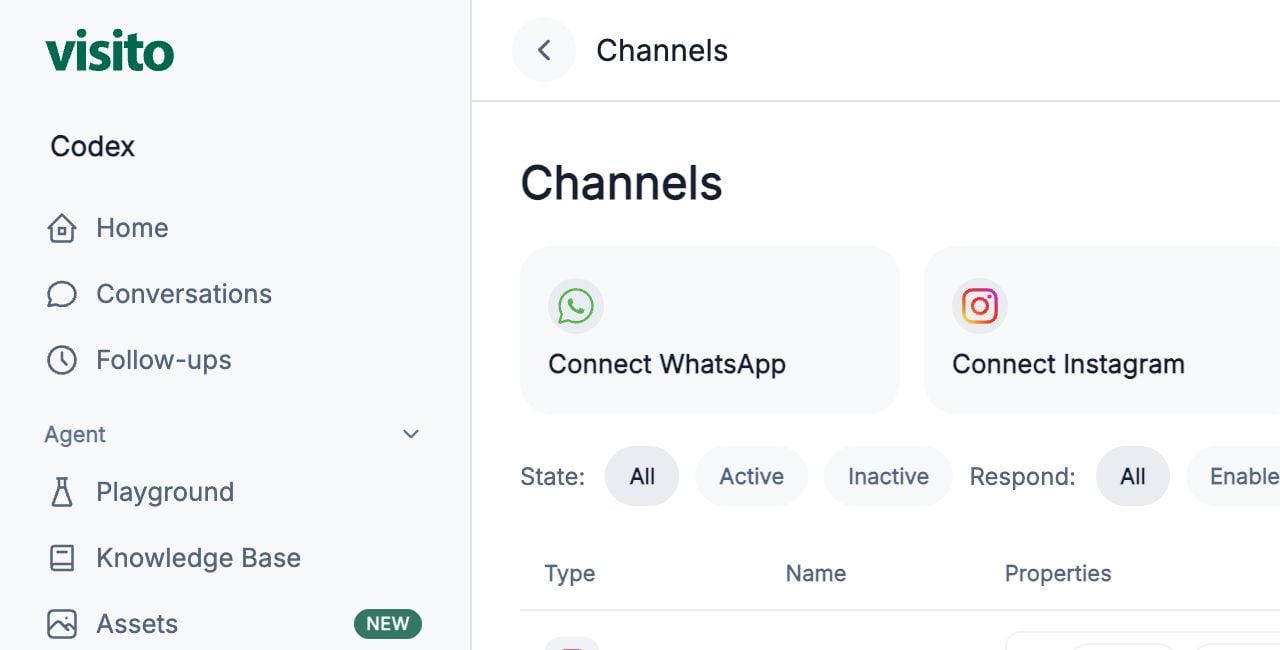
In Visito, go to **Connections → Channels**.
Select **Connect Messenger** and allow the Meta window to open.
Confirm the signed-in Facebook user has messaging access to the intended Pages.
Review the requested permissions and continue.
Choose one or more eligible Facebook Pages, then confirm the selection.
Wait for the Channels table to refresh and confirm each selected Page appears.
Assign the correct properties and verify **Active** and **Respond**.
## Disable conflicting automations
In Meta Business Suite, open the Page's Inbox automations. Disable greetings, instant replies, or other responses that should not run alongside Visito.
## Verify the connection
1. Send a new message to the Facebook Page from a separate personal account.
2. Open **Conversations** in Visito and find the new thread.
3. Confirm the correct property context.
4. Verify the AI response or send a manual operator reply.
5. Confirm the customer receives only one response.
## If the Page is missing
* Confirm the Meta window used the intended Facebook login.
* Review the user's Page access and messaging permissions.
* Confirm Page messaging is enabled.
* Close the authorization window and restart after access is corrected.
Verify browser, login, asset, and workspace prerequisites.
Diagnose missing Pages, incomplete callbacks, and message-flow problems.
## Before you start
Confirm that:
* You are signed in to the correct Visito workspace.
* The Facebook Page is active and [messaging is enabled](https://www.facebook.com/help/307375982614147).
* Your Meta user can manage messages for the Page.
* You know which Pages belong to this workspace.
* Conflicting Page Inbox automations can be disabled before testing.
If you cannot see or manage the intended Page, ask a person with full control to review your [Facebook Page access](https://www.facebook.com/help/1318804834897643/list/).
## Connect
In Visito, go to **Connections → Channels**.
Select **Connect Messenger** and allow the Meta window to open.
Confirm the signed-in Facebook user has messaging access to the intended Pages.
Review the requested permissions and continue.
Choose one or more eligible Facebook Pages, then confirm the selection.
Wait for the Channels table to refresh and confirm each selected Page appears.
Assign the correct properties and verify **Active** and **Respond**.
## Disable conflicting automations
In Meta Business Suite, open the Page's Inbox automations. Disable greetings, instant replies, or other responses that should not run alongside Visito.
## Verify the connection
1. Send a new message to the Facebook Page from a separate personal account.
2. Open **Conversations** in Visito and find the new thread.
3. Confirm the correct property context.
4. Verify the AI response or send a manual operator reply.
5. Confirm the customer receives only one response.
## If the Page is missing
* Confirm the Meta window used the intended Facebook login.
* Review the user's Page access and messaging permissions.
* Confirm Page messaging is enabled.
* Close the authorization window and restart after access is corrected.
Verify browser, login, asset, and workspace prerequisites.
Diagnose missing Pages, incomplete callbacks, and message-flow problems.