> ## Documentation Index
> Fetch the complete documentation index at: https://docs.visitoai.com/llms.txt
> Use this file to discover all available pages before exploring further.
# Connect a new WhatsApp number
> Set up a brand-new WhatsApp number to use exclusively with Visito.
If you want to use a **new WhatsApp number** that is not connected to any WhatsApp or WhatsApp Business App account, this setup is ideal.
With this method, your number will be fully managed through **Visito**, giving you:
* A clean and dedicated whatsapp API number
* Full automation and API control
* Messaging entirely handled by Visito (no need for the WhatsApp Business App)
If the number you want to connect is already linked to a WhatsApp account, you have two options:
* **Move your existing WhatsApp account to a different phone number** (for example, by purchasing a new SIM card).
* **Delete the WhatsApp account currently associated with that number** to free it up for use with Visito.
If the number is linked to the **WhatsApp Business App**, you can follow our guide here: [**Connect your existing WhatsApp Business App number →**](/product-guides/channels/whatsapp/connecting-your-whatsapp-business-app)
### Step-by-Step Guide
Before you begin, please ensure the following:
* You have a Facebook account and can sign in.
* The phone number you want to use is **not registered on any WhatsApp (personal or business) account.**
* The phone number is active on your device and can receive **SMS or phone call verification codes**.
Watch the [Video tutorial](https://www.loom.com/share/9af276a5f71d4af18377c303d638e4de?sid=076fb496-7093-4faa-af59-94be6c72b09f)
Navigate to the **Connect** tab in your Visito dashboard and select **WhatsApp** → **Connect**.
[**Open the Connect Page**](https://app.visitoai.com/connect)
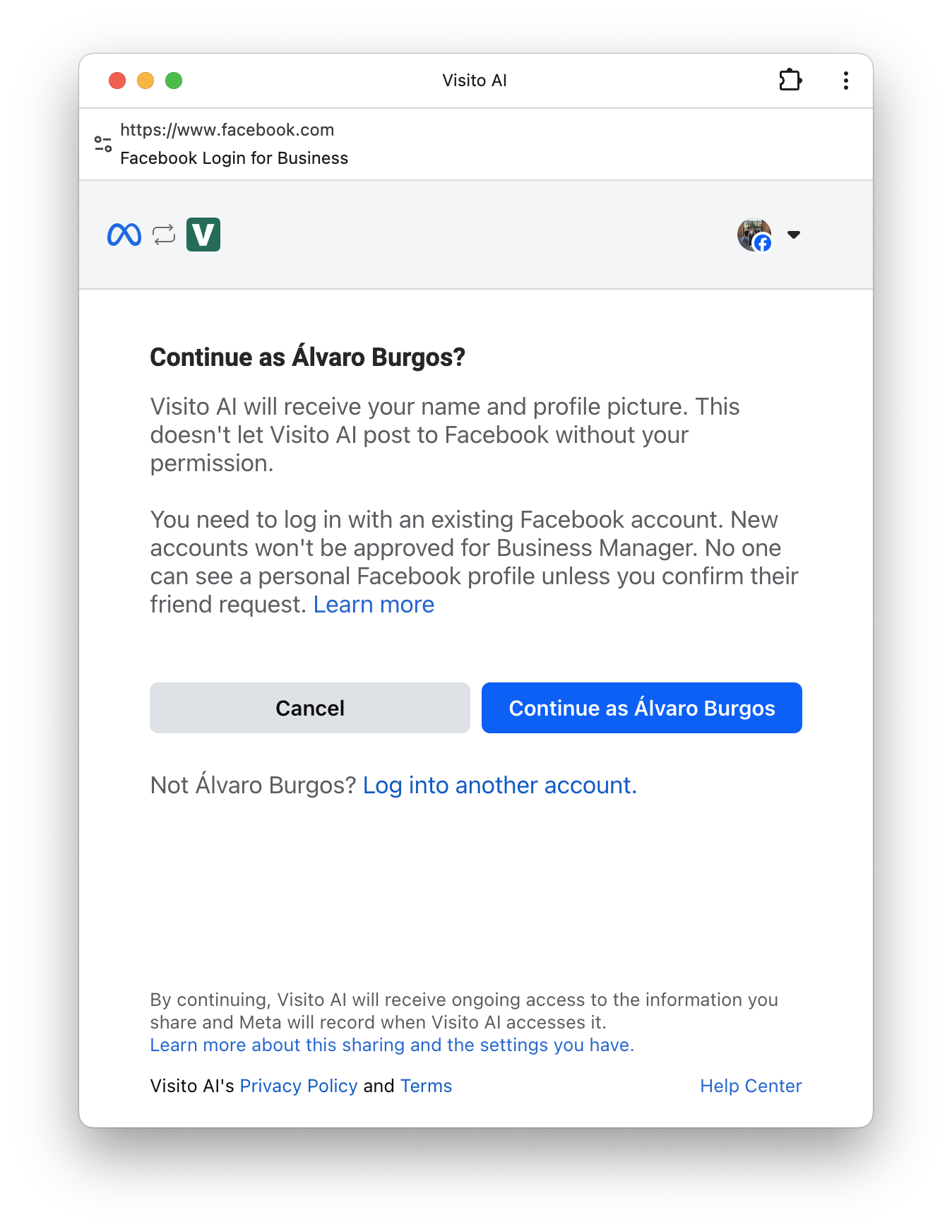
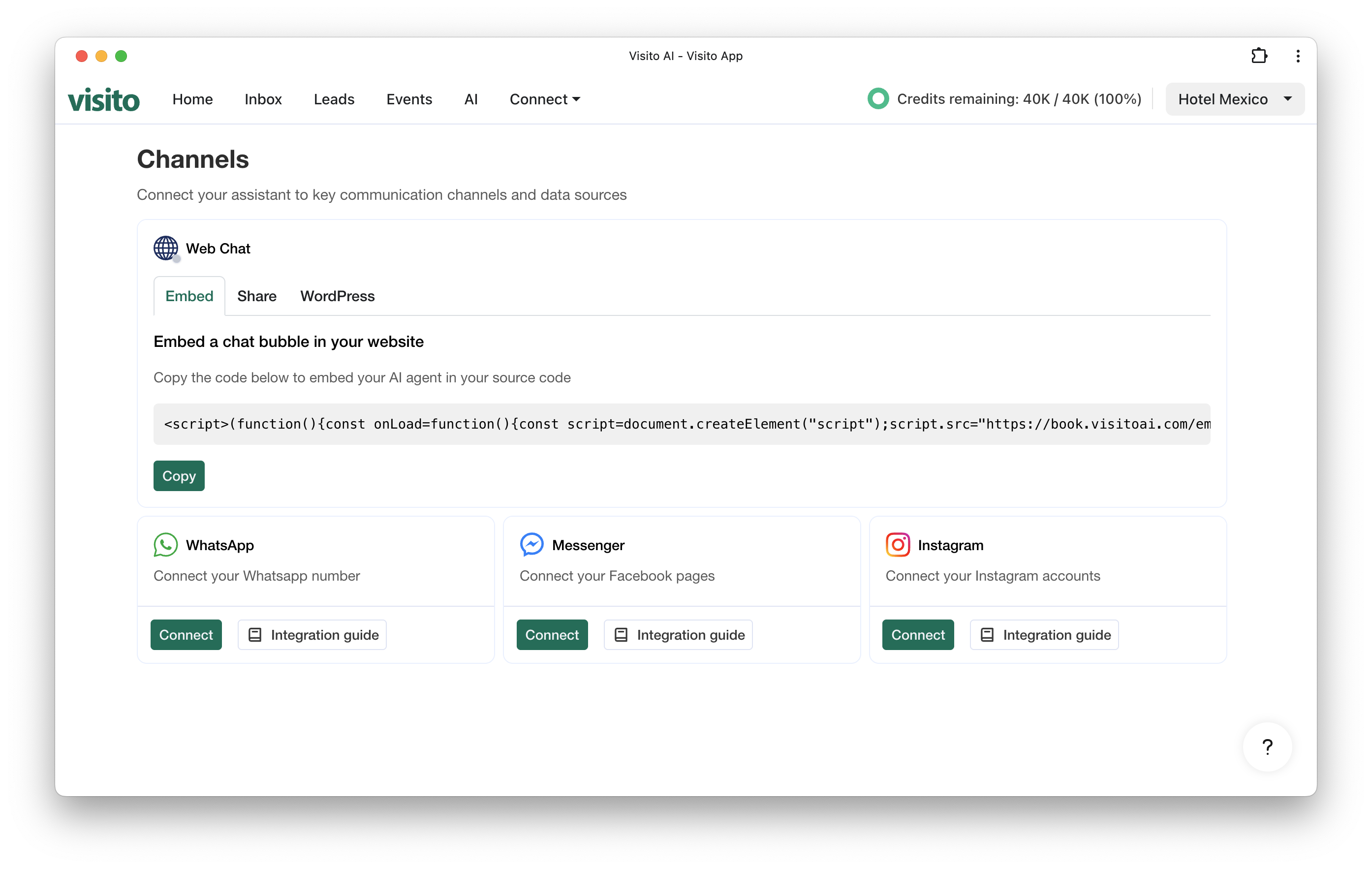 Log in with your Facebook account.\
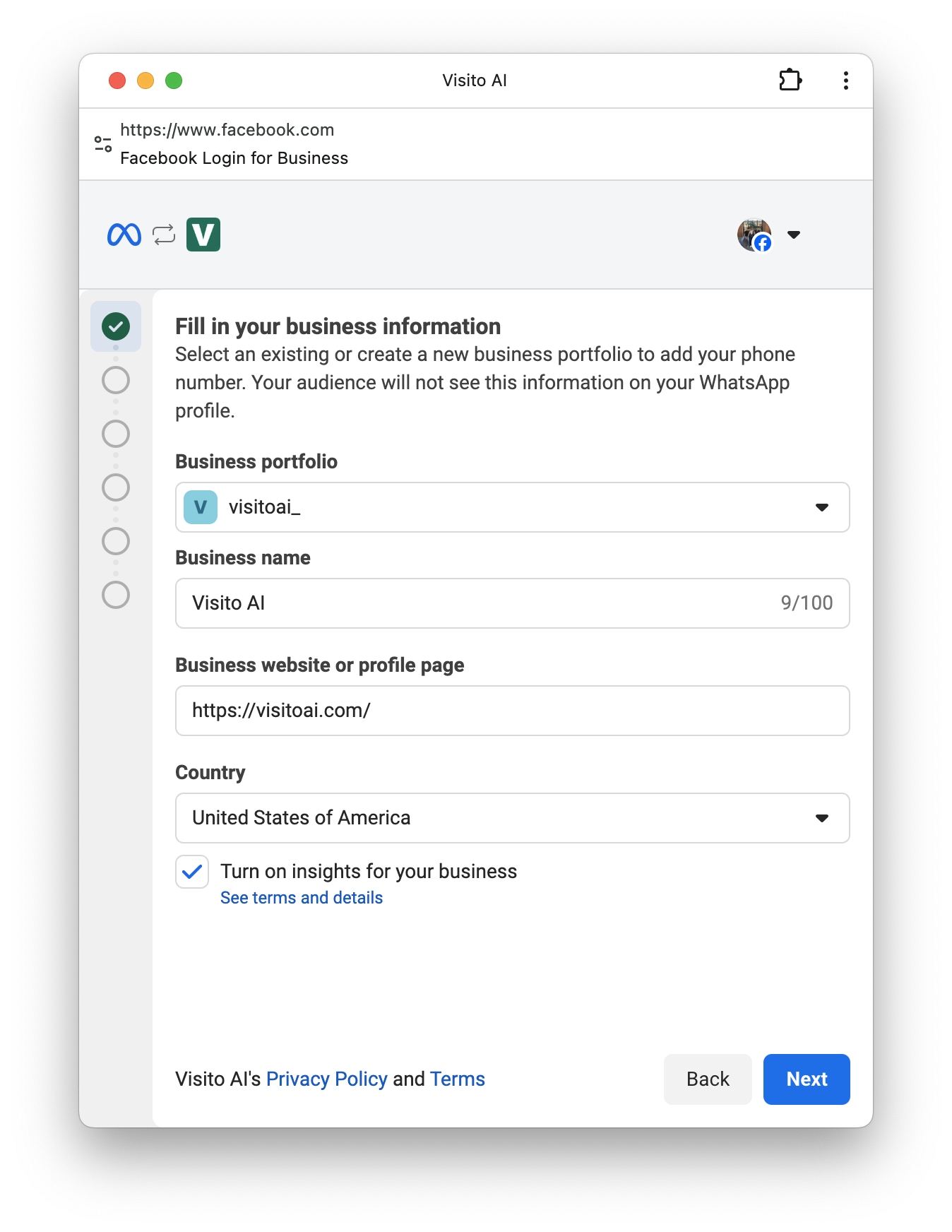
After logging in, Meta will prompt you to either:
* **Select an existing Business Portfolio**, or
* **Create a new one**, if you don’t already have one.
This portfolio is where your WhatsApp assets will be managed.
One of the most common reasons WhatsApp bans a phone number is an **invalid or incomplete business website**.\
Make sure your website loads correctly and includes essential pages such as **Terms of Service**, **Privacy Policy**, and **Contact Information**.\
An incomplete or broken website can lead to verification issues or account restrictions.
Log in with your Facebook account.\
After logging in, Meta will prompt you to either:
* **Select an existing Business Portfolio**, or
* **Create a new one**, if you don’t already have one.
This portfolio is where your WhatsApp assets will be managed.
One of the most common reasons WhatsApp bans a phone number is an **invalid or incomplete business website**.\
Make sure your website loads correctly and includes essential pages such as **Terms of Service**, **Privacy Policy**, and **Contact Information**.\
An incomplete or broken website can lead to verification issues or account restrictions.
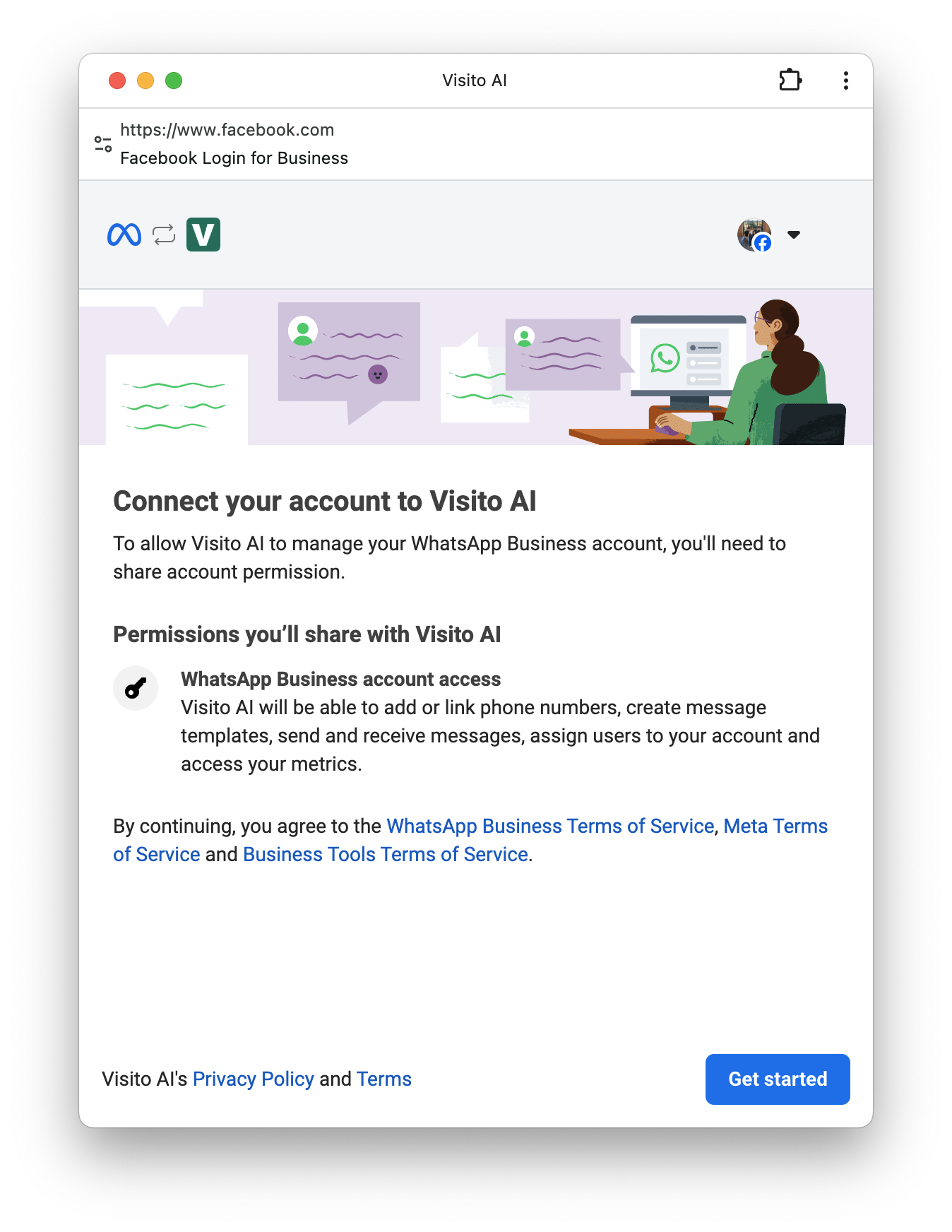
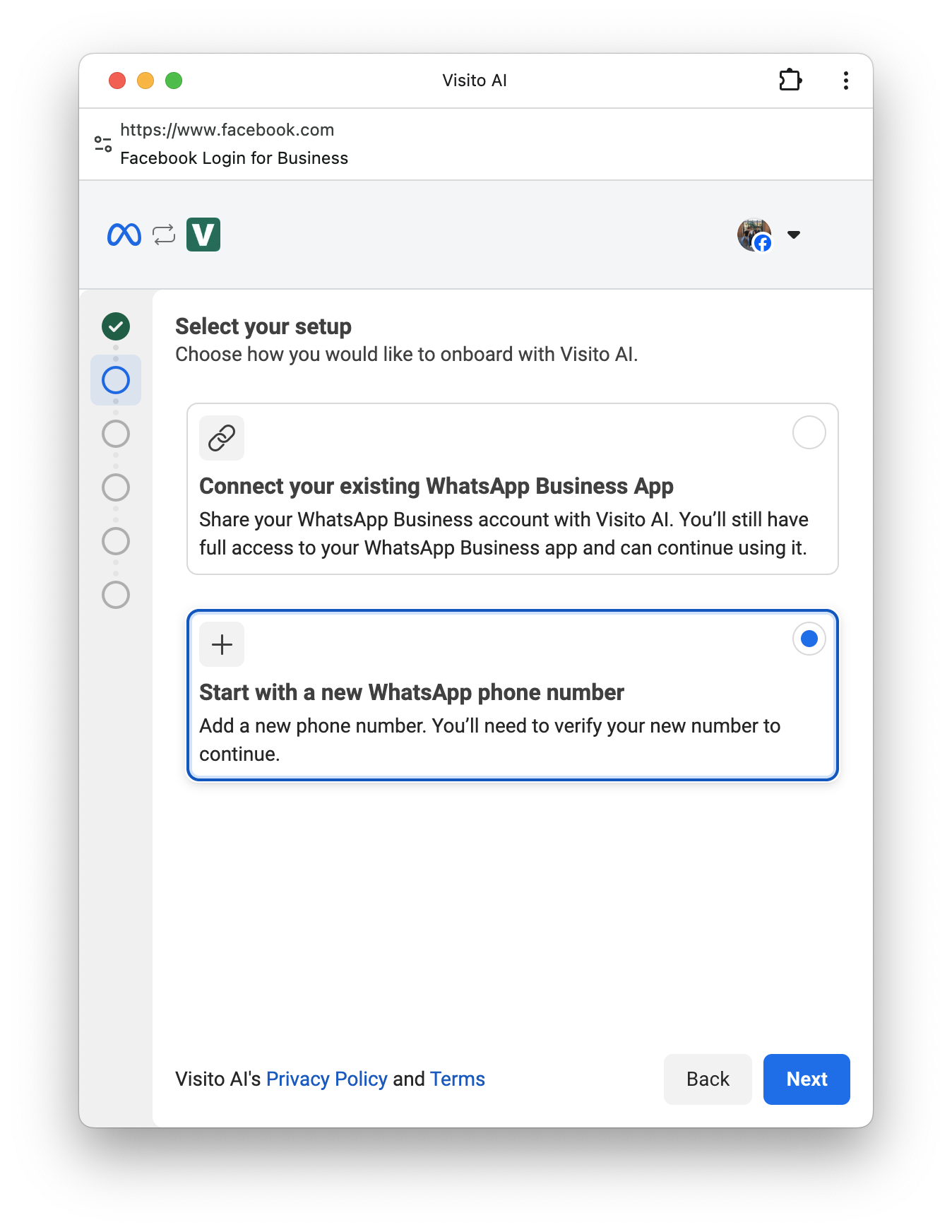
 Choose the option to onboard a **brand-new WhatsApp number**.\
This number must not be connected to any WhatsApp account.
This option is ideal if you want a fresh number dedicated exclusively to Visito.
Choose the option to onboard a **brand-new WhatsApp number**.\
This number must not be connected to any WhatsApp account.
This option is ideal if you want a fresh number dedicated exclusively to Visito.
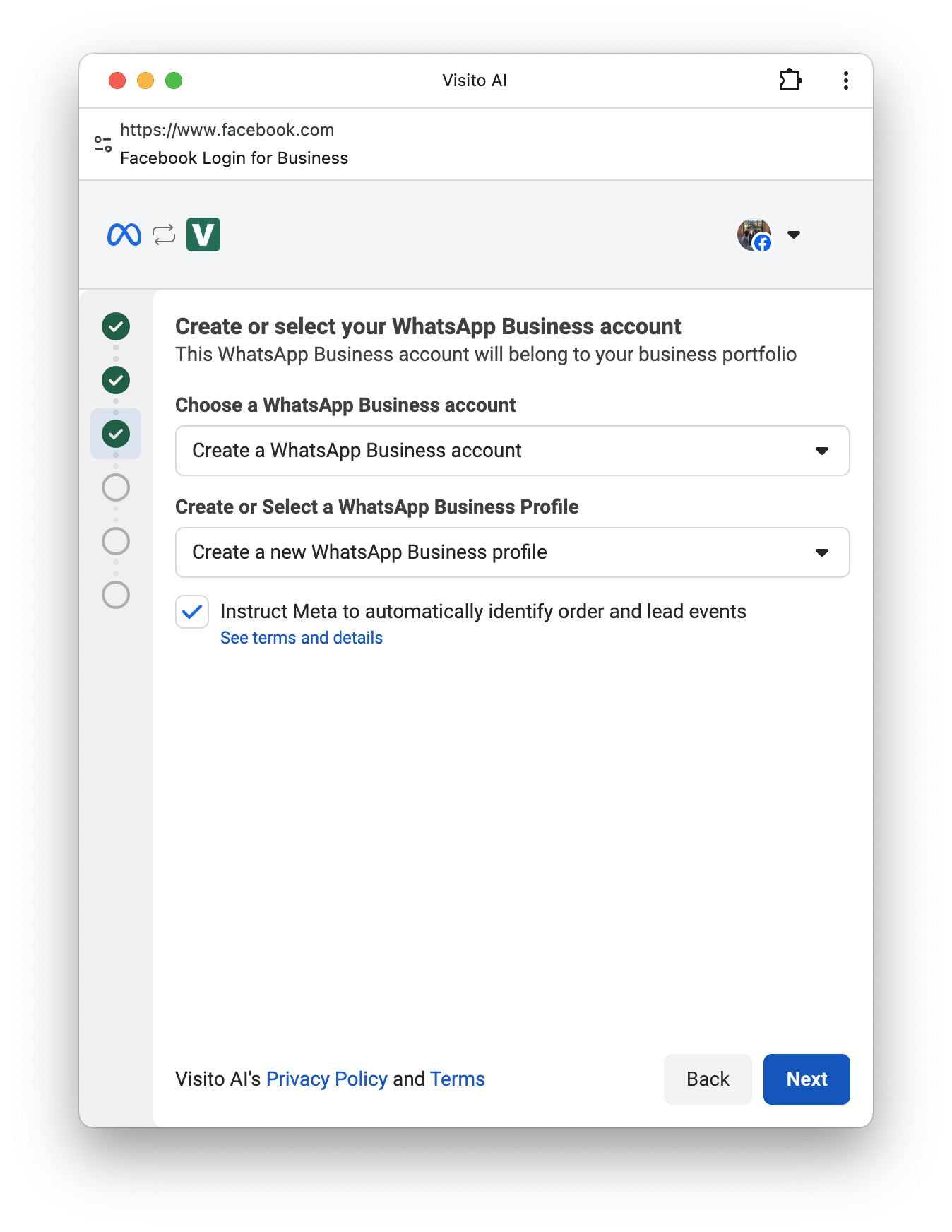
 Next, Meta will ask you to create the WhatsApp Business account and profile for this number.
1. **Create a new WhatsApp Business account** – this will host your number.
2. **Create a WhatsApp Business profile** – this includes your business name and category.\
You can edit these details later in Meta Business Suite.
Next, Meta will ask you to create the WhatsApp Business account and profile for this number.
1. **Create a new WhatsApp Business account** – this will host your number.
2. **Create a WhatsApp Business profile** – this includes your business name and category.\
You can edit these details later in Meta Business Suite.
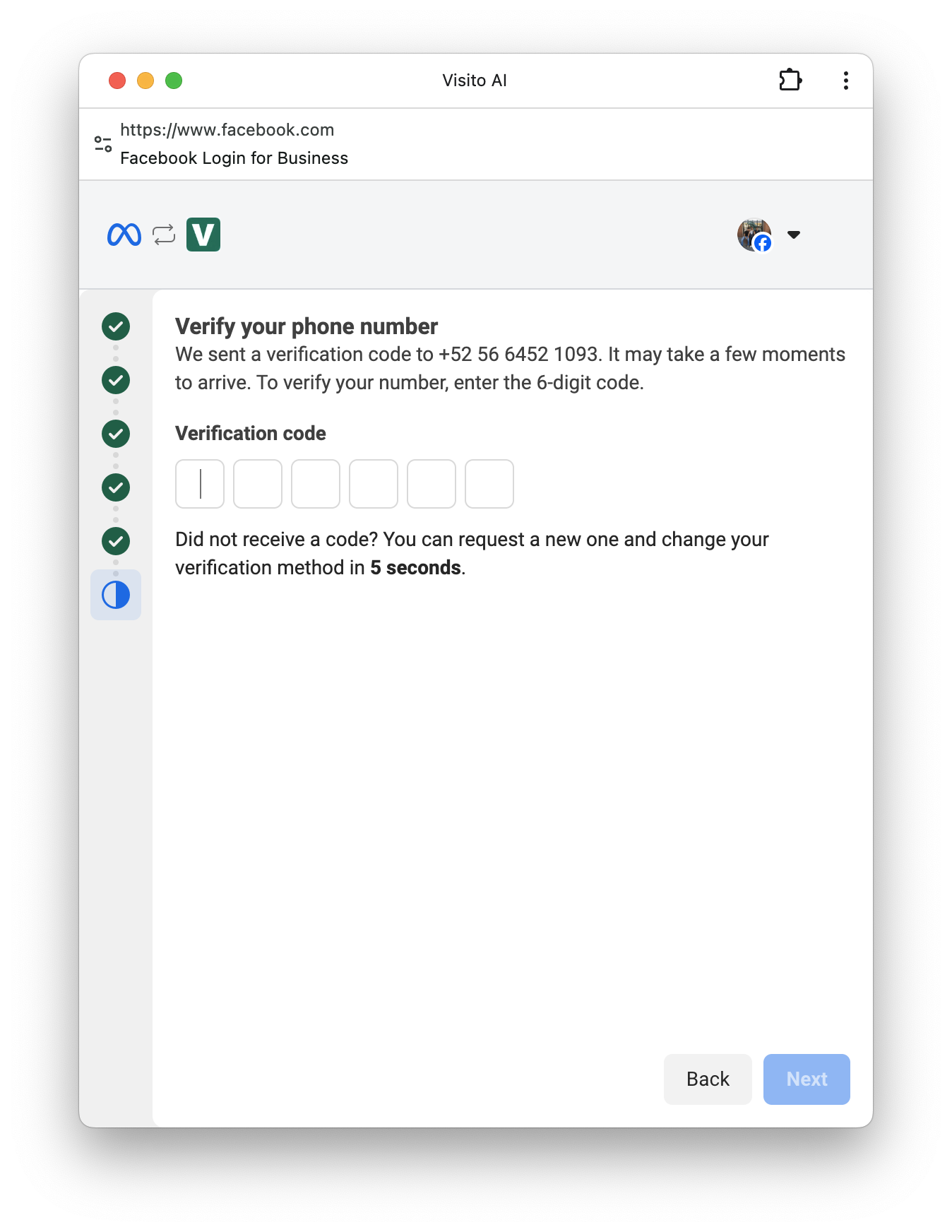
 Enter the phone number you want to use with Visito.\
Make sure the number can receive **SMS or phone call verification codes**.
Meta will send you a **6-digit verification code**.\
Enter this code to confirm ownership of the number.
Enter the phone number you want to use with Visito.\
Make sure the number can receive **SMS or phone call verification codes**.
Meta will send you a **6-digit verification code**.\
Enter this code to confirm ownership of the number.

 After successfully verifying your phone number, click **Finish** to complete the connection.\
Your brand-new WhatsApp number is now connected and ready to use through Visito.
You can now:
* Send and receive WhatsApp messages
* Use AI automation
* Manage conversations at scale through the Visito dashboard
After successfully verifying your phone number, click **Finish** to complete the connection.\
Your brand-new WhatsApp number is now connected and ready to use through Visito.
You can now:
* Send and receive WhatsApp messages
* Use AI automation
* Manage conversations at scale through the Visito dashboard