> ## Documentation Index
> Fetch the complete documentation index at: https://docs.visitoai.com/llms.txt
> Use this file to discover all available pages before exploring further.
# Personalize your WhatsApp business profile
> Update your profile picture, display name, website, and contact details in Meta WhatsApp Manager.
Help customers recognize your business when they open your WhatsApp profile. Use this guide to update the profile of a number managed through the WhatsApp Business Platform (API).
You do not need to disconnect or delete your number to personalize its profile.
## Before you start
* Sign in to Meta with access to manage the WhatsApp account that owns your number.
* Have your business logo, customer-facing name, website, and public contact details ready.
* Confirm the business portfolio, WhatsApp account, and phone number. These are separate selections; a portfolio can contain several accounts and numbers.
Screenshots show Meta's English interface, with private information redacted. Labels and available controls may vary by language and account. Expand a screenshot to read its details.
## Open your number's profile
Open [Meta Business Suite](https://business.facebook.com/). Select the business portfolio that owns your number, then go to **Settings → Accounts → WhatsApp accounts** and select the intended account.
If the number belongs to a portfolio managed by Visito or another provider, contact its administrator. Do not select a different account just because you can access it.
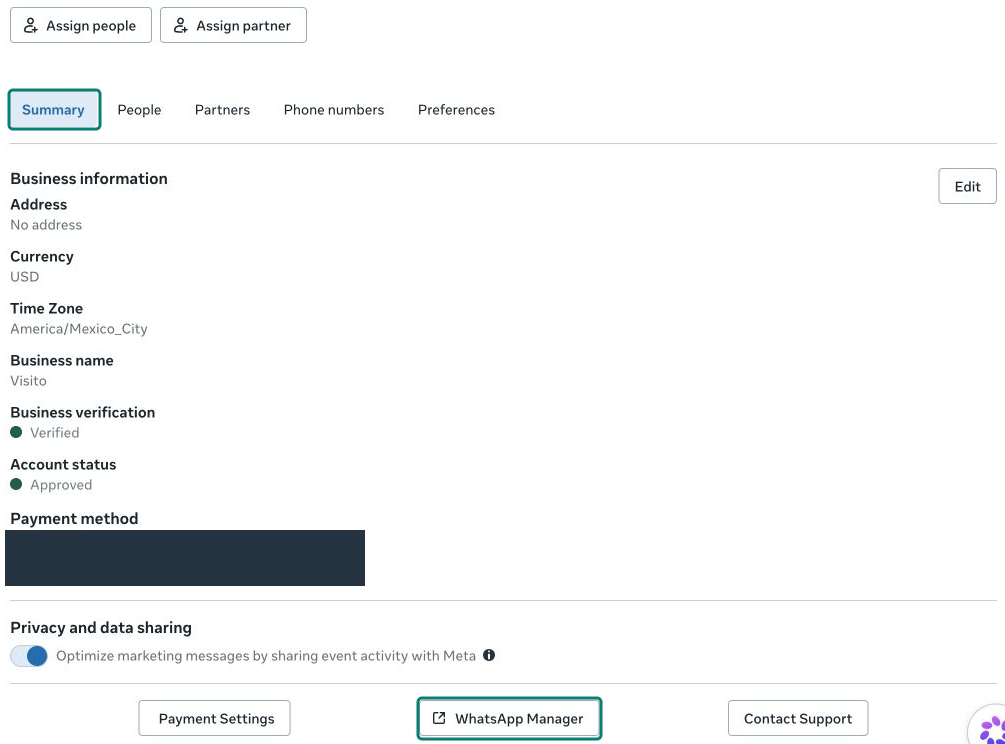
In the selected account, open **Summary**, then select **WhatsApp Manager** near the bottom. Open **Account tools → Phone numbers** if the list does not appear automatically.
 Locate your number and confirm its name. Choose the **Settings** gear at the right of that row, then open **Profile**. The adjacent trash icon is for deletion; it is not needed here.

 ## Update the picture and display name
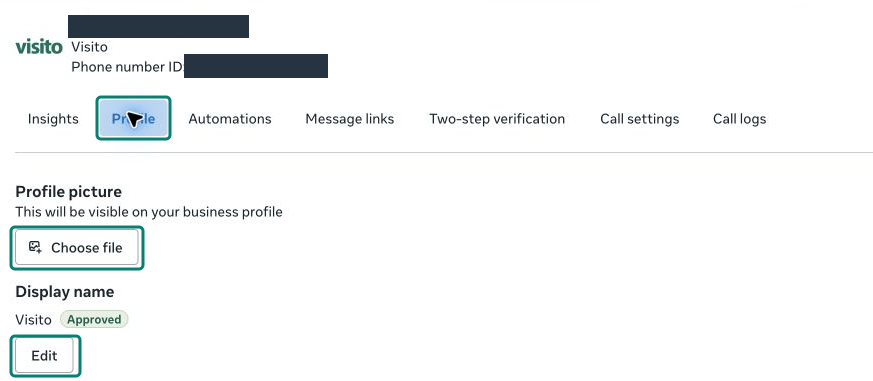
**Profile picture:** select **Choose file** and choose your business logo or another recognizable business image. Follow Meta's upload prompts and review the preview. If Meta requests confirmation or Save, complete that step before leaving.
**Display name:** select **Edit** beside the current name. Enter the name customers should recognize, follow the [naming guidelines linked by Meta](https://developers.facebook.com/docs/whatsapp/guides/display-name/), and select **Submit** when ready.
## Update the picture and display name
**Profile picture:** select **Choose file** and choose your business logo or another recognizable business image. Follow Meta's upload prompts and review the preview. If Meta requests confirmation or Save, complete that step before leaving.
**Display name:** select **Edit** beside the current name. Enter the name customers should recognize, follow the [naming guidelines linked by Meta](https://developers.facebook.com/docs/whatsapp/guides/display-name/), and select **Submit** when ready.
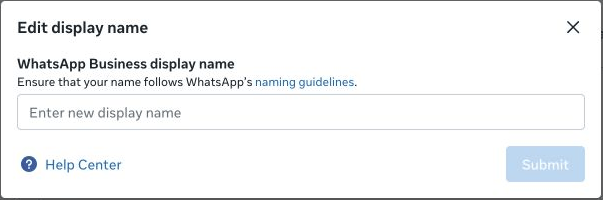 Submitting a name does not mean it has been approved or is already visible. Check the review status beside **Display name** and follow any instructions Meta provides. This changes the number's customer-facing display name, not the name of the business portfolio.
## Add business information
Scroll down within **Profile** to **Business Information**. Use accurate, public information:
| Field | What to enter | Example |
| ----------- | ------------------------------------------- | ------------------------------------------------------------- |
| Category | The category that describes your business | Hotel and Lodging |
| Description | A short explanation of what you offer | Boutique hotel with ocean-view rooms and direct reservations. |
| Address | Your public business address, if applicable | Your hotel's street address |
| Email | An inbox customers can contact | [reservations@example.com](mailto:reservations@example.com) |
| Website | Your public website or direct-booking page | [https://www.example.com](https://www.example.com) |
The examples above are illustrative; they were not entered into the account shown. Meta currently shows two optional website fields in this view. Use the fields you need and respect the limits displayed beside each field.
Submitting a name does not mean it has been approved or is already visible. Check the review status beside **Display name** and follow any instructions Meta provides. This changes the number's customer-facing display name, not the name of the business portfolio.
## Add business information
Scroll down within **Profile** to **Business Information**. Use accurate, public information:
| Field | What to enter | Example |
| ----------- | ------------------------------------------- | ------------------------------------------------------------- |
| Category | The category that describes your business | Hotel and Lodging |
| Description | A short explanation of what you offer | Boutique hotel with ocean-view rooms and direct reservations. |
| Address | Your public business address, if applicable | Your hotel's street address |
| Email | An inbox customers can contact | [reservations@example.com](mailto:reservations@example.com) |
| Website | Your public website or direct-booking page | [https://www.example.com](https://www.example.com) |
The examples above are illustrative; they were not entered into the account shown. Meta currently shows two optional website fields in this view. Use the fields you need and respect the limits displayed beside each field.
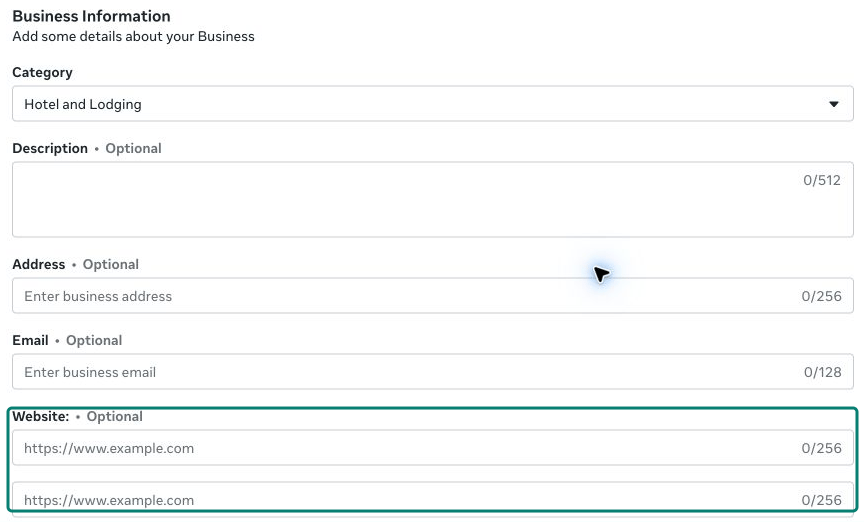 After editing business information, scroll to the bottom and select **Save**. Reopen the profile to confirm the saved values. This Save action is separate from submitting a display-name change.
## Check what customers see
1. From another phone, open a chat with your business and tap its profile.
2. Check the picture, approved display name, description, and contact details.
3. Open the website link and confirm it leads to the intended page.
Meta's preview can differ across devices. If a change is missing, reopen the settings to confirm it was saved and check whether the display name is still under review.
If you cannot edit the profile, confirm access with the account owner or contact [Visito support](mailto:help@visitoai.com). If Meta indicates that a field is managed in WhatsApp Business App, follow that instruction for your connection type.
## Related guides
* [Choose a WhatsApp setup](/product-guides/channels/whatsapp/introduction)
* [Connect WhatsApp Business App with coexistence](/product-guides/channels/whatsapp/connecting-your-whatsapp-business-app)
* [Remove an API number and return to an app](/product-guides/channels/whatsapp/removing-your-number)
After editing business information, scroll to the bottom and select **Save**. Reopen the profile to confirm the saved values. This Save action is separate from submitting a display-name change.
## Check what customers see
1. From another phone, open a chat with your business and tap its profile.
2. Check the picture, approved display name, description, and contact details.
3. Open the website link and confirm it leads to the intended page.
Meta's preview can differ across devices. If a change is missing, reopen the settings to confirm it was saved and check whether the display name is still under review.
If you cannot edit the profile, confirm access with the account owner or contact [Visito support](mailto:help@visitoai.com). If Meta indicates that a field is managed in WhatsApp Business App, follow that instruction for your connection type.
## Related guides
* [Choose a WhatsApp setup](/product-guides/channels/whatsapp/introduction)
* [Connect WhatsApp Business App with coexistence](/product-guides/channels/whatsapp/connecting-your-whatsapp-business-app)
* [Remove an API number and return to an app](/product-guides/channels/whatsapp/removing-your-number)