> ## Documentation Index
> Fetch the complete documentation index at: https://docs.visitoai.com/llms.txt
> Use this file to discover all available pages before exploring further.
# Remove an API number and return to the WhatsApp app
> Remove a phone number from WhatsApp Manager, register it in a phone app, and prepare for optional coexistence.
Use this guide when your number is registered for WhatsApp Business Platform (API) use and you want to use it in **WhatsApp** or **WhatsApp Business App** on your phone.
If you want to use the phone app and Visito together, choose **WhatsApp Business App**. Coexistence is a separate onboarding flow for eligible Business App numbers; personal WhatsApp does not provide that setup.
Removing an API number interrupts messaging through its existing Visito connection. Plan the change before removing a number customers use. This process does not automatically move API chat history into the phone app or merge old and new conversations in Visito.
## Confirm that removal is the right action
* **To change your logo, name, website, or description:** [edit the profile](/product-guides/channels/whatsapp/managing-your-profile). No deletion is needed.
* **If your number already works in WhatsApp Business App with coexistence:** do not remove it just to access the app. Investigate the app or connection issue first.
* **To return an API-only number to a phone app:** follow the preparation and removal steps below.
This guide concerns the **phone-number row in WhatsApp Manager**. Deleting an entire WhatsApp Business Account, deleting a business portfolio, deleting the account inside the phone app, and removing a channel from Visito are different actions. Removing a channel from Visito alone does not release the number from Meta.
## Before you start
* Confirm you own the number and can receive its verification code by SMS or phone call. For a SIM-based number, have the SIM in a working phone with mobile signal.
* Have administrator access to the Meta business portfolio and WhatsApp account that own the number. If Visito or another provider controls that account, coordinate the release with its administrator.
* Choose the destination app. For a later connection to Visito through coexistence, use the updated **WhatsApp Business App**.
* Agree on a maintenance window with your team and pause campaigns or scheduled sends that use this number.
* Record the current account and number details privately, and preserve any information you need before removal. Do not assume app backups include API conversations.
* If returning to Visito, confirm the intended workspace and have access to the Meta billing setup if required during reconnection.
The screenshots are redacted examples of Meta's English interface. The example number was not deleted, and app registration was not performed. Meta's prompts and eligibility checks may differ for your account.
## Remove the number from WhatsApp Manager
Open [Meta Business Suite](https://business.facebook.com/), select the owning business portfolio, and go to **Settings → Accounts → WhatsApp accounts**. Select the intended WhatsApp account.
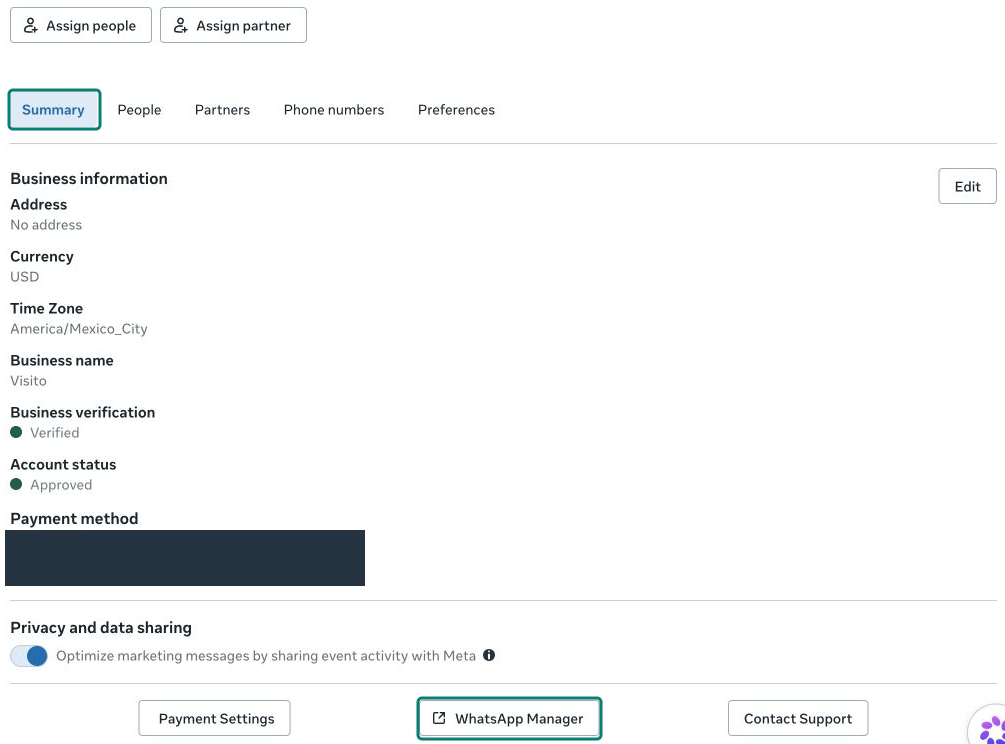
In **Summary**, select **WhatsApp Manager**. Open **Account tools → Phone numbers** if necessary.
 Check the full phone number and its display name. On that row, locate the **Delete** trash icon beside the **Settings** gear.
 When your team is ready for the interruption, select the row's **Delete** control. Read Meta's warnings, verify the target number again, and complete the confirmation or authentication Meta requests only if you intend to proceed.
Enter credentials only in Meta's own interface. If Meta blocks removal or shows a restriction, stop and follow that message; do not delete the entire account or portfolio as a workaround.
Refresh the phone-number list and confirm that the intended number is no longer listed in that account. This verifies removal from the account, not successful registration in a phone app. If the number remains, resolve Meta's message before continuing.
## Register the number on your phone
1. Open the chosen app: WhatsApp for personal use, or **WhatsApp Business App** for business use and possible coexistence with Visito.
2. Follow the app's registration flow using the same phone number and country code.
3. Complete SMS or call verification and any additional security checks the app requests.
4. Finish the app profile, then use another phone to check incoming messages and replies.
If the app reports that the number is still registered elsewhere or imposes a waiting period, follow the displayed instructions and contact Meta or [Visito support](mailto:help@visitoai.com) if needed. Removal is not a guarantee of immediate app registration.
## Reconnect to Visito with coexistence, if needed
Once the number is active in **WhatsApp Business App**, follow [Connect an existing WhatsApp Business App number](/product-guides/channels/whatsapp/connecting-your-whatsapp-business-app). Use the existing-Business-App option in Meta's onboarding flow, then complete the in-app and QR steps when offered.
* Keep the Business App account active; do not delete it to attempt coexistence.
* Meta determines eligibility. Returning to the Business App does not guarantee that coexistence is immediately available.
* Test the Business App and Visito with a new incoming message and confirm that the customer receives the intended reply.
* Do not assume old Visito threads will be unified with new ones. If history appears split after reconnection, contact support before deleting any conversations.
## If you get stuck
| Problem | Next step |
| --------------------------------------------------- | ------------------------------------------------------------------------------------------------------------------------------------------------------------------------------------------------------- |
| The account or number is missing | Check the selected portfolio, account, and Meta login. Ask the owner to confirm your access. |
| Delete is missing or blocked | Check your permissions and Meta's displayed restrictions, including any billing or recent-message condition it identifies. Follow the stated resolution; do not use a different asset's Delete control. |
| The verification code does not arrive | Confirm the number, country code, mobile signal, and ability to receive the chosen SMS or call method. Respect any retry timer. |
| The app says the number is still registered | Confirm removal in the correct account and follow the app's recovery instructions. Do not repeatedly delete or recreate business assets. |
| Coexistence is unavailable | Confirm the number is active in the updated Business App and follow Meta's eligibility guidance. Contact support before trying a different onboarding path. |
| Visito does not receive messages after reconnecting | Follow the [Meta connection troubleshooting guide](/product-guides/channels/meta/troubleshooting) and verify both inbound messages and delivered replies. |
## Related guides
* [Choose a WhatsApp setup](/product-guides/channels/whatsapp/introduction)
* [Personalize your WhatsApp profile](/product-guides/channels/whatsapp/managing-your-profile)
* [Add or update a WhatsApp payment method](/product-guides/channels/whatsapp/payment-method)
When your team is ready for the interruption, select the row's **Delete** control. Read Meta's warnings, verify the target number again, and complete the confirmation or authentication Meta requests only if you intend to proceed.
Enter credentials only in Meta's own interface. If Meta blocks removal or shows a restriction, stop and follow that message; do not delete the entire account or portfolio as a workaround.
Refresh the phone-number list and confirm that the intended number is no longer listed in that account. This verifies removal from the account, not successful registration in a phone app. If the number remains, resolve Meta's message before continuing.
## Register the number on your phone
1. Open the chosen app: WhatsApp for personal use, or **WhatsApp Business App** for business use and possible coexistence with Visito.
2. Follow the app's registration flow using the same phone number and country code.
3. Complete SMS or call verification and any additional security checks the app requests.
4. Finish the app profile, then use another phone to check incoming messages and replies.
If the app reports that the number is still registered elsewhere or imposes a waiting period, follow the displayed instructions and contact Meta or [Visito support](mailto:help@visitoai.com) if needed. Removal is not a guarantee of immediate app registration.
## Reconnect to Visito with coexistence, if needed
Once the number is active in **WhatsApp Business App**, follow [Connect an existing WhatsApp Business App number](/product-guides/channels/whatsapp/connecting-your-whatsapp-business-app). Use the existing-Business-App option in Meta's onboarding flow, then complete the in-app and QR steps when offered.
* Keep the Business App account active; do not delete it to attempt coexistence.
* Meta determines eligibility. Returning to the Business App does not guarantee that coexistence is immediately available.
* Test the Business App and Visito with a new incoming message and confirm that the customer receives the intended reply.
* Do not assume old Visito threads will be unified with new ones. If history appears split after reconnection, contact support before deleting any conversations.
## If you get stuck
| Problem | Next step |
| --------------------------------------------------- | ------------------------------------------------------------------------------------------------------------------------------------------------------------------------------------------------------- |
| The account or number is missing | Check the selected portfolio, account, and Meta login. Ask the owner to confirm your access. |
| Delete is missing or blocked | Check your permissions and Meta's displayed restrictions, including any billing or recent-message condition it identifies. Follow the stated resolution; do not use a different asset's Delete control. |
| The verification code does not arrive | Confirm the number, country code, mobile signal, and ability to receive the chosen SMS or call method. Respect any retry timer. |
| The app says the number is still registered | Confirm removal in the correct account and follow the app's recovery instructions. Do not repeatedly delete or recreate business assets. |
| Coexistence is unavailable | Confirm the number is active in the updated Business App and follow Meta's eligibility guidance. Contact support before trying a different onboarding path. |
| Visito does not receive messages after reconnecting | Follow the [Meta connection troubleshooting guide](/product-guides/channels/meta/troubleshooting) and verify both inbound messages and delivered replies. |
## Related guides
* [Choose a WhatsApp setup](/product-guides/channels/whatsapp/introduction)
* [Personalize your WhatsApp profile](/product-guides/channels/whatsapp/managing-your-profile)
* [Add or update a WhatsApp payment method](/product-guides/channels/whatsapp/payment-method)