> ## Documentation Index
> Fetch the complete documentation index at: https://docs.visitoai.com/llms.txt
> Use this file to discover all available pages before exploring further.
# Connect Google Sheets to your AI agent
> Connect approved spreadsheet tabs so your Visito AI agent can answer questions with current, structured business data.
Google Sheets gives your AI agent a live, read-only reference for structured business information such as content calendars, service catalogs, schedules, policies, and operational status lists.
Use the Knowledge Base for documents and website content. Use Google Sheets when the answer depends on rows and columns that your team updates regularly.
Visito reads only the spreadsheet tab and columns you approve. It cannot add, edit, or delete spreadsheet data.
## Before you start
Prepare each tab as one table:
* Put unique, nonempty column names in the first row.
* Keep the source at 1,000 data rows or fewer.
* Choose up to 30 columns for the AI to read.
* Include only information approved for guests. Do not connect private customer records, credentials, payment details, or internal secrets.
* Give records clear names or IDs so the AI can distinguish similar rows.
Each connected source represents **one tab**. A second spreadsheet or a second tab becomes another source and appears as another row under **Integrations**.
## Connect your first source
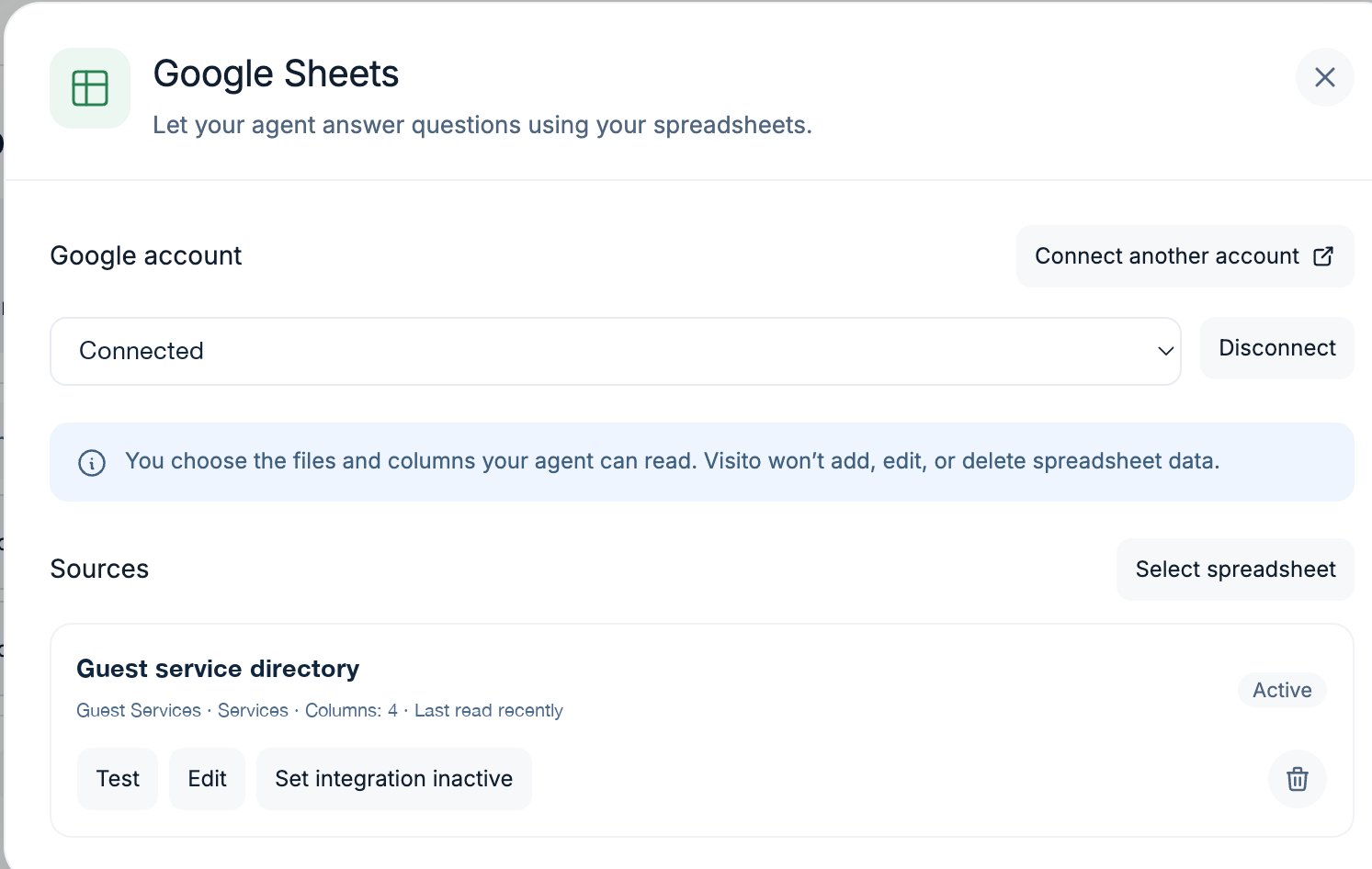
Go to **Connections → Integrations**, select **Add integration**, and choose **Google Sheets**.
Select **Connect Google Sheets**, sign in, and approve access to the spreadsheet files you choose. Visito keeps the reusable Google connection for this workspace.
Select **Select spreadsheet**, choose a file in Google Picker, then choose the tab that contains the table. Visito follows the tab by its stable Google ID if you rename it later.
Use a short name operators will recognize. In **Purpose**, explain what the table contains, when the AI should use it, and what questions it can answer.
Select only guest-safe columns. Choose **Business-wide** if every property may use the source, or assign it to one property.
Review the sample rows and selected columns, then select **Enable read-only**. Use **Test** to confirm that Visito can still read the configured tab.
 ## Tell the AI when to use the source
The source description helps the AI decide whether the spreadsheet is relevant. Write it for someone who has never seen the file.
A useful description says:
1. What one row represents.
2. Which questions the source answers.
3. Which columns contain the key facts.
4. When another system remains authoritative.
For example:
> Current content calendar. Each row is one article. Use this source for questions about an article's status, owner, channel, and target date. Match the guest's article name against the Title column.
Avoid descriptions such as “marketing sheet” or “use this when needed.” They do not give the AI enough context to choose the source reliably.
Guests and operators can ask naturally. They do not need to name a filter or use exact spreadsheet wording. Visito can match exact values or text contained in approved columns, ignoring letter case and accents. When the first wording does not match, the AI can try bounded variations before asking a focused follow-up question.
## Add another spreadsheet or tab
Go to **Connections → Integrations**, select **Add integration**, and choose **Google Sheets**. The drawer shows the Google account already connected to the workspace.
Keep the selected account to reuse the same connection. Select **Connect another account** only when the new file belongs to a different Google account.
Select **Select spreadsheet** and repeat the spreadsheet, tab, purpose, columns, scope, preview, and enable steps.
Adding a source does not change or disconnect existing sources. Removing one source removes only that tab. Disconnecting a Google account disables every source that uses that account.
## Test the AI in Playground
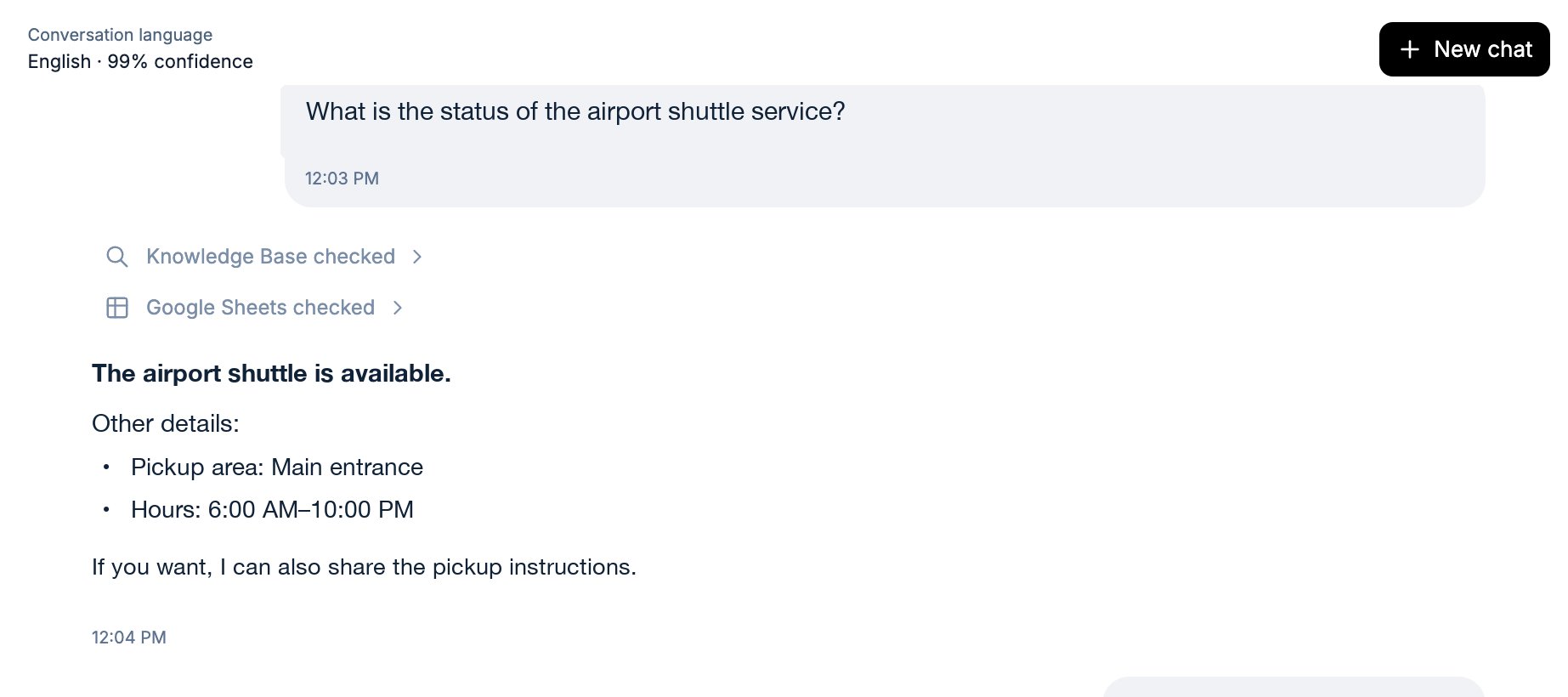
Open **Playground** and ask a question whose answer exists in an approved row, for example:
> What is the status of the summer campaign article?
A successful reply shows **Google Sheets checked**. Select that receipt to review the source used, filters, number of rows returned, read time, freshness, and approved fields that supported the answer.
## Tell the AI when to use the source
The source description helps the AI decide whether the spreadsheet is relevant. Write it for someone who has never seen the file.
A useful description says:
1. What one row represents.
2. Which questions the source answers.
3. Which columns contain the key facts.
4. When another system remains authoritative.
For example:
> Current content calendar. Each row is one article. Use this source for questions about an article's status, owner, channel, and target date. Match the guest's article name against the Title column.
Avoid descriptions such as “marketing sheet” or “use this when needed.” They do not give the AI enough context to choose the source reliably.
Guests and operators can ask naturally. They do not need to name a filter or use exact spreadsheet wording. Visito can match exact values or text contained in approved columns, ignoring letter case and accents. When the first wording does not match, the AI can try bounded variations before asking a focused follow-up question.
## Add another spreadsheet or tab
Go to **Connections → Integrations**, select **Add integration**, and choose **Google Sheets**. The drawer shows the Google account already connected to the workspace.
Keep the selected account to reuse the same connection. Select **Connect another account** only when the new file belongs to a different Google account.
Select **Select spreadsheet** and repeat the spreadsheet, tab, purpose, columns, scope, preview, and enable steps.
Adding a source does not change or disconnect existing sources. Removing one source removes only that tab. Disconnecting a Google account disables every source that uses that account.
## Test the AI in Playground
Open **Playground** and ask a question whose answer exists in an approved row, for example:
> What is the status of the summer campaign article?
A successful reply shows **Google Sheets checked**. Select that receipt to review the source used, filters, number of rows returned, read time, freshness, and approved fields that supported the answer.
 If the source is relevant but no row matches, the AI should try reasonable search variations and then ask for a more specific title, keyword, or identifier. It must not invent a value from a failed or empty lookup.
## Freshness
Visito reads the configured Google tab live and may cache the result for up to **60 seconds**. After editing the spreadsheet, wait one minute before expecting a conversation to reflect the change.
The receipt labels a lookup as a live Google read or a cached read. Expired data is not used when Google cannot refresh it.
## Manage a source
From **Connections → Integrations** you can:
* Open the source details and follow the spreadsheet link to Google Sheets.
* Select **Test** to check access and table structure.
* Select **Edit** to change the purpose, approved columns, or property scope.
* Set a source inactive to stop the AI from using it without deleting its configuration.
* Remove a source without affecting other sources on the same Google account.
* Reconnect when Visito reports that Google authorization needs attention.
If approved headers are renamed, duplicated, deleted, or moved, Visito stops using the source until you repair its configuration. This prevents the AI from reading a different column by mistake.
## Troubleshooting
| What you see | What to do |
| ------------------------------- | --------------------------------------------------------------------------------------------------- |
| Google Sheets is not configured | Confirm the local or deployed Google OAuth configuration is available, then reopen the integration. |
| Reconnect required | Open Google Sheets and select **Reconnect** for the affected Google account. |
| Source needs attention | Select **Test**, then edit the source if the tab or approved headers changed. |
| Source is too large | Reduce the tab to 1,000 data rows or fewer and select no more than 30 columns. |
| The AI found no match | Ask with a distinctive title, keyword, or record ID. Check that the relevant column is approved. |
| Recent edits do not appear | Wait up to 60 seconds for the read cache to expire, then ask again. |
If the source is relevant but no row matches, the AI should try reasonable search variations and then ask for a more specific title, keyword, or identifier. It must not invent a value from a failed or empty lookup.
## Freshness
Visito reads the configured Google tab live and may cache the result for up to **60 seconds**. After editing the spreadsheet, wait one minute before expecting a conversation to reflect the change.
The receipt labels a lookup as a live Google read or a cached read. Expired data is not used when Google cannot refresh it.
## Manage a source
From **Connections → Integrations** you can:
* Open the source details and follow the spreadsheet link to Google Sheets.
* Select **Test** to check access and table structure.
* Select **Edit** to change the purpose, approved columns, or property scope.
* Set a source inactive to stop the AI from using it without deleting its configuration.
* Remove a source without affecting other sources on the same Google account.
* Reconnect when Visito reports that Google authorization needs attention.
If approved headers are renamed, duplicated, deleted, or moved, Visito stops using the source until you repair its configuration. This prevents the AI from reading a different column by mistake.
## Troubleshooting
| What you see | What to do |
| ------------------------------- | --------------------------------------------------------------------------------------------------- |
| Google Sheets is not configured | Confirm the local or deployed Google OAuth configuration is available, then reopen the integration. |
| Reconnect required | Open Google Sheets and select **Reconnect** for the affected Google account. |
| Source needs attention | Select **Test**, then edit the source if the tab or approved headers changed. |
| Source is too large | Reduce the tab to 1,000 data rows or fewer and select no more than 30 columns. |
| The AI found no match | Ask with a distinctive title, keyword, or record ID. Check that the relevant column is approved. |
| Recent edits do not appear | Wait up to 60 seconds for the read cache to expire, then ask again. |