> ## Documentation Index
> Fetch the complete documentation index at: https://docs.visitoai.com/llms.txt
> Use this file to discover all available pages before exploring further.
# How to set up and use your CRM
> Define leads, publish your sales stages, capture useful details, and manage opportunities and follow-ups in Visito web.
Visito CRM turns sales conversations into opportunities your team can review in one place. You define what counts as a lead, how opportunities move through your stages, and which details to capture.
This guide covers the web dashboard. Screenshots use a fictional Hotel Aurora Demo workspace, names, conversations, and outcomes. They contain no customer information.
## Start with your CRM configuration
Open **CRM** in the sidebar. Before your first publication, this is a single entry that opens the welcome screen. Once you publish, it expands into **Leads** and **Follow-ups**.
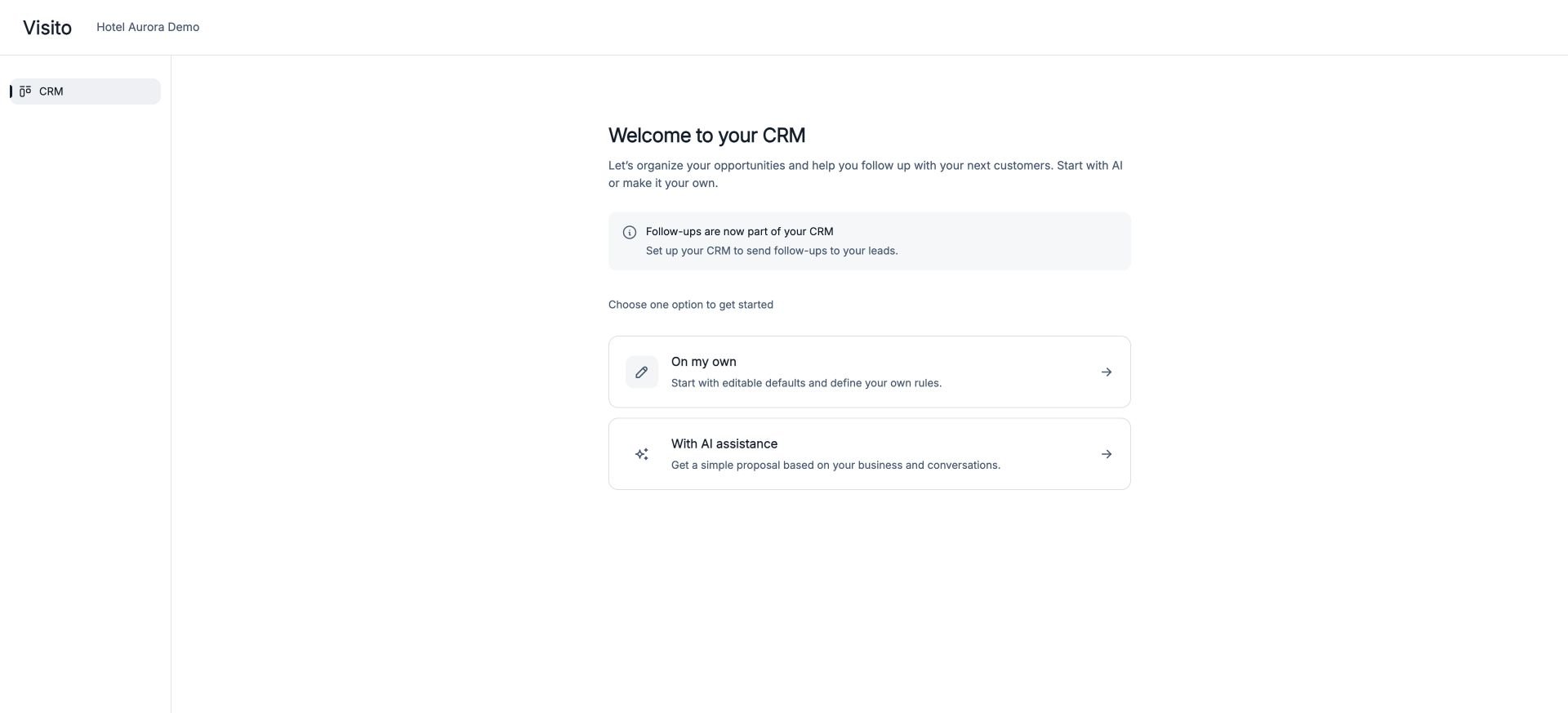 Choose a starting point:
* **On my own** starts with editable stages and fields.
* **With AI assistance** proposes a configuration using available business information and recent conversations. Review the proposal before publishing; it is a starting point, not an automatic activation. If there is not enough information, add business context or use manual setup.
## Define a lead
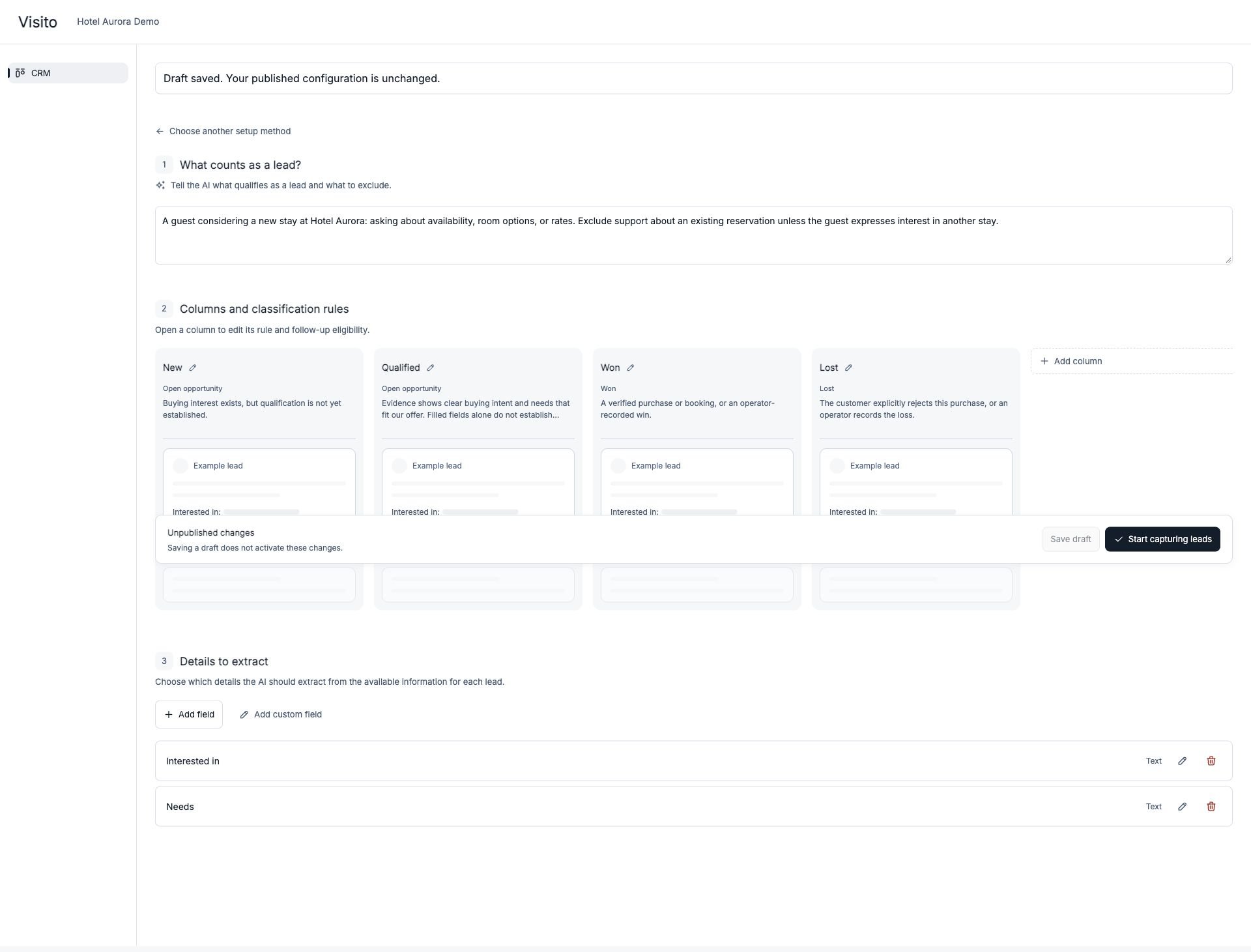
Under **What counts as a lead?**, describe buying intent and exclusions in plain language. Be specific about what your business sells and how to distinguish sales from support.
For example:
> A guest considering a new stay at Hotel Aurora: asking about availability, room options, or rates. Exclude support about an existing reservation unless the guest expresses interest in another stay.
Choose a starting point:
* **On my own** starts with editable stages and fields.
* **With AI assistance** proposes a configuration using available business information and recent conversations. Review the proposal before publishing; it is a starting point, not an automatic activation. If there is not enough information, add business context or use manual setup.
## Define a lead
Under **What counts as a lead?**, describe buying intent and exclusions in plain language. Be specific about what your business sells and how to distinguish sales from support.
For example:
> A guest considering a new stay at Hotel Aurora: asking about availability, room options, or rates. Exclude support about an existing reservation unless the guest expresses interest in another stay.
 ## Set stages and follow-up eligibility
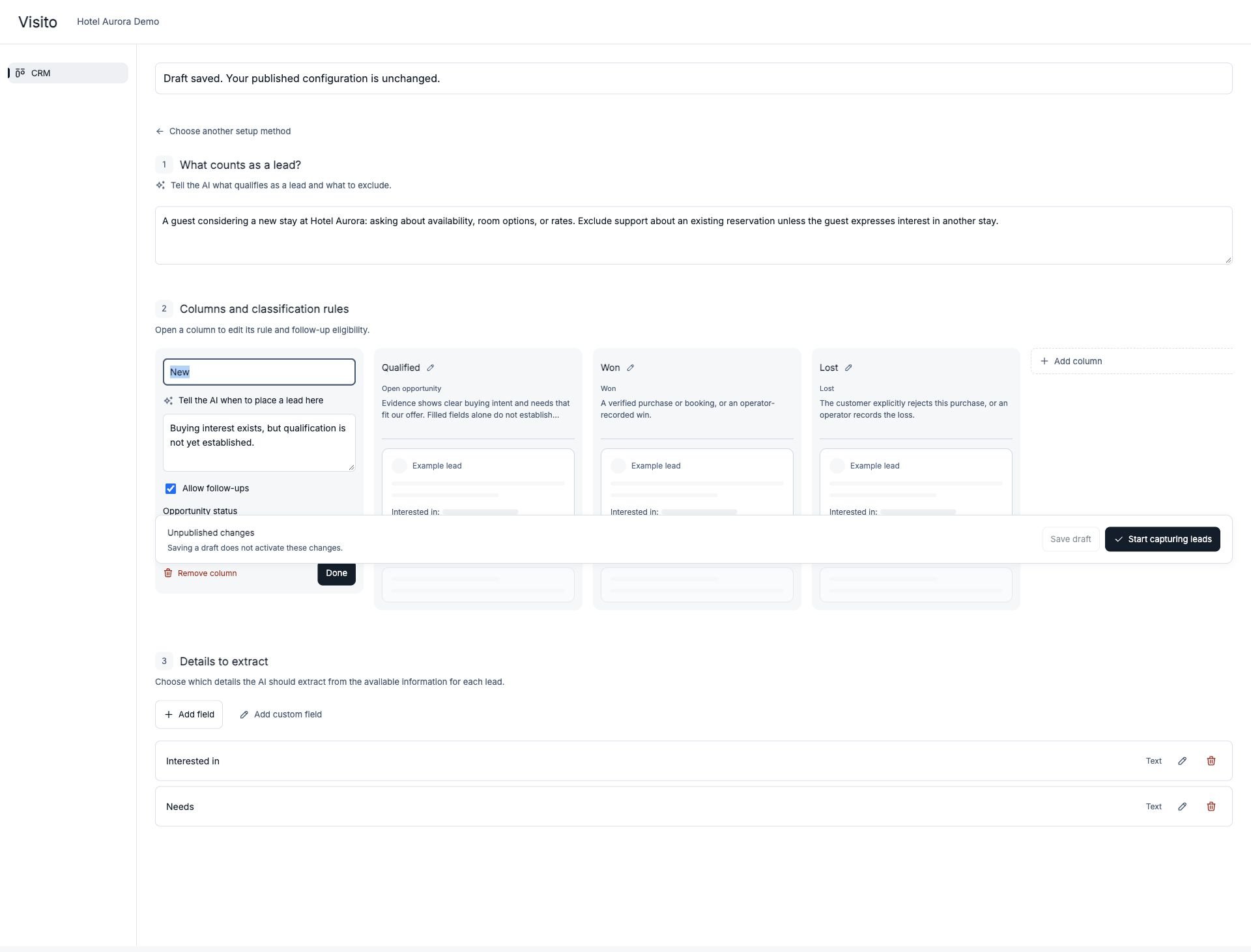
Open a stage to edit its name and the rule that tells the AI when a lead belongs there. The starter configuration includes **New**, **Qualified**, **Won**, and **Lost**. Adapt the rules to your sales process, using clear evidence for each outcome.
For each open stage, decide whether to enable **Allow follow-ups**. This permits Visito to consider a follow-up; it does not guarantee that every lead receives one. The conversation must still be eligible, and the workspace follow-up mode must allow it.
## Set stages and follow-up eligibility
Open a stage to edit its name and the rule that tells the AI when a lead belongs there. The starter configuration includes **New**, **Qualified**, **Won**, and **Lost**. Adapt the rules to your sales process, using clear evidence for each outcome.
For each open stage, decide whether to enable **Allow follow-ups**. This permits Visito to consider a follow-up; it does not guarantee that every lead receives one. The conversation must still be eligible, and the workspace follow-up mode must allow it.
 Closed opportunities are not eligible for new sales follow-ups. Recording a win in CRM does not create a reservation, collect a payment, or change a connected system.
## Choose the details to capture
Under **Details to extract**, select useful fields or add a custom field. Examples include interest, needs, budget, location, timeline, email, phone, company, and preferred language.
Give custom fields clear names and extraction instructions. Visito captures information from available conversation evidence; adding a field is not an instruction to ask every customer for it. A value may remain empty until the information is available.
For Hotel Aurora, **Interested in** describes the purpose of the stay and **Needs** captures requirements such as two rooms close together.
## Save and publish
1. Select **Save draft** to keep your work without activating it.
2. Review the lead definition, stage rules, follow-up permissions, and fields.
3. Select **Start capturing leads** to publish the initial configuration.
Publication starts capture for new conversations. It does not import your historical conversations into the board. After publication, use **Configure** to make further changes and publish them when ready; saving a draft alone leaves the published configuration in place.
For a workspace using this CRM, follow-ups depend on a published, running configuration. An unpublished or paused CRM does not generate new sales follow-ups. The follow-up mode is a separate setting: publishing is not a request to turn on Auto.
Publishing configuration changes can invalidate pending follow-ups so they can be evaluated against the current rules. Pausing skips pending CRM follow-ups. Review the queue after these changes; do not assume old messages will resume automatically.
## Work with your leads
Open **CRM → Leads**. Use **Board** to see opportunities by stage or **Table** for a compact list. The board groups won and lost outcomes under **Closed**, while each card keeps its outcome label.
Closed opportunities are not eligible for new sales follow-ups. Recording a win in CRM does not create a reservation, collect a payment, or change a connected system.
## Choose the details to capture
Under **Details to extract**, select useful fields or add a custom field. Examples include interest, needs, budget, location, timeline, email, phone, company, and preferred language.
Give custom fields clear names and extraction instructions. Visito captures information from available conversation evidence; adding a field is not an instruction to ask every customer for it. A value may remain empty until the information is available.
For Hotel Aurora, **Interested in** describes the purpose of the stay and **Needs** captures requirements such as two rooms close together.
## Save and publish
1. Select **Save draft** to keep your work without activating it.
2. Review the lead definition, stage rules, follow-up permissions, and fields.
3. Select **Start capturing leads** to publish the initial configuration.
Publication starts capture for new conversations. It does not import your historical conversations into the board. After publication, use **Configure** to make further changes and publish them when ready; saving a draft alone leaves the published configuration in place.
For a workspace using this CRM, follow-ups depend on a published, running configuration. An unpublished or paused CRM does not generate new sales follow-ups. The follow-up mode is a separate setting: publishing is not a request to turn on Auto.
Publishing configuration changes can invalidate pending follow-ups so they can be evaluated against the current rules. Pausing skips pending CRM follow-ups. Review the queue after these changes; do not assume old messages will resume automatically.
## Work with your leads
Open **CRM → Leads**. Use **Board** to see opportunities by stage or **Table** for a compact list. The board groups won and lost outcomes under **Closed**, while each card keeps its outcome label.
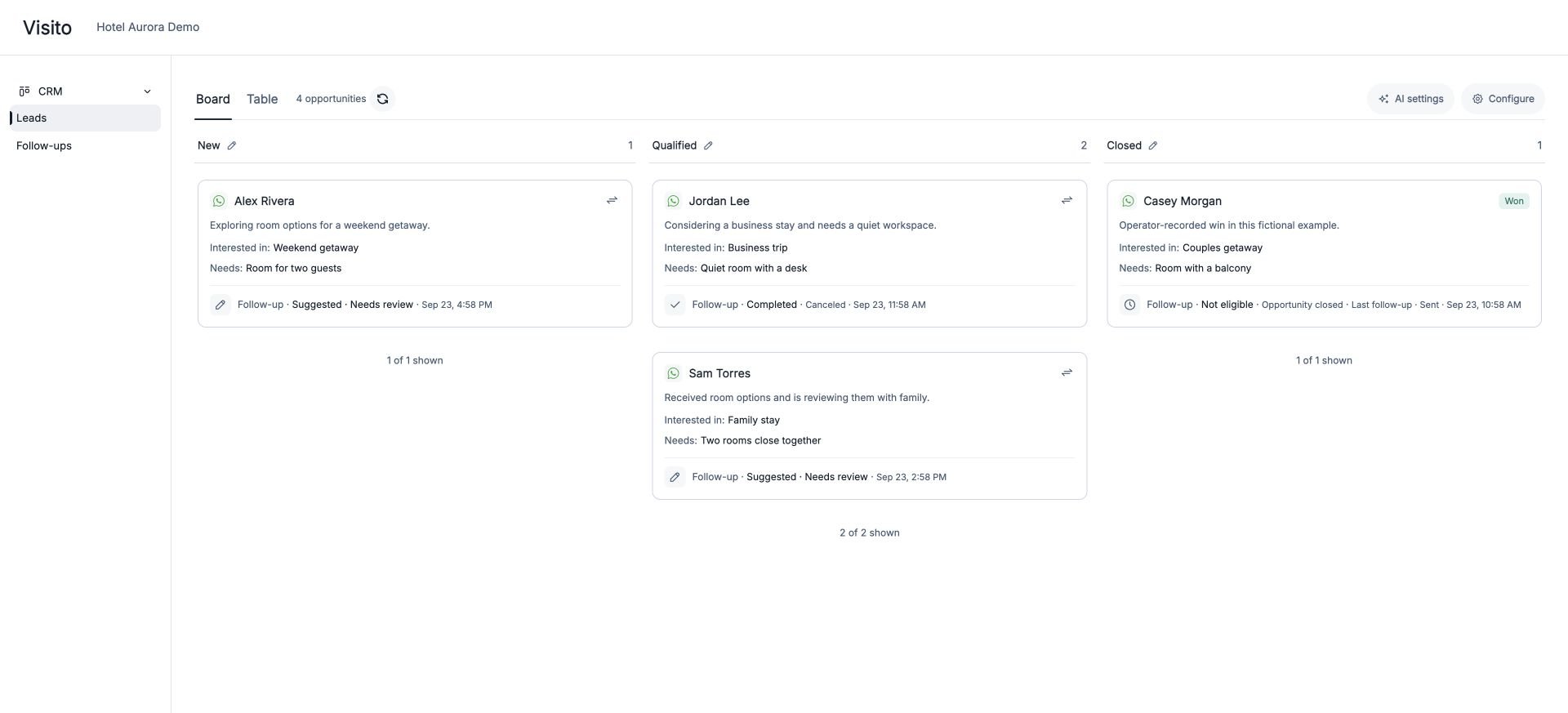 Cards show the contact, a summary, captured details, and follow-up status when available. Use **Refresh** to reconcile the view with recent activity.
Open an opportunity to inspect its details and activity. You can correct captured values and move the opportunity to the appropriate stage. Manual corrections take precedence over automatic updates.
Cards show the contact, a summary, captured details, and follow-up status when available. Use **Refresh** to reconcile the view with recent activity.
Open an opportunity to inspect its details and activity. You can correct captured values and move the opportunity to the appropriate stage. Manual corrections take precedence over automatic updates.
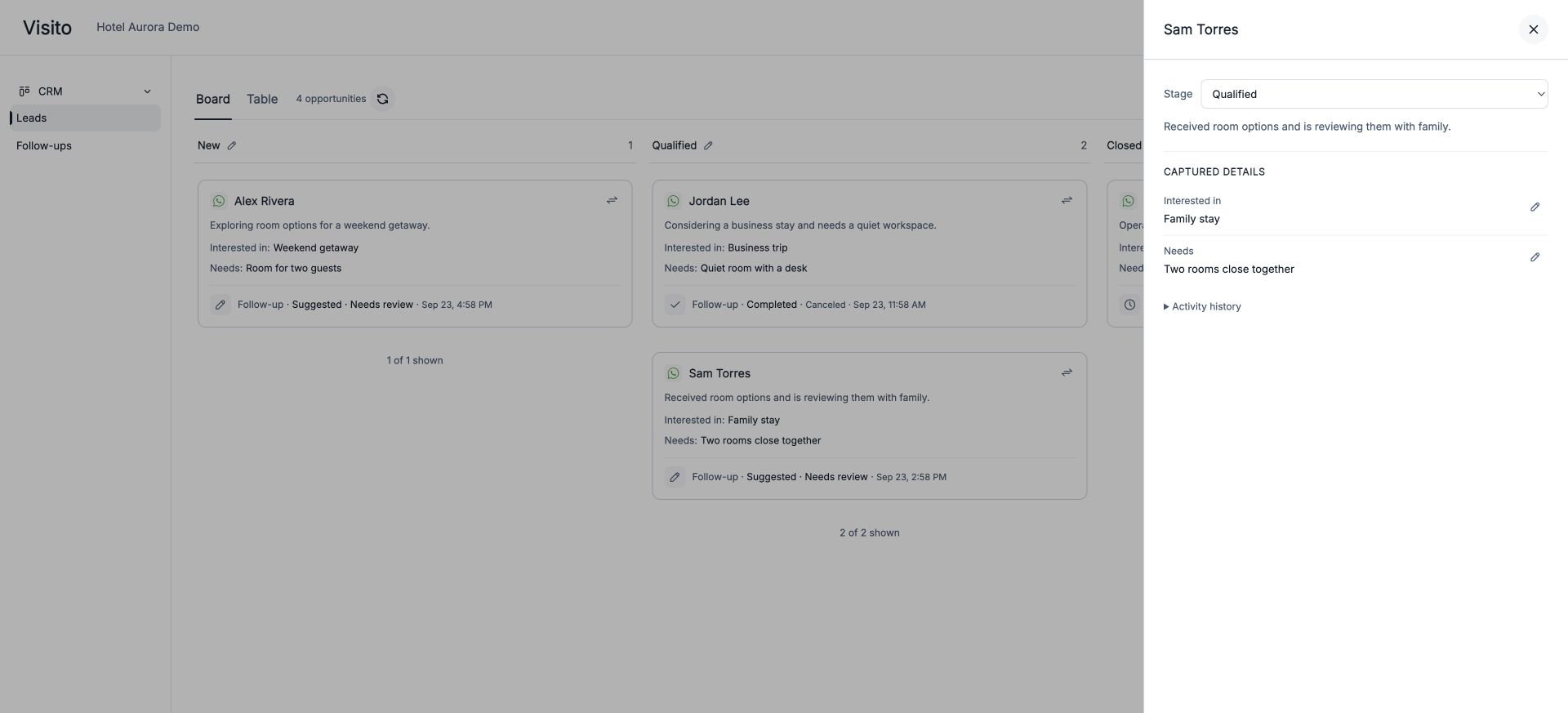 Use the card's move control to change an open stage or close an opportunity with the appropriate outcome. Review the conversation before making a correction. Editing the CRM record does not send a customer message.
## Connect CRM to follow-ups
Open **CRM → Follow-ups** and choose **Off**, **Draft**, or **Auto**. Start with Draft if your team wants to review suggested messages before sending.
Follow-ups require all of the following: a published and running CRM, an open opportunity in an allowed stage, an eligible conversation, an available channel window, and a mode that permits generation. Auto also checks that the destination channel is active and AI replies are enabled.
See [how to configure and manage follow-ups](/product-guides/product/follow-ups) for message review, preferences, quiet hours, history, and credits.
## When something looks missing
| What you see | What to check |
| ----------------------------------- | ----------------------------------------------------------------------------------------------------------------------------------------- |
| CRM opens the welcome screen | Complete setup and publish; saving a draft is not activation. |
| The board is empty after publishing | Capture starts with new conversations. Historical messages are not bulk imported. Check that the conversation meets your lead definition. |
| A field is empty | Confirm that the information exists in the conversation and that the field's extraction instructions are clear. |
| An opportunity stays in its stage | Check the stage rule and any manual override before expecting an automatic move. |
| A card has no scheduled follow-up | Check its follow-up status, stage permission, workspace mode, conversation eligibility, and channel window. |
| Changes do not affect the live CRM | Check whether they were saved as a draft or published. |
Use the card's move control to change an open stage or close an opportunity with the appropriate outcome. Review the conversation before making a correction. Editing the CRM record does not send a customer message.
## Connect CRM to follow-ups
Open **CRM → Follow-ups** and choose **Off**, **Draft**, or **Auto**. Start with Draft if your team wants to review suggested messages before sending.
Follow-ups require all of the following: a published and running CRM, an open opportunity in an allowed stage, an eligible conversation, an available channel window, and a mode that permits generation. Auto also checks that the destination channel is active and AI replies are enabled.
See [how to configure and manage follow-ups](/product-guides/product/follow-ups) for message review, preferences, quiet hours, history, and credits.
## When something looks missing
| What you see | What to check |
| ----------------------------------- | ----------------------------------------------------------------------------------------------------------------------------------------- |
| CRM opens the welcome screen | Complete setup and publish; saving a draft is not activation. |
| The board is empty after publishing | Capture starts with new conversations. Historical messages are not bulk imported. Check that the conversation meets your lead definition. |
| A field is empty | Confirm that the information exists in the conversation and that the field's extraction instructions are clear. |
| An opportunity stays in its stage | Check the stage rule and any manual override before expecting an automatic move. |
| A card has no scheduled follow-up | Check its follow-up status, stage permission, workspace mode, conversation eligibility, and channel window. |
| Changes do not affect the live CRM | Check whether they were saved as a draft or published. |