> ## Documentation Index
> Fetch the complete documentation index at: https://docs.visitoai.com/llms.txt
> Use this file to discover all available pages before exploring further.
# How to manage Visito workspace and account settings
> Update the active Visito workspace name, operator profile, application language, email, and password, then find related member and mobile settings.
Open your name in the top-right corner and select **Settings**.
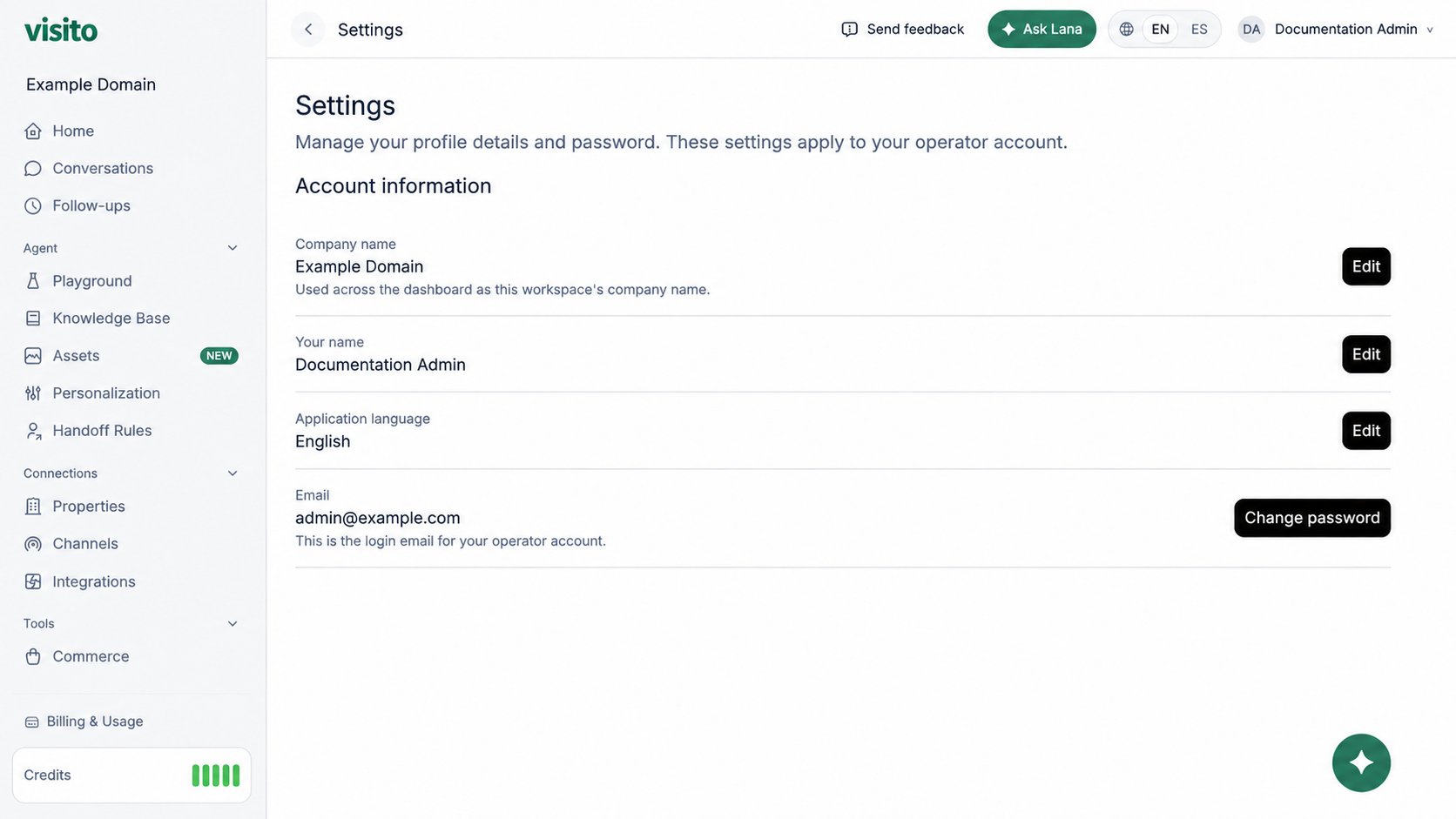 The screenshot uses example workspace and operator details. Your page shows the active workspace and the signed-in operator.
## Company name
The company name identifies the active workspace across the dashboard.
1. Confirm the correct workspace in the left sidebar.
2. Select **Edit** beside **Company name**.
3. Enter the approved workspace name and save.
Changing the company name does not switch workspaces. It renames only the active workspace.
## Your name
Your name identifies your operator account to teammates.
1. Select **Edit** beside **Your name**.
2. Enter the name teammates should recognize.
3. Save the change.
This profile value follows your operator account across workspaces.
## Application language
Select **Edit** beside **Application language**, choose English or Spanish, and save. This controls dashboard labels for your operator account; it does not force the language used in guest replies.
## Email
The email shown in Settings is the login address for the current operator account. If it is incorrect or needs to change, contact Visito support before creating a replacement account so workspace access can be preserved.
## Change your password
1. Select **Change password**.
2. Enter and confirm the new password.
3. Save the change.
4. Sign in again if prompted.
Use a unique password stored in your team's approved password manager. Never share one operator login between people when individual member accounts can be invited.
## Related workspace controls
* [Workspace members](/product-guides/product/user-management) - invitations, roles, and member access
* [Access and navigation](/product-guides/getting-started/access-and-navigation) - workspace switching and the account menu
* [Mobile app & push notifications](/product-guides/product/mobile-apps) - mobile profile and notification settings
The screenshot uses example workspace and operator details. Your page shows the active workspace and the signed-in operator.
## Company name
The company name identifies the active workspace across the dashboard.
1. Confirm the correct workspace in the left sidebar.
2. Select **Edit** beside **Company name**.
3. Enter the approved workspace name and save.
Changing the company name does not switch workspaces. It renames only the active workspace.
## Your name
Your name identifies your operator account to teammates.
1. Select **Edit** beside **Your name**.
2. Enter the name teammates should recognize.
3. Save the change.
This profile value follows your operator account across workspaces.
## Application language
Select **Edit** beside **Application language**, choose English or Spanish, and save. This controls dashboard labels for your operator account; it does not force the language used in guest replies.
## Email
The email shown in Settings is the login address for the current operator account. If it is incorrect or needs to change, contact Visito support before creating a replacement account so workspace access can be preserved.
## Change your password
1. Select **Change password**.
2. Enter and confirm the new password.
3. Save the change.
4. Sign in again if prompted.
Use a unique password stored in your team's approved password manager. Never share one operator login between people when individual member accounts can be invited.
## Related workspace controls
* [Workspace members](/product-guides/product/user-management) - invitations, roles, and member access
* [Access and navigation](/product-guides/getting-started/access-and-navigation) - workspace switching and the account menu
* [Mobile app & push notifications](/product-guides/product/mobile-apps) - mobile profile and notification settings