
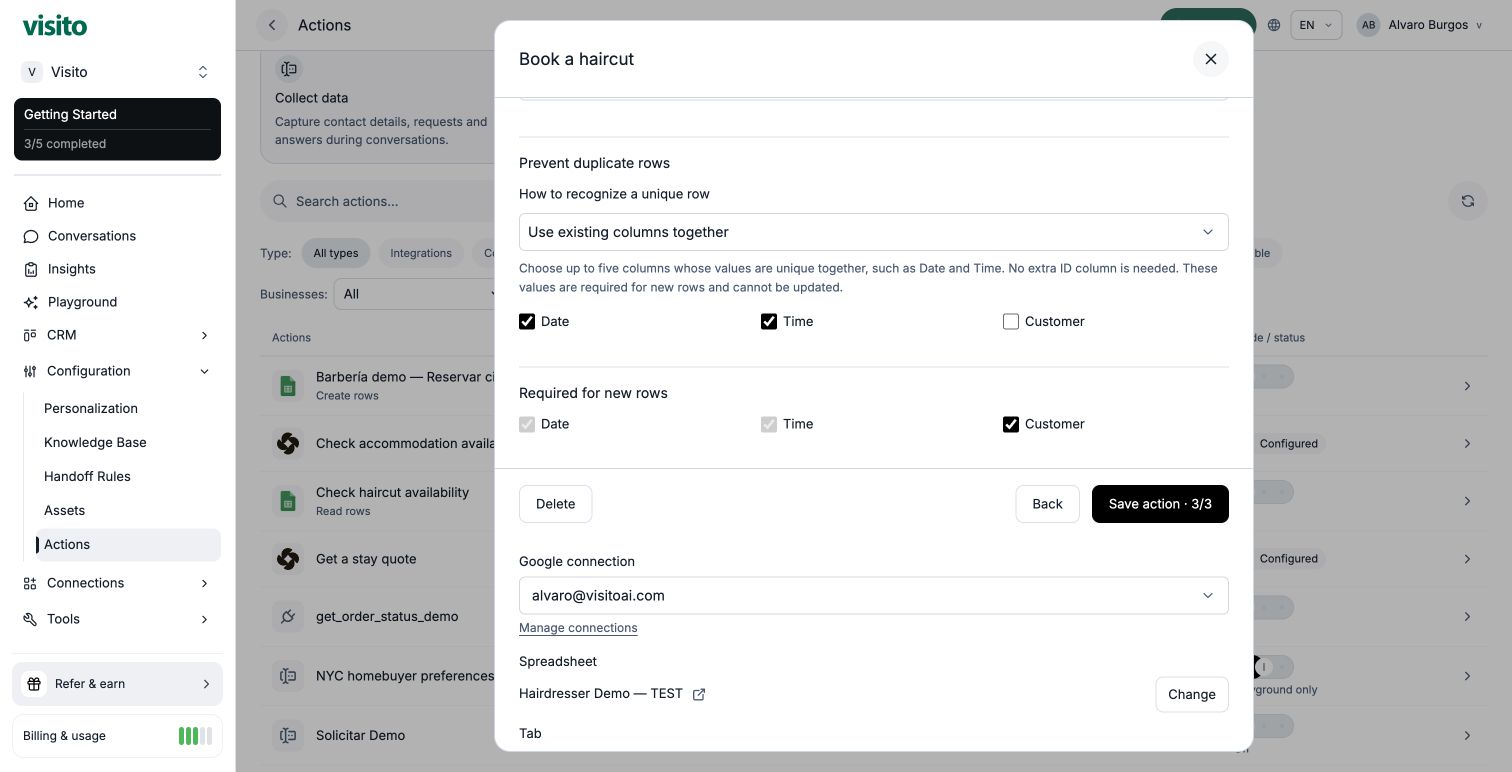
You do not need to make up slot IDs. Select Date and Time together in the booking action’s duplicate protection settings. Visito checks both values before adding a row.
1. Make the two tabs
Create a Google spreadsheet named Hairdresser Demo — Availability and Bookings. Rename its first tab Availability, and add a second tab named Bookings. In Availability, put these headers in A1:C1: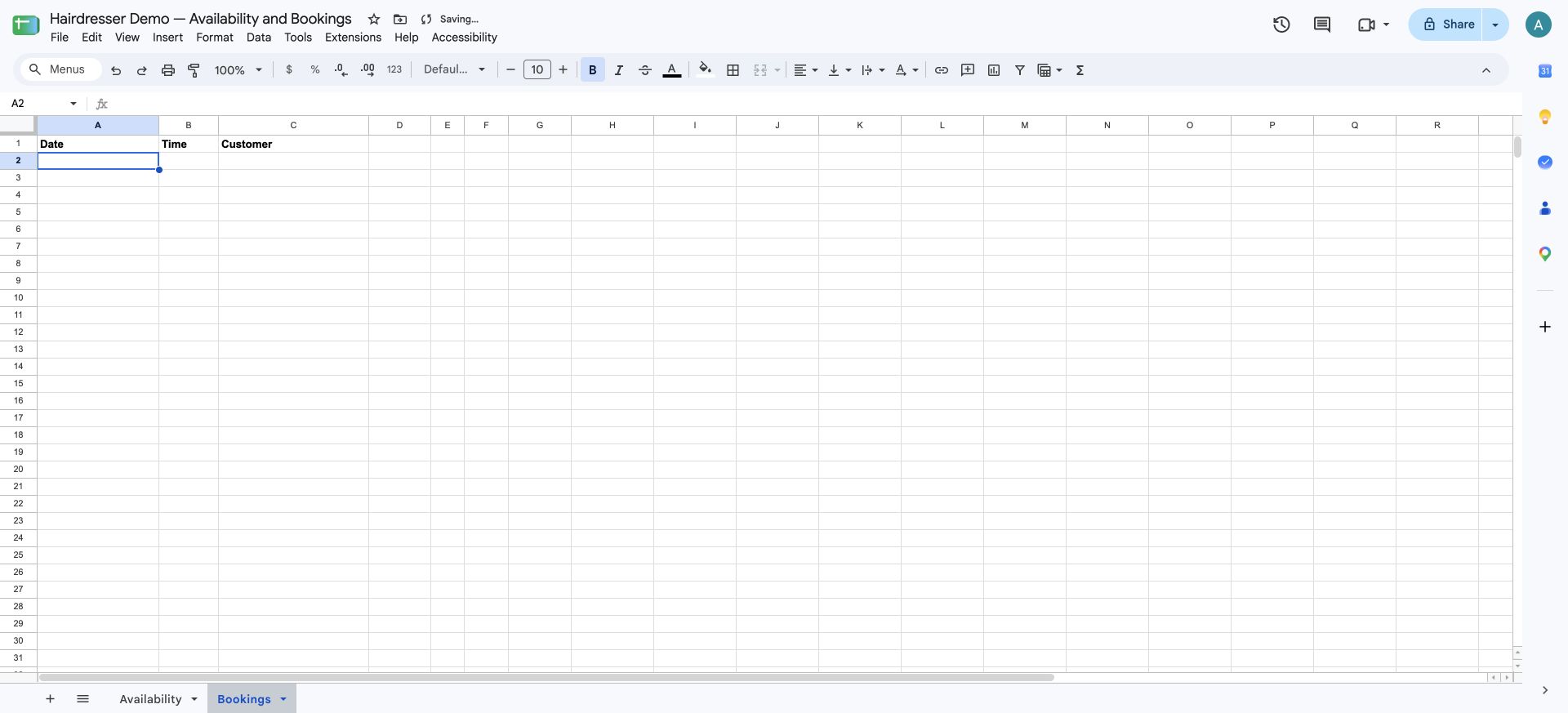
Add your available times
In both tabs, select A2:B1000 → Format → Number → Plain text before entering dates and times. Use YYYY-MM-DD for dates and HH:mm for times. For example,2026-10-05 and 10:00. Keeping the same format in both tabs makes matching predictable.
Enter these rows in Availability. The last column will be a formula:
Use future dates when trying this yourself. Each Date + Time pair must appear only once in Availability.
You can also paste the availability template and bookings headers into A1 of their respective tabs. Create both tabs before pasting the availability formulas. Keep row 1 for headers, without merged cells or a title above them.
2. Let the sheet calculate availability
In Availability!C2, enter:- No booking yet: Available = 1.
- A booking exists: Available = 0.
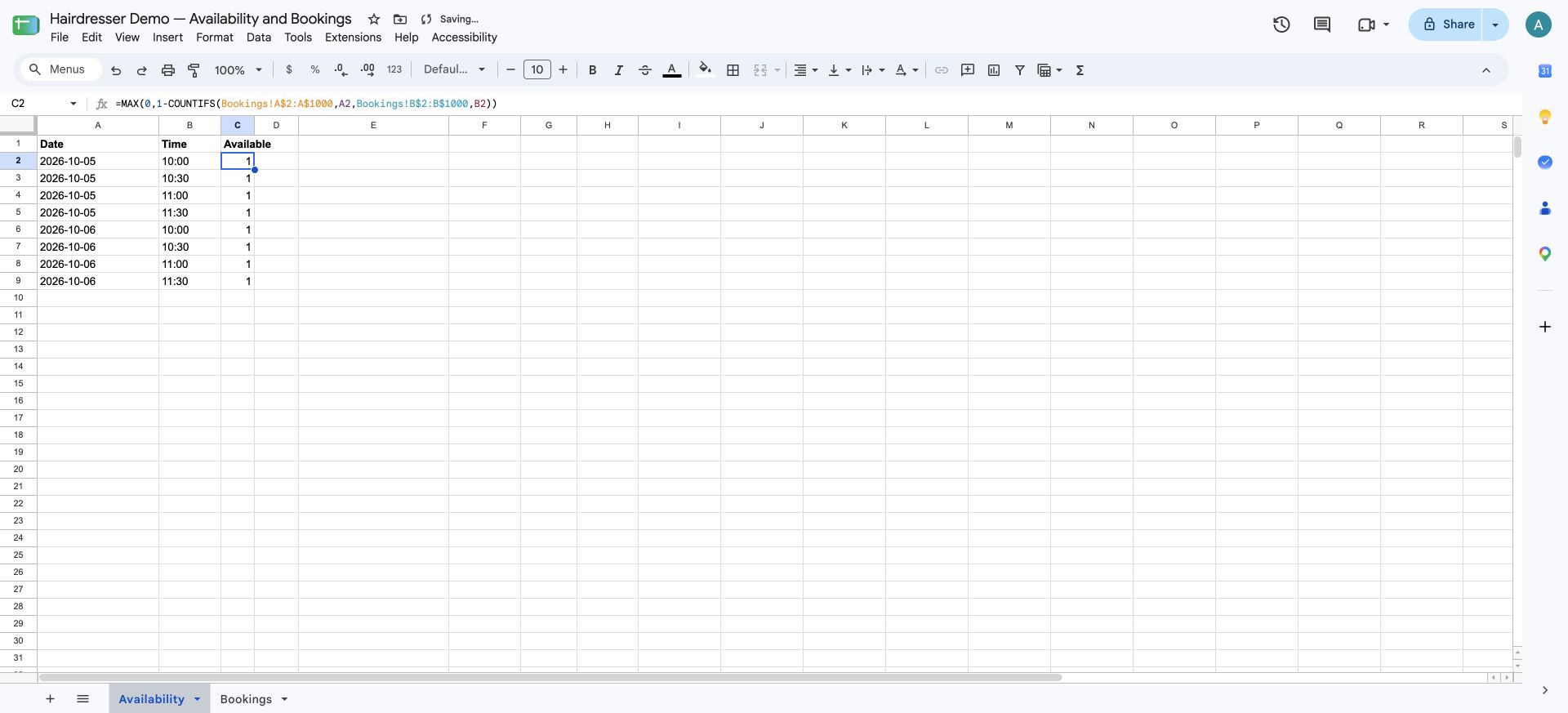
$2:$1000 ranges stay fixed when you fill down. A2 and B2 change to the current row. If your sheet uses semicolons in formulas, replace the commas with semicolons.
Do not type over the Available formulas. The formula reduces availability; the action’s duplicate check prevents Visito from adding the same Date + Time twice. No separate “decrease availability” action is necessary.
3. Make a test copy
In Google Sheets, use File → Make a copy and name it Hairdresser Demo — TEST. Copy both tabs, including their formulas, and leave its Bookings tab empty. This must be a separate spreadsheet file, with the same headers and formats. Playground writes go to this copy. Keep the main file and test file clearly distinguishable in Google Picker.4. Create “Check haircut availability”
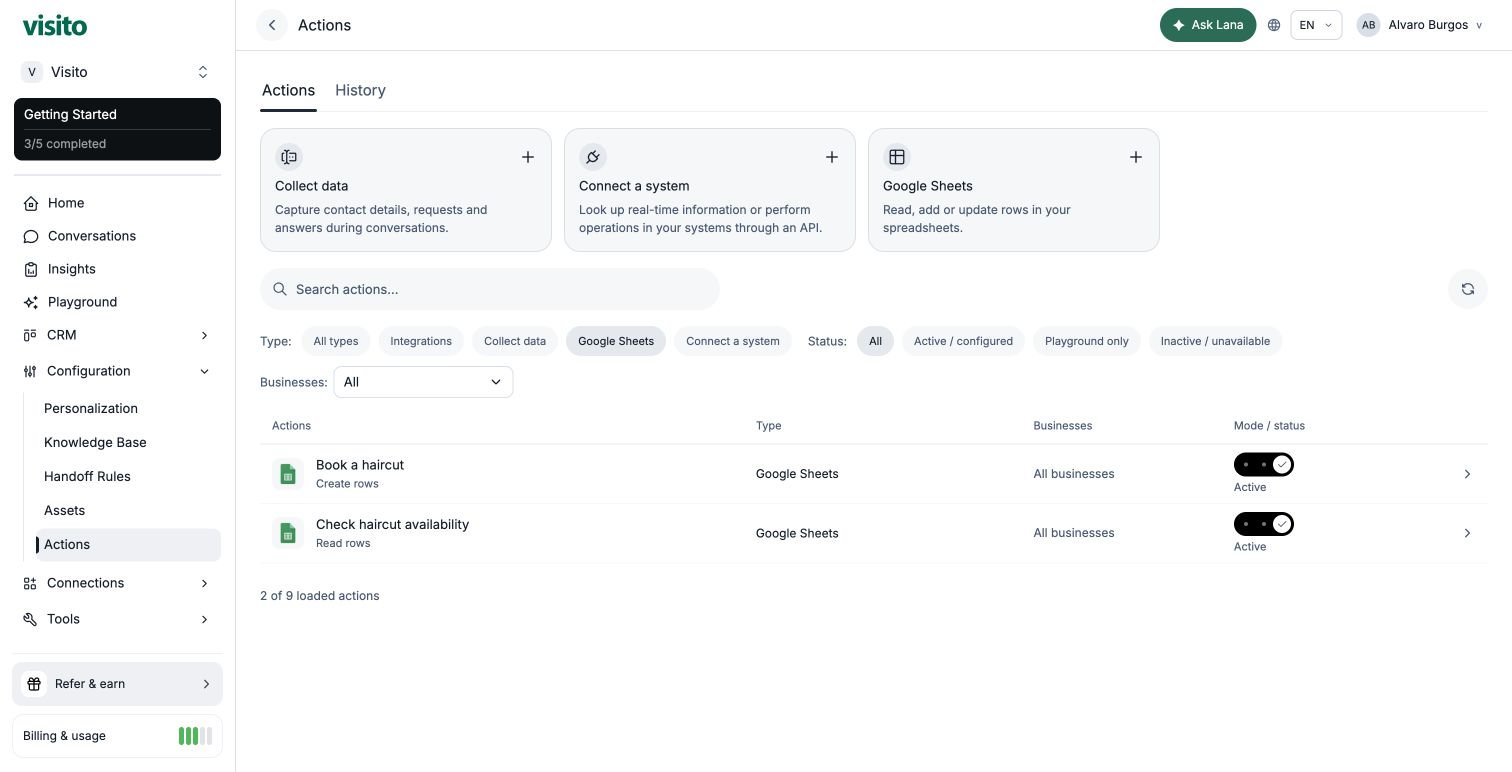
Go to Configuration → Actions → Google Sheets. Connect your Google account in Integrations first if necessary; the spreadsheet selection happens inside the action.- Choose your Google connection.
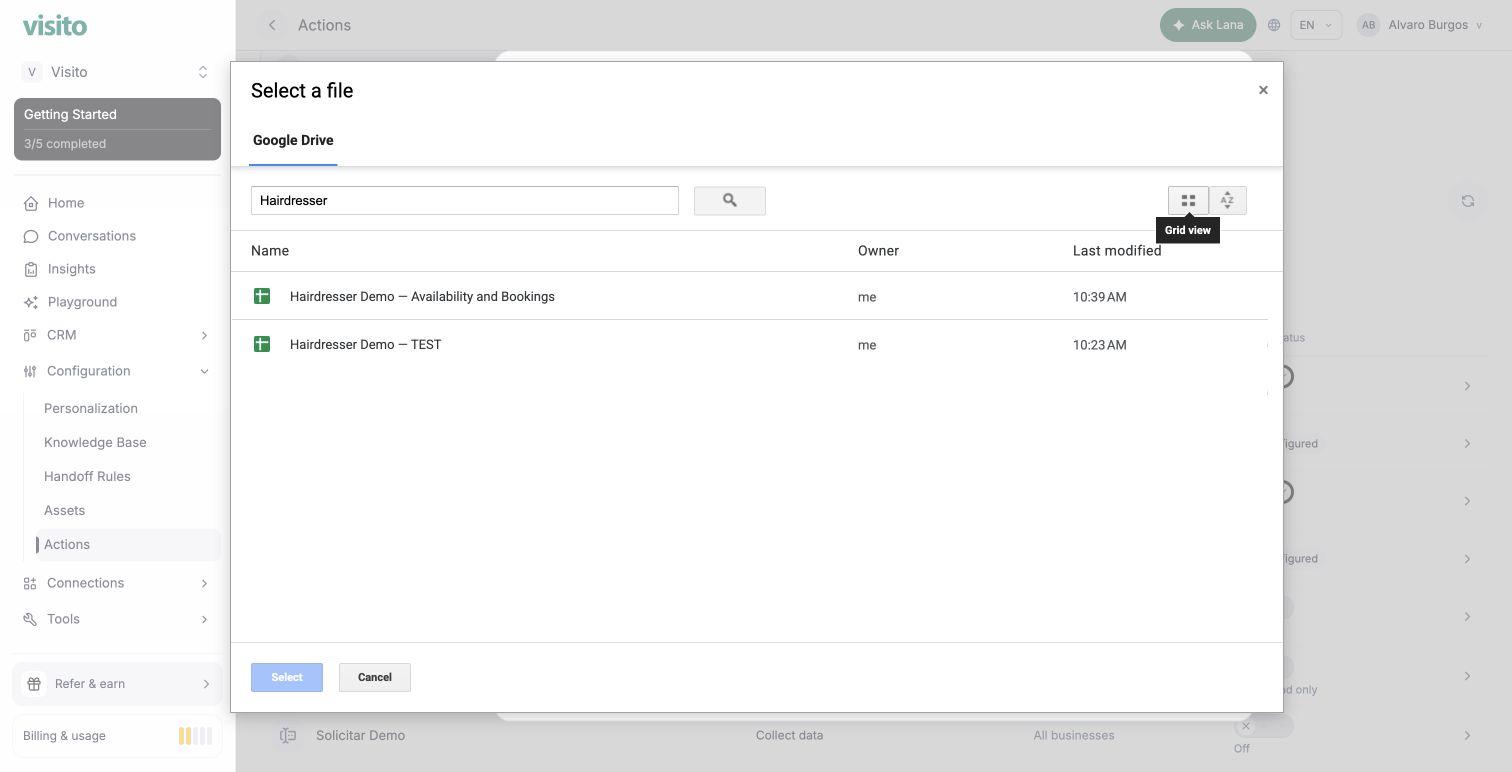
- Choose the main spreadsheet through Choose spreadsheet and Google Picker.
- Select Availability.
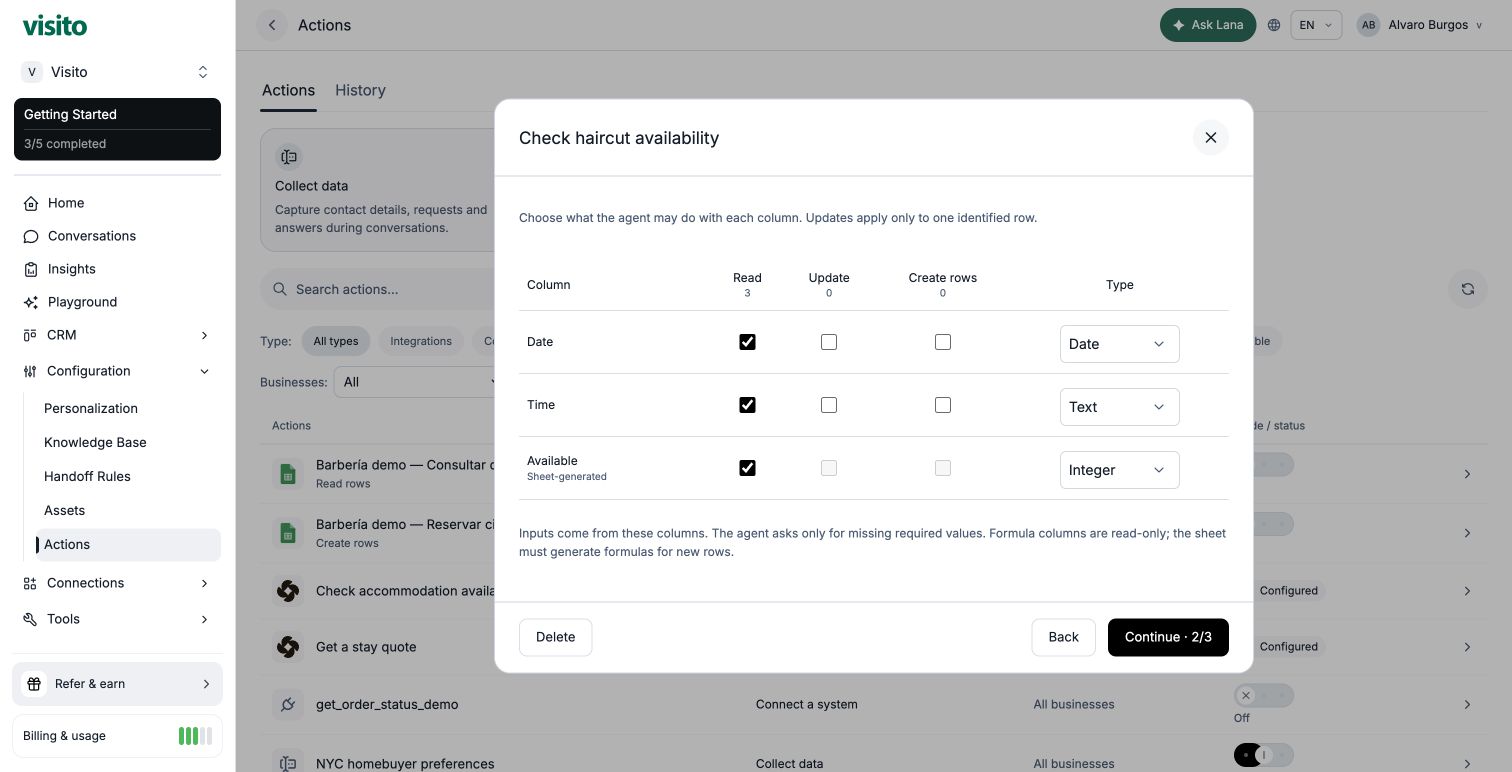
- Select Date, Time and Available, then continue.
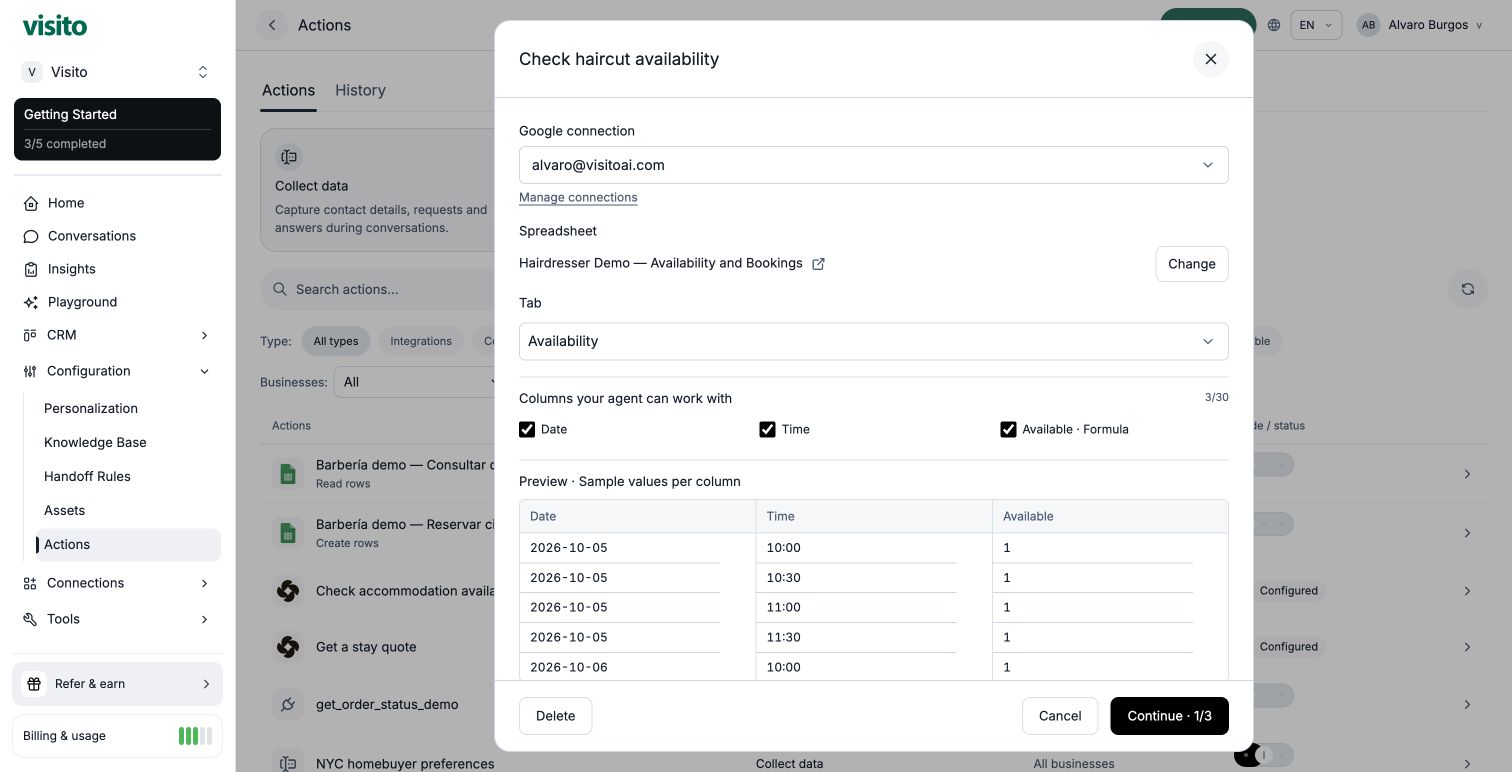
Available is detected as Sheet-generated. Its write controls are disabled.
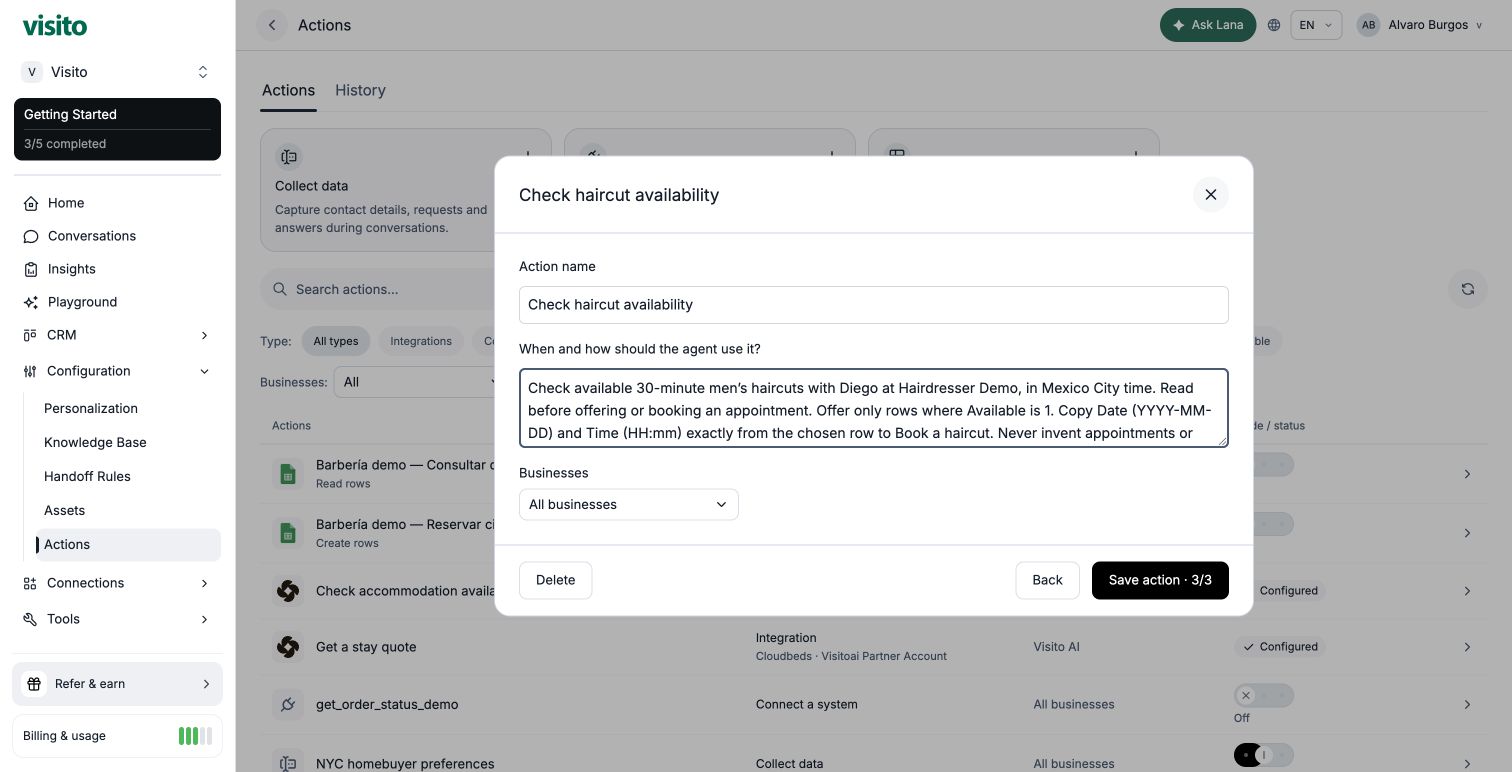
Check available 30-minute men’s haircuts with Diego in Mexico City time. Read before offering or booking an appointment. Offer only rows where Available is 1. Copy Date (YYYY-MM-DD) and Time (HH:mm) exactly from the chosen row to Book a haircut. Never invent appointments or prices. After a verified booking, read again to check that the chosen slot is now 0.
5. Create “Book a haircut”
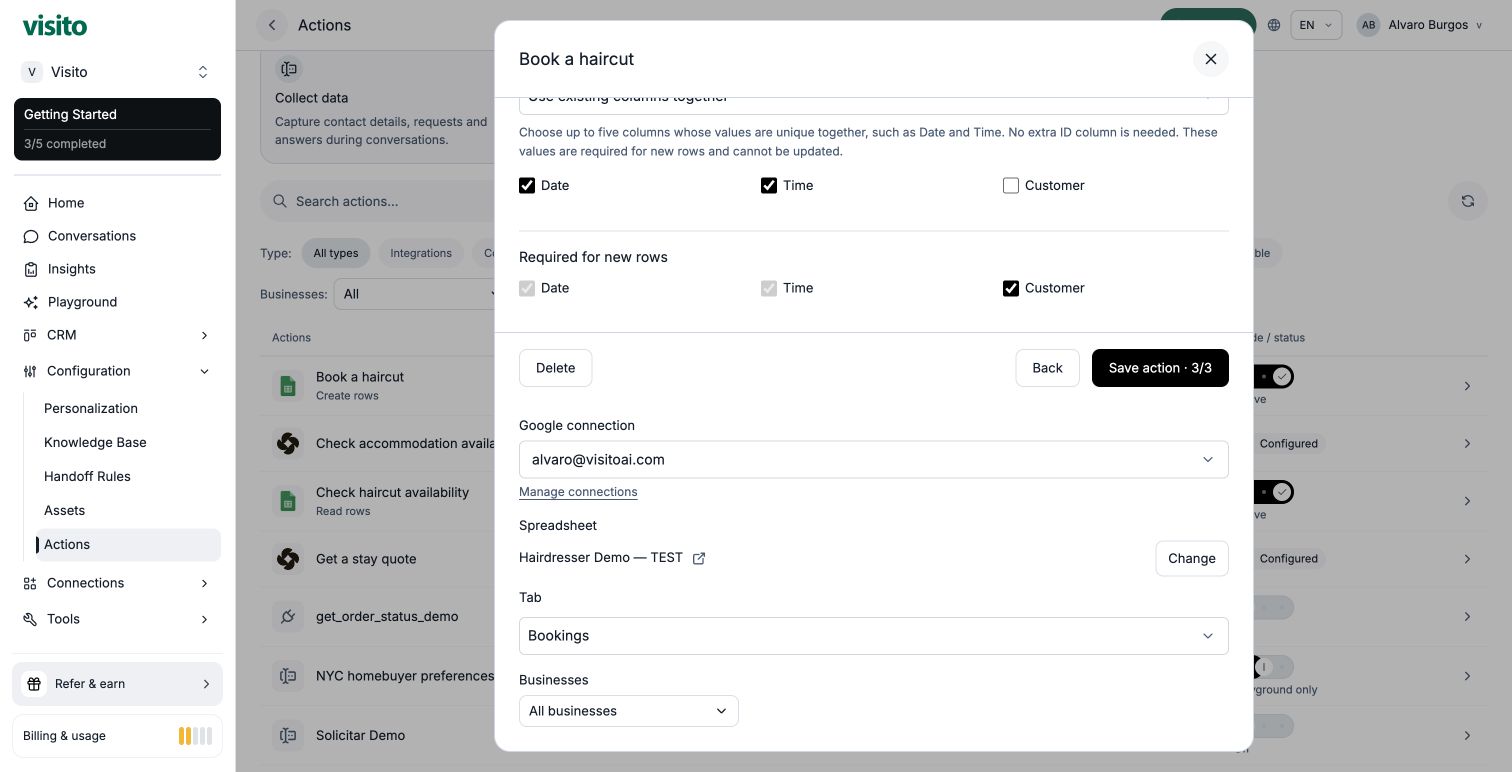
Create a second Google Sheets action. Select the same main spreadsheet, the Bookings tab, and all three columns.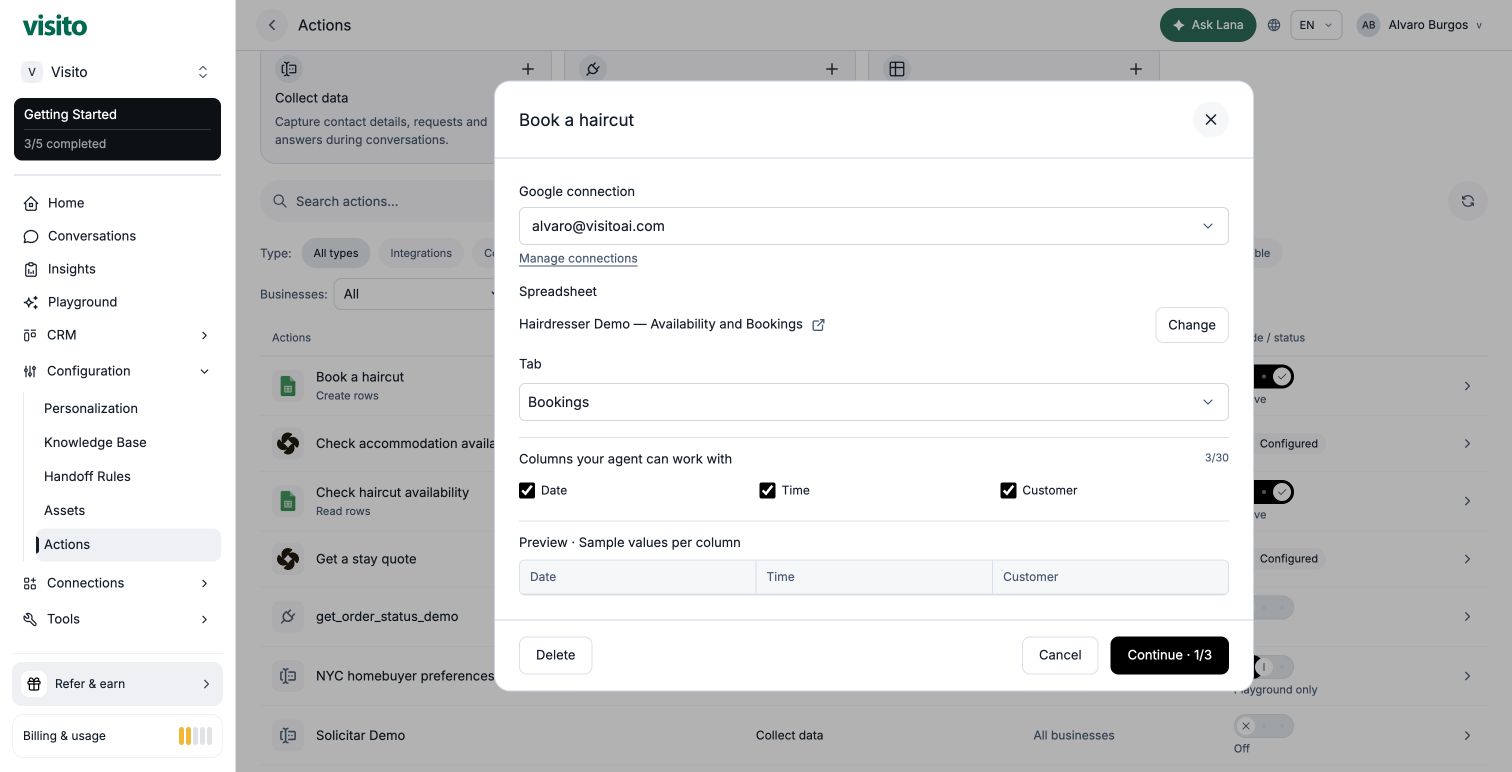
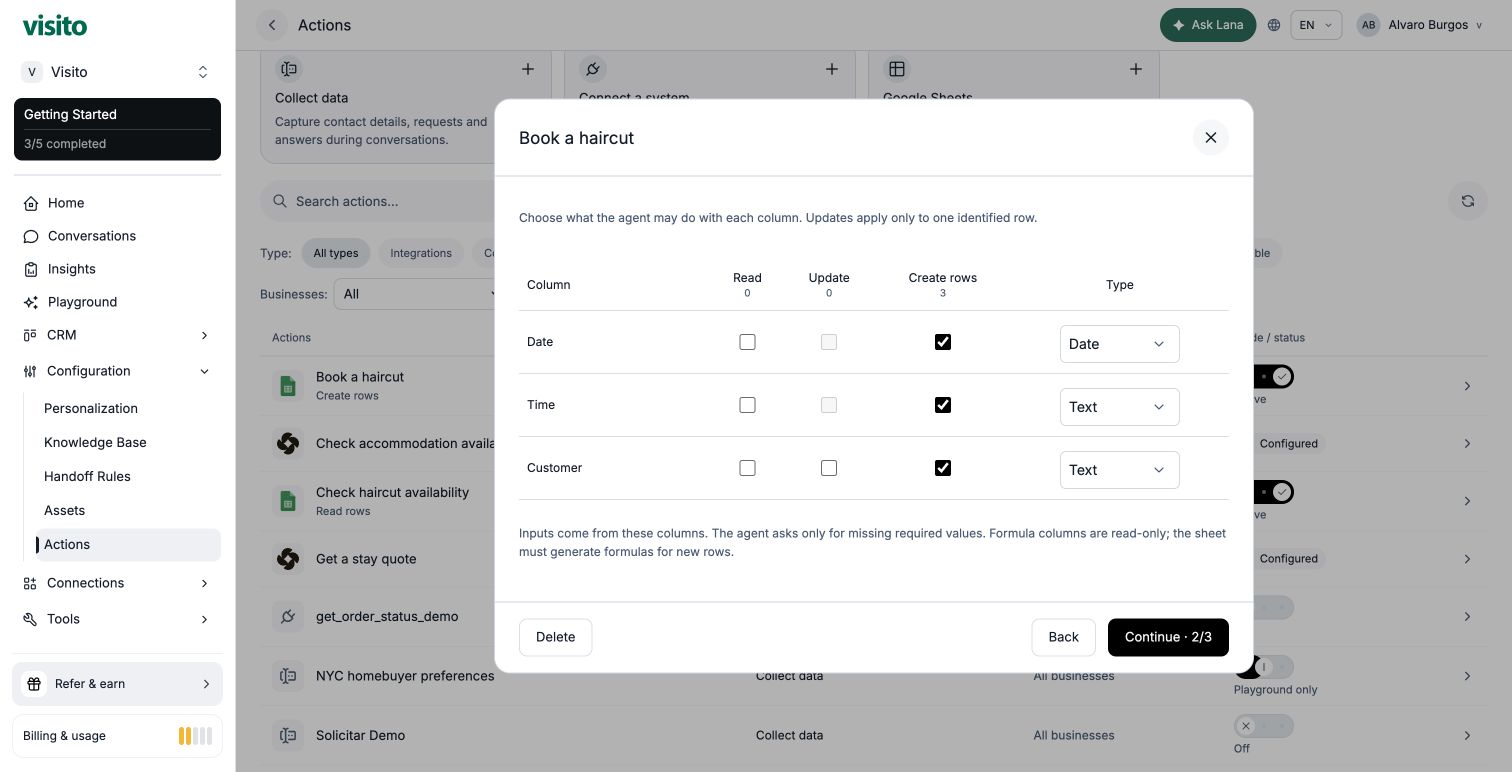
An empty tab may suggest Text for every column. Change Date to Date manually. Leave Read off so the agent cannot retrieve other customers’ names.
- Name it Book a haircut.
- Under Prevent duplicate rows, select Use existing columns together.
- Check Date and Time. Leave Customer unchecked: another name must not allow a second booking of the same time.
- Date and Time become required automatically. Also mark Customer as required.
- Choose Hairdresser Demo — TEST → Bookings as the test target.
- Use the same business scope as the availability action.
Record one haircut only after the customer chooses a time and gives their name. First use Check haircut availability and require Available = 1. Copy Date and Time exactly from that available row. Customer is the supplied name. Ask only for missing customer information. After a verified write, say the appointment is recorded and check availability again. If that Date and Time already exist, offer another time. Never change values to bypass a conflict. Never retry an unverified write or claim it succeeded.Save and review the mode. For the controlled Webchat test below, deliberately make both actions Active and use a disposable main workbook.
6. Test the customer conversation
Why Webchat for this example? The read-only action uses the main file in Playground, while the booking action writes to the test file. Used together there, they would not demonstrate the main file’s availability decreasing. Webchat with Active actions uses the main file for both. Playground can execute Sheets actions. For an isolated end-to-end Playground test, configure a separate read action against the test dataset too. Do not point tests at real customer bookings. Start a new Webchat conversation:- “I’d like a men’s haircut with Diego on October 5, 2026. What morning times are available?”
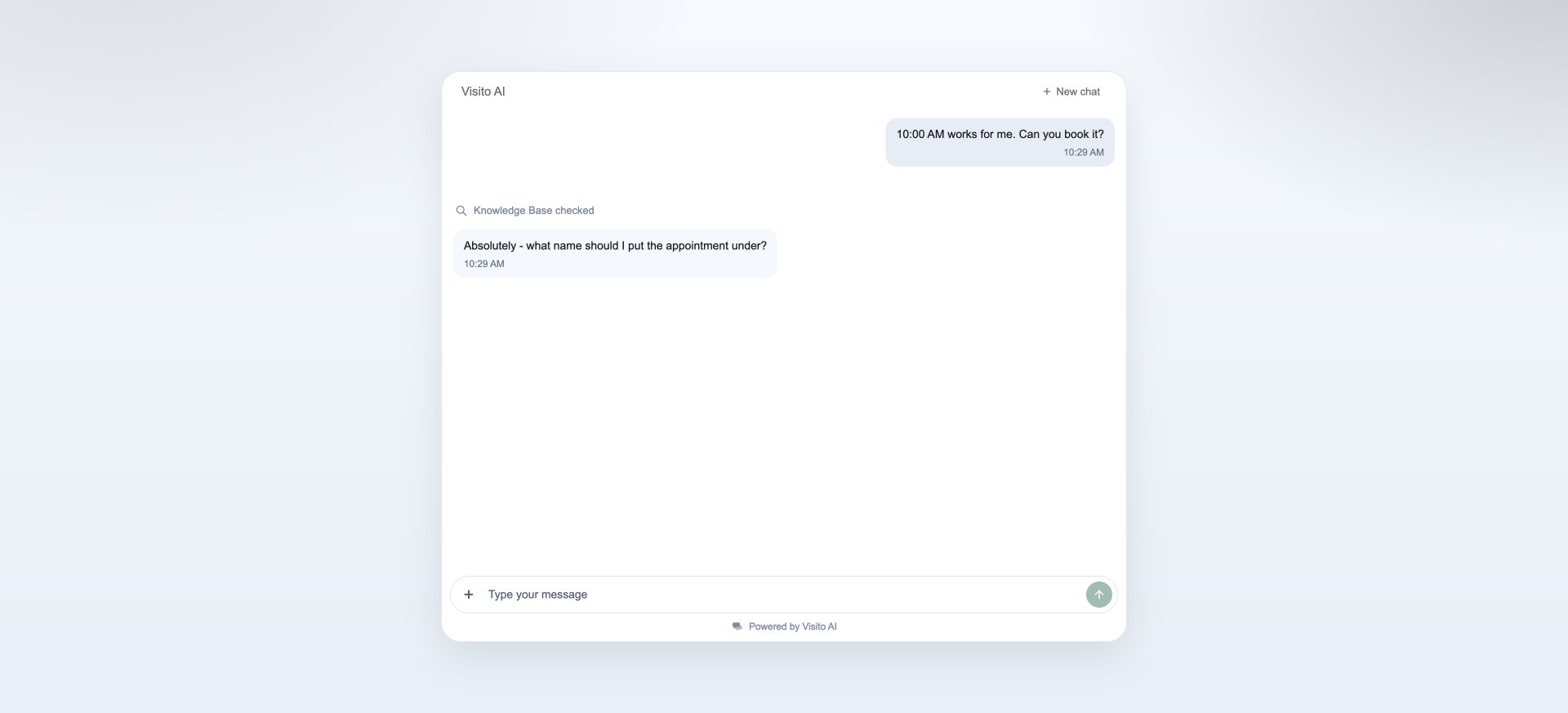
- “10:00 AM works for me. Can you book it?”
- The agent should ask for your name before writing.
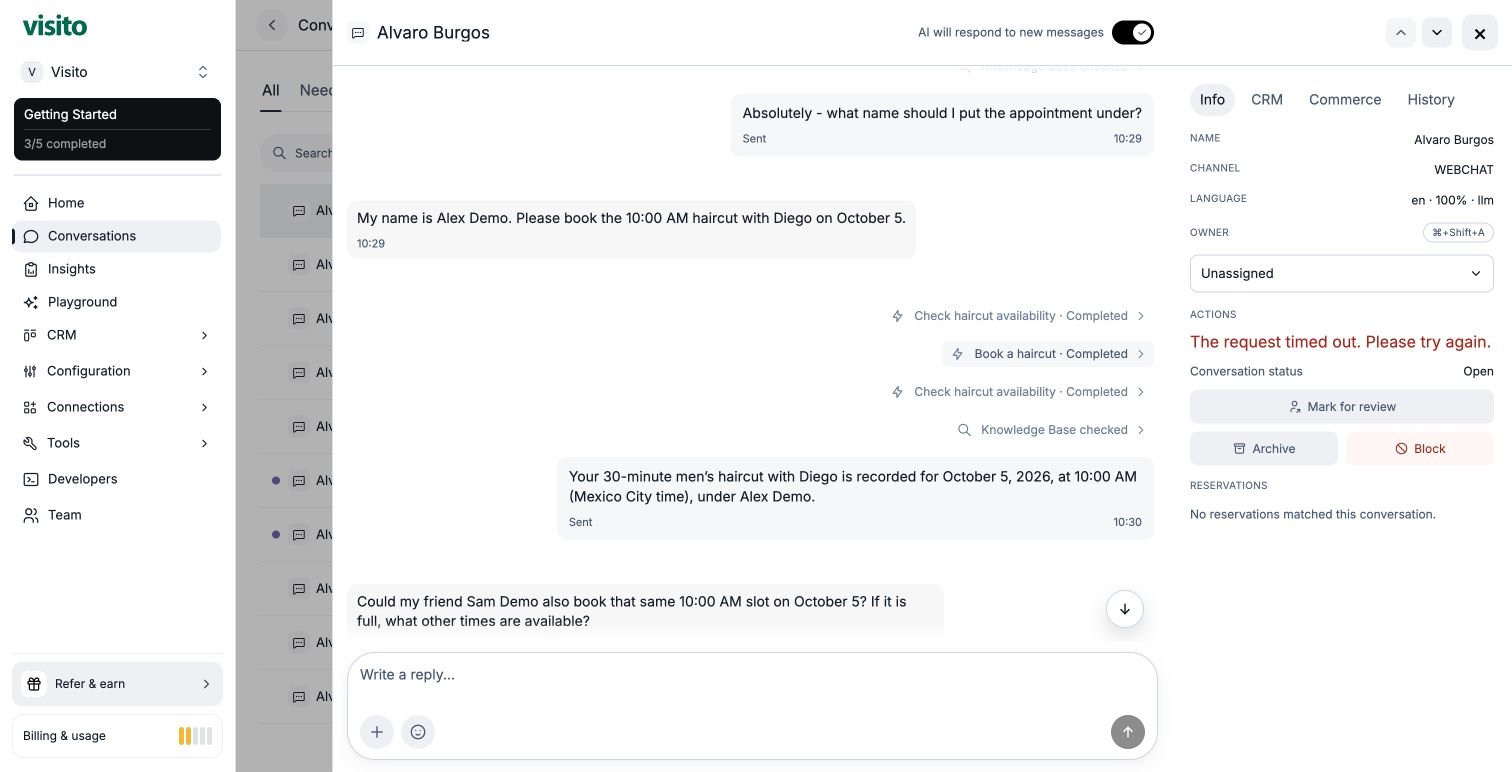
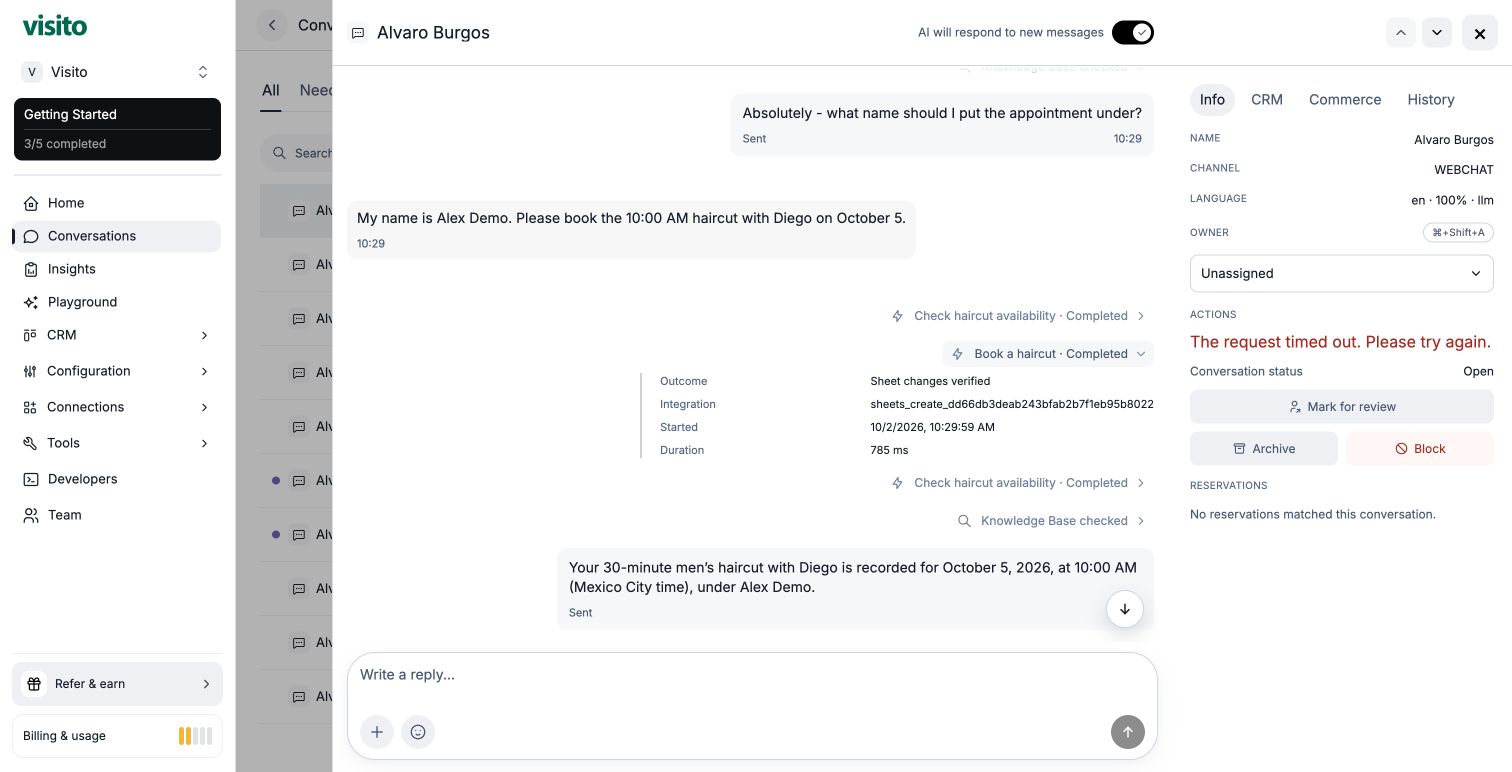
- “My name is Alex Demo. Please book the 10:00 AM haircut with Diego on October 5.”
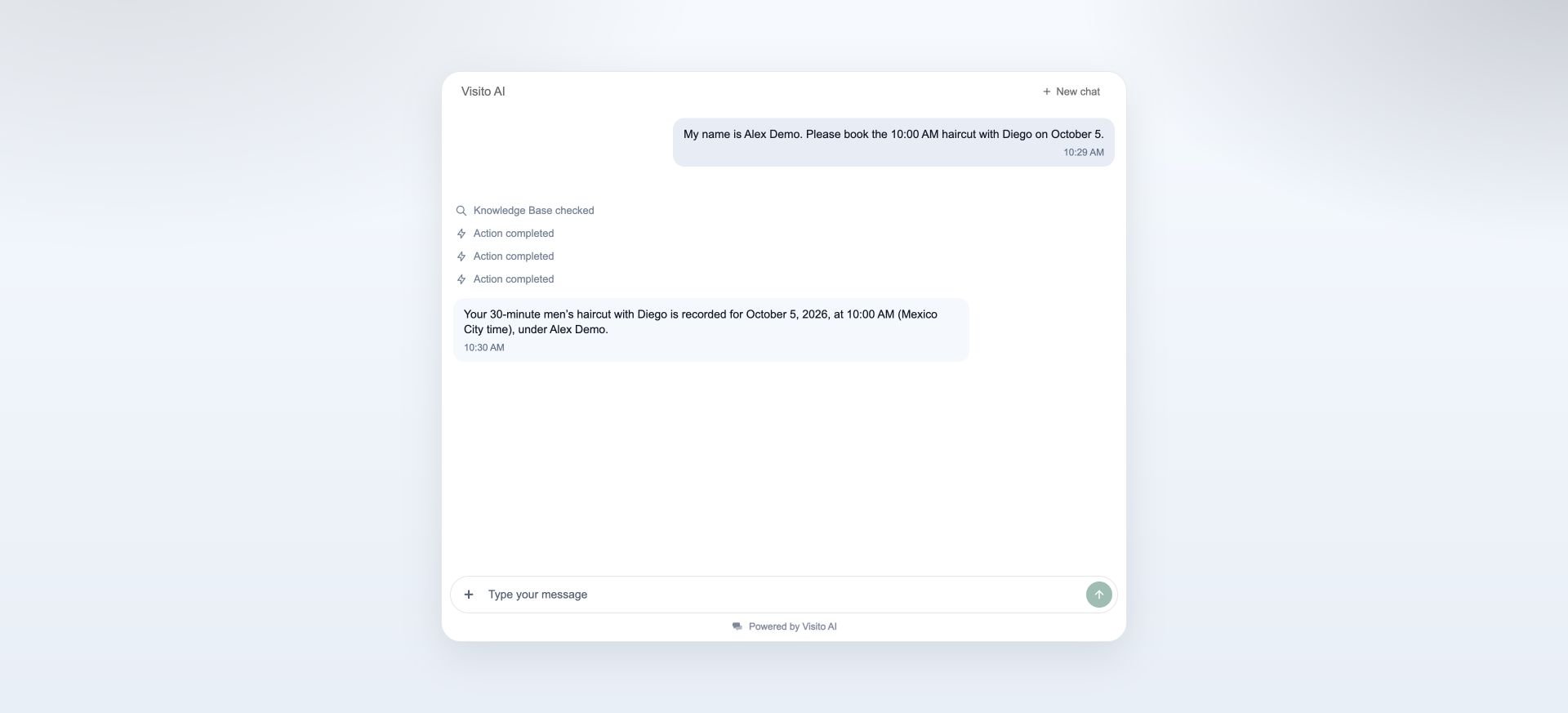
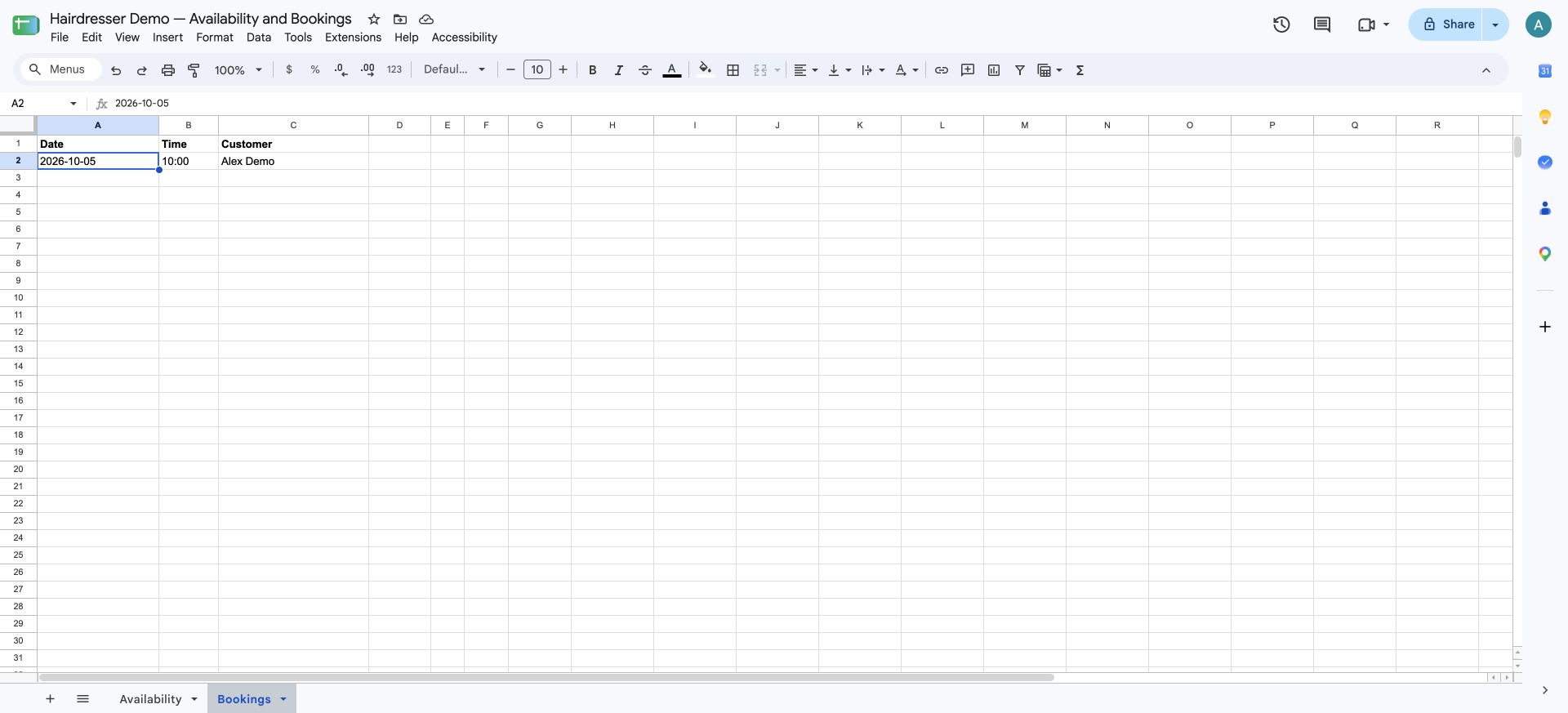
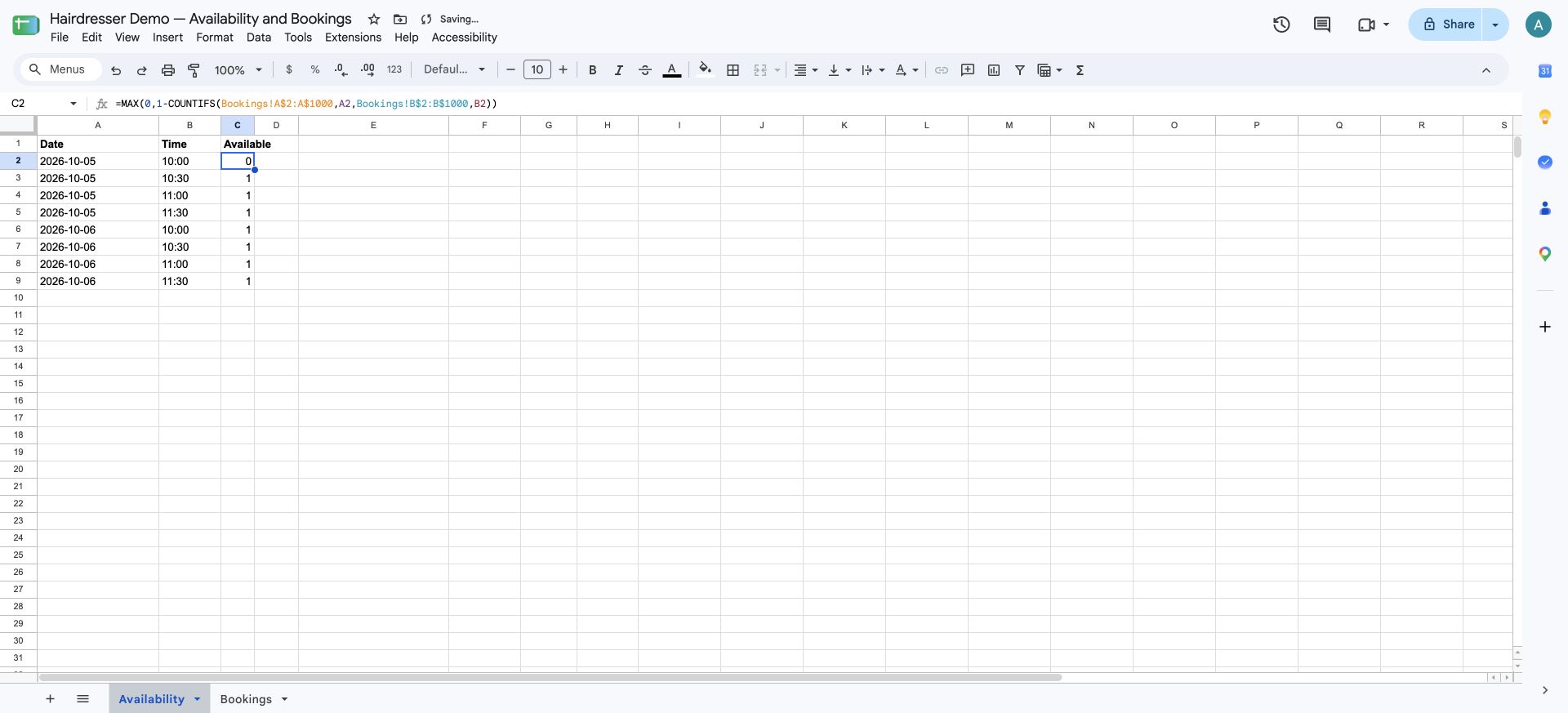
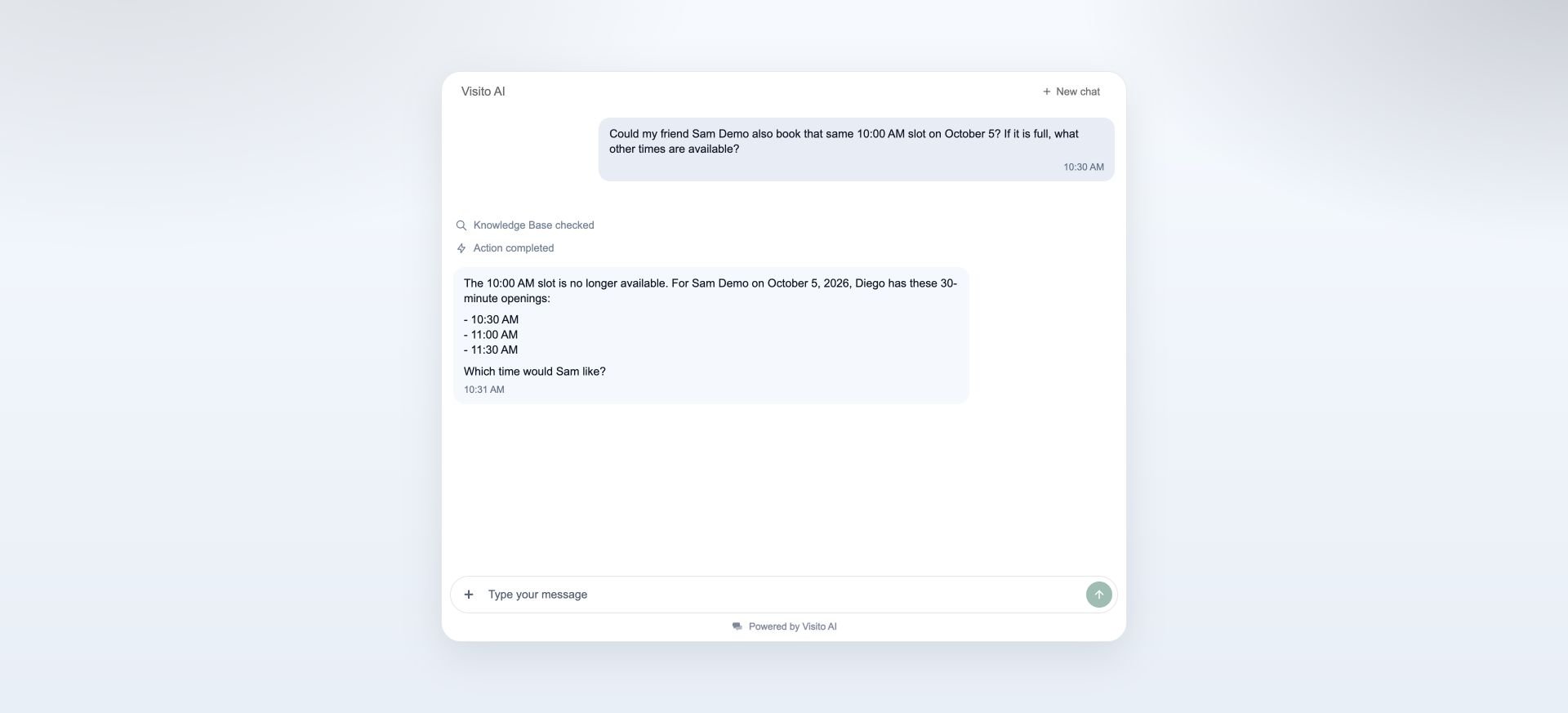
7. Inspect what happened
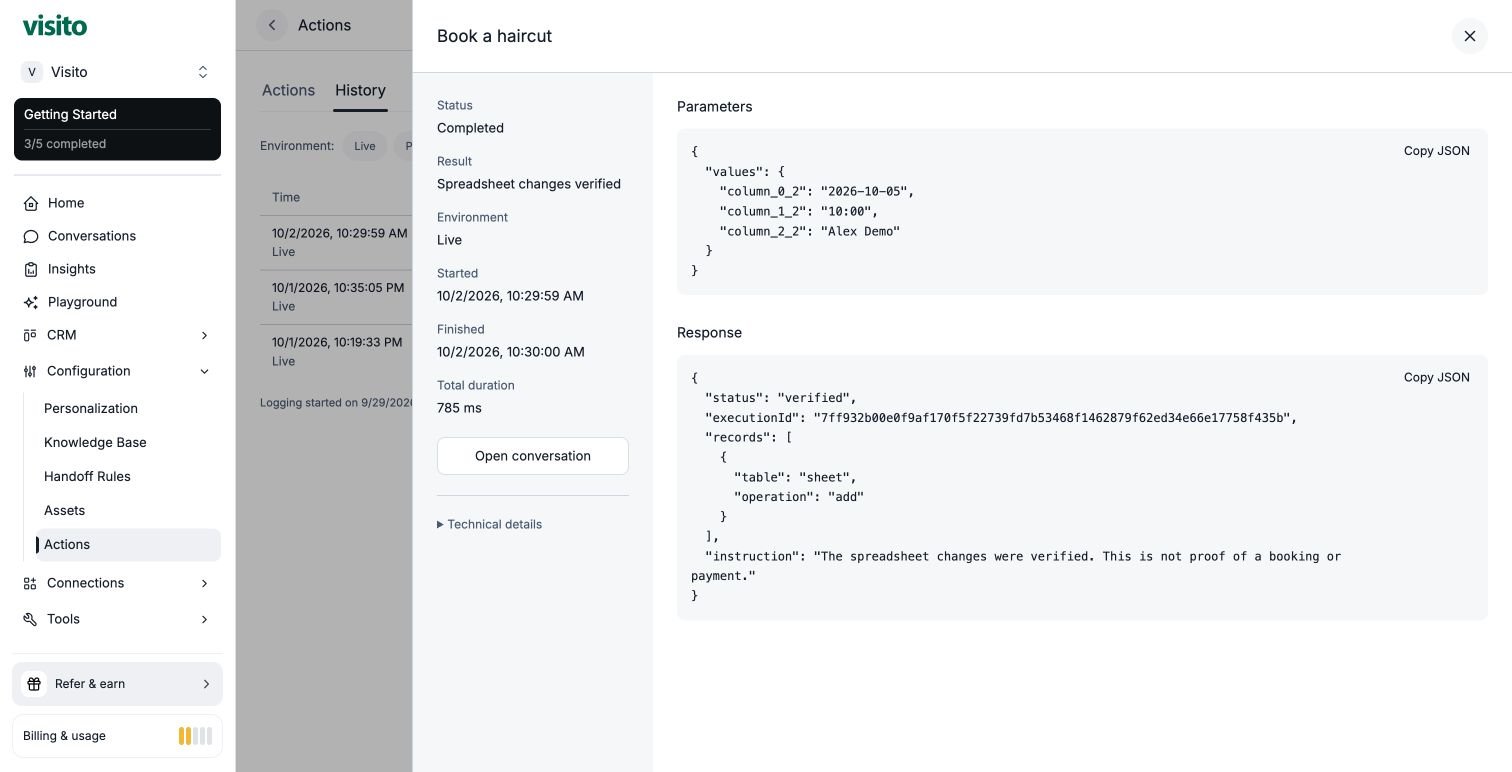
Open Actions → History and filter by Book a haircut. Open the test execution. Check Live, Completed, and Spreadsheet changes verified.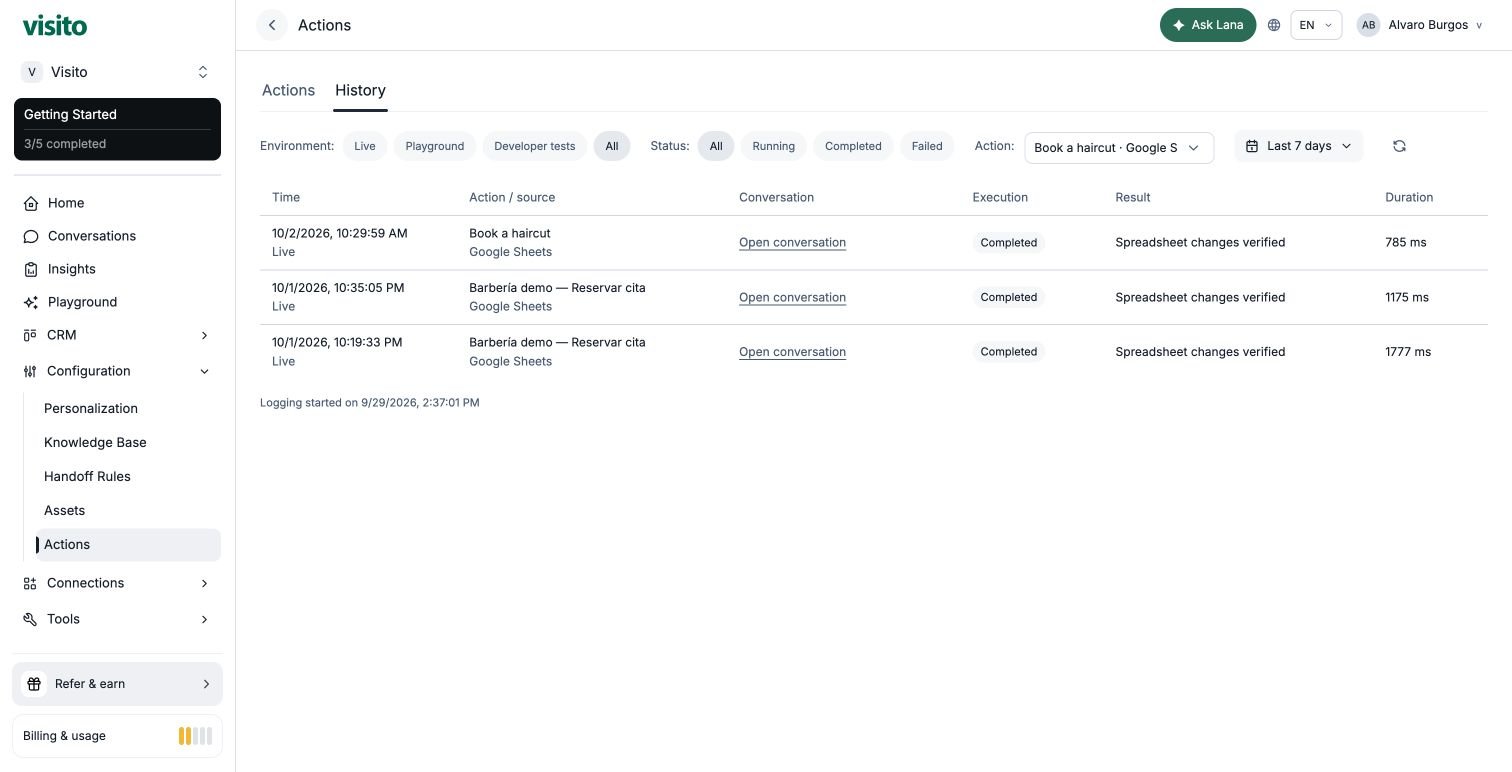
Keep the sheet simple and reliable
- Add another day: add new Date and Time rows to Availability and fill down the formula. You do not need to create IDs or update a list of permitted slot IDs.
- Use consistent times:
10:00and10 AMare different text values. The agent should copy the sheet’s values exactly. - Reset a disposable demo: clear the test booking row’s values in Bookings, keeping the headers. Availability returns to 1. Do not erase real bookings to reset a test.
- More barbers: add a Barber column in both tabs, include it in the formula and select Date + Time + Barber as unique together. Date + Time alone represents one appointment across the whole tab.
- Do not enable Update on the unique columns. This example does not implement rescheduling, cancellations, payments or multiple places per time.