
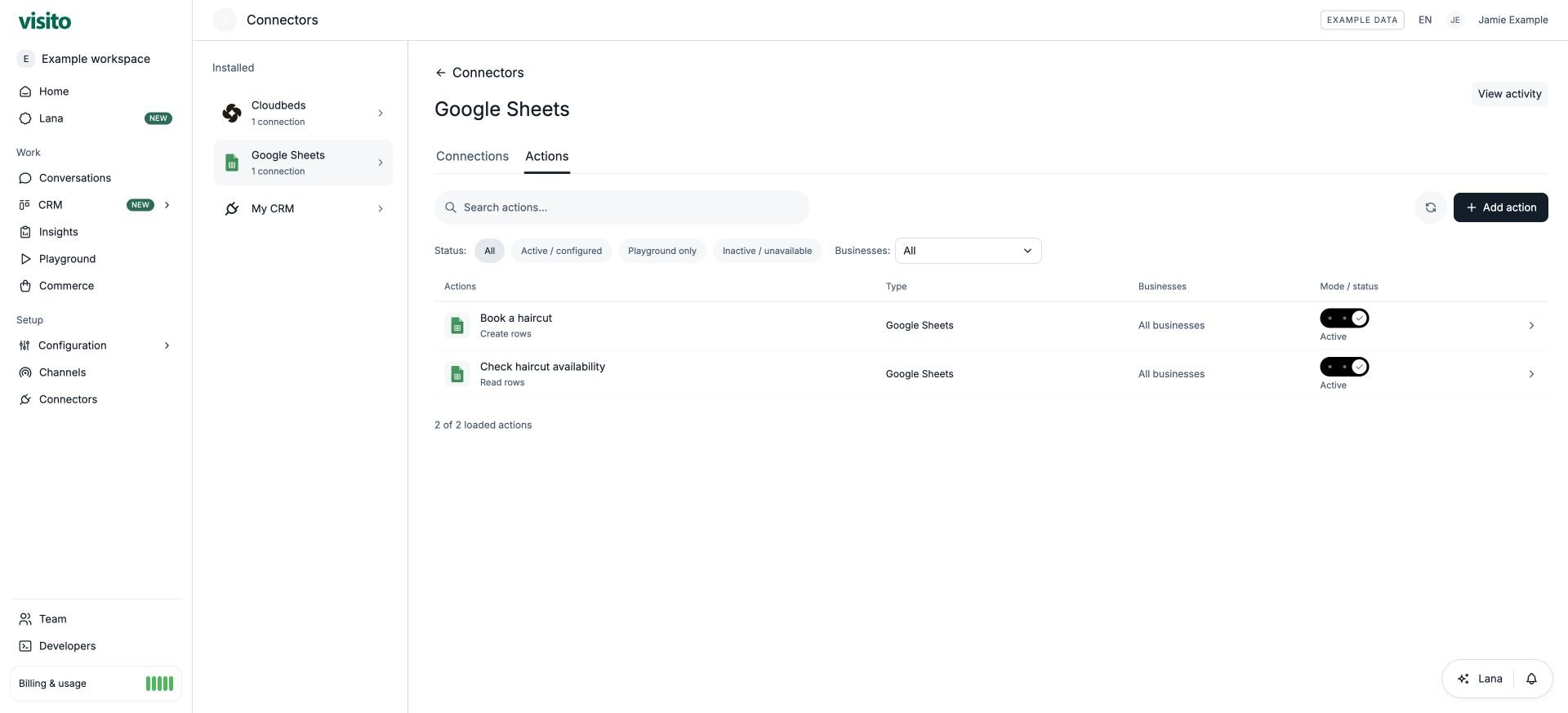
Decide what the agent may do
Each new configuration selects one spreadsheet tab. Its column permissions generate the available operations automatically; you do not define a separate list of tool parameters.
These permissions are independent. A column can be writable without being readable. An ID used to find a row does not automatically become visible in the reply. Keep personal information unreadable unless the use case requires it.
This guide describes the column-permission editor. Existing read sources and advanced multi-step actions may open compatible older editors. Do not recreate them just to follow these screenshots; preserve their current scope and restrictions.
Prepare the spreadsheet
- Use one table per tab, with unique, nonempty headers in row 1 for new actions.
- Keep the configured table within 30 columns and 1,000 data rows. A lookup returns at most 20 rows, so ask focused questions rather than treating the action as a spreadsheet export.
- Keep types consistent: dates such as
2026-10-02, whole numbers for capacity, and text for identifiers or times such as10:00. - Give each record a stable ID before enabling writes. Do not use a row number as a business identifier: rows move.
- Keep formulas in sheet-generated columns. Visito preserves formulas and does not automatically copy formulas into newly appended rows.
- For writes, prepare a different spreadsheet for tests with matching selected headers, types, and relevant lookup data. A second tab in the same file is not a separate test spreadsheet.
Connect Google once
Open Connectors, find Google Sheets, and select its Connect button and complete the Google connection flow. Choose the account that can access your files. You can give the connection a recognizable name and reuse it for multiple actions. Connecting an account does not configure spreadsheet behavior. Return to Actions to choose the file, tab, and permissions. A paused or disconnected connection affects every dependent action, so use the individual action’s status when you only want to turn one action off.Create an action
1. Choose the connection, spreadsheet, tab, and columns
Open Connectors → Google Sheets → Actions and select Add action. Choose your Google connection, then Choose spreadsheet. Google Picker lists the accessible files. Search for your spreadsheet, select it, and choose its tab in the action editor. If you cancel Picker, no new target is selected. Select the columns the action needs. The preview shows independent sample values per column, not necessarily complete corresponding rows. Check the real spreadsheet when reviewing row relationships.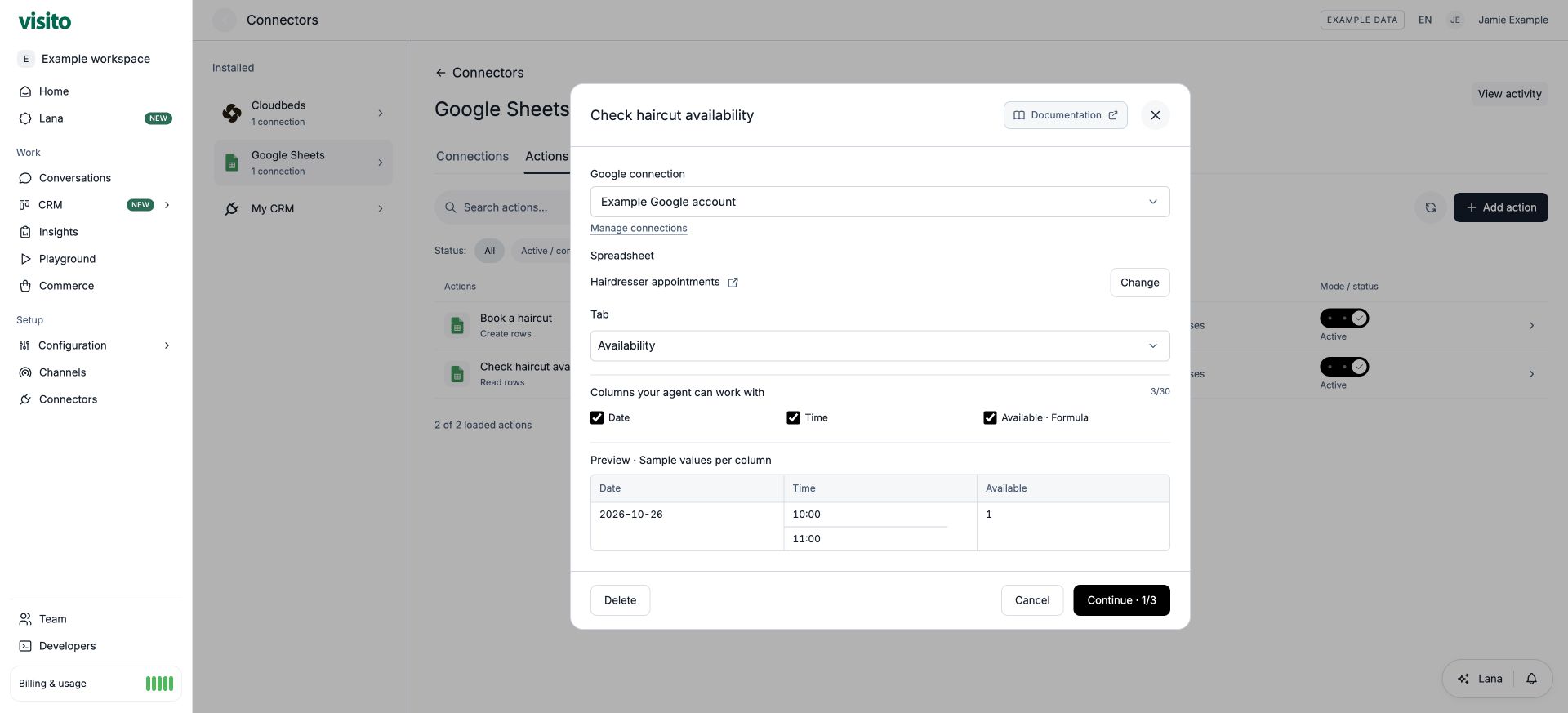
2. Set permissions and types
For each selected column, enable Read, Update, and/or Create rows. Leave permissions off when the agent does not need them. Review the suggested type; an empty sheet or mixed sample values may need a correction.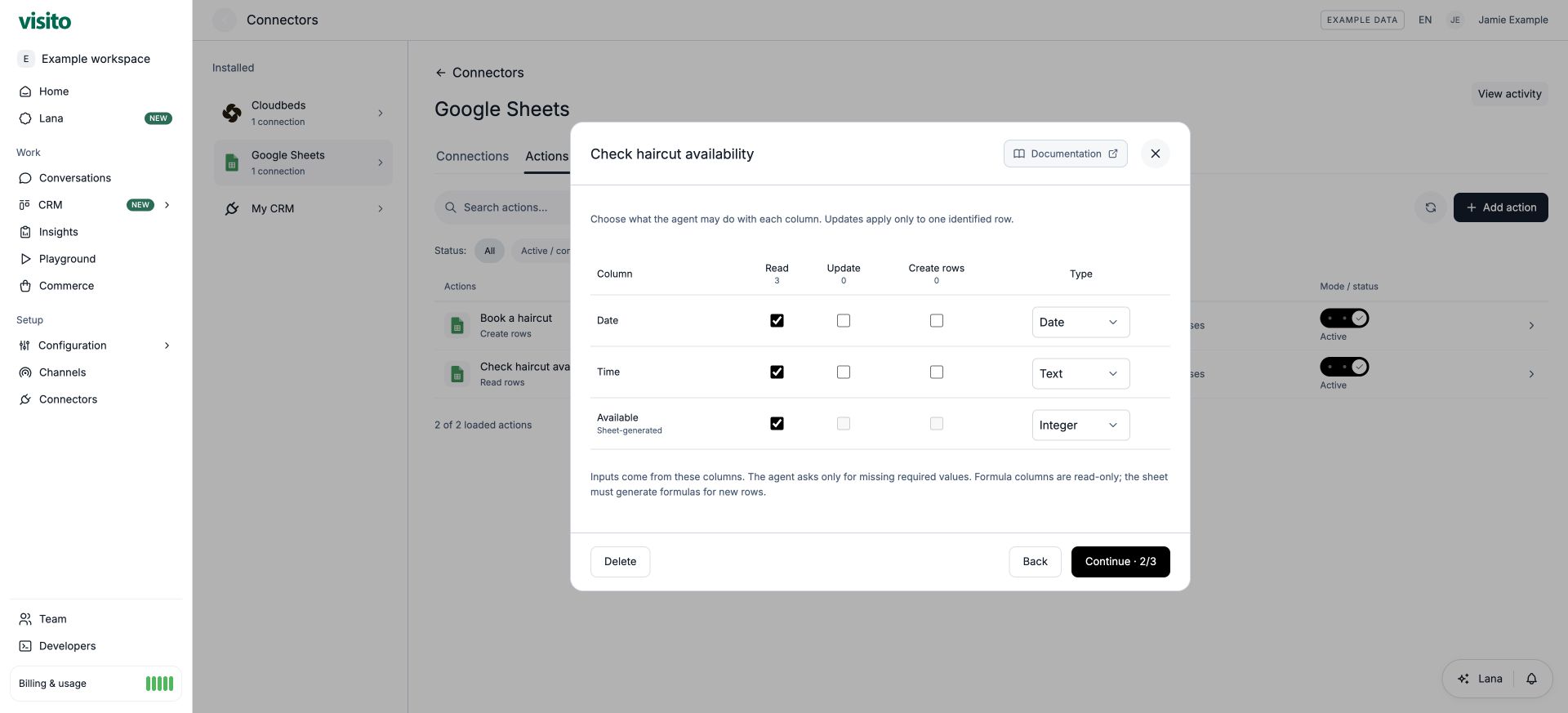
Confirmada and Confirmed are different choices.
Formula columns are read-only. The sheet must generate their values. Select Continue · 2/3 when the permissions and types match your use case.
3. Explain the purpose and complete the rules
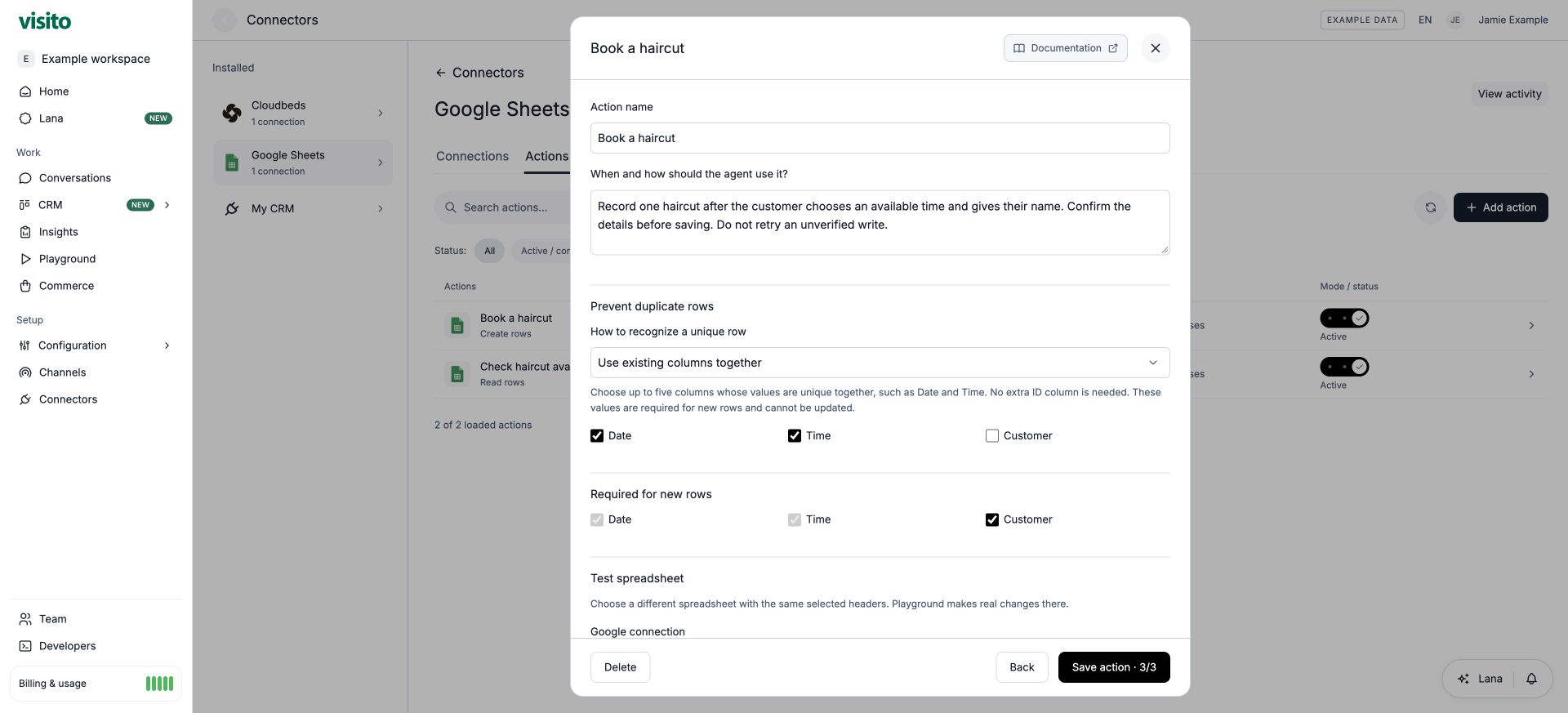
Use Action name for a recognizable label. In When and how should the agent use it?, explain what one row represents, when to call the action, where values come from, what requires customer confirmation, and how to handle missing data or failure.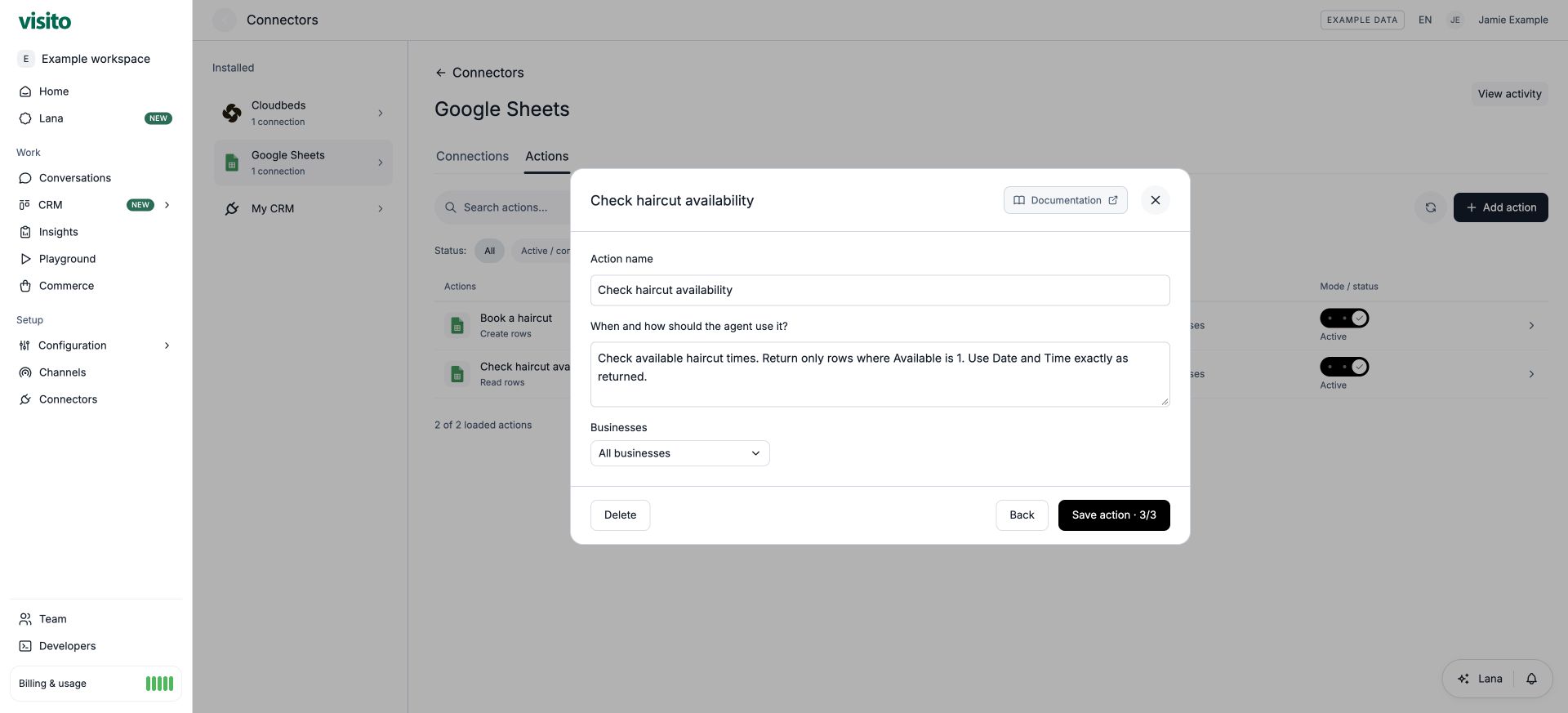
- Prevent duplicate rows: choose Use existing columns together, then select 1–5 permanent columns whose values must be unique together. For example, Date + Time identifies one appointment without an extra ID column. These values cannot be updated; they must allow Create and be required when creating rows.
- Existing ID-based setups: Use a record ID column keeps a provided business key or a Visito-generated text ID. Existing actions keep this behavior; no automatic conversion occurs. Sheet-generated IDs are not supported.
- Required for new rows: mark the values needed for a valid create operation. Required does not mean the agent must ask the customer for every value; some values can come from a prior lookup or a permitted fixed choice.
- Test spreadsheet: select a different file and its matching tab.
- Businesses: use All businesses only when the action belongs to the whole workspace; otherwise select the intended businesses.
not_found; multiple matches return ambiguous_match without writing. The agent must clarify rather than update every match. Omitted update values stay unchanged. Identifying a record authorizes lookup, not disclosure of hidden columns. Treat update access as business access: new configurations are not restricted to rows created in the same conversation.
Activation and testing
New writes are intended to be tested before live activation. Use synthetic data and inspect both the response and the sheet. A successful save or connection check is not a completed booking test.
Verify what happened
Open Connectors → Activity, choose the environment and action, and open an execution. Review Parameters, Response, result, timestamps, and duration. Technical details includes action, version, operation, and execution identifiers when available. Use Open conversation to see the customer request and the reply it supported. In the conversation, expand the action receipt next to the response. For a write, look for Sheet changes verified. This verifies a spreadsheet change, not a payment or a booking in a separate reservation system. In a sheet-based appointment example, the row itself is the appointment record by design. Anunverified write is uncertain. Inspect the saved execution and spreadsheet before taking another action; do not automatically resend it. The failed response does not prove no change reached Google.
Troubleshooting and ongoing changes
Keep main and test structures aligned when adding columns. Review permissions before enabling new data. Canceling an editor leaves the saved configuration unchanged. Deleting a configuration removes future runtime availability while retained execution history remains available; it does not delete the spreadsheet’s rows. Older read-source deletion and legacy action controls retain their existing semantics.