
Sales
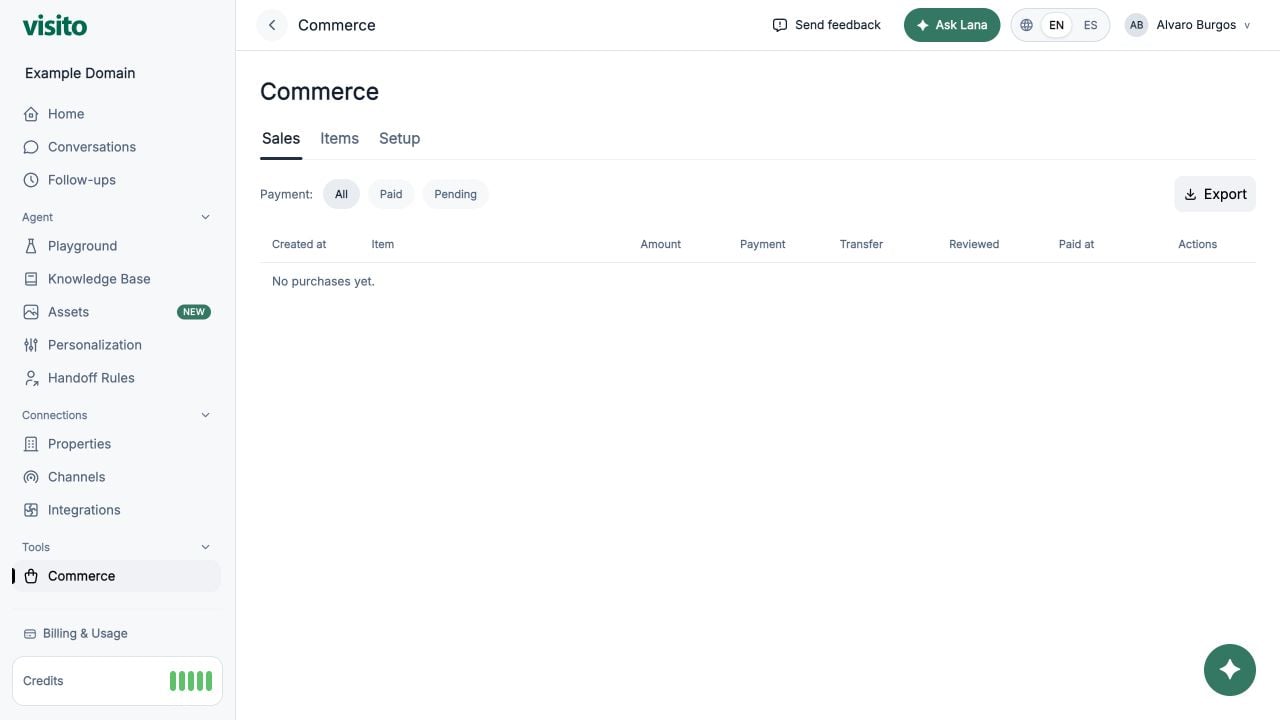
- Stripe payment and connected-account identifiers
- Fees, net amount, and provider payout
- Transfer state and errors
- Linked conversation
- Refund information
- Reservation details when the purchase is a deposit
Items
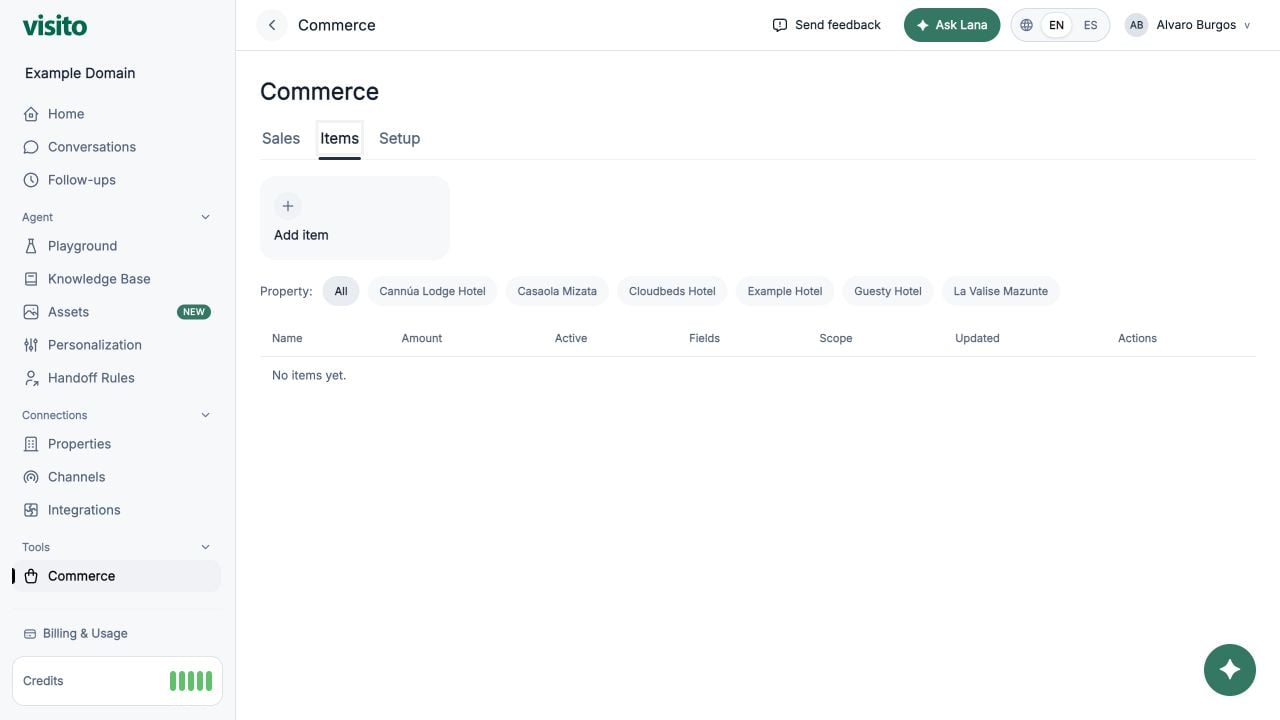
- Name, amount, and currency
- Active state
- Global or business scope
- Optional quantity with minimum and maximum
- Custom text, number, email, phone, date, or select fields
Setup
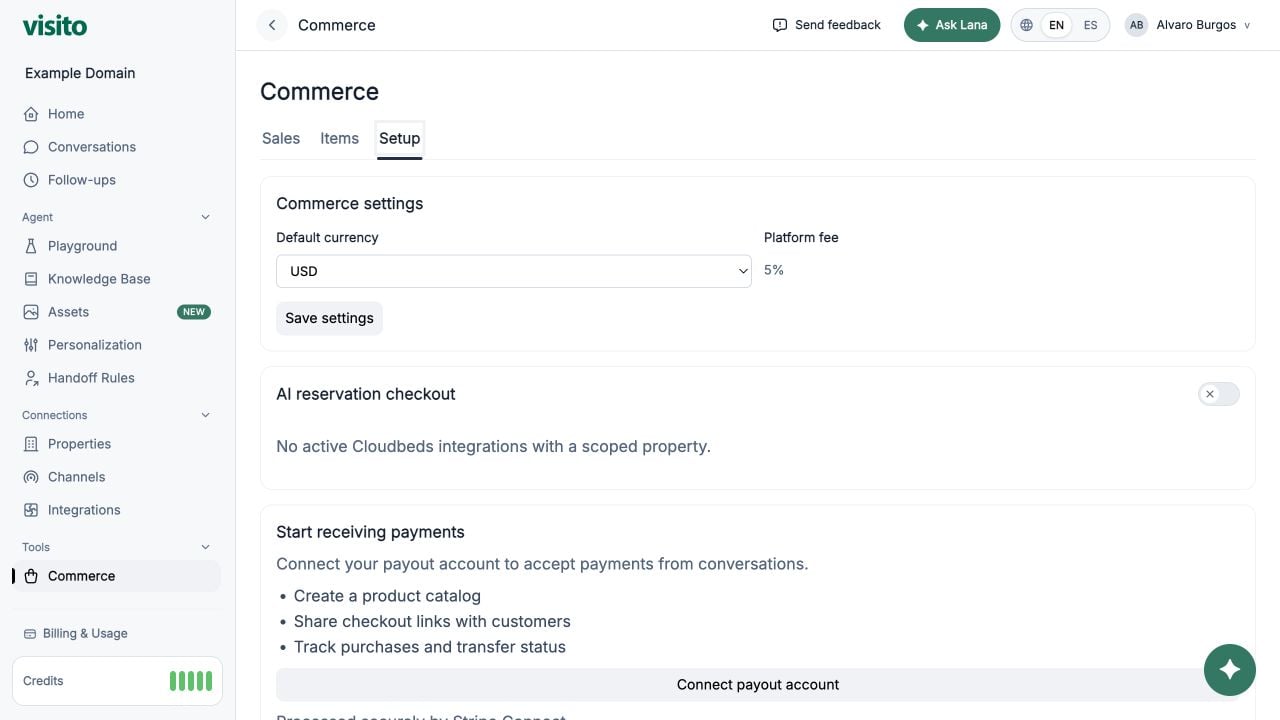
- Default currency
- Platform fee
- Stripe Connect payout onboarding
- AI reservation checkout
- Per-integration reservation deposit settings for eligible Cloudbeds businesses
AI reservation checkout
When enabled for an eligible Cloudbeds integration, the assistant:- Finds availability.
- Prices the selected room and allocated customers.
- Confirms the selection and collects customer details.
- Creates a Stripe Checkout link for the configured deposit.