
All workspace members can review credit usage. Only an admin can change the plan or open payment-management settings.
What is a Visito credit?
A credit is Visito’s unit for one metered piece of automated work. One eligible event deducts one credit from the active workspace’s shared balance. Credits are not:- Customer messages sent to your business
- Entire conversations or reservations
- AI tokens, words, characters, or minutes
- Replies manually written by a team member
- A separate balance for each user, business, or channel
Credit counting examples
Action calls are counted per distinct attempt, even when the action does not return the expected result. If the AI makes more than one action-call attempt, each appears separately. Use Build activity logs to investigate tool behavior.
How is the credit balance calculated?
At the start of a billing cycle, Visito grants the allowance included in the workspace plan. Each eligible automated event subtracts one credit: Credits remaining = credits granted for the active cycle - credits used in that cycle The reset date appears in the Billing tab. If your workspace changes plans or receives another grant, the current balance can reset even though an analytics window still includes earlier activity.How do I review billing and plans?
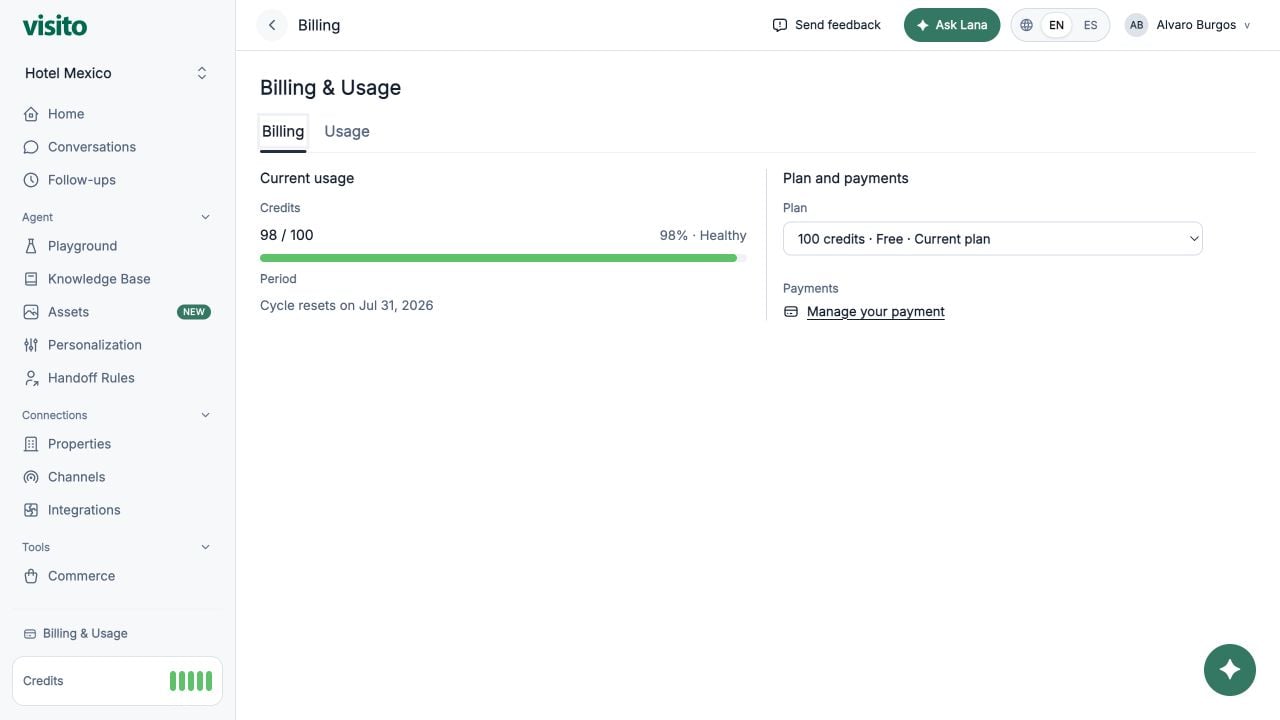
Understand your current credit balance
The Current usage panel shows:- Credits: remaining credits compared with the amount granted for the active cycle
- Percentage and health: the share of credits still available
- Period: when the active cycle resets
Compare Visito credit plans and pricing
The production dashboard currently offers these monthly plans:Plans and prices can change. The plan selector in the production dashboard is the source of truth if it differs from this table.
Change your Visito plan
- Open the Plan selector.
- Choose the credit allowance you need.
- Review the action shown below the selector.
- Select Upgrade now, Downgrade next cycle, or Move to Free next cycle, depending on the change.
- Complete Checkout or any required payment confirmation.
- A workspace moving from Free to a paid plan is sent to Checkout.
- An upgrade to a higher paid plan applies immediately and starts a new billing cycle.
- A downgrade is scheduled for the next cycle.
- Moving to Free is scheduled for the next cycle.
- A scheduled change appears with its target plan and effective date.
Manage payment methods and invoices
Select Manage your payment to open the secure billing portal. Depending on the account, the portal can be used to update the payment method, review invoices, or resolve a payment issue.How do I analyze credit usage?
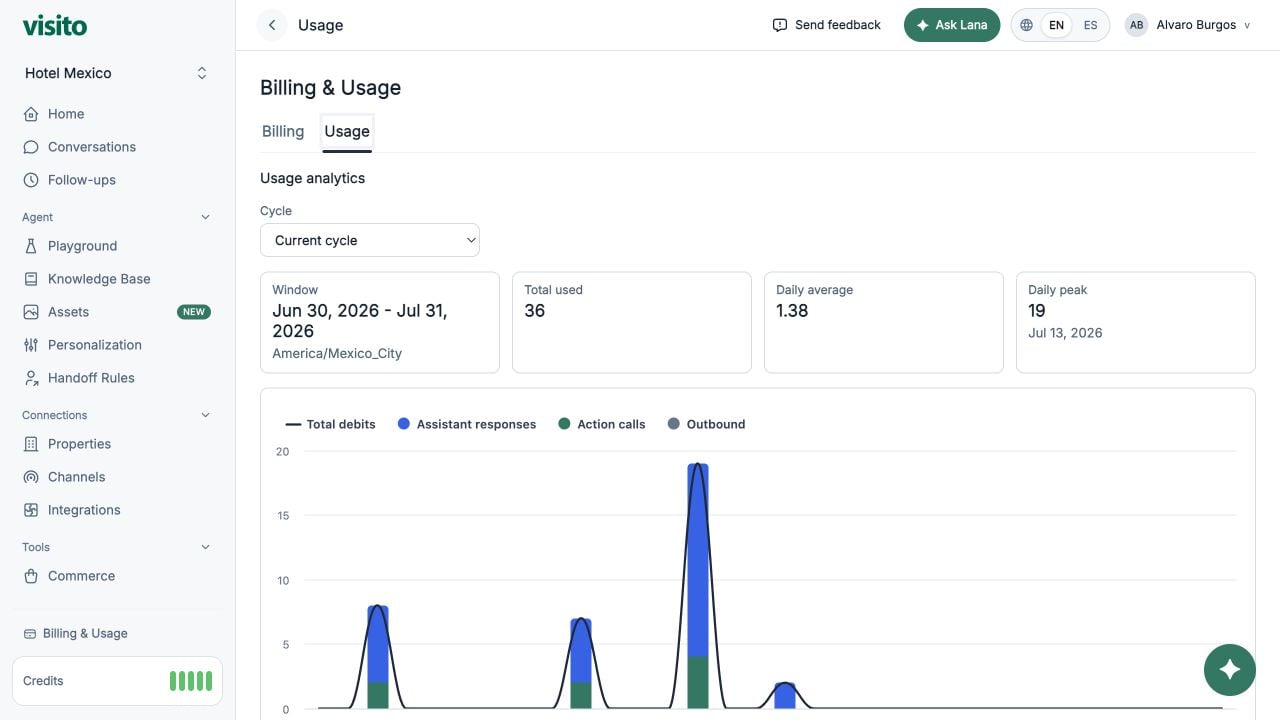
- Current cycle
- Last 7 days
- Last 30 days
- This month
- Last month
- Custom range
Understand the usage summary
The graph plots Total debits and breaks them into these billable events:
Customer messages and replies manually written by a team member do not consume these AI automation credits.
Total used is calculated from credit events in the selected date range. It can differ from the active cycle’s Credits used when the workspace changed plans, received a new grant, or reset its allowance during that window.
Lana usage
Lana draws from the same shared balance and appears once under Lana in total debits. A turn and its business tool calls are separate charges. Progress, steering, analysis, delegation, documentation retrieval, and export processing add no action credits; business reads used to prepare a report still count. Started turns/actions remain charged after failure or cancellation. Replaying a saved result does not charge again. See the Lana guide.Review credit grants and usage trends
Credit grants are shown as timeline markers when they occur in the selected range. Use them to understand resets or plan changes alongside daily usage. For operational review:- Start with Current cycle and compare remaining credits with the reset date.
- Review the category breakdown to identify whether replies, actions, or outbound automation drive usage.
- Use Last 30 days or a custom range to find recurring peaks.
- Upgrade before the balance becomes critical if expected usage will exceed the remaining allowance.
Related guides
Monitor credits from Home
Review the workspace balance while handling daily operations.
Test without surprising usage
Understand how completed Playground responses affect credits.
Audit custom tool calls
Investigate action attempts, responses, timing, and errors.
Manage automated follow-ups
Review which scheduled outbound messages consume credits.