
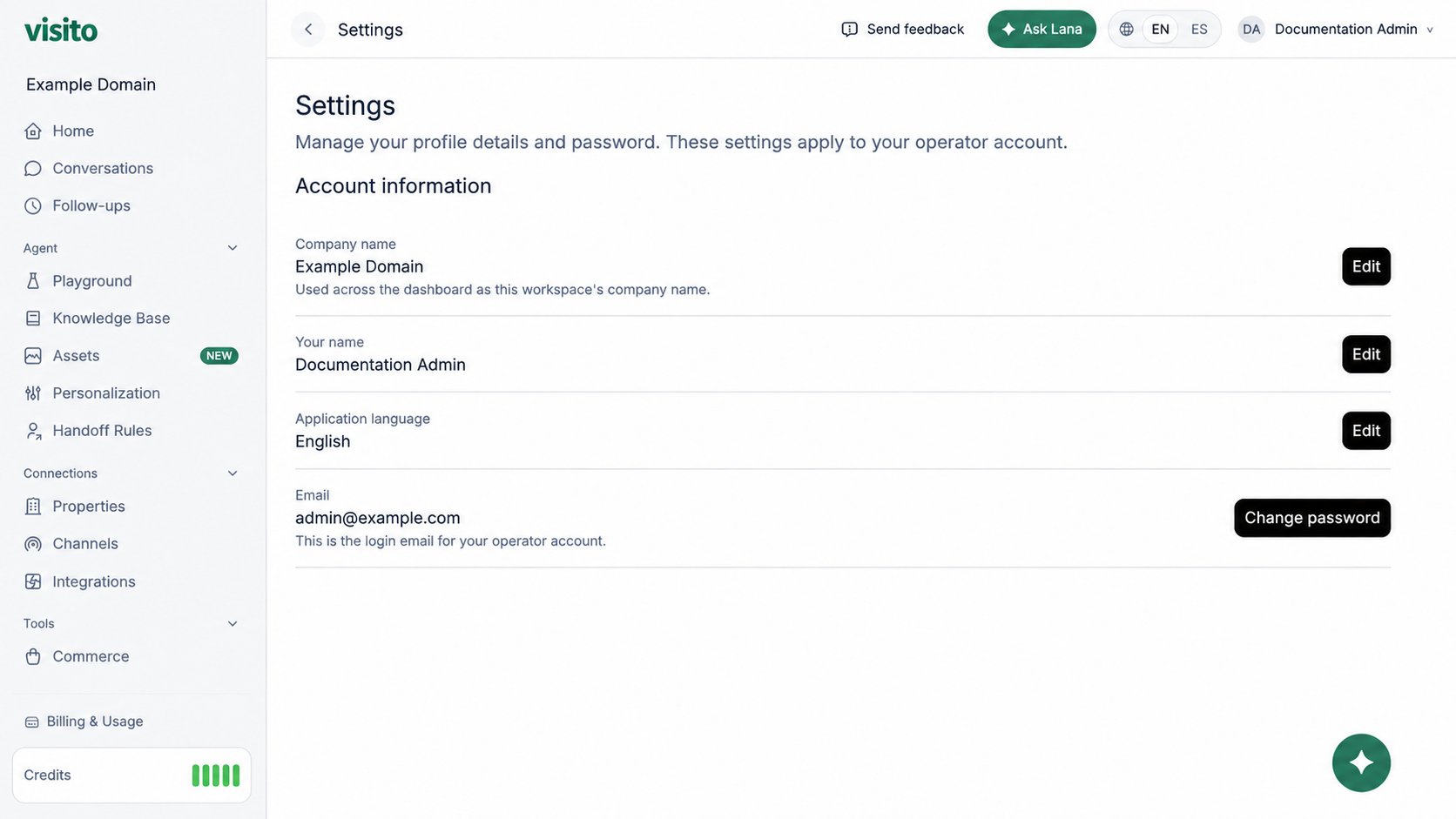
The screenshot uses example workspace and operator details. Your page shows the active workspace and the signed-in operator.
Company name
The company name identifies the active workspace across the dashboard.- Confirm the correct workspace in the left sidebar.
- Select Edit beside Company name.
- Enter the approved workspace name and save.
Your name
Your name identifies your operator account to teammates.- Select Edit beside Your name.
- Enter the name teammates should recognize.
- Save the change.
Application language
Select Edit beside Application language, choose English or Spanish, and save. This controls dashboard labels for your operator account; it does not force the language used in customer replies.Change your password
- Select Change password.
- Enter and confirm the new password.
- Save the change.
- Sign in again if prompted.
Related workspace controls
- Team members - invitations, roles, and member access
- Access and navigation - workspace switching and the account menu
- Mobile app & push notifications - mobile profile and notification settings