
Sign in
Open the dashboard and enter your email and password, or select Continue with Google.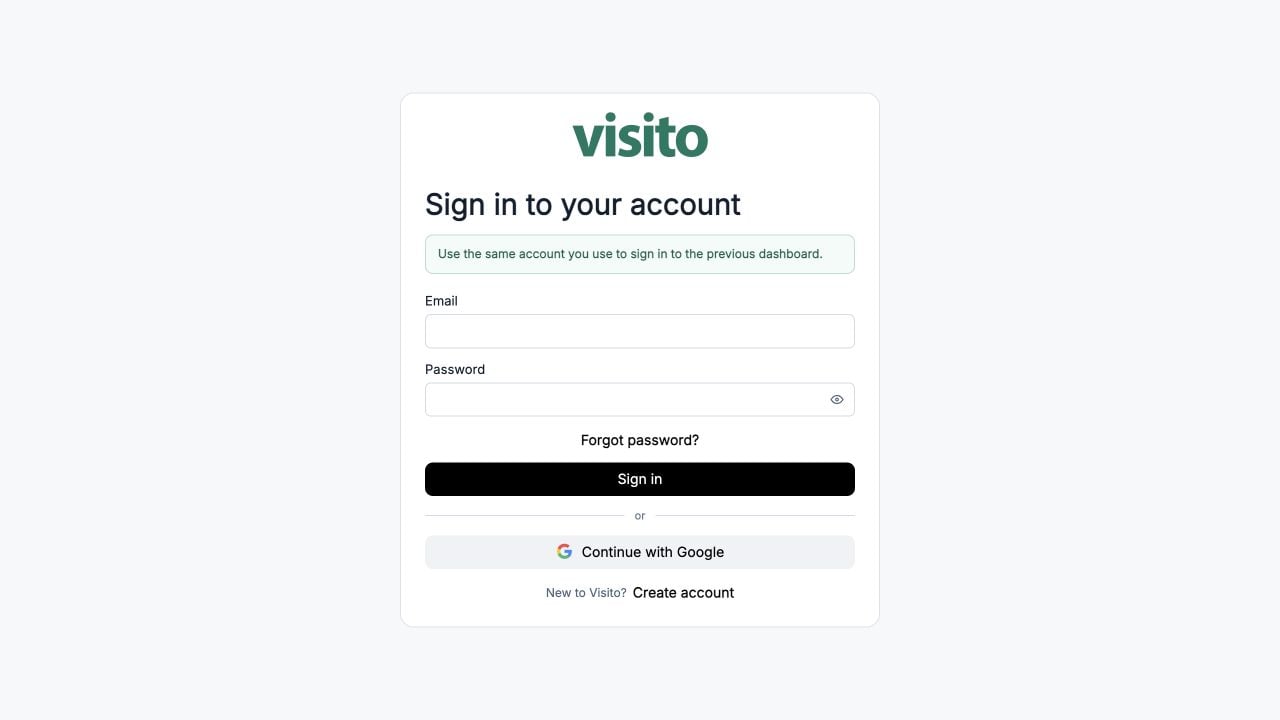
1
Enter your account details
Use the email address associated with your Visito workspace.
2
Select Sign in
Visito loads the workspaces where you have an active membership.
3
Confirm the active workspace
The workspace name appears at the top of the left sidebar.
Forgot your password
Select Forgot password?, enter your account email, and use the reset link sent to your inbox. If the link is expired, request a new one.Create an account
Select Create account if you are new to Visito. Enter the business website first, create your account, review the generated business profile, and choose the agent’s initial use cases. See Set up a new workspace for the complete flow. If you received a member invitation, open its invitation link instead. The invite adds your account to an existing workspace.Dashboard layout
After sign-in, the dashboard has three main areas:- Sidebar - workspace switcher, feature navigation, credits, and billing shortcut.
- Top bar - page title, feedback, Ask Lana, language, and account menu.
- Main content - the active page, table, configuration form, or operational view.
Use CRM → Leads to configure your pipeline and manage opportunities, and CRM → Follow-ups to manage follow-ups even before publishing. See the CRM guide for setup and Follow-up settings for levels, message instructions, and pause hours.
Billing & Usage appears near the bottom of the sidebar with the current credits meter.
Switch workspaces
- Select the workspace name at the top of the sidebar.
- Choose another workspace.
- Confirm the new workspace name before continuing.
Account menu
Open the company name or your account menu in the top-right corner to access:- Settings - company details, your profile, language, password, and the Team area for member invitations and roles.
- API Keys - a shortcut to the Build page for admins.
- Sign out - end the current dashboard session.
Language and help
- Select EN or ES in the top bar to change the dashboard language.
- Select Send feedback to report an issue.
- Select Ask Lana for in-product help about the current page or record.