
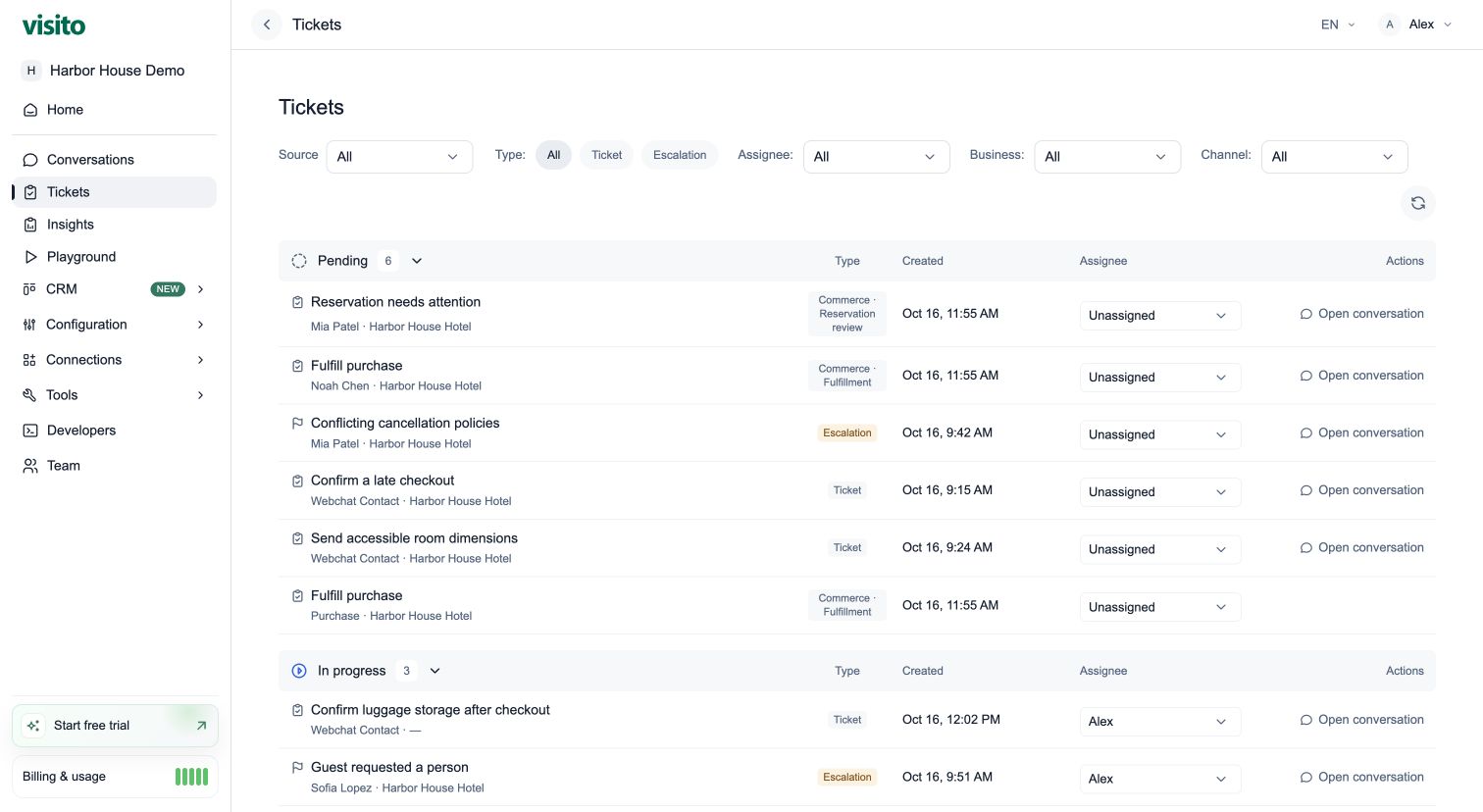
The Tickets queue, shown with fictional example data.
Two types of work
Commerce is a source of general tickets, rather than a third type. These tickets track fulfillment and booking issues. Some purchases have no linked conversation.
A conversation can have several general tickets and one open escalation at the same time. Completing one item does not complete the others.
Understand the status groups
Opening a ticket, assigning it or replying to the guest does not move it to In progress. Closed items cannot be reopened. If a new need arises, create a new ticket from the conversation.
Queue and contact panel
Use Source to show Commerce or other work. Use Type to show Ticket or Escalation. Combine these with Assignee, Business and Channel to focus the queue. Select Clear filters to return to all accessible work. Pending and In progress are expanded when you arrive. Expand Resolved or Cancelled to review closed work. Select a ticket title for its details, or Open conversation to read the related exchange. Purchase-only tickets have no conversation button. In a conversation’s Info panel, the Tickets section has Open / Closed / All filters. It shows work linked to that conversation; it does not combine the same guest’s conversations across channels.Home shortcut
Home shows a compact Tickets card with total open work and a breakdown such as 6 pending · 3 in progress. Select View tickets to open the current workspace’s queue. These counts include general tickets and escalations, including accessible Commerce work. They exclude closed items and Needs reply. An unavailable count means the queue could not be loaded; it does not mean there is no work.Tickets and the inbox
The Handoff tab in Conversations still filters conversations with a handoff. Needs reply still helps your team find conversations awaiting a response. Neither replaces the Tickets queue. Resolving a ticket does not send a message to the guest. If a reply is needed, open the conversation and send it separately.Create and manage tickets
Create work from a conversation, assign it and record progress.
Handle escalations
Review handoffs, knowledge gaps and the effect on AI responses.
Complete Commerce work
Inspect purchases and complete the underlying work.
Build an integration
Find API, MCP, permissions and webhook documentation.