
Create a ticket
1
Open the conversation
Open Conversations, select the guest and find Tickets in the Info panel.
2
Select Create ticket
Enter a specific Title, such as “Confirm luggage storage after checkout.” Add an optional description explaining what needs to be checked. Choose a human assignee now, or leave it unassigned.
3
Save the work
Select Create ticket. The new item appears in Pending, in both the conversation’s Tickets section and the workspace queue.
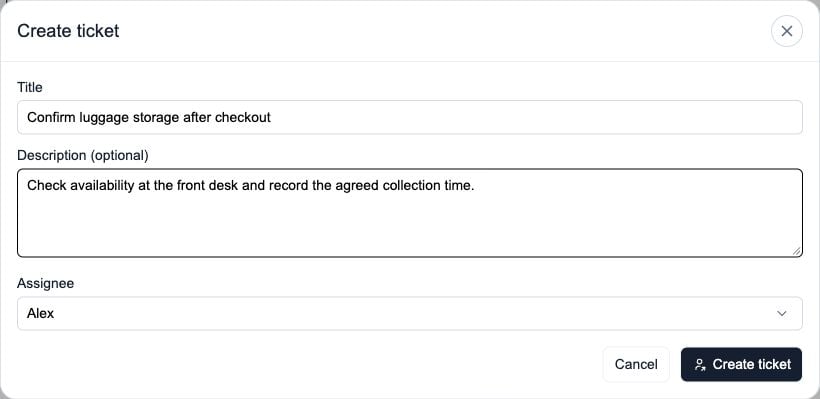
A title is required. The description and assignee are optional.
Find tickets beside the conversation
Choose Open, Closed or All in the Tickets section. Select an item to inspect or update it. This panel follows the current conversation only.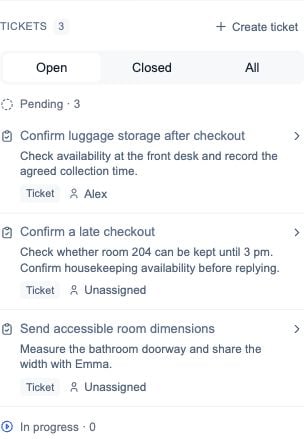
Related work stays visible in the conversation's Info panel.
Assign and start work
Select a person in Assignee from the queue row or ticket detail. Assignment makes ownership clear but leaves the item Pending. Select Start work when work actually begins. If the item is unassigned, starting it assigns it to you. If it already has an owner, that owner stays assigned. General ticket ownership is separate from conversation ownership. You can own a ticket while another team member owns the conversation.Add context and notes
Select Edit ticket to update an open general ticket’s title or description. Use the description for the current request and Activity for internal notes and history. Expand Activity, write an Internal note and select Add note. Notes help teammates understand evidence, progress and the next step. They are internal; they do not go to the guest.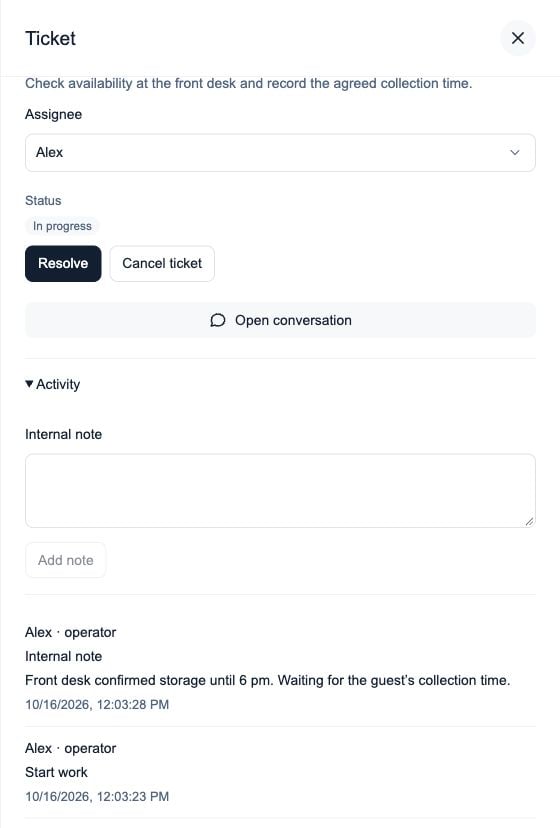
The ticket detail shows its owner, status and activity history.
Resolve or cancel
Select Resolve once the work is complete. Select Cancel ticket when it is no longer needed. A general ticket can be resolved or cancelled from Pending without first starting it. Resolved and Cancelled items keep their history and are read-only. They cannot be reopened or permanently deleted from Tickets. Create a new conversation-linked ticket for new work.Commerce tickets close from the purchase outcome. Their details offer Commerce actions instead of the general Resolve and Cancel controls. See Commerce tickets.