
What changes
- You keep the existing customer-facing number.
- The WhatsApp Business App remains available.
- Eligible conversations can be managed in Visito.
- Meta may offer an eligible message-history sharing choice during onboarding.
- The connection may remain pending until the in-app and QR steps are completed.
Before you start
- The number is active in WhatsApp Business App, not personal WhatsApp.
- The WhatsApp Business App is updated.
- The phone is available throughout setup.
- You can receive the in-app coexistence prompt and scan the QR code.
- You can sign in with the Meta identity that controls the intended business assets.
- The active Visito workspace is correct.
Connect
1
Open WhatsApp setup
In Visito, open Connections → Channels and select Connect WhatsApp.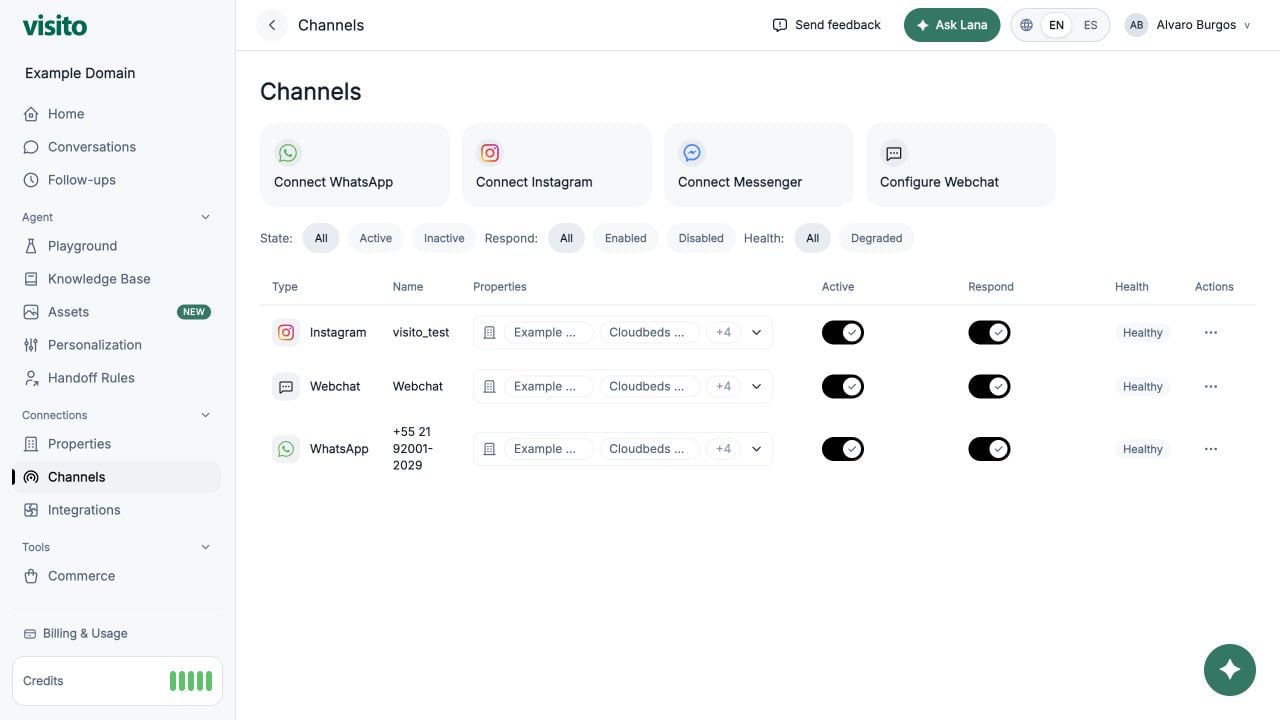
2
Authorize with Meta
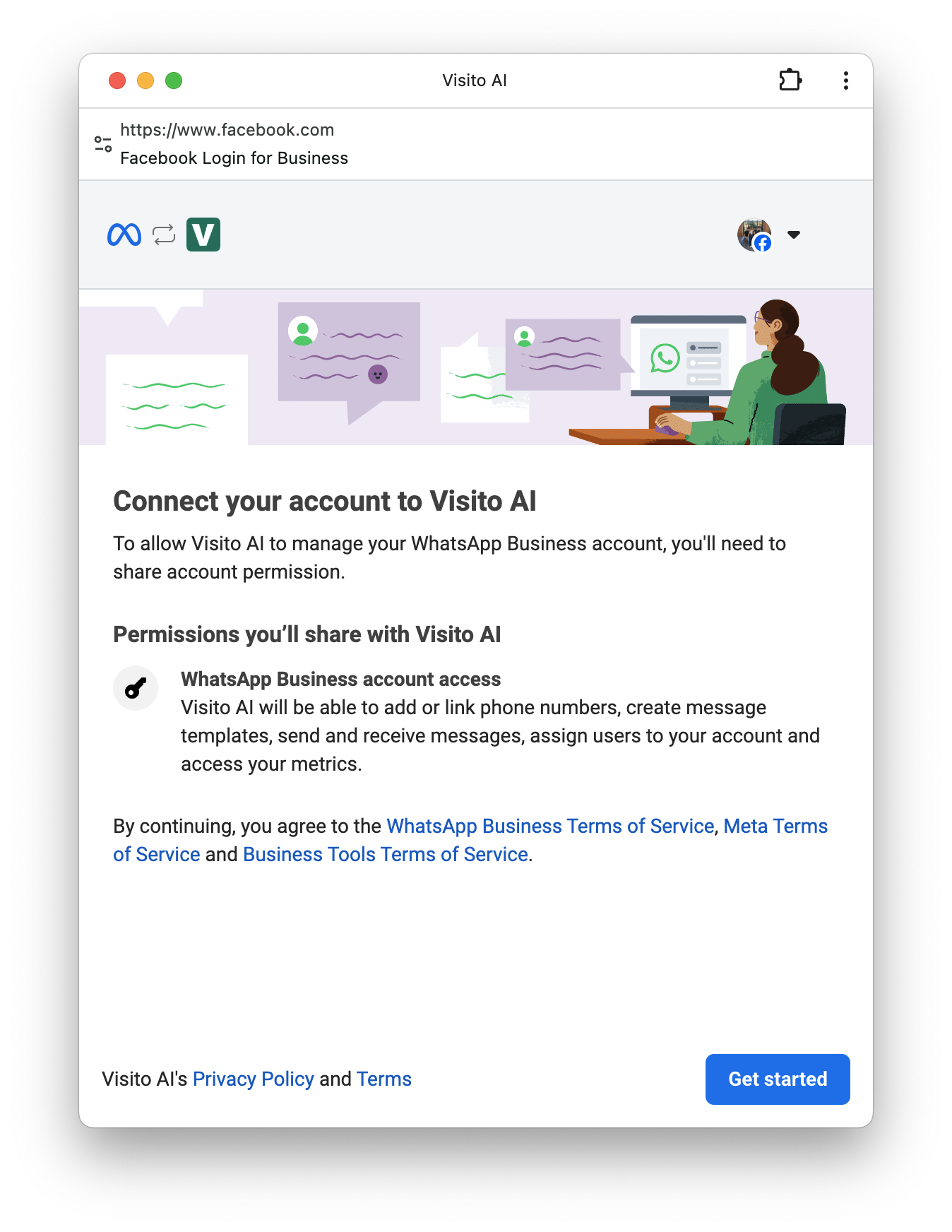
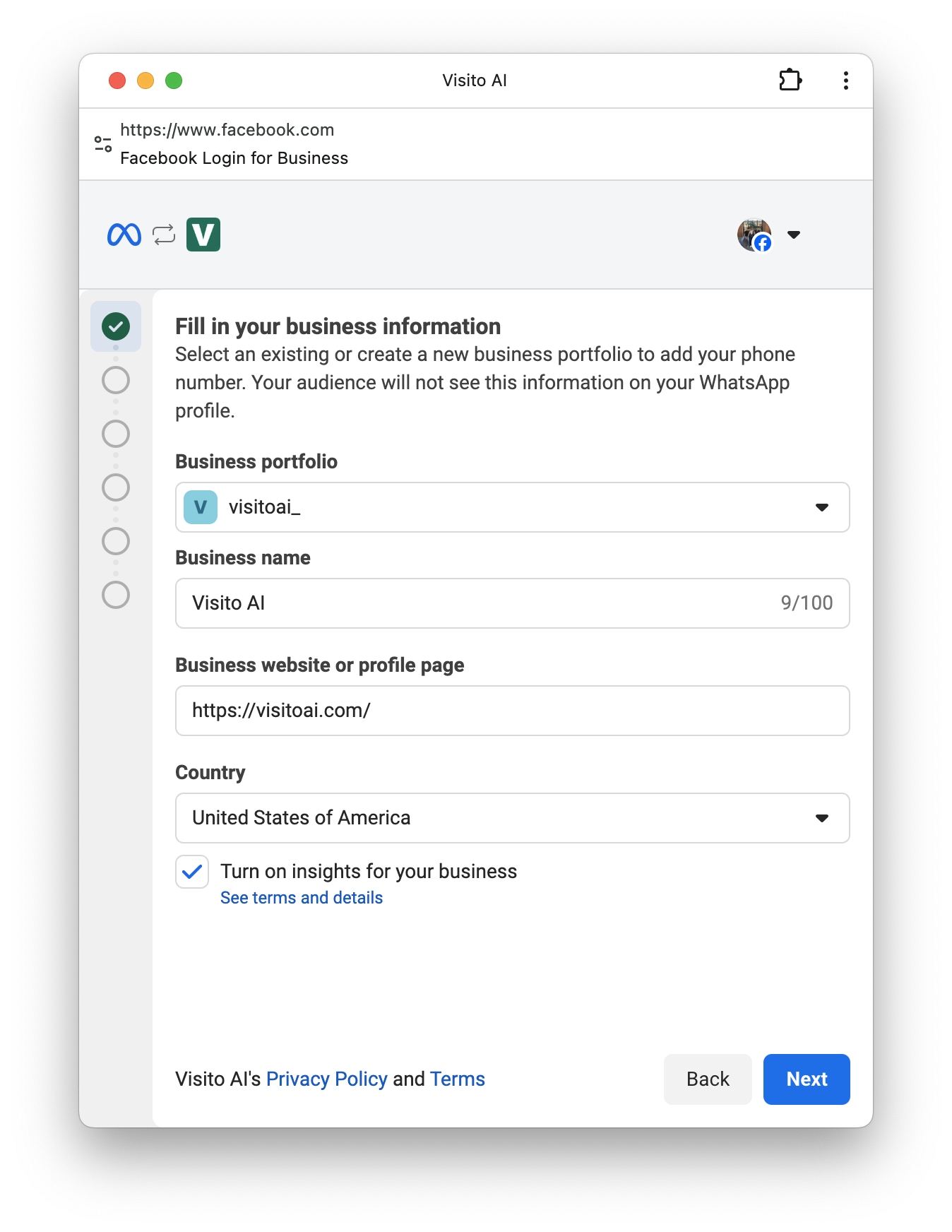
Sign in with the intended Meta identity and select or create the correct Business Portfolio.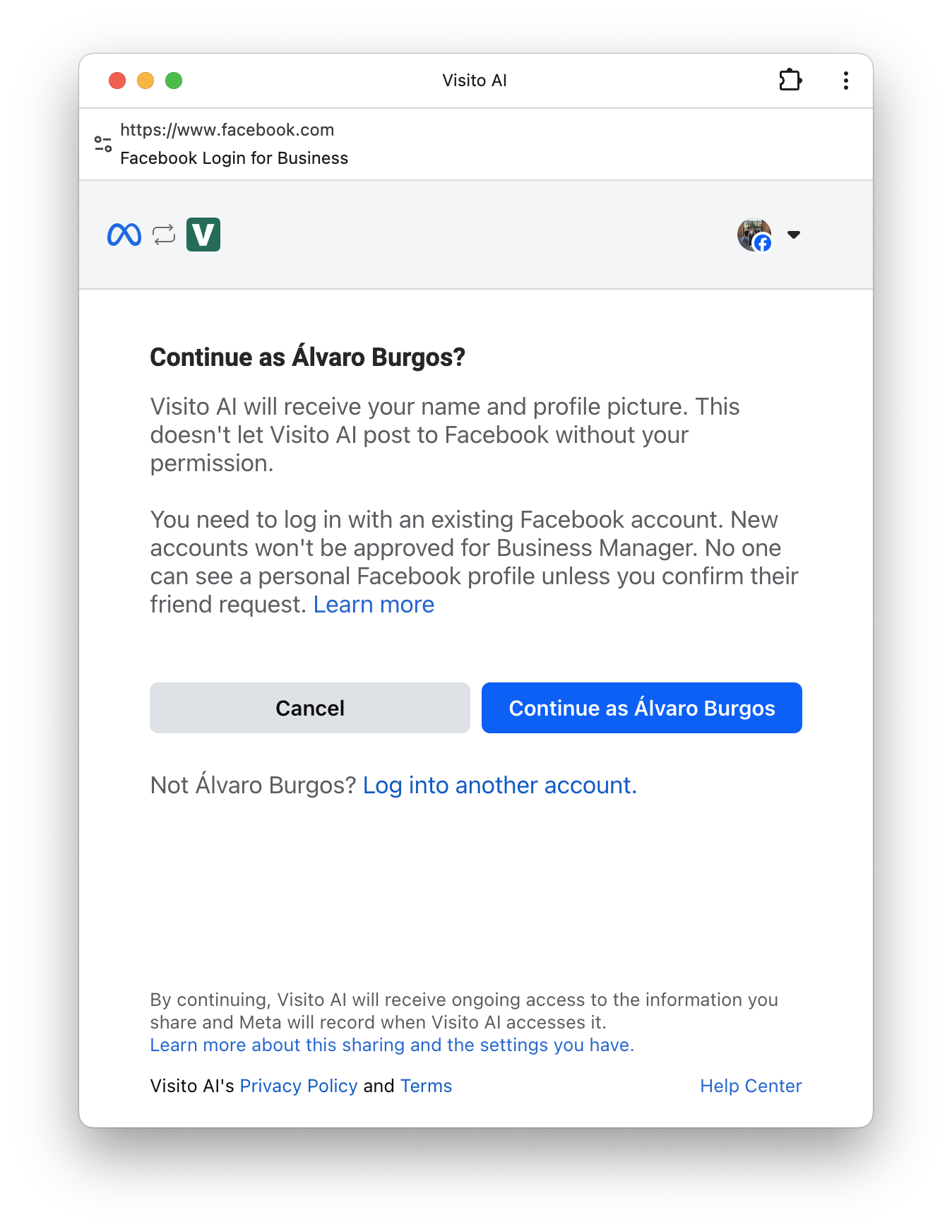
3
Choose the existing Business App path
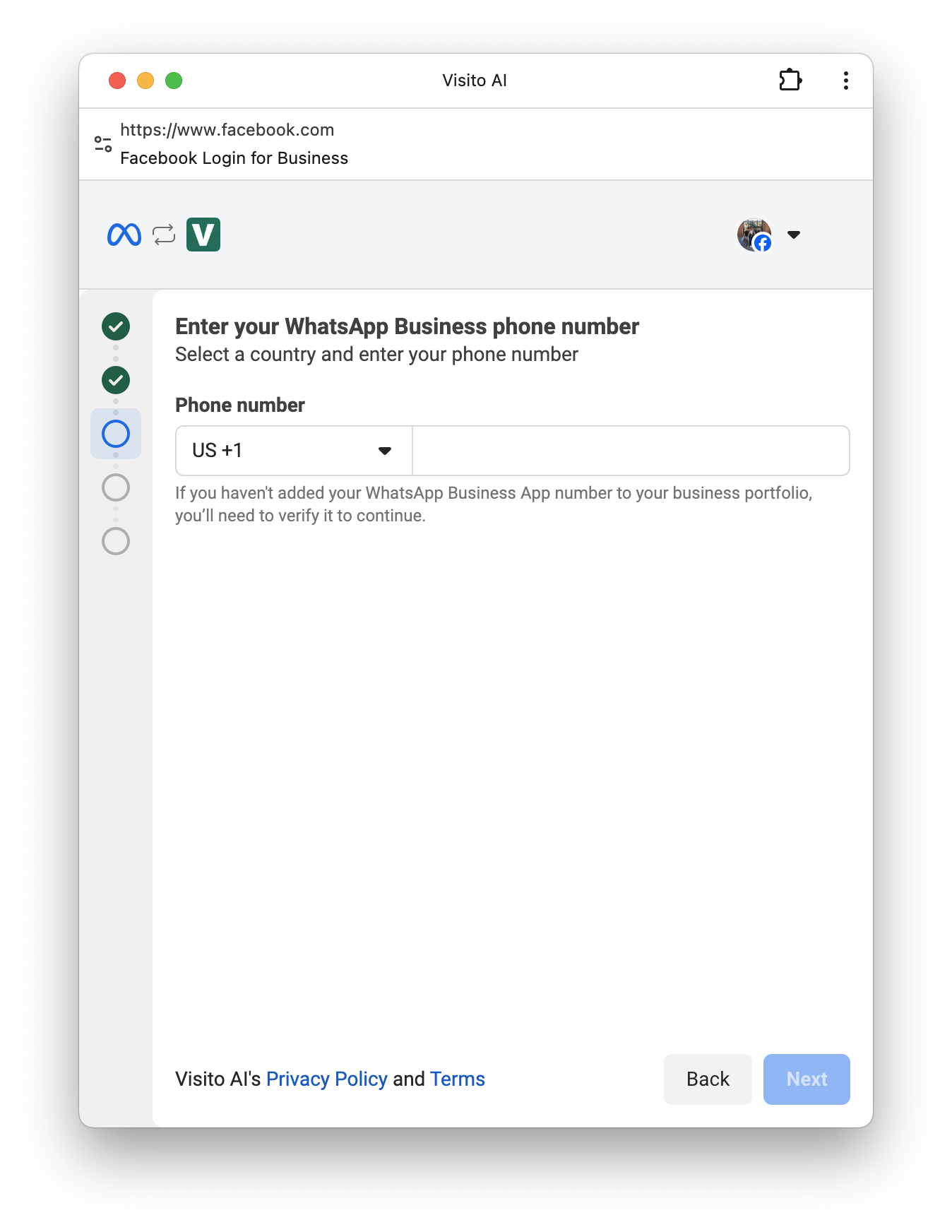
Select Connect your existing WhatsApp Business App, then enter the active Business App number.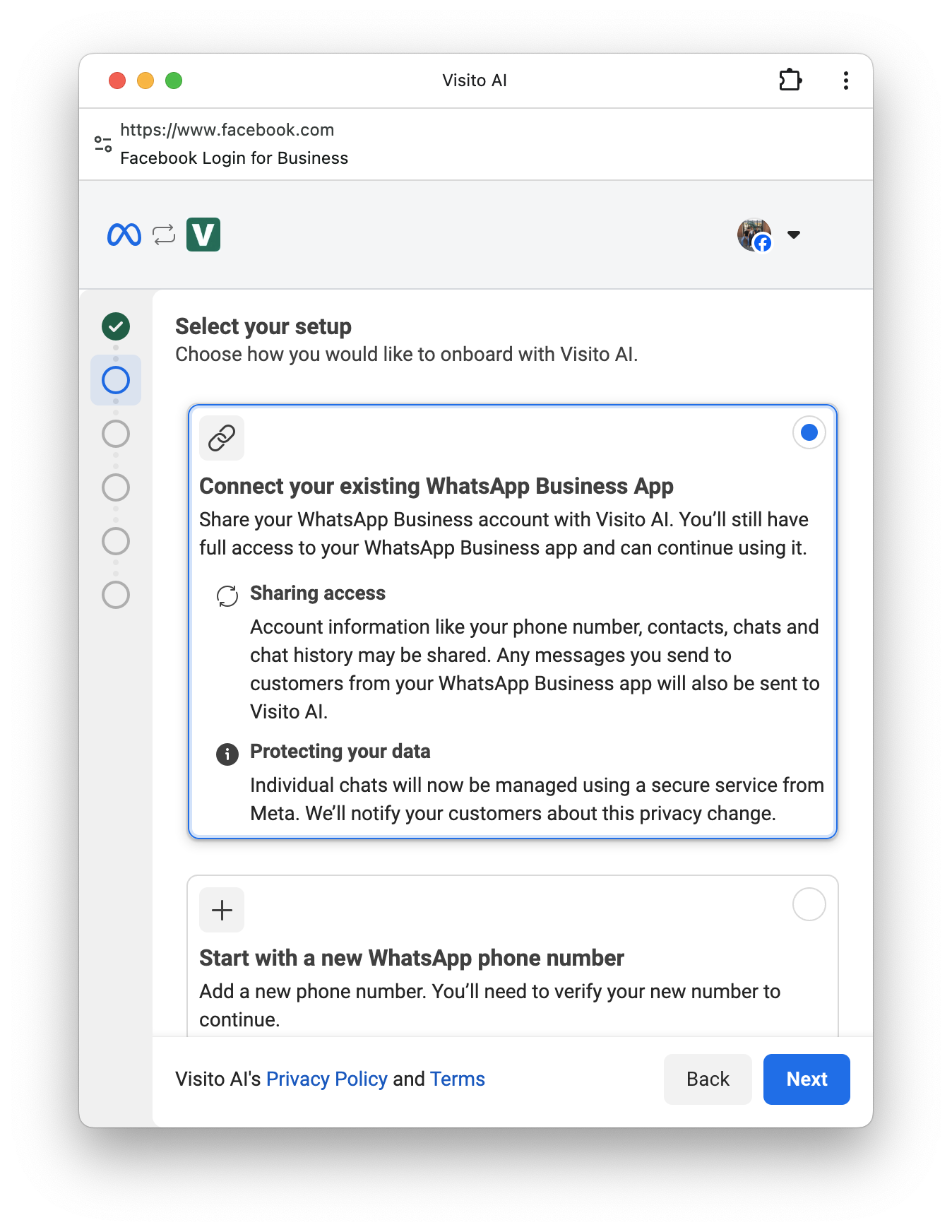
4
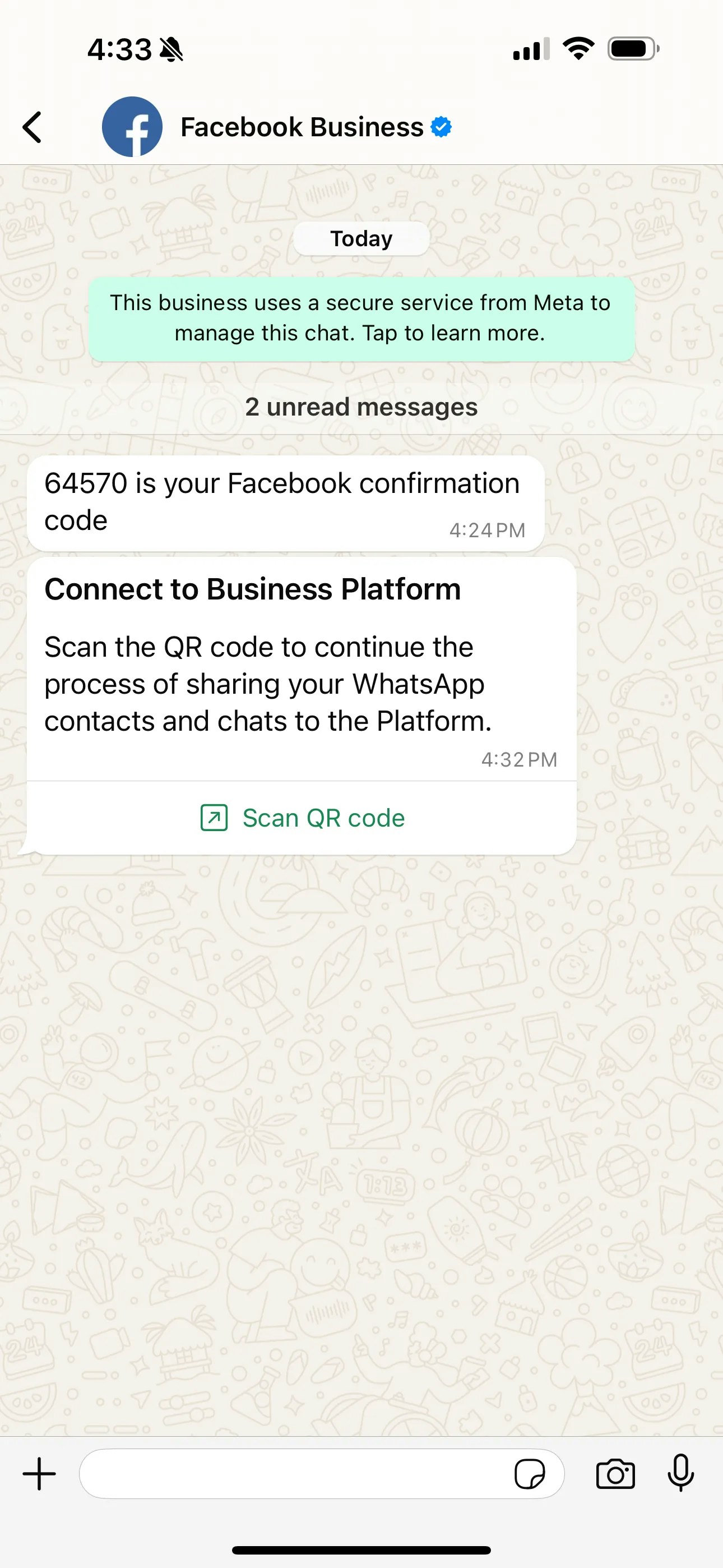
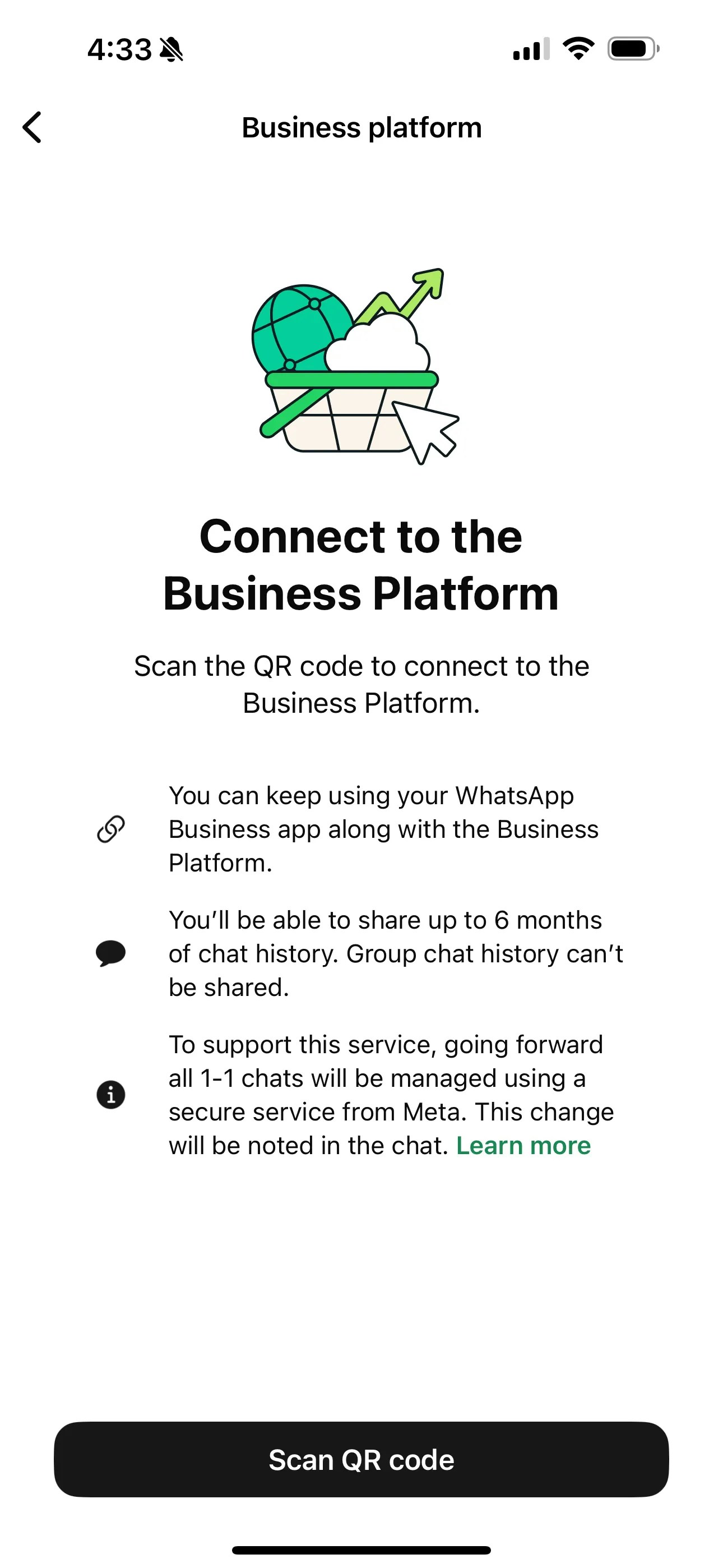
Complete the in-app prompt
Open WhatsApp Business App on the phone. Use its coexistence prompt to start the QR linking step.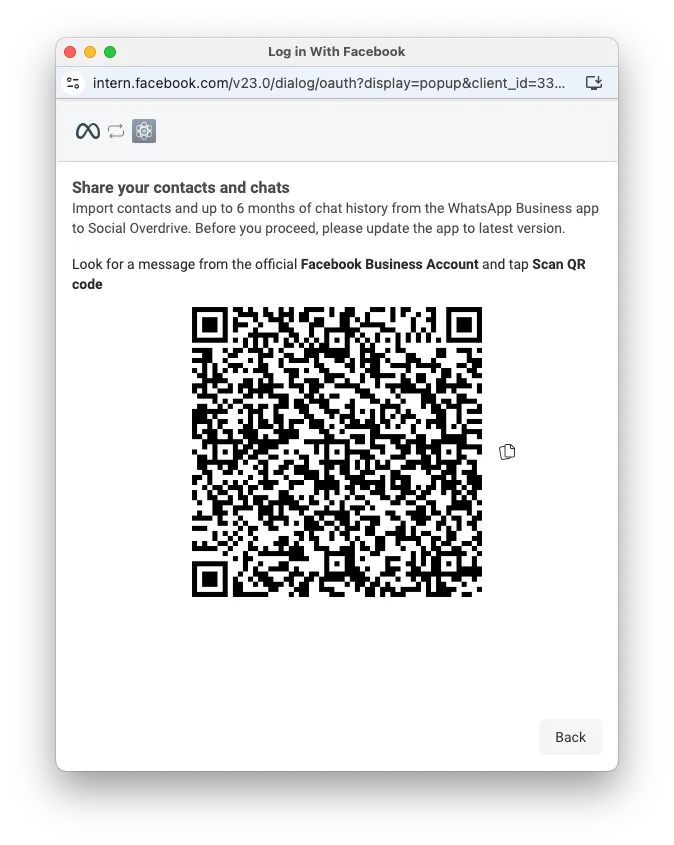
5
Choose message-history sharing
When Meta offers the option, select whether eligible history should be shared with the connected experience.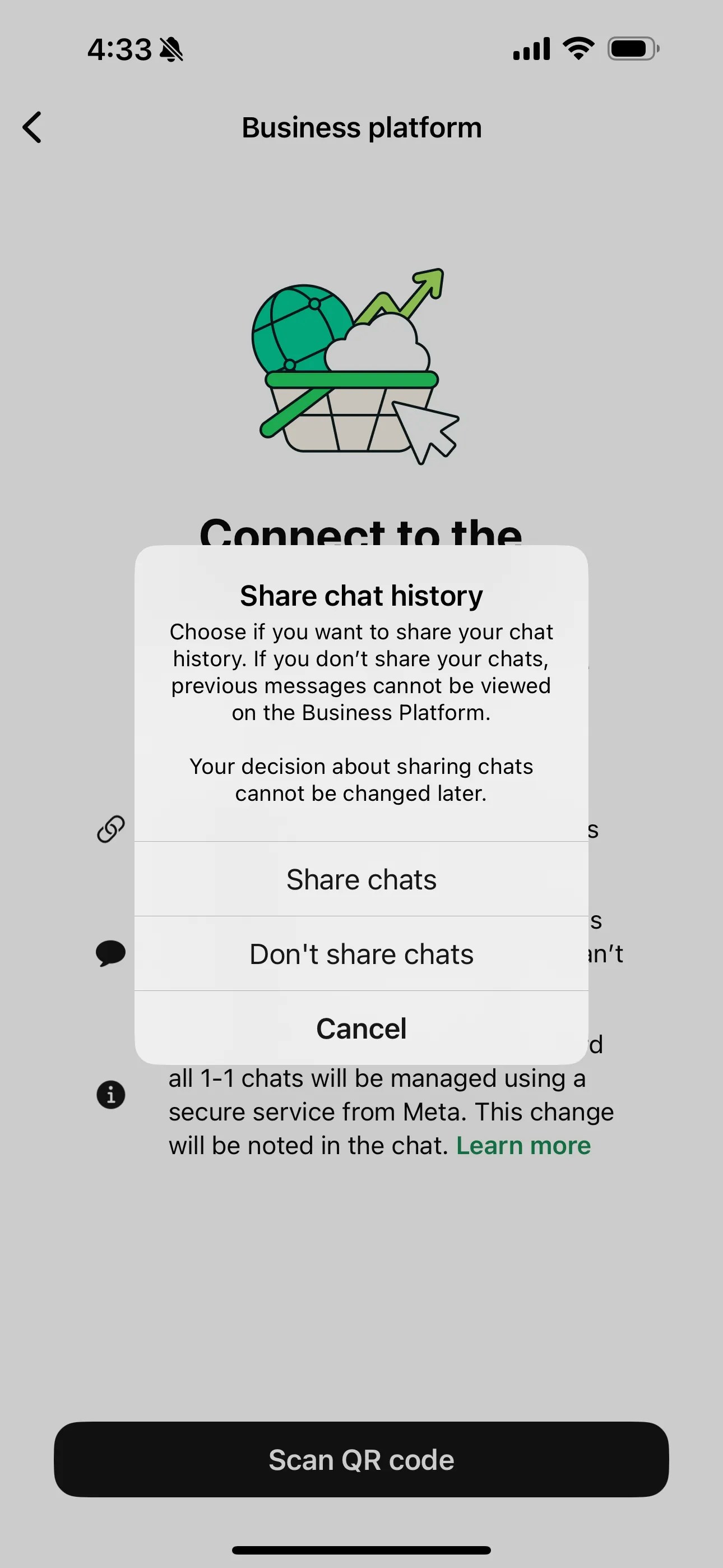
6
Return to Visito
Finish the Meta flow and wait for the channel row to refresh.
7
Finish pending activation
If the row is pending, complete any remaining Business App step, then open row actions and select Retry Activation.
8
Assign businesses
Assign the correct businesses and verify Active and Respond.
Verify both inboxes
- Send a new message to the number from another phone.
- Confirm the message appears in WhatsApp Business App and Visito as expected.
- Open the thread in Visito.
- Verify the AI response or send a manual reply.
- Confirm the customer receives one intended response.
If coexistence remains pending
- Confirm the phone still has internet access.
- Open WhatsApp Business App and finish any pending prompt.
- Confirm the QR step completed with the intended number.
- Use Retry Activation from the Visito channel row.
- Do not create a duplicate channel while the first activation is pending.
Meta troubleshooting
Diagnose missing prompts, incomplete callbacks, pending activation, and message-flow issues.
WhatsApp billing
Add or update a WhatsApp payment method.Manage your number
- Personalize your WhatsApp business profile.
- Remove an API number and return to the app. This path is for API-only numbers; do not delete an active Business App account to set up coexistence.