Remove an API number and return to the WhatsApp app
Remove a phone number from WhatsApp Manager, register it in a phone app, and prepare for optional coexistence.
Use this guide when your number is registered for WhatsApp Business Platform (API) use and you want to use it in WhatsApp or WhatsApp Business App on your phone.If you want to use the phone app and Visito together, choose WhatsApp Business App. Coexistence is a separate onboarding flow for eligible Business App numbers; personal WhatsApp does not provide that setup.
Removing an API number interrupts messaging through its existing Visito connection. Plan the change before removing a number customers use. This process does not automatically move API chat history into the phone app or merge old and new conversations in Visito.
To change your logo, name, website, or description:edit the profile. No deletion is needed.
If your number already works in WhatsApp Business App with coexistence: do not remove it just to access the app. Investigate the app or connection issue first.
To return an API-only number to a phone app: follow the preparation and removal steps below.
This guide concerns the phone-number row in WhatsApp Manager. Deleting an entire WhatsApp Business Account, deleting a business portfolio, deleting the account inside the phone app, and removing a channel from Visito are different actions. Removing a channel from Visito alone does not release the number from Meta.
Confirm you own the number and can receive its verification code by SMS or phone call. For a SIM-based number, have the SIM in a working phone with mobile signal.
Have administrator access to the Meta business portfolio and WhatsApp account that own the number. If Visito or another provider controls that account, coordinate the release with its administrator.
Choose the destination app. For a later connection to Visito through coexistence, use the updated WhatsApp Business App.
Agree on a maintenance window with your team and pause campaigns or scheduled sends that use this number.
Record the current account and number details privately, and preserve any information you need before removal. Do not assume app backups include API conversations.
If returning to Visito, confirm the intended workspace and have access to the Meta billing setup if required during reconnection.
The screenshots are redacted examples of Meta’s English interface. The example number was not deleted, and app registration was not performed. Meta’s prompts and eligibility checks may differ for your account.
Open Meta Business Suite, select the owning business portfolio, and go to Settings → Accounts → WhatsApp accounts. Select the intended WhatsApp account.
2
Open the phone-number list
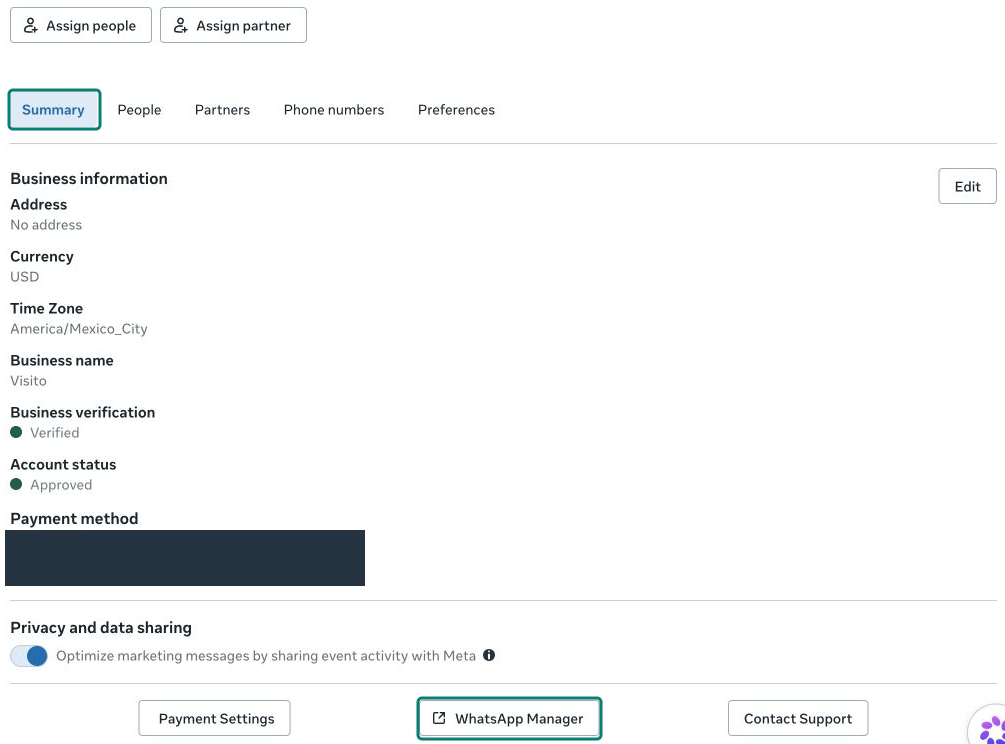
In Summary, select WhatsApp Manager. Open Account tools → Phone numbers if necessary.
Open WhatsApp Manager from the selected account’s Summary tab.
3
Identify the exact number
Check the full phone number and its display name. On that row, locate the Delete trash icon beside the Settings gear.
The trash icon removes the selected phone number; the gear opens its settings. Expand the image for detail.
4
Review Meta's prompts and complete removal
When your team is ready for the interruption, select the row’s Delete control. Read Meta’s warnings, verify the target number again, and complete the confirmation or authentication Meta requests only if you intend to proceed.Enter credentials only in Meta’s own interface. If Meta blocks removal or shows a restriction, stop and follow that message; do not delete the entire account or portfolio as a workaround.
5
Verify removal
Refresh the phone-number list and confirm that the intended number is no longer listed in that account. This verifies removal from the account, not successful registration in a phone app. If the number remains, resolve Meta’s message before continuing.
Open the chosen app: WhatsApp for personal use, or WhatsApp Business App for business use and possible coexistence with Visito.
Follow the app’s registration flow using the same phone number and country code.
Complete SMS or call verification and any additional security checks the app requests.
Finish the app profile, then use another phone to check incoming messages and replies.
If the app reports that the number is still registered elsewhere or imposes a waiting period, follow the displayed instructions and contact Meta or Visito support if needed. Removal is not a guarantee of immediate app registration.
Once the number is active in WhatsApp Business App, follow Connect an existing WhatsApp Business App number. Use the existing-Business-App option in Meta’s onboarding flow, then complete the in-app and QR steps when offered.
Keep the Business App account active; do not delete it to attempt coexistence.
Meta determines eligibility. Returning to the Business App does not guarantee that coexistence is immediately available.
Test the Business App and Visito with a new incoming message and confirm that the customer receives the intended reply.
Do not assume old Visito threads will be unified with new ones. If history appears split after reconnection, contact support before deleting any conversations.
Check the selected portfolio, account, and Meta login. Ask the owner to confirm your access.
Delete is missing or blocked
Check your permissions and Meta’s displayed restrictions, including any billing or recent-message condition it identifies. Follow the stated resolution; do not use a different asset’s Delete control.
The verification code does not arrive
Confirm the number, country code, mobile signal, and ability to receive the chosen SMS or call method. Respect any retry timer.
The app says the number is still registered
Confirm removal in the correct account and follow the app’s recovery instructions. Do not repeatedly delete or recreate business assets.
Coexistence is unavailable
Confirm the number is active in the updated Business App and follow Meta’s eligibility guidance. Contact support before trying a different onboarding path.
Visito does not receive messages after reconnecting
{"docsConfig":{"theme":"maple","$schema":"https://mintlify.com/docs.json","name":"Visito Documentation","description":"Set up and operate Visito AI agents for customer messaging, knowledge, automation, payments, channels, integrations, and developer APIs.","colors":{"primary":"#007A61","light":"#07C983","dark":"#15803D"},"logo":{"light":"https://mintcdn.com/muhammadtest/CDFi4ni2JGEfQWU5/logo/Visito%20Logo.svg?fit=max\u0026auto=format\u0026n=CDFi4ni2JGEfQWU5\u0026q=85\u0026s=a39a66fdbb880bf89a71c4275bdd83ff","dark":"https://mintcdn.com/muhammadtest/CDFi4ni2JGEfQWU5/logo/Visito%20Logo.svg?fit=max\u0026auto=format\u0026n=CDFi4ni2JGEfQWU5\u0026q=85\u0026s=a39a66fdbb880bf89a71c4275bdd83ff"},"favicon":"https://mintcdn.com/muhammadtest/Txg3LujQoPnf_7Ow/favicon.ico?fit=max\u0026auto=format\u0026n=Txg3LujQoPnf_7Ow\u0026q=85\u0026s=246bb841d5074d137f10b7b8454ed8d9","navbar":{"links":[{"href":"mailto:help@visitoai.com","label":"Support"}],"primary":{"type":"button","label":"Log in","href":"https://dashboard.visitoai.com/auth/sign-in"}},"footer":{"socials":{"x":"https://x.com/visitoai","instagram":"https://www.instagram.com/visitoai_","linkedin":"https://www.linkedin.com/company/visitoai/posts"}},"search":{"prompt":"Search Visito documentation..."},"seo":{"metatags":{"og:site_name":"Visito Documentation","twitter:card":"summary_large_image"},"organization":{"name":"Visito","url":"https://www.visitoai.com","sameAs":["https://x.com/visitoai","https://www.instagram.com/visitoai_/","https://www.linkedin.com/company/visitoai/posts/"]},"indexing":"navigable"},"integrations":{"ga4":{"measurementId":"G-49L2GNFV48"}},"styling":{"latex":false},"navigation":{"languages":[{"language":"en","default":true,"href":"product-guides/getting-started/home"},{"language":"es","navbar":{"links":[{"href":"mailto:help@visitoai.com","label":"Soporte"}],"primary":{"type":"button","label":"Iniciar sesión","href":"https://dashboard.visitoai.com/auth/sign-in"}},"href":"es/product-guides/getting-started/home"}]}},"deployment":{"deploymentMetadataValue":{"subdomain":"muhammadtest","hasAudioNarration":false,"actualSubdomain":"muhammadtest","customDomains":["docs.visitoai.com"],"gitSource":{"type":"github","owner":"visito-ai","repo":"visito-docs","deployBranch":"main","contentDirectory":"","isPrivate":true,"mountPath":"","label":""},"chroma":{"liveDeploymentHistoryId":"6adbd3f3bff9992d3e4abc2e","collectionId":"3d029028-9078-4aa1-a331-f4df7df7dd04","schemaVersion":"v3","latestBuiltDeploymentHistoryId":"6adbd3f3bff9992d3e4abc2e"},"entitlements":{},"buildId":"6adbd3f3bff9992d3e4abc2e","clientVersion":"0.0.4043","searchFilterCounts":[{"language":"en","tag":"API Reference","count":179},{"language":"es","tag":"Referencia de API","count":179},{"language":"en","tag":"Browse endpoints","count":177},{"language":"es","tag":"Endpoints por área","count":177},{"language":"en","tag":"AI and automation","count":76},{"language":"es","tag":"IA y automatización","count":76},{"language":"en","tag":"Docs","count":67},{"language":"es","tag":"Guías del producto","count":67},{"language":"en","tag":"Customer operations","count":54},{"language":"es","tag":"Operaciones con clientes","count":54},{"language":"en","tag":"Messaging","count":43},{"language":"es","tag":"Mensajería","count":43},{"language":"en","tag":"Channels","count":37},{"language":"es","tag":"Canales","count":37},{"language":"en","tag":"Setup","count":35},{"language":"es","tag":"Configurar","count":35},{"language":"en","tag":"Knowledge and assets","count":31},{"language":"es","tag":"Conocimiento y archivos","count":31},{"language":"en","tag":"Developer Guide","count":24},{"language":"es","tag":"Guía para desarrolladores","count":24}]},"assistantConfig":{},"basePath":"","hasChatPermissions":false,"hasWebMcpPermissions":false,"toggles":[],"googleFontsInlined":false},"customCss":[],"page":{"pagePath":"product-guides/channels/whatsapp/removing-your-number","slug":"/product-guides/channels/whatsapp/removing-your-number","pageMetadata":{"title":"Remove an API number and return to the WhatsApp app","description":"Remove a phone number from WhatsApp Manager, register it in a phone app, and prepare for optional coexistence.","href":"/product-guides/channels/whatsapp/removing-your-number"},"description":{"compiledSource":"\"use strict\";\nconst {jsx: _jsx} = arguments[0];\nconst {useMDXComponents: _provideComponents} = arguments[0];\nfunction _createMdxContent(props) {\n const _components = {\n p: \"p\",\n ..._provideComponents(),\n ...props.components\n };\n return _jsx(_components.p, {\n children: \"Remove a phone number from WhatsApp Manager, register it in a phone app, and prepare for optional coexistence.\"\n });\n}\nfunction MDXContent(props = {}) {\n const {wrapper: MDXLayout} = {\n ..._provideComponents(),\n ...props.components\n };\n return MDXLayout ? _jsx(MDXLayout, {\n ...props,\n children: _jsx(_createMdxContent, {\n ...props\n })\n }) : _createMdxContent(props);\n}\nreturn {\n default: MDXContent\n};\n","frontmatter":{},"scope":{}},"pageType":"default","mdx":{"mdxSource":{"compiledSource":"\"use strict\";const{Fragment:_Fragment,jsx:_jsx,jsxs:_jsxs}=arguments[0];const{useMDXComponents:_provideComponents}=arguments[0];function _createMdxContent(props){const _components={a:`a`,li:`li`,ol:`ol`,p:`p`,strong:`strong`,tbody:`tbody`,td:`td`,th:`th`,thead:`thead`,tr:`tr`,ul:`ul`,..._provideComponents(),...props.components},{Frame,Heading,Note,OptimizedImage,Step,Steps,Table,Warning}=_components;if(!Frame)_missingMdxReference(`Frame`,true);if(!Heading)_missingMdxReference(`Heading`,true);if(!Note)_missingMdxReference(`Note`,true);if(!OptimizedImage)_missingMdxReference(`OptimizedImage`,true);if(!Step)_missingMdxReference(`Step`,true);if(!Steps)_missingMdxReference(`Steps`,true);if(!Table)_missingMdxReference(`Table`,true);if(!Warning)_missingMdxReference(`Warning`,true);return _jsxs(_Fragment,{children:[_jsxs(_components.p,{children:[`Use this guide when your number is registered for WhatsApp Business Platform (API) use and you want to use it in `,_jsx(_components.strong,{children:`WhatsApp`}),` or `,_jsx(_components.strong,{children:`WhatsApp Business App`}),` on your phone.`]}),`\n`,_jsxs(_components.p,{children:[`If you want to use the phone app and Visito together, choose `,_jsx(_components.strong,{children:`WhatsApp Business App`}),`. Coexistence is a separate onboarding flow for eligible Business App numbers; personal WhatsApp does not provide that setup.`]}),`\n`,_jsx(Warning,{children:_jsx(_components.p,{children:`Removing an API number interrupts messaging through its existing Visito connection. Plan the change before removing a number customers use. This process does not automatically move API chat history into the phone app or merge old and new conversations in Visito.`})}),`\n`,_jsx(Heading,{level:`2`,id:`confirm-that-removal-is-the-right-action`,children:`Confirm that removal is the right action`}),`\n`,_jsxs(_components.ul,{children:[`\n`,_jsxs(_components.li,{children:[_jsx(_components.strong,{children:`To change your logo, name, website, or description:`}),` `,_jsx(_components.a,{href:`/product-guides/channels/whatsapp/managing-your-profile`,children:`edit the profile`}),`. No deletion is needed.`]}),`\n`,_jsxs(_components.li,{children:[_jsx(_components.strong,{children:`If your number already works in WhatsApp Business App with coexistence:`}),` do not remove it just to access the app. Investigate the app or connection issue first.`]}),`\n`,_jsxs(_components.li,{children:[_jsx(_components.strong,{children:`To return an API-only number to a phone app:`}),` follow the preparation and removal steps below.`]}),`\n`]}),`\n`,_jsxs(_components.p,{children:[`This guide concerns the `,_jsx(_components.strong,{children:`phone-number row in WhatsApp Manager`}),`. Deleting an entire WhatsApp Business Account, deleting a business portfolio, deleting the account inside the phone app, and removing a channel from Visito are different actions. Removing a channel from Visito alone does not release the number from Meta.`]}),`\n`,_jsx(Heading,{level:`2`,id:`before-you-start`,children:`Before you start`}),`\n`,_jsxs(_components.ul,{children:[`\n`,_jsx(_components.li,{children:`Confirm you own the number and can receive its verification code by SMS or phone call. For a SIM-based number, have the SIM in a working phone with mobile signal.`}),`\n`,_jsx(_components.li,{children:`Have administrator access to the Meta business portfolio and WhatsApp account that own the number. If Visito or another provider controls that account, coordinate the release with its administrator.`}),`\n`,_jsxs(_components.li,{children:[`Choose the destination app. For a later connection to Visito through coexistence, use the updated `,_jsx(_components.strong,{children:`WhatsApp Business App`}),`.`]}),`\n`,_jsx(_components.li,{children:`Agree on a maintenance window with your team and pause campaigns or scheduled sends that use this number.`}),`\n`,_jsx(_components.li,{children:`Record the current account and number details privately, and preserve any information you need before removal. Do not assume app backups include API conversations.`}),`\n`,_jsx(_components.li,{children:`If returning to Visito, confirm the intended workspace and have access to the Meta billing setup if required during reconnection.`}),`\n`]}),`\n`,_jsx(Note,{children:_jsx(_components.p,{children:`The screenshots are redacted examples of Meta’s English interface. The example number was not deleted, and app registration was not performed. Meta’s prompts and eligibility checks may differ for your account.`})}),`\n`,_jsx(Heading,{level:`2`,id:`remove-the-number-from-whatsapp-manager`,children:`Remove the number from WhatsApp Manager`}),`\n`,_jsxs(Steps,{children:[_jsx(Step,{title:`Open the account that owns the number`,children:_jsxs(_components.p,{children:[`Open `,_jsx(_components.a,{href:`https://business.facebook.com/`,children:`Meta Business Suite`}),`, select the owning business portfolio, and go to `,_jsx(_components.strong,{children:`Settings → Accounts → WhatsApp accounts`}),`. Select the intended WhatsApp account.`]})}),_jsxs(Step,{title:`Open the phone-number list`,children:[_jsxs(_components.p,{children:[`In `,_jsx(_components.strong,{children:`Summary`}),`, select `,_jsx(_components.strong,{children:`WhatsApp Manager`}),`. Open `,_jsx(_components.strong,{children:`Account tools → Phone numbers`}),` if necessary.`]}),_jsx(Frame,{caption:`Open WhatsApp Manager from the selected account’s Summary tab.`,children:_jsx(OptimizedImage,{src:`https://mintcdn.com/muhammadtest/6-_oAzQR_5ScIQma/images/whatsapp-management/account-manager.png?fit=max\u0026auto=format\u0026n=6-_oAzQR_5ScIQma\u0026q=85\u0026s=726fb6e3eb2aa3b54d8c0ca7b59fb7a6`,alt:`Meta account Summary tab with WhatsApp Manager highlighted and billing information redacted`,\"data-og-width\":`1005`,width:`1005`,\"data-og-height\":`744`,height:`744`,\"data-path\":`images/whatsapp-management/account-manager.png`,\"data-optimize\":`true`,\"data-opv\":`3`,srcset:`https://mintcdn.com/muhammadtest/6-_oAzQR_5ScIQma/images/whatsapp-management/account-manager.png?w=280\u0026fit=max\u0026auto=format\u0026n=6-_oAzQR_5ScIQma\u0026q=85\u0026s=e8dce1ad3652415f00e90ec77c369650 280w, https://mintcdn.com/muhammadtest/6-_oAzQR_5ScIQma/images/whatsapp-management/account-manager.png?w=560\u0026fit=max\u0026auto=format\u0026n=6-_oAzQR_5ScIQma\u0026q=85\u0026s=a7d597c2bf51ad277acac8cc411972be 560w, https://mintcdn.com/muhammadtest/6-_oAzQR_5ScIQma/images/whatsapp-management/account-manager.png?w=840\u0026fit=max\u0026auto=format\u0026n=6-_oAzQR_5ScIQma\u0026q=85\u0026s=b6d78792dd48361869d656351a6d158c 840w, https://mintcdn.com/muhammadtest/6-_oAzQR_5ScIQma/images/whatsapp-management/account-manager.png?w=1100\u0026fit=max\u0026auto=format\u0026n=6-_oAzQR_5ScIQma\u0026q=85\u0026s=8bb2c2b905ae0be33e3bb266bb1d2d4e 1100w, https://mintcdn.com/muhammadtest/6-_oAzQR_5ScIQma/images/whatsapp-management/account-manager.png?w=1650\u0026fit=max\u0026auto=format\u0026n=6-_oAzQR_5ScIQma\u0026q=85\u0026s=e90e51029ce336056f22b7767675a7f0 1650w, https://mintcdn.com/muhammadtest/6-_oAzQR_5ScIQma/images/whatsapp-management/account-manager.png?w=2500\u0026fit=max\u0026auto=format\u0026n=6-_oAzQR_5ScIQma\u0026q=85\u0026s=8654026d8a2529394fe5f5f1052d52e5 2500w`})})]}),_jsxs(Step,{title:`Identify the exact number`,children:[_jsxs(_components.p,{children:[`Check the full phone number and its display name. On that row, locate the `,_jsx(_components.strong,{children:`Delete`}),` trash icon beside the `,_jsx(_components.strong,{children:`Settings`}),` gear.`]}),_jsx(Frame,{caption:`The trash icon removes the selected phone number; the gear opens its settings. Expand the image for detail.`,children:_jsx(OptimizedImage,{src:`https://mintcdn.com/muhammadtest/6-_oAzQR_5ScIQma/images/whatsapp-management/phone-controls.png?fit=max\u0026auto=format\u0026n=6-_oAzQR_5ScIQma\u0026q=85\u0026s=56cb23e406eb3419ecb75833f5f887e2`,alt:`Phone-number row with its private number redacted and the Delete and Settings controls highlighted`,\"data-og-width\":`1500`,width:`1500`,\"data-og-height\":`126`,height:`126`,\"data-path\":`images/whatsapp-management/phone-controls.png`,\"data-optimize\":`true`,\"data-opv\":`3`,srcset:`https://mintcdn.com/muhammadtest/6-_oAzQR_5ScIQma/images/whatsapp-management/phone-controls.png?w=280\u0026fit=max\u0026auto=format\u0026n=6-_oAzQR_5ScIQma\u0026q=85\u0026s=6889c7bc53152bc2fb1d4536143f0fa2 280w, https://mintcdn.com/muhammadtest/6-_oAzQR_5ScIQma/images/whatsapp-management/phone-controls.png?w=560\u0026fit=max\u0026auto=format\u0026n=6-_oAzQR_5ScIQma\u0026q=85\u0026s=37b090ff209f4186316834063b69e7a1 560w, https://mintcdn.com/muhammadtest/6-_oAzQR_5ScIQma/images/whatsapp-management/phone-controls.png?w=840\u0026fit=max\u0026auto=format\u0026n=6-_oAzQR_5ScIQma\u0026q=85\u0026s=d69b24ba839bbc7db655dc687843daca 840w, https://mintcdn.com/muhammadtest/6-_oAzQR_5ScIQma/images/whatsapp-management/phone-controls.png?w=1100\u0026fit=max\u0026auto=format\u0026n=6-_oAzQR_5ScIQma\u0026q=85\u0026s=cd5d618ad7301cc53c6bfea8acd0c843 1100w, https://mintcdn.com/muhammadtest/6-_oAzQR_5ScIQma/images/whatsapp-management/phone-controls.png?w=1650\u0026fit=max\u0026auto=format\u0026n=6-_oAzQR_5ScIQma\u0026q=85\u0026s=b3f7d33487f13c7f3732311e1ac7626e 1650w, https://mintcdn.com/muhammadtest/6-_oAzQR_5ScIQma/images/whatsapp-management/phone-controls.png?w=2500\u0026fit=max\u0026auto=format\u0026n=6-_oAzQR_5ScIQma\u0026q=85\u0026s=e6b24f83024dba0fe9dc8f5634966135 2500w`})})]}),_jsxs(Step,{title:`Review Meta's prompts and complete removal`,children:[_jsxs(_components.p,{children:[`When your team is ready for the interruption, select the row’s `,_jsx(_components.strong,{children:`Delete`}),` control. Read Meta’s warnings, verify the target number again, and complete the confirmation or authentication Meta requests only if you intend to proceed.`]}),_jsx(_components.p,{children:`Enter credentials only in Meta’s own interface. If Meta blocks removal or shows a restriction, stop and follow that message; do not delete the entire account or portfolio as a workaround.`})]}),_jsx(Step,{title:`Verify removal`,children:_jsx(_components.p,{children:`Refresh the phone-number list and confirm that the intended number is no longer listed in that account. This verifies removal from the account, not successful registration in a phone app. If the number remains, resolve Meta’s message before continuing.`})})]}),`\n`,_jsx(Heading,{level:`2`,id:`register-the-number-on-your-phone`,children:`Register the number on your phone`}),`\n`,_jsxs(_components.ol,{children:[`\n`,_jsxs(_components.li,{children:[`Open the chosen app: WhatsApp for personal use, or `,_jsx(_components.strong,{children:`WhatsApp Business App`}),` for business use and possible coexistence with Visito.`]}),`\n`,_jsx(_components.li,{children:`Follow the app’s registration flow using the same phone number and country code.`}),`\n`,_jsx(_components.li,{children:`Complete SMS or call verification and any additional security checks the app requests.`}),`\n`,_jsx(_components.li,{children:`Finish the app profile, then use another phone to check incoming messages and replies.`}),`\n`]}),`\n`,_jsxs(_components.p,{children:[`If the app reports that the number is still registered elsewhere or imposes a waiting period, follow the displayed instructions and contact Meta or `,_jsx(_components.a,{href:`mailto:help@visitoai.com`,children:`Visito support`}),` if needed. Removal is not a guarantee of immediate app registration.`]}),`\n`,_jsx(Heading,{level:`2`,id:`reconnect-to-visito-with-coexistence-if-needed`,children:`Reconnect to Visito with coexistence, if needed`}),`\n`,_jsxs(_components.p,{children:[`Once the number is active in `,_jsx(_components.strong,{children:`WhatsApp Business App`}),`, follow `,_jsx(_components.a,{href:`/product-guides/channels/whatsapp/connecting-your-whatsapp-business-app`,children:`Connect an existing WhatsApp Business App number`}),`. Use the existing-Business-App option in Meta’s onboarding flow, then complete the in-app and QR steps when offered.`]}),`\n`,_jsxs(_components.ul,{children:[`\n`,_jsx(_components.li,{children:`Keep the Business App account active; do not delete it to attempt coexistence.`}),`\n`,_jsx(_components.li,{children:`Meta determines eligibility. Returning to the Business App does not guarantee that coexistence is immediately available.`}),`\n`,_jsx(_components.li,{children:`Test the Business App and Visito with a new incoming message and confirm that the customer receives the intended reply.`}),`\n`,_jsx(_components.li,{children:`Do not assume old Visito threads will be unified with new ones. If history appears split after reconnection, contact support before deleting any conversations.`}),`\n`]}),`\n`,_jsx(Heading,{level:`2`,id:`if-you-get-stuck`,children:`If you get stuck`}),`\n`,_jsxs(Table,{children:[_jsx(_components.thead,{children:_jsxs(_components.tr,{children:[_jsx(_components.th,{children:`Problem`}),_jsx(_components.th,{children:`Next step`})]})}),_jsxs(_components.tbody,{children:[_jsxs(_components.tr,{children:[_jsx(_components.td,{children:`The account or number is missing`}),_jsx(_components.td,{children:`Check the selected portfolio, account, and Meta login. Ask the owner to confirm your access.`})]}),_jsxs(_components.tr,{children:[_jsx(_components.td,{children:`Delete is missing or blocked`}),_jsx(_components.td,{children:`Check your permissions and Meta’s displayed restrictions, including any billing or recent-message condition it identifies. Follow the stated resolution; do not use a different asset’s Delete control.`})]}),_jsxs(_components.tr,{children:[_jsx(_components.td,{children:`The verification code does not arrive`}),_jsx(_components.td,{children:`Confirm the number, country code, mobile signal, and ability to receive the chosen SMS or call method. Respect any retry timer.`})]}),_jsxs(_components.tr,{children:[_jsx(_components.td,{children:`The app says the number is still registered`}),_jsx(_components.td,{children:`Confirm removal in the correct account and follow the app’s recovery instructions. Do not repeatedly delete or recreate business assets.`})]}),_jsxs(_components.tr,{children:[_jsx(_components.td,{children:`Coexistence is unavailable`}),_jsx(_components.td,{children:`Confirm the number is active in the updated Business App and follow Meta’s eligibility guidance. Contact support before trying a different onboarding path.`})]}),_jsxs(_components.tr,{children:[_jsx(_components.td,{children:`Visito does not receive messages after reconnecting`}),_jsxs(_components.td,{children:[`Follow the `,_jsx(_components.a,{href:`/product-guides/channels/meta/troubleshooting`,children:`Meta connection troubleshooting guide`}),` and verify both inbound messages and delivered replies.`]})]})]})]}),`\n`,_jsx(Heading,{level:`2`,id:`related-guides`,children:`Related guides`}),`\n`,_jsxs(_components.ul,{children:[`\n`,_jsx(_components.li,{children:_jsx(_components.a,{href:`/product-guides/channels/whatsapp/introduction`,children:`Choose a WhatsApp setup`})}),`\n`,_jsx(_components.li,{children:_jsx(_components.a,{href:`/product-guides/channels/whatsapp/managing-your-profile`,children:`Personalize your WhatsApp profile`})}),`\n`,_jsx(_components.li,{children:_jsx(_components.a,{href:`/product-guides/channels/whatsapp/payment-method`,children:`Add or update a WhatsApp payment method`})}),`\n`]})]})}function MDXContent(props={}){const{wrapper:MDXLayout}={..._provideComponents(),...props.components};return MDXLayout?_jsx(MDXLayout,{...props,children:_jsx(_createMdxContent,{...props})}):_createMdxContent(props)}return{default:MDXContent};function _missingMdxReference(id,component){throw new Error(`Expected `+(component?`component`:`object`)+\" `\"+id+\"` to be defined: you likely forgot to import, pass, or provide it.\")}","frontmatter":{},"scope":{"config":{},"pageMetadata":{"title":"Remove an API number and return to the WhatsApp app","description":"Remove a phone number from WhatsApp Manager, register it in a phone app, and prepare for optional coexistence.","href":"/product-guides/channels/whatsapp/removing-your-number"}}},"mdxSourceWithNoJs":null},"mdxExtracts":{"tableOfContents":[{"title":"Confirm that removal is the right action","slug":"confirm-that-removal-is-the-right-action","depth":2,"children":[]},{"title":"Before you start","slug":"before-you-start","depth":2,"children":[]},{"title":"Remove the number from WhatsApp Manager","slug":"remove-the-number-from-whatsapp-manager","depth":2,"children":[]},{"title":"Register the number on your phone","slug":"register-the-number-on-your-phone","depth":2,"children":[]},{"title":"Reconnect to Visito with coexistence, if needed","slug":"reconnect-to-visito-with-coexistence-if-needed","depth":2,"children":[]},{"title":"If you get stuck","slug":"if-you-get-stuck","depth":2,"children":[]},{"title":"Related guides","slug":"related-guides","depth":2,"children":[]}],"codeExamples":{}},"jsLinks":["/_mintlify/custom/muhammadtest/9c4e98983a411618/datafast.js"],"subdomain":"muhammadtest","siteName":"Visito Documentation","title":"Remove an API number and return to the WhatsApp app - Visito Documentation","navMaps":{"firstHrefInVersion":{},"firstHrefInLanguage":{"en":{"href":"/product-guides/channels/whatsapp/removing-your-number","matchLevel":0},"es":{"href":"/es/product-guides/channels/whatsapp/removing-your-number","matchLevel":1}}},"lastModified":"2026-09-15T16:30:55.265Z","originalFileLocation":"product-guides/channels/whatsapp/removing-your-number.mdx","locale":"en"},"headHtml":"\u003cscript data-mint-head>(function(){var d=document.documentElement,p=null;if(!p){try{p=localStorage.getItem(\"isDarkMode\")}catch(e){}if(p==='true')p='dark';else if(p==='false')p='light';if(p!=='light'\u0026\u0026p!=='dark'\u0026\u0026p!=='system')p=\"system\"}var r=p==='system'?(matchMedia(\"(prefers-color-scheme: dark)\").matches?'dark':'light'):p;d.classList.remove(r==='dark'?'light':'dark');d.classList.add(r);d.setAttribute(\"data-theme-preference\",p)})();\u003c/script>\u003cmeta data-mint-head name=\"description\" content=\"Remove a phone number from WhatsApp Manager, register it in a phone app, and prepare for optional coexistence.\">\u003cmeta data-mint-head name=\"application-name\" content=\"Visito Documentation\">\u003cmeta data-mint-head name=\"generator\" content=\"Mintlify\">\u003clink data-mint-head rel=\"icon\" type=\"image/png\" sizes=\"192x192\" href=\"/mintlify-assets/_mintlify/favicons/muhammadtest/ixzqF7XvrfSOnGKq/_generated/favicon/android-chrome-192x192.png\" media=\"(prefers-color-scheme: light)\">\u003clink data-mint-head rel=\"apple-touch-icon\" type=\"image/png\" sizes=\"180x180\" href=\"/mintlify-assets/_mintlify/favicons/muhammadtest/ixzqF7XvrfSOnGKq/_generated/favicon/apple-touch-icon.png\">\u003clink data-mint-head rel=\"icon\" type=\"image/png\" sizes=\"16x16\" href=\"/mintlify-assets/_mintlify/favicons/muhammadtest/ixzqF7XvrfSOnGKq/_generated/favicon/favicon-16x16.png\" media=\"(prefers-color-scheme: light)\">\u003clink data-mint-head rel=\"icon\" type=\"image/png\" sizes=\"32x32\" href=\"/mintlify-assets/_mintlify/favicons/muhammadtest/ixzqF7XvrfSOnGKq/_generated/favicon/favicon-32x32.png\" media=\"(prefers-color-scheme: light)\">\u003clink data-mint-head rel=\"shortcut icon\" type=\"image/x-icon\" href=\"/mintlify-assets/_mintlify/favicons/muhammadtest/ixzqF7XvrfSOnGKq/_generated/favicon/favicon.ico\" media=\"(prefers-color-scheme: light)\">\u003clink data-mint-head rel=\"icon\" type=\"image/png\" sizes=\"192x192\" href=\"/mintlify-assets/_mintlify/favicons/muhammadtest/ixzqF7XvrfSOnGKq/_generated/favicon-dark/android-chrome-192x192.png\" media=\"(prefers-color-scheme: dark)\">\u003clink data-mint-head rel=\"icon\" type=\"image/png\" sizes=\"16x16\" href=\"/mintlify-assets/_mintlify/favicons/muhammadtest/ixzqF7XvrfSOnGKq/_generated/favicon-dark/favicon-16x16.png\" media=\"(prefers-color-scheme: dark)\">\u003clink data-mint-head rel=\"icon\" type=\"image/png\" sizes=\"32x32\" href=\"/mintlify-assets/_mintlify/favicons/muhammadtest/ixzqF7XvrfSOnGKq/_generated/favicon-dark/favicon-32x32.png\" media=\"(prefers-color-scheme: dark)\">\u003clink data-mint-head rel=\"shortcut icon\" type=\"image/x-icon\" href=\"/mintlify-assets/_mintlify/favicons/muhammadtest/ixzqF7XvrfSOnGKq/_generated/favicon-dark/favicon.ico\" media=\"(prefers-color-scheme: dark)\">\u003cmeta data-mint-head property=\"og:title\" content=\"Remove an API number and return to the WhatsApp app - Visito Documentation\">\u003cmeta data-mint-head property=\"og:description\" content=\"Remove a phone number from WhatsApp Manager, register it in a phone app, and prepare for optional coexistence.\">\u003cmeta data-mint-head property=\"og:site_name\" content=\"Visito Documentation\">\u003cmeta data-mint-head property=\"og:url\" content=\"https://docs.visitoai.com/product-guides/channels/whatsapp/removing-your-number\">\u003cmeta data-mint-head property=\"og:type\" content=\"website\">\u003cmeta data-mint-head property=\"og:image\" content=\"https://muhammadtest.mintlify.app/_mintlify/api/og/v2?division=Channels\u0026amp;title=Remove+an+API+number+and+return+to+the+WhatsApp+app\u0026amp;description=Remove+a+phone+number+from+WhatsApp+Manager%2C+register+it+in+a+phone+app%2C+and+prepare+for+optional+coexistence.\u0026amp;theme=6f12f17051b5e1d2dd53fe38\u0026amp;signature=7dafafe6a17065974bc962e6cbabed51573f40889696eaf79af38a82ccb59e3f\">\u003cmeta data-mint-head property=\"og:image:width\" content=\"1200\">\u003cmeta data-mint-head property=\"og:image:height\" content=\"630\">\u003cmeta data-mint-head name=\"twitter:card\" content=\"summary_large_image\">\u003cmeta data-mint-head name=\"twitter:title\" content=\"Remove an API number and return to the WhatsApp app - Visito Documentation\">\u003cmeta data-mint-head name=\"twitter:description\" content=\"Remove a phone number from WhatsApp Manager, register it in a phone app, and prepare for optional coexistence.\">\u003cmeta data-mint-head name=\"twitter:image\" content=\"https://muhammadtest.mintlify.app/_mintlify/api/og/v2?division=Channels\u0026amp;title=Remove+an+API+number+and+return+to+the+WhatsApp+app\u0026amp;description=Remove+a+phone+number+from+WhatsApp+Manager%2C+register+it+in+a+phone+app%2C+and+prepare+for+optional+coexistence.\u0026amp;theme=6f12f17051b5e1d2dd53fe38\u0026amp;signature=7dafafe6a17065974bc962e6cbabed51573f40889696eaf79af38a82ccb59e3f\">\u003cmeta data-mint-head name=\"twitter:image:width\" content=\"1200\">\u003cmeta data-mint-head name=\"twitter:image:height\" content=\"630\">\u003cmeta data-mint-head name=\"msapplication-config\" content=\"/mintlify-assets/_mintlify/favicons/muhammadtest/ixzqF7XvrfSOnGKq/_generated/favicon/browserconfig.xml\">\u003cmeta data-mint-head name=\"apple-mobile-web-app-title\" content=\"Visito Documentation\">\u003cmeta data-mint-head name=\"msapplication-TileColor\" content=\"#007A61\">\u003clink data-mint-head rel=\"canonical\" href=\"https://docs.visitoai.com/product-guides/channels/whatsapp/removing-your-number\">\u003clink data-mint-head rel=\"alternate\" type=\"application/xml\" href=\"/sitemap.xml\">\u003clink data-mint-head rel=\"alternate\" type=\"text/markdown\" href=\"/product-guides/channels/whatsapp/removing-your-number.md\">\u003clink data-mint-head rel=\"alternate\" hreflang=\"en\" href=\"https://docs.visitoai.com/product-guides/channels/whatsapp/removing-your-number\">\u003clink data-mint-head rel=\"alternate\" hreflang=\"es\" href=\"https://docs.visitoai.com/es/product-guides/channels/whatsapp/removing-your-number\">\u003clink data-mint-head rel=\"alternate\" hreflang=\"x-default\" href=\"https://docs.visitoai.com/product-guides/channels/whatsapp/removing-your-number\">\u003cscript data-mint-head type=\"application/ld+json\">{\"@context\":\"https://schema.org\",\"@graph\":[{\"@type\":\"Organization\",\"@id\":\"https://www.visitoai.com/#organization\",\"name\":\"Visito\",\"url\":\"https://www.visitoai.com\",\"logo\":{\"@type\":\"ImageObject\",\"url\":\"https://mintcdn.com/muhammadtest/CDFi4ni2JGEfQWU5/logo/Visito%20Logo.svg?fit=max\u0026auto=format\u0026n=CDFi4ni2JGEfQWU5\u0026q=85\u0026s=a39a66fdbb880bf89a71c4275bdd83ff\"},\"sameAs\":[\"https://x.com/visitoai\",\"https://www.instagram.com/visitoai_/\",\"https://www.linkedin.com/company/visitoai/posts/\"]},{\"@type\":\"WebSite\",\"@id\":\"https://docs.visitoai.com#website\",\"name\":\"Visito Documentation\",\"url\":\"https://docs.visitoai.com\",\"publisher\":{\"@id\":\"https://www.visitoai.com/#organization\"}},{\"@type\":\"WebPage\",\"@id\":\"https://docs.visitoai.com/product-guides/channels/whatsapp/removing-your-number#webpage\",\"url\":\"https://docs.visitoai.com/product-guides/channels/whatsapp/removing-your-number\",\"name\":\"Remove an API number and return to the WhatsApp app\",\"description\":\"Remove a phone number from WhatsApp Manager, register it in a phone app, and prepare for optional coexistence.\",\"dateModified\":\"2026-09-15T16:30:55.265Z\",\"isPartOf\":{\"@id\":\"https://docs.visitoai.com#website\"},\"breadcrumb\":{\"@id\":\"https://docs.visitoai.com/product-guides/channels/whatsapp/removing-your-number#breadcrumb\"}},{\"@type\":\"BreadcrumbList\",\"@id\":\"https://docs.visitoai.com/product-guides/channels/whatsapp/removing-your-number#breadcrumb\",\"itemListElement\":[{\"@type\":\"ListItem\",\"position\":1,\"name\":\"Setup\",\"item\":\"https://docs.visitoai.com/product-guides/ai-agent/data-source\"},{\"@type\":\"ListItem\",\"position\":2,\"name\":\"Channels\",\"item\":\"https://docs.visitoai.com/product-guides/channels/introduction\"},{\"@type\":\"ListItem\",\"position\":3,\"name\":\"Remove an API number and return to the WhatsApp app\",\"item\":\"https://docs.visitoai.com/product-guides/channels/whatsapp/removing-your-number\"}]},{\"@type\":[\"Article\",\"TechArticle\"],\"@id\":\"https://docs.visitoai.com/product-guides/channels/whatsapp/removing-your-number#article\",\"headline\":\"Remove an API number and return to the WhatsApp app\",\"name\":\"Remove an API number and return to the WhatsApp app\",\"description\":\"Remove a phone number from WhatsApp Manager, register it in a phone app, and prepare for optional coexistence.\",\"url\":\"https://docs.visitoai.com/product-guides/channels/whatsapp/removing-your-number\",\"mainEntityOfPage\":{\"@id\":\"https://docs.visitoai.com/product-guides/channels/whatsapp/removing-your-number#webpage\"},\"dateModified\":\"2026-09-15T16:30:55.265Z\",\"publisher\":{\"@id\":\"https://www.visitoai.com/#organization\"},\"isPartOf\":{\"@id\":\"https://docs.visitoai.com#website\"}}]}\u003c/script>\u003cscript data-mint-head type=\"application/ld+json\">{\"@context\":\"https://schema.org\",\"@type\":\"WebSite\",\"name\":\"Visito Documentation\",\"creator\":{\"@type\":\"Organization\",\"name\":\"Mintlify\",\"url\":\"https://mintlify.com\"}}\u003c/script>","siteName":"Visito Documentation","nav":{"global":null,"languages":[{"language":"en","default":true,"tabs":[{"tab":"Docs","icon":"newspaper","pages":[{"group":"Getting Started","pages":[{"title":"Visito business AI agent documentation and setup guides","sidebarTitle":"Welcome to Visito","href":"/product-guides/getting-started/home"},{"title":"Use Visito with Codex, ChatGPT, and Claude","sidebarTitle":"Visito Plugin / MCP","href":"/product-guides/getting-started/visito-mcp"},{"title":"How to sign in and navigate the Visito dashboard","sidebarTitle":"Access and navigation","href":"/product-guides/getting-started/access-and-navigation"},{"title":"How to set up a new Visito workspace","sidebarTitle":"Set up a new workspace","href":"/product-guides/getting-started/onboarding"},{"title":"How to build and launch your Visito AI agent","sidebarTitle":"Build your AI agent","href":"/product-guides/getting-started/build-your-ai-agent"}]},{"group":"Direct access","pages":[{"title":"How to use the Visito Home dashboard","sidebarTitle":"Home","href":"/product-guides/product/home-dashboard"},{"title":"Work with Lana, your Visito business assistant","sidebarTitle":"Overview","href":"/product-guides/product/lana"},{"title":"What can you do with Lana?","sidebarTitle":"Use cases","href":"/product-guides/product/lana-examples"},{"title":"Use Lana to review booking enquiries and prepare a report","sidebarTitle":"Booking enquiry report","href":"/product-guides/product/lana-booking-report"},{"title":"Example: add a custom integration with Lana","sidebarTitle":"Custom integration example","href":"/product-guides/product/lana-custom-integration"},{"title":"How to use the Visito mobile app and notifications","sidebarTitle":"Mobile app \u0026 push notifications","href":"/product-guides/product/mobile-apps"}]},{"group":"Work","pages":[{"title":"Manage customer conversations, escalations, and Auto-Freeze","sidebarTitle":"Conversations","href":"/product-guides/product/inbox"},{"title":"Tickets","href":"/product-guides/product/tickets"},{"title":"Create and manage tickets","href":"/product-guides/tickets/manage-tickets"},{"title":"Handle escalations","href":"/product-guides/tickets/escalations"},{"title":"Complete Commerce tickets","href":"/product-guides/tickets/commerce"},{"title":"How to set up and use your CRM","sidebarTitle":"Setup and leads","href":"/product-guides/product/crm"},{"title":"How to automate and manage customer follow-ups","sidebarTitle":"Follow-ups","href":"/product-guides/product/follow-ups"},{"title":"Follow-up settings","sidebarTitle":"Follow-up settings","href":"/product-guides/product/follow-up-settings"},{"title":"How to test your Visito AI agent in Playground","sidebarTitle":"Playground","href":"/product-guides/ai-agent/test-your-agent"},{"title":"How to set up business payments and AI commerce","sidebarTitle":"Commerce","href":"/product-guides/product/commerce"},{"title":"How to automate guest engagement messages","sidebarTitle":"Guest Engagement","href":"/product-guides/product/guest-engagement"},{"title":"Test and debug actions","sidebarTitle":"Testing and Activity","href":"/product-guides/actions/activity"}]},{"group":"Setup","pages":[{"group":"Configuration","pages":[{"title":"How to manage your business AI Knowledge Base","sidebarTitle":"Knowledge Base","href":"/product-guides/ai-agent/data-source"},{"title":"Share images and documents with your AI agent","sidebarTitle":"Assets","href":"/product-guides/ai-agent/assets"},{"title":"How to personalize your Visito AI customer agent","sidebarTitle":"Personalization","href":"/product-guides/ai-agent/ai-behavior"},{"title":"How to configure AI-to-human handoffs in Visito","sidebarTitle":"Handoff Rules","href":"/product-guides/ai-agent/ai-escalations"},{"title":"How to manage businesses in Visito","sidebarTitle":"Businesses","href":"/product-guides/product/properties"}]},{"group":"Channels","pages":[{"title":"How to connect business messaging channels to Visito","sidebarTitle":"Channels","href":"/product-guides/channels/introduction"},{"title":"Connect Meta channels","href":"/product-guides/channels/meta/overview"},{"title":"Prepare for Meta authorization","href":"/product-guides/channels/meta/getting-ready"},{"title":"Troubleshoot Meta connections","href":"/product-guides/channels/meta/troubleshooting"},{"title":"WhatsApp","sidebarTitle":"Overview","href":"/product-guides/channels/whatsapp/introduction"},{"title":"Connect a new WhatsApp number","href":"/product-guides/channels/whatsapp/connecting-your-own-number"},{"title":"Connect an existing WhatsApp Business App number","href":"/product-guides/channels/whatsapp/connecting-your-whatsapp-business-app"},{"title":"Add or update a WhatsApp payment method","href":"/product-guides/channels/whatsapp/payment-method"},{"title":"Personalize your WhatsApp business profile","description":"Update your profile picture, display name, website, and contact details in Meta WhatsApp Manager.","href":"/product-guides/channels/whatsapp/managing-your-profile"},{"title":"Remove an API number and return to the WhatsApp app","href":"/product-guides/channels/whatsapp/removing-your-number"},{"title":"Prepare Instagram","description":"Confirm account type, access, message controls, and automations before connecting Instagram.","href":"/product-guides/channels/instagram/introduction"},{"title":"Connect Instagram","href":"/product-guides/channels/instagram/connecting"},{"title":"Instagram story response settings","sidebarTitle":"Story response settings","href":"/product-guides/channels/instagram/story-response-settings"},{"title":"Troubleshoot Instagram","href":"/product-guides/channels/instagram/troubleshooting-connection"},{"title":"Connect Messenger","href":"/product-guides/channels/messenger/connecting"},{"title":"Before you start","href":"/product-guides/channels/webchat/introduction"},{"title":"Deploy Webchat","href":"/product-guides/channels/webchat/website"},{"title":"Configure Webchat","href":"/product-guides/channels/webchat/configuration"},{"title":"Share","href":"/product-guides/channels/webchat/share"}]},{"group":"Connectors","pages":[{"title":"Connectors and actions","sidebarTitle":"Overview","href":"/product-guides/actions/overview"},{"title":"Connect your own API system","sidebarTitle":"Setup and shared authentication","href":"/product-guides/ai-agent/custom-tools"},{"title":"Connect your agent to an order system","sidebarTitle":"Order status example","href":"/product-guides/actions/order-status"},{"title":"Extract structured data from conversations","sidebarTitle":"Setup and fields","href":"/product-guides/ai-agent/collect-data"},{"title":"Capture homebuyer preferences during a conversation","sidebarTitle":"Real estate example","href":"/product-guides/actions/real-estate-lead"},{"title":"Use Google Sheets with your AI agent","sidebarTitle":"Setup and permissions","href":"/product-guides/integrations/google-sheets"},{"title":"Book hairdresser appointments with Google Sheets","sidebarTitle":"Hairdresser booking example","href":"/product-guides/integrations/google-sheets-hairdresser"},{"title":"Connect a provider integration","sidebarTitle":"Provider integrations","href":"/product-guides/integrations/overview"},{"title":"Cloudbeds","href":"/product-guides/channels-integrations/cloudbeds"},{"title":"SiteMinder","href":"/product-guides/channels-integrations/siteminder"},{"title":"Guesty","href":"/product-guides/channels-integrations/guesty"}]}]},{"group":"Best Practices","pages":[{"title":"Build a reliable Knowledge Base","href":"/product-guides/best-practices/knowledge-base"},{"title":"Write effective Custom Instructions","href":"/product-guides/best-practices/custom-instructions"},{"title":"AI escalation and human handoff best practices","href":"/product-guides/best-practices/handoffs"},{"title":"Test and launch your agent","href":"/product-guides/best-practices/testing-and-go-live"}]},{"group":"Administration","pages":[{"title":"How Visito AI credits, usage, and billing work","sidebarTitle":"Billing \u0026 Usage","href":"/product-guides/product/usage-billing"},{"title":"How to manage Visito workspace and account settings","sidebarTitle":"General Settings","href":"/product-guides/product/general-settings"},{"title":"How to invite and manage team members in Visito","sidebarTitle":"Team members","href":"/product-guides/product/user-management"},{"title":"How to use the Developers workspace","sidebarTitle":"Developers","href":"/product-guides/product/build"},{"title":"Delete your account","href":"/delete-your-account"}]}]},{"tab":"Developer Guide","icon":"code","pages":[{"title":"Developer Guide","href":"/api-docs/introduction"}]},{"tab":"API Reference","icon":"terminal","pages":[{"title":"API Reference","href":"/api-reference/overview"}]}]},{"language":"es","navbar":{"links":[{"href":"mailto:help@visitoai.com","label":"Soporte"}],"primary":{"type":"button","label":"Iniciar sesión","href":"https://dashboard.visitoai.com/auth/sign-in"}},"pages":[{"title":"es","href":"/es/product-guides/channels/whatsapp/removing-your-number"}]}]},"basePath":"","title":"Remove an API number and return to the WhatsApp app - Visito Documentation","buildId":"dpl_G9nrg4qeJSZtah1Ziwbc2n6WkLch","deploymentId":"dpl_G9nrg4qeJSZtah1Ziwbc2n6WkLch","dynamics":["07c022d89b","a74be98ba7"],"chunks":["Frame-Bpq2Z6jK.js","DynamicMarkdown-D5M2At0B.js","zoom-image-lightbox-DL4wrF0w.js","lightbox-handle-r17bVUz3.js"]}