Update your profile picture, display name, website, and contact details in Meta WhatsApp Manager.
Help customers recognize your business when they open your WhatsApp profile. Use this guide to update the profile of a number managed through the WhatsApp Business Platform (API).You do not need to disconnect or delete your number to personalize its profile.
Sign in to Meta with access to manage the WhatsApp account that owns your number.
Have your business logo, customer-facing name, website, and public contact details ready.
Confirm the business portfolio, WhatsApp account, and phone number. These are separate selections; a portfolio can contain several accounts and numbers.
Screenshots show Meta’s English interface, with private information redacted. Labels and available controls may vary by language and account. Expand a screenshot to read its details.
Open Meta Business Suite. Select the business portfolio that owns your number, then go to Settings → Accounts → WhatsApp accounts and select the intended account.If the number belongs to a portfolio managed by Visito or another provider, contact its administrator. Do not select a different account just because you can access it.
2
Open WhatsApp Manager
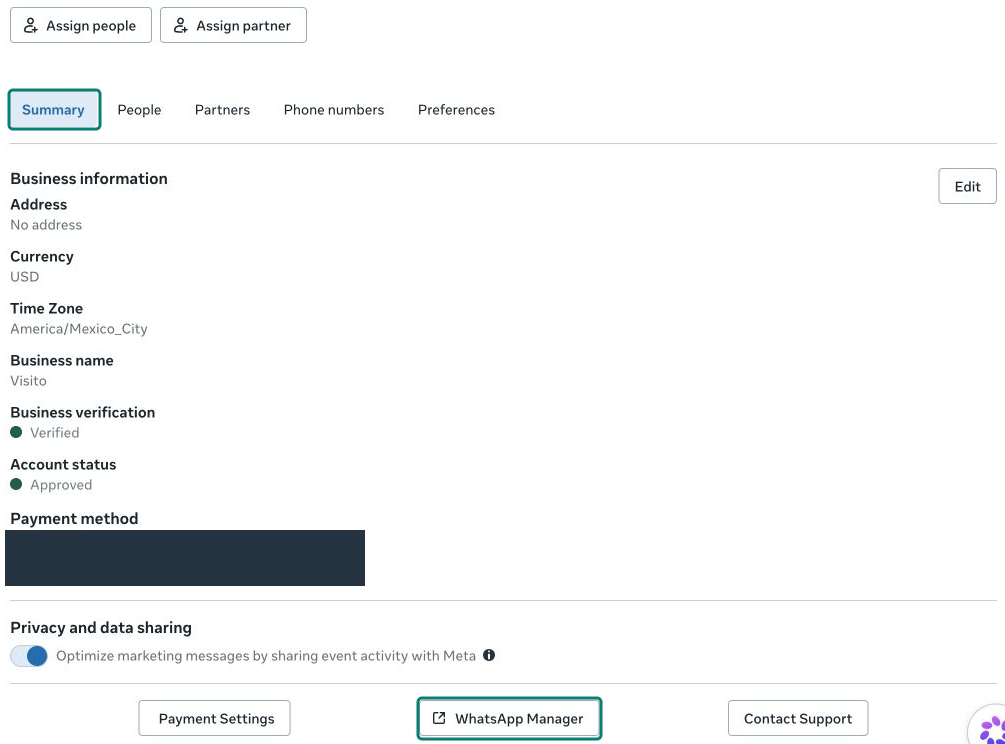
In the selected account, open Summary, then select WhatsApp Manager near the bottom. Open Account tools → Phone numbers if the list does not appear automatically.
The selected account’s Summary tab contains the WhatsApp Manager link. Billing details are redacted.
3
Select Settings, then Profile
Locate your number and confirm its name. Choose the Settings gear at the right of that row, then open Profile. The adjacent trash icon is for deletion; it is not needed here.
Use the gear on the right to open Settings. The adjacent trash icon deletes the selected number.
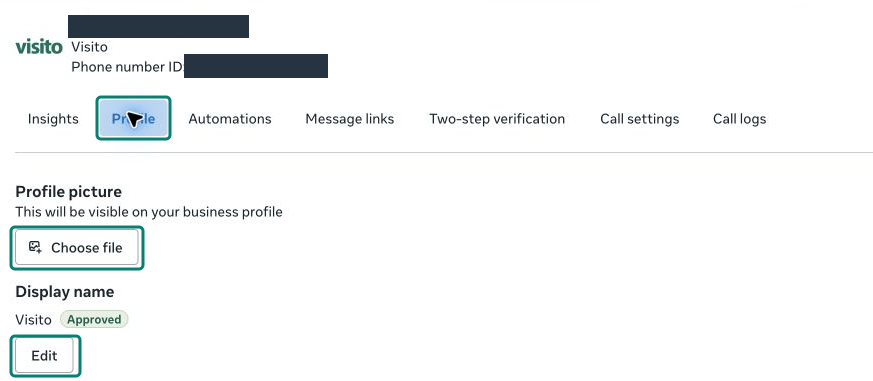
Profile picture and Display name have their own controls in the Profile tab.
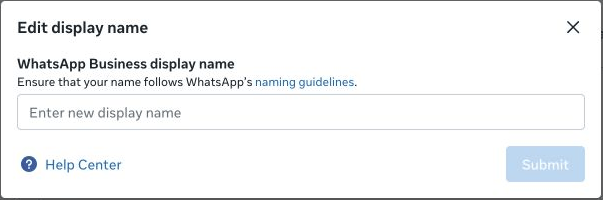
Profile picture: select Choose file and choose your business logo or another recognizable business image. Follow Meta’s upload prompts and review the preview. If Meta requests confirmation or Save, complete that step before leaving.Display name: select Edit beside the current name. Enter the name customers should recognize, follow the naming guidelines linked by Meta, and select Submit when ready.
Display-name changes use Submit and a separate Meta review process. No change was submitted in this example.
Submitting a name does not mean it has been approved or is already visible. Check the review status beside Display name and follow any instructions Meta provides. This changes the number’s customer-facing display name, not the name of the business portfolio.
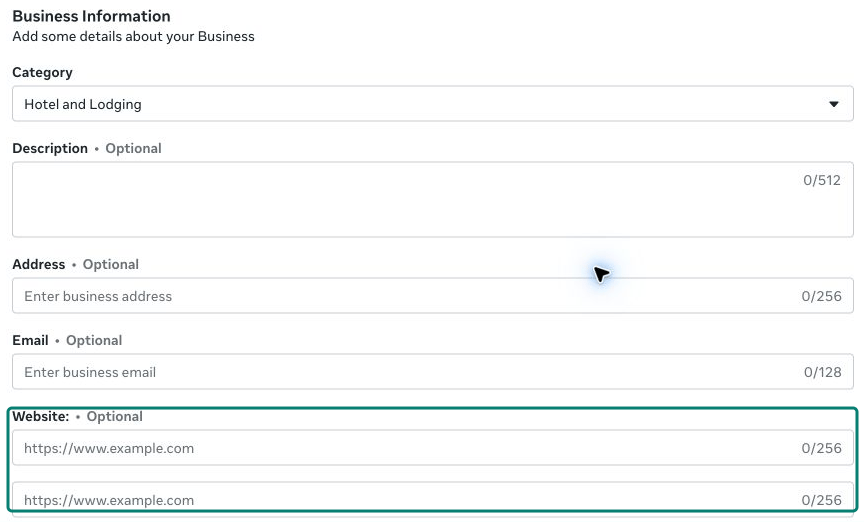
The examples above are illustrative; they were not entered into the account shown. Meta currently shows two optional website fields in this view. Use the fields you need and respect the limits displayed beside each field.
Business Information includes category, description, address, email, and website fields.
After editing business information, scroll to the bottom and select Save. Reopen the profile to confirm the saved values. This Save action is separate from submitting a display-name change.
From another phone, open a chat with your business and tap its profile.
Check the picture, approved display name, description, and contact details.
Open the website link and confirm it leads to the intended page.
Meta’s preview can differ across devices. If a change is missing, reopen the settings to confirm it was saved and check whether the display name is still under review.If you cannot edit the profile, confirm access with the account owner or contact Visito support. If Meta indicates that a field is managed in WhatsApp Business App, follow that instruction for your connection type.
{"docsConfig":{"theme":"maple","$schema":"https://mintlify.com/docs.json","name":"Visito Documentation","description":"Set up and operate Visito AI agents for customer messaging, knowledge, automation, payments, channels, integrations, and developer APIs.","colors":{"primary":"#007A61","light":"#07C983","dark":"#15803D"},"logo":{"light":"https://mintcdn.com/muhammadtest/CDFi4ni2JGEfQWU5/logo/Visito%20Logo.svg?fit=max\u0026auto=format\u0026n=CDFi4ni2JGEfQWU5\u0026q=85\u0026s=a39a66fdbb880bf89a71c4275bdd83ff","dark":"https://mintcdn.com/muhammadtest/CDFi4ni2JGEfQWU5/logo/Visito%20Logo.svg?fit=max\u0026auto=format\u0026n=CDFi4ni2JGEfQWU5\u0026q=85\u0026s=a39a66fdbb880bf89a71c4275bdd83ff"},"favicon":"https://mintcdn.com/muhammadtest/Txg3LujQoPnf_7Ow/favicon.ico?fit=max\u0026auto=format\u0026n=Txg3LujQoPnf_7Ow\u0026q=85\u0026s=246bb841d5074d137f10b7b8454ed8d9","navbar":{"links":[{"href":"mailto:help@visitoai.com","label":"Support"}],"primary":{"type":"button","label":"Log in","href":"https://dashboard.visitoai.com/auth/sign-in"}},"footer":{"socials":{"x":"https://x.com/visitoai","instagram":"https://www.instagram.com/visitoai_","linkedin":"https://www.linkedin.com/company/visitoai/posts"}},"search":{"prompt":"Search Visito documentation..."},"seo":{"metatags":{"og:site_name":"Visito Documentation","twitter:card":"summary_large_image"},"organization":{"name":"Visito","url":"https://www.visitoai.com","sameAs":["https://x.com/visitoai","https://www.instagram.com/visitoai_/","https://www.linkedin.com/company/visitoai/posts/"]},"indexing":"navigable"},"integrations":{"ga4":{"measurementId":"G-49L2GNFV48"}},"styling":{"latex":false},"navigation":{"languages":[{"language":"en","default":true,"href":"product-guides/getting-started/home"},{"language":"es","navbar":{"links":[{"href":"mailto:help@visitoai.com","label":"Soporte"}],"primary":{"type":"button","label":"Iniciar sesión","href":"https://dashboard.visitoai.com/auth/sign-in"}},"href":"es/product-guides/getting-started/home"}]}},"deployment":{"deploymentMetadataValue":{"subdomain":"muhammadtest","hasAudioNarration":false,"actualSubdomain":"muhammadtest","customDomains":["docs.visitoai.com"],"gitSource":{"type":"github","owner":"visito-ai","repo":"visito-docs","deployBranch":"main","contentDirectory":"","isPrivate":true,"mountPath":"","label":""},"chroma":{"liveDeploymentHistoryId":"6adbd3f3bff9992d3e4abc2e","collectionId":"3d029028-9078-4aa1-a331-f4df7df7dd04","schemaVersion":"v3","latestBuiltDeploymentHistoryId":"6adbd3f3bff9992d3e4abc2e"},"entitlements":{},"buildId":"6adbd3f3bff9992d3e4abc2e","clientVersion":"0.0.4043","searchFilterCounts":[{"language":"en","tag":"API Reference","count":179},{"language":"es","tag":"Referencia de API","count":179},{"language":"en","tag":"Browse endpoints","count":177},{"language":"es","tag":"Endpoints por área","count":177},{"language":"en","tag":"AI and automation","count":76},{"language":"es","tag":"IA y automatización","count":76},{"language":"en","tag":"Docs","count":67},{"language":"es","tag":"Guías del producto","count":67},{"language":"en","tag":"Customer operations","count":54},{"language":"es","tag":"Operaciones con clientes","count":54},{"language":"en","tag":"Messaging","count":43},{"language":"es","tag":"Mensajería","count":43},{"language":"en","tag":"Channels","count":37},{"language":"es","tag":"Canales","count":37},{"language":"en","tag":"Setup","count":35},{"language":"es","tag":"Configurar","count":35},{"language":"en","tag":"Knowledge and assets","count":31},{"language":"es","tag":"Conocimiento y archivos","count":31},{"language":"en","tag":"Developer Guide","count":24},{"language":"es","tag":"Guía para desarrolladores","count":24}]},"assistantConfig":{},"basePath":"","hasChatPermissions":false,"hasWebMcpPermissions":false,"toggles":[{"name":"kill-isr","enabled":true,"variant":{"name":"disabled","enabled":false,"feature_enabled":true},"impressionData":false},{"name":"agent-mintlify-slack","enabled":true,"variant":{"name":"disabled","enabled":false,"feature_enabled":true},"impressionData":false},{"name":"agent-integrations-settings","enabled":true,"variant":{"name":"disabled","enabled":false,"feature_enabled":true},"impressionData":false},{"name":"automations-pr-grouping","enabled":true,"variant":{"name":"disabled","enabled":false,"feature_enabled":true},"impressionData":false},{"name":"custom-prefix","enabled":true,"variant":{"name":"disabled","enabled":false,"feature_enabled":true},"impressionData":false},{"name":"analytics-v7","enabled":true,"variant":{"name":"disabled","enabled":false,"feature_enabled":true},"impressionData":false},{"name":"user-flows-analytics","enabled":true,"variant":{"name":"disabled","enabled":false,"feature_enabled":true},"impressionData":false},{"name":"no-publish-flow","enabled":true,"variant":{"name":"disabled","enabled":false,"feature_enabled":true},"impressionData":false},{"name":"workos-onboarding","enabled":true,"variant":{"name":"disabled","enabled":false,"feature_enabled":true},"impressionData":false},{"name":"llms-txt-v2","enabled":true,"variant":{"name":"disabled","enabled":false,"feature_enabled":true},"impressionData":false},{"name":"snapshot-serving-live","enabled":true,"variant":{"name":"disabled","enabled":false,"feature_enabled":true},"impressionData":false},{"name":"stripTemperatureMiddleware","enabled":true,"variant":{"name":"disabled","enabled":false,"feature_enabled":true},"impressionData":false},{"name":"support-platform-pylon-zendesk","enabled":true,"variant":{"name":"disabled","enabled":false,"feature_enabled":true},"impressionData":false},{"name":"snapshot-serving","enabled":true,"variant":{"name":"disabled","enabled":false,"feature_enabled":true},"impressionData":false},{"name":"instant-rollback","enabled":true,"variant":{"name":"disabled","enabled":false,"feature_enabled":true},"impressionData":false},{"name":"granular-notifications-server","enabled":true,"variant":{"name":"disabled","enabled":false,"feature_enabled":true},"impressionData":false},{"name":"granular-notifications","enabled":true,"variant":{"name":"disabled","enabled":false,"feature_enabled":true},"impressionData":false},{"name":"automations-fable","enabled":true,"variant":{"name":"disabled","enabled":false,"feature_enabled":true},"impressionData":false},{"name":"fixed-ai-action-pricing","enabled":true,"variant":{"name":"disabled","enabled":false,"feature_enabled":true},"impressionData":false},{"name":"automation-resolve-merge-conflict","enabled":true,"variant":{"name":"disabled","enabled":false,"feature_enabled":true},"impressionData":false},{"name":"scoped-publishing","enabled":true,"variant":{"name":"disabled","enabled":false,"feature_enabled":true},"impressionData":false},{"name":"mintql","enabled":true,"variant":{"name":"disabled","enabled":false,"feature_enabled":true},"impressionData":false},{"name":"page-level-analytics","enabled":true,"variant":{"name":"disabled","enabled":false,"feature_enabled":true},"impressionData":false},{"name":"editor-version-history-v2","enabled":true,"variant":{"name":"disabled","enabled":false,"feature_enabled":true},"impressionData":false},{"name":"billing-page-v2","enabled":true,"variant":{"name":"disabled","enabled":false,"feature_enabled":true},"impressionData":false},{"name":"full-page-search","enabled":true,"variant":{"name":"disabled","enabled":false,"feature_enabled":true},"impressionData":false},{"name":"workspace-projects","enabled":true,"variant":{"name":"disabled","enabled":false,"feature_enabled":true},"impressionData":false},{"name":"assistant-v5","enabled":true,"variant":{"name":"disabled","enabled":false,"feature_enabled":true},"impressionData":false},{"name":"byok-sep-25","enabled":true,"variant":{"name":"disabled","enabled":false,"feature_enabled":true},"impressionData":false},{"name":"fork-pr-previews","enabled":true,"variant":{"name":"disabled","enabled":false,"feature_enabled":true},"impressionData":false},{"name":"revalidation-jwt","enabled":true,"variant":{"name":"disabled","enabled":false,"feature_enabled":true},"impressionData":false},{"name":"vite-origin","enabled":true,"variant":{"name":"disabled","enabled":false,"feature_enabled":true},"impressionData":false},{"name":"billing-updated-9-15","enabled":true,"variant":{"name":"disabled","enabled":false,"feature_enabled":true},"impressionData":false},{"name":"workos-sso-scim","enabled":true,"variant":{"name":"disabled","enabled":false,"feature_enabled":true},"impressionData":false},{"name":"hobby-abuse-scan","enabled":true,"variant":{"name":"disabled","enabled":false,"feature_enabled":true},"impressionData":false},{"name":"dashboard-inbox","enabled":true,"variant":{"name":"disabled","enabled":false,"feature_enabled":true},"impressionData":false},{"name":"workos-signup","enabled":true,"variant":{"name":"disabled","enabled":false,"feature_enabled":true},"impressionData":false},{"name":"turbopuffer-dual-write","enabled":true,"variant":{"name":"disabled","enabled":false,"feature_enabled":true},"impressionData":false},{"name":"workos-enabled","enabled":true,"variant":{"name":"disabled","enabled":false,"feature_enabled":true},"impressionData":false},{"name":"approve-review-flow","enabled":true,"variant":{"name":"disabled","enabled":false,"feature_enabled":true},"impressionData":false}],"googleFontsInlined":false},"customCss":[],"page":{"pagePath":"product-guides/channels/whatsapp/managing-your-profile","slug":"/product-guides/channels/whatsapp/managing-your-profile","pageMetadata":{"title":"Personalize your WhatsApp business profile","description":"Update your profile picture, display name, website, and contact details in Meta WhatsApp Manager.","href":"/product-guides/channels/whatsapp/managing-your-profile"},"description":{"compiledSource":"\"use strict\";\nconst {jsx: _jsx} = arguments[0];\nconst {useMDXComponents: _provideComponents} = arguments[0];\nfunction _createMdxContent(props) {\n const _components = {\n p: \"p\",\n ..._provideComponents(),\n ...props.components\n };\n return _jsx(_components.p, {\n children: \"Update your profile picture, display name, website, and contact details in Meta WhatsApp Manager.\"\n });\n}\nfunction MDXContent(props = {}) {\n const {wrapper: MDXLayout} = {\n ..._provideComponents(),\n ...props.components\n };\n return MDXLayout ? _jsx(MDXLayout, {\n ...props,\n children: _jsx(_createMdxContent, {\n ...props\n })\n }) : _createMdxContent(props);\n}\nreturn {\n default: MDXContent\n};\n","frontmatter":{},"scope":{}},"pageType":"default","mdx":{"mdxSource":{"compiledSource":"\"use strict\";const{Fragment:_Fragment,jsx:_jsx,jsxs:_jsxs}=arguments[0];const{useMDXComponents:_provideComponents}=arguments[0];function _createMdxContent(props){const _components={a:`a`,li:`li`,ol:`ol`,p:`p`,strong:`strong`,tbody:`tbody`,td:`td`,th:`th`,thead:`thead`,tr:`tr`,ul:`ul`,..._provideComponents(),...props.components},{Frame,Heading,Note,OptimizedImage,Step,Steps,Table}=_components;if(!Frame)_missingMdxReference(`Frame`,true);if(!Heading)_missingMdxReference(`Heading`,true);if(!Note)_missingMdxReference(`Note`,true);if(!OptimizedImage)_missingMdxReference(`OptimizedImage`,true);if(!Step)_missingMdxReference(`Step`,true);if(!Steps)_missingMdxReference(`Steps`,true);if(!Table)_missingMdxReference(`Table`,true);return _jsxs(_Fragment,{children:[_jsx(_components.p,{children:`Help customers recognize your business when they open your WhatsApp profile. Use this guide to update the profile of a number managed through the WhatsApp Business Platform (API).`}),`\n`,_jsx(_components.p,{children:`You do not need to disconnect or delete your number to personalize its profile.`}),`\n`,_jsx(Heading,{level:`2`,id:`before-you-start`,children:`Before you start`}),`\n`,_jsxs(_components.ul,{children:[`\n`,_jsx(_components.li,{children:`Sign in to Meta with access to manage the WhatsApp account that owns your number.`}),`\n`,_jsx(_components.li,{children:`Have your business logo, customer-facing name, website, and public contact details ready.`}),`\n`,_jsx(_components.li,{children:`Confirm the business portfolio, WhatsApp account, and phone number. These are separate selections; a portfolio can contain several accounts and numbers.`}),`\n`]}),`\n`,_jsx(Note,{children:_jsx(_components.p,{children:`Screenshots show Meta’s English interface, with private information redacted. Labels and available controls may vary by language and account. Expand a screenshot to read its details.`})}),`\n`,_jsx(Heading,{level:`2`,id:`open-your-number’s-profile`,children:`Open your number’s profile`}),`\n`,_jsxs(Steps,{children:[_jsxs(Step,{title:`Select the owning business and WhatsApp account`,children:[_jsxs(_components.p,{children:[`Open `,_jsx(_components.a,{href:`https://business.facebook.com/`,children:`Meta Business Suite`}),`. Select the business portfolio that owns your number, then go to `,_jsx(_components.strong,{children:`Settings → Accounts → WhatsApp accounts`}),` and select the intended account.`]}),_jsx(_components.p,{children:`If the number belongs to a portfolio managed by Visito or another provider, contact its administrator. Do not select a different account just because you can access it.`})]}),_jsxs(Step,{title:`Open WhatsApp Manager`,children:[_jsxs(_components.p,{children:[`In the selected account, open `,_jsx(_components.strong,{children:`Summary`}),`, then select `,_jsx(_components.strong,{children:`WhatsApp Manager`}),` near the bottom. Open `,_jsx(_components.strong,{children:`Account tools → Phone numbers`}),` if the list does not appear automatically.`]}),_jsx(Frame,{caption:`The selected account’s Summary tab contains the WhatsApp Manager link. Billing details are redacted.`,children:_jsx(OptimizedImage,{src:`https://mintcdn.com/muhammadtest/6-_oAzQR_5ScIQma/images/whatsapp-management/account-manager.png?fit=max\u0026auto=format\u0026n=6-_oAzQR_5ScIQma\u0026q=85\u0026s=726fb6e3eb2aa3b54d8c0ca7b59fb7a6`,alt:`Meta account Summary tab with WhatsApp Manager highlighted`,\"data-og-width\":`1005`,width:`1005`,\"data-og-height\":`744`,height:`744`,\"data-path\":`images/whatsapp-management/account-manager.png`,\"data-optimize\":`true`,\"data-opv\":`3`,srcset:`https://mintcdn.com/muhammadtest/6-_oAzQR_5ScIQma/images/whatsapp-management/account-manager.png?w=280\u0026fit=max\u0026auto=format\u0026n=6-_oAzQR_5ScIQma\u0026q=85\u0026s=e8dce1ad3652415f00e90ec77c369650 280w, https://mintcdn.com/muhammadtest/6-_oAzQR_5ScIQma/images/whatsapp-management/account-manager.png?w=560\u0026fit=max\u0026auto=format\u0026n=6-_oAzQR_5ScIQma\u0026q=85\u0026s=a7d597c2bf51ad277acac8cc411972be 560w, https://mintcdn.com/muhammadtest/6-_oAzQR_5ScIQma/images/whatsapp-management/account-manager.png?w=840\u0026fit=max\u0026auto=format\u0026n=6-_oAzQR_5ScIQma\u0026q=85\u0026s=b6d78792dd48361869d656351a6d158c 840w, https://mintcdn.com/muhammadtest/6-_oAzQR_5ScIQma/images/whatsapp-management/account-manager.png?w=1100\u0026fit=max\u0026auto=format\u0026n=6-_oAzQR_5ScIQma\u0026q=85\u0026s=8bb2c2b905ae0be33e3bb266bb1d2d4e 1100w, https://mintcdn.com/muhammadtest/6-_oAzQR_5ScIQma/images/whatsapp-management/account-manager.png?w=1650\u0026fit=max\u0026auto=format\u0026n=6-_oAzQR_5ScIQma\u0026q=85\u0026s=e90e51029ce336056f22b7767675a7f0 1650w, https://mintcdn.com/muhammadtest/6-_oAzQR_5ScIQma/images/whatsapp-management/account-manager.png?w=2500\u0026fit=max\u0026auto=format\u0026n=6-_oAzQR_5ScIQma\u0026q=85\u0026s=8654026d8a2529394fe5f5f1052d52e5 2500w`})})]}),_jsxs(Step,{title:`Select Settings, then Profile`,children:[_jsxs(_components.p,{children:[`Locate your number and confirm its name. Choose the `,_jsx(_components.strong,{children:`Settings`}),` gear at the right of that row, then open `,_jsx(_components.strong,{children:`Profile`}),`. The adjacent trash icon is for deletion; it is not needed here.`]}),_jsx(Frame,{caption:`Use the gear on the right to open Settings. The adjacent trash icon deletes the selected number.`,children:_jsx(OptimizedImage,{src:`https://mintcdn.com/muhammadtest/6-_oAzQR_5ScIQma/images/whatsapp-management/phone-controls.png?fit=max\u0026auto=format\u0026n=6-_oAzQR_5ScIQma\u0026q=85\u0026s=56cb23e406eb3419ecb75833f5f887e2`,alt:`Phone-number row with the number redacted and separate trash and Settings controls`,\"data-og-width\":`1500`,width:`1500`,\"data-og-height\":`126`,height:`126`,\"data-path\":`images/whatsapp-management/phone-controls.png`,\"data-optimize\":`true`,\"data-opv\":`3`,srcset:`https://mintcdn.com/muhammadtest/6-_oAzQR_5ScIQma/images/whatsapp-management/phone-controls.png?w=280\u0026fit=max\u0026auto=format\u0026n=6-_oAzQR_5ScIQma\u0026q=85\u0026s=6889c7bc53152bc2fb1d4536143f0fa2 280w, https://mintcdn.com/muhammadtest/6-_oAzQR_5ScIQma/images/whatsapp-management/phone-controls.png?w=560\u0026fit=max\u0026auto=format\u0026n=6-_oAzQR_5ScIQma\u0026q=85\u0026s=37b090ff209f4186316834063b69e7a1 560w, https://mintcdn.com/muhammadtest/6-_oAzQR_5ScIQma/images/whatsapp-management/phone-controls.png?w=840\u0026fit=max\u0026auto=format\u0026n=6-_oAzQR_5ScIQma\u0026q=85\u0026s=d69b24ba839bbc7db655dc687843daca 840w, https://mintcdn.com/muhammadtest/6-_oAzQR_5ScIQma/images/whatsapp-management/phone-controls.png?w=1100\u0026fit=max\u0026auto=format\u0026n=6-_oAzQR_5ScIQma\u0026q=85\u0026s=cd5d618ad7301cc53c6bfea8acd0c843 1100w, https://mintcdn.com/muhammadtest/6-_oAzQR_5ScIQma/images/whatsapp-management/phone-controls.png?w=1650\u0026fit=max\u0026auto=format\u0026n=6-_oAzQR_5ScIQma\u0026q=85\u0026s=b3f7d33487f13c7f3732311e1ac7626e 1650w, https://mintcdn.com/muhammadtest/6-_oAzQR_5ScIQma/images/whatsapp-management/phone-controls.png?w=2500\u0026fit=max\u0026auto=format\u0026n=6-_oAzQR_5ScIQma\u0026q=85\u0026s=e6b24f83024dba0fe9dc8f5634966135 2500w`})}),_jsx(Frame,{caption:`Profile picture and Display name have their own controls in the Profile tab.`,children:_jsx(OptimizedImage,{src:`https://mintcdn.com/muhammadtest/6-_oAzQR_5ScIQma/images/whatsapp-management/profile.png?fit=max\u0026auto=format\u0026n=6-_oAzQR_5ScIQma\u0026q=85\u0026s=7189114530ea10beb773cc19601b4b65`,alt:`Profile tab showing Choose file and the display-name Edit button, with phone number and ID redacted`,\"data-og-width\":`873`,width:`873`,\"data-og-height\":`381`,height:`381`,\"data-path\":`images/whatsapp-management/profile.png`,\"data-optimize\":`true`,\"data-opv\":`3`,srcset:`https://mintcdn.com/muhammadtest/6-_oAzQR_5ScIQma/images/whatsapp-management/profile.png?w=280\u0026fit=max\u0026auto=format\u0026n=6-_oAzQR_5ScIQma\u0026q=85\u0026s=a9a0c465501271178749ad0ca0c7a2c6 280w, https://mintcdn.com/muhammadtest/6-_oAzQR_5ScIQma/images/whatsapp-management/profile.png?w=560\u0026fit=max\u0026auto=format\u0026n=6-_oAzQR_5ScIQma\u0026q=85\u0026s=dd84e1c6cc6ba07481a9e6e1f53780ce 560w, https://mintcdn.com/muhammadtest/6-_oAzQR_5ScIQma/images/whatsapp-management/profile.png?w=840\u0026fit=max\u0026auto=format\u0026n=6-_oAzQR_5ScIQma\u0026q=85\u0026s=d65df62f6e0b61a7ceb4a0c37a520394 840w, https://mintcdn.com/muhammadtest/6-_oAzQR_5ScIQma/images/whatsapp-management/profile.png?w=1100\u0026fit=max\u0026auto=format\u0026n=6-_oAzQR_5ScIQma\u0026q=85\u0026s=0b37c085b54fba48ba89e9ae4f214429 1100w, https://mintcdn.com/muhammadtest/6-_oAzQR_5ScIQma/images/whatsapp-management/profile.png?w=1650\u0026fit=max\u0026auto=format\u0026n=6-_oAzQR_5ScIQma\u0026q=85\u0026s=5e395d869c9e2c355dc1d441b6dffce3 1650w, https://mintcdn.com/muhammadtest/6-_oAzQR_5ScIQma/images/whatsapp-management/profile.png?w=2500\u0026fit=max\u0026auto=format\u0026n=6-_oAzQR_5ScIQma\u0026q=85\u0026s=3f99ab9988831a7359815278e92d055d 2500w`})})]})]}),`\n`,_jsx(Heading,{level:`2`,id:`update-the-picture-and-display-name`,children:`Update the picture and display name`}),`\n`,_jsxs(_components.p,{children:[_jsx(_components.strong,{children:`Profile picture:`}),` select `,_jsx(_components.strong,{children:`Choose file`}),` and choose your business logo or another recognizable business image. Follow Meta’s upload prompts and review the preview. If Meta requests confirmation or Save, complete that step before leaving.`]}),`\n`,_jsxs(_components.p,{children:[_jsx(_components.strong,{children:`Display name:`}),` select `,_jsx(_components.strong,{children:`Edit`}),` beside the current name. Enter the name customers should recognize, follow the `,_jsx(_components.a,{href:`https://developers.facebook.com/docs/whatsapp/guides/display-name/`,children:`naming guidelines linked by Meta`}),`, and select `,_jsx(_components.strong,{children:`Submit`}),` when ready.`]}),`\n`,_jsx(Frame,{caption:`Display-name changes use Submit and a separate Meta review process. No change was submitted in this example.`,children:_jsx(OptimizedImage,{src:`https://mintcdn.com/muhammadtest/6-_oAzQR_5ScIQma/images/whatsapp-management/display-name.png?fit=max\u0026auto=format\u0026n=6-_oAzQR_5ScIQma\u0026q=85\u0026s=6bbd5a8a745dabc978799c95618f3b7e`,alt:`Edit display name dialog showing the name field, naming guidelines, and Submit button`,\"data-og-width\":`603`,width:`603`,\"data-og-height\":`200`,height:`200`,\"data-path\":`images/whatsapp-management/display-name.png`,\"data-optimize\":`true`,\"data-opv\":`3`,srcset:`https://mintcdn.com/muhammadtest/6-_oAzQR_5ScIQma/images/whatsapp-management/display-name.png?w=280\u0026fit=max\u0026auto=format\u0026n=6-_oAzQR_5ScIQma\u0026q=85\u0026s=2c16679ba1116721417d1c86c7c803e1 280w, https://mintcdn.com/muhammadtest/6-_oAzQR_5ScIQma/images/whatsapp-management/display-name.png?w=560\u0026fit=max\u0026auto=format\u0026n=6-_oAzQR_5ScIQma\u0026q=85\u0026s=a5e2e5fdee132448d555b42f3756412f 560w, https://mintcdn.com/muhammadtest/6-_oAzQR_5ScIQma/images/whatsapp-management/display-name.png?w=840\u0026fit=max\u0026auto=format\u0026n=6-_oAzQR_5ScIQma\u0026q=85\u0026s=ce00c70c1cca48126e2a53c3f8a86b71 840w, https://mintcdn.com/muhammadtest/6-_oAzQR_5ScIQma/images/whatsapp-management/display-name.png?w=1100\u0026fit=max\u0026auto=format\u0026n=6-_oAzQR_5ScIQma\u0026q=85\u0026s=705a65d7262564b5f60618384ae12e8b 1100w, https://mintcdn.com/muhammadtest/6-_oAzQR_5ScIQma/images/whatsapp-management/display-name.png?w=1650\u0026fit=max\u0026auto=format\u0026n=6-_oAzQR_5ScIQma\u0026q=85\u0026s=54d9bb4c43c077aa2b532ca398d999e5 1650w, https://mintcdn.com/muhammadtest/6-_oAzQR_5ScIQma/images/whatsapp-management/display-name.png?w=2500\u0026fit=max\u0026auto=format\u0026n=6-_oAzQR_5ScIQma\u0026q=85\u0026s=d3f2aea322e19f389970a22b8481b9a8 2500w`})}),`\n`,_jsxs(_components.p,{children:[`Submitting a name does not mean it has been approved or is already visible. Check the review status beside `,_jsx(_components.strong,{children:`Display name`}),` and follow any instructions Meta provides. This changes the number’s customer-facing display name, not the name of the business portfolio.`]}),`\n`,_jsx(Heading,{level:`2`,id:`add-business-information`,children:`Add business information`}),`\n`,_jsxs(_components.p,{children:[`Scroll down within `,_jsx(_components.strong,{children:`Profile`}),` to `,_jsx(_components.strong,{children:`Business Information`}),`. Use accurate, public information:`]}),`\n`,_jsxs(Table,{children:[_jsx(_components.thead,{children:_jsxs(_components.tr,{children:[_jsx(_components.th,{children:`Field`}),_jsx(_components.th,{children:`What to enter`}),_jsx(_components.th,{children:`Example`})]})}),_jsxs(_components.tbody,{children:[_jsxs(_components.tr,{children:[_jsx(_components.td,{children:`Category`}),_jsx(_components.td,{children:`The category that describes your business`}),_jsx(_components.td,{children:`Hotel and Lodging`})]}),_jsxs(_components.tr,{children:[_jsx(_components.td,{children:`Description`}),_jsx(_components.td,{children:`A short explanation of what you offer`}),_jsx(_components.td,{children:`Boutique hotel with ocean-view rooms and direct reservations.`})]}),_jsxs(_components.tr,{children:[_jsx(_components.td,{children:`Address`}),_jsx(_components.td,{children:`Your public business address, if applicable`}),_jsx(_components.td,{children:`Your hotel’s street address`})]}),_jsxs(_components.tr,{children:[_jsx(_components.td,{children:`Email`}),_jsx(_components.td,{children:`An inbox customers can contact`}),_jsx(_components.td,{children:_jsx(_components.a,{href:`mailto:reservations@example.com`,children:`reservations@example.com`})})]}),_jsxs(_components.tr,{children:[_jsx(_components.td,{children:`Website`}),_jsx(_components.td,{children:`Your public website or direct-booking page`}),_jsx(_components.td,{children:_jsx(_components.a,{href:`https://www.example.com`,children:`https://www.example.com`})})]})]})]}),`\n`,_jsx(_components.p,{children:`The examples above are illustrative; they were not entered into the account shown. Meta currently shows two optional website fields in this view. Use the fields you need and respect the limits displayed beside each field.`}),`\n`,_jsx(Frame,{caption:`Business Information includes category, description, address, email, and website fields.`,children:_jsx(OptimizedImage,{src:`https://mintcdn.com/muhammadtest/6-_oAzQR_5ScIQma/images/whatsapp-management/business-information.png?fit=max\u0026auto=format\u0026n=6-_oAzQR_5ScIQma\u0026q=85\u0026s=6e87aadb580822cccc578b2bbc8653d5`,alt:`Business Information form with optional description, address, email, and two website fields`,\"data-og-width\":`864`,width:`864`,\"data-og-height\":`522`,height:`522`,\"data-path\":`images/whatsapp-management/business-information.png`,\"data-optimize\":`true`,\"data-opv\":`3`,srcset:`https://mintcdn.com/muhammadtest/6-_oAzQR_5ScIQma/images/whatsapp-management/business-information.png?w=280\u0026fit=max\u0026auto=format\u0026n=6-_oAzQR_5ScIQma\u0026q=85\u0026s=75e563c99641a180d2c449b121d563e6 280w, https://mintcdn.com/muhammadtest/6-_oAzQR_5ScIQma/images/whatsapp-management/business-information.png?w=560\u0026fit=max\u0026auto=format\u0026n=6-_oAzQR_5ScIQma\u0026q=85\u0026s=a8e0b32937bd1d89ae6929d927923ca2 560w, https://mintcdn.com/muhammadtest/6-_oAzQR_5ScIQma/images/whatsapp-management/business-information.png?w=840\u0026fit=max\u0026auto=format\u0026n=6-_oAzQR_5ScIQma\u0026q=85\u0026s=a33db6237fdfe6a70c7b5d668272d86c 840w, https://mintcdn.com/muhammadtest/6-_oAzQR_5ScIQma/images/whatsapp-management/business-information.png?w=1100\u0026fit=max\u0026auto=format\u0026n=6-_oAzQR_5ScIQma\u0026q=85\u0026s=38acda064773b22e40c72bdee8756687 1100w, https://mintcdn.com/muhammadtest/6-_oAzQR_5ScIQma/images/whatsapp-management/business-information.png?w=1650\u0026fit=max\u0026auto=format\u0026n=6-_oAzQR_5ScIQma\u0026q=85\u0026s=b804f197b6b89784601ad2d90353c94a 1650w, https://mintcdn.com/muhammadtest/6-_oAzQR_5ScIQma/images/whatsapp-management/business-information.png?w=2500\u0026fit=max\u0026auto=format\u0026n=6-_oAzQR_5ScIQma\u0026q=85\u0026s=10a606d33bb93a5820ef231f5878441a 2500w`})}),`\n`,_jsxs(_components.p,{children:[`After editing business information, scroll to the bottom and select `,_jsx(_components.strong,{children:`Save`}),`. Reopen the profile to confirm the saved values. This Save action is separate from submitting a display-name change.`]}),`\n`,_jsx(Heading,{level:`2`,id:`check-what-customers-see`,children:`Check what customers see`}),`\n`,_jsxs(_components.ol,{children:[`\n`,_jsx(_components.li,{children:`From another phone, open a chat with your business and tap its profile.`}),`\n`,_jsx(_components.li,{children:`Check the picture, approved display name, description, and contact details.`}),`\n`,_jsx(_components.li,{children:`Open the website link and confirm it leads to the intended page.`}),`\n`]}),`\n`,_jsx(_components.p,{children:`Meta’s preview can differ across devices. If a change is missing, reopen the settings to confirm it was saved and check whether the display name is still under review.`}),`\n`,_jsxs(_components.p,{children:[`If you cannot edit the profile, confirm access with the account owner or contact `,_jsx(_components.a,{href:`mailto:help@visitoai.com`,children:`Visito support`}),`. If Meta indicates that a field is managed in WhatsApp Business App, follow that instruction for your connection type.`]}),`\n`,_jsx(Heading,{level:`2`,id:`related-guides`,children:`Related guides`}),`\n`,_jsxs(_components.ul,{children:[`\n`,_jsx(_components.li,{children:_jsx(_components.a,{href:`/product-guides/channels/whatsapp/introduction`,children:`Choose a WhatsApp setup`})}),`\n`,_jsx(_components.li,{children:_jsx(_components.a,{href:`/product-guides/channels/whatsapp/connecting-your-whatsapp-business-app`,children:`Connect WhatsApp Business App with coexistence`})}),`\n`,_jsx(_components.li,{children:_jsx(_components.a,{href:`/product-guides/channels/whatsapp/removing-your-number`,children:`Remove an API number and return to an app`})}),`\n`]})]})}function MDXContent(props={}){const{wrapper:MDXLayout}={..._provideComponents(),...props.components};return MDXLayout?_jsx(MDXLayout,{...props,children:_jsx(_createMdxContent,{...props})}):_createMdxContent(props)}return{default:MDXContent};function _missingMdxReference(id,component){throw new Error(`Expected `+(component?`component`:`object`)+\" `\"+id+\"` to be defined: you likely forgot to import, pass, or provide it.\")}","frontmatter":{},"scope":{"config":{},"pageMetadata":{"title":"Personalize your WhatsApp business profile","description":"Update your profile picture, display name, website, and contact details in Meta WhatsApp Manager.","href":"/product-guides/channels/whatsapp/managing-your-profile"}}},"mdxSourceWithNoJs":null},"mdxExtracts":{"tableOfContents":[{"title":"Before you start","slug":"before-you-start","depth":2,"children":[]},{"title":"Open your number’s profile","slug":"open-your-number’s-profile","depth":2,"children":[]},{"title":"Update the picture and display name","slug":"update-the-picture-and-display-name","depth":2,"children":[]},{"title":"Add business information","slug":"add-business-information","depth":2,"children":[]},{"title":"Check what customers see","slug":"check-what-customers-see","depth":2,"children":[]},{"title":"Related guides","slug":"related-guides","depth":2,"children":[]}],"codeExamples":{}},"jsLinks":["/_mintlify/custom/muhammadtest/9c4e98983a411618/datafast.js"],"subdomain":"muhammadtest","siteName":"Visito Documentation","title":"Personalize your WhatsApp business profile - Visito Documentation","navMaps":{"firstHrefInVersion":{},"firstHrefInLanguage":{"en":{"href":"/product-guides/channels/whatsapp/managing-your-profile","matchLevel":0},"es":{"href":"/es/product-guides/channels/whatsapp/managing-your-profile","matchLevel":1}}},"lastModified":"2026-09-15T16:30:55.267Z","originalFileLocation":"product-guides/channels/whatsapp/managing-your-profile.mdx","locale":"en"},"headHtml":"\u003cscript data-mint-head>(function(){var d=document.documentElement,p=null;if(!p){try{p=localStorage.getItem(\"isDarkMode\")}catch(e){}if(p==='true')p='dark';else if(p==='false')p='light';if(p!=='light'\u0026\u0026p!=='dark'\u0026\u0026p!=='system')p=\"system\"}var r=p==='system'?(matchMedia(\"(prefers-color-scheme: dark)\").matches?'dark':'light'):p;d.classList.remove(r==='dark'?'light':'dark');d.classList.add(r);d.setAttribute(\"data-theme-preference\",p)})();\u003c/script>\u003cmeta data-mint-head name=\"description\" content=\"Update your profile picture, display name, website, and contact details in Meta WhatsApp Manager.\">\u003cmeta data-mint-head name=\"application-name\" content=\"Visito Documentation\">\u003cmeta data-mint-head name=\"generator\" content=\"Mintlify\">\u003clink data-mint-head rel=\"icon\" type=\"image/png\" sizes=\"192x192\" href=\"/mintlify-assets/_mintlify/favicons/muhammadtest/ixzqF7XvrfSOnGKq/_generated/favicon/android-chrome-192x192.png\" media=\"(prefers-color-scheme: light)\">\u003clink data-mint-head rel=\"apple-touch-icon\" type=\"image/png\" sizes=\"180x180\" href=\"/mintlify-assets/_mintlify/favicons/muhammadtest/ixzqF7XvrfSOnGKq/_generated/favicon/apple-touch-icon.png\">\u003clink data-mint-head rel=\"icon\" type=\"image/png\" sizes=\"16x16\" href=\"/mintlify-assets/_mintlify/favicons/muhammadtest/ixzqF7XvrfSOnGKq/_generated/favicon/favicon-16x16.png\" media=\"(prefers-color-scheme: light)\">\u003clink data-mint-head rel=\"icon\" type=\"image/png\" sizes=\"32x32\" href=\"/mintlify-assets/_mintlify/favicons/muhammadtest/ixzqF7XvrfSOnGKq/_generated/favicon/favicon-32x32.png\" media=\"(prefers-color-scheme: light)\">\u003clink data-mint-head rel=\"shortcut icon\" type=\"image/x-icon\" href=\"/mintlify-assets/_mintlify/favicons/muhammadtest/ixzqF7XvrfSOnGKq/_generated/favicon/favicon.ico\" media=\"(prefers-color-scheme: light)\">\u003clink data-mint-head rel=\"icon\" type=\"image/png\" sizes=\"192x192\" href=\"/mintlify-assets/_mintlify/favicons/muhammadtest/ixzqF7XvrfSOnGKq/_generated/favicon-dark/android-chrome-192x192.png\" media=\"(prefers-color-scheme: dark)\">\u003clink data-mint-head rel=\"icon\" type=\"image/png\" sizes=\"16x16\" href=\"/mintlify-assets/_mintlify/favicons/muhammadtest/ixzqF7XvrfSOnGKq/_generated/favicon-dark/favicon-16x16.png\" media=\"(prefers-color-scheme: dark)\">\u003clink data-mint-head rel=\"icon\" type=\"image/png\" sizes=\"32x32\" href=\"/mintlify-assets/_mintlify/favicons/muhammadtest/ixzqF7XvrfSOnGKq/_generated/favicon-dark/favicon-32x32.png\" media=\"(prefers-color-scheme: dark)\">\u003clink data-mint-head rel=\"shortcut icon\" type=\"image/x-icon\" href=\"/mintlify-assets/_mintlify/favicons/muhammadtest/ixzqF7XvrfSOnGKq/_generated/favicon-dark/favicon.ico\" media=\"(prefers-color-scheme: dark)\">\u003cmeta data-mint-head property=\"og:title\" content=\"Personalize your WhatsApp business profile - Visito Documentation\">\u003cmeta data-mint-head property=\"og:description\" content=\"Update your profile picture, display name, website, and contact details in Meta WhatsApp Manager.\">\u003cmeta data-mint-head property=\"og:site_name\" content=\"Visito Documentation\">\u003cmeta data-mint-head property=\"og:url\" content=\"https://docs.visitoai.com/product-guides/channels/whatsapp/managing-your-profile\">\u003cmeta data-mint-head property=\"og:type\" content=\"website\">\u003cmeta data-mint-head property=\"og:image\" content=\"https://muhammadtest.mintlify.app/_mintlify/api/og/v2?division=Channels\u0026amp;title=Personalize+your+WhatsApp+business+profile\u0026amp;description=Update+your+profile+picture%2C+display+name%2C+website%2C+and+contact+details+in+Meta+WhatsApp+Manager.\u0026amp;theme=6f12f17051b5e1d2dd53fe38\u0026amp;signature=f2648483e5f48a48d4ff7892ae2cf8e47cdd91f617bb4b2b177d7e9db776b435\">\u003cmeta data-mint-head property=\"og:image:width\" content=\"1200\">\u003cmeta data-mint-head property=\"og:image:height\" content=\"630\">\u003cmeta data-mint-head name=\"twitter:card\" content=\"summary_large_image\">\u003cmeta data-mint-head name=\"twitter:title\" content=\"Personalize your WhatsApp business profile - Visito Documentation\">\u003cmeta data-mint-head name=\"twitter:description\" content=\"Update your profile picture, display name, website, and contact details in Meta WhatsApp Manager.\">\u003cmeta data-mint-head name=\"twitter:image\" content=\"https://muhammadtest.mintlify.app/_mintlify/api/og/v2?division=Channels\u0026amp;title=Personalize+your+WhatsApp+business+profile\u0026amp;description=Update+your+profile+picture%2C+display+name%2C+website%2C+and+contact+details+in+Meta+WhatsApp+Manager.\u0026amp;theme=6f12f17051b5e1d2dd53fe38\u0026amp;signature=f2648483e5f48a48d4ff7892ae2cf8e47cdd91f617bb4b2b177d7e9db776b435\">\u003cmeta data-mint-head name=\"twitter:image:width\" content=\"1200\">\u003cmeta data-mint-head name=\"twitter:image:height\" content=\"630\">\u003cmeta data-mint-head name=\"msapplication-config\" content=\"/mintlify-assets/_mintlify/favicons/muhammadtest/ixzqF7XvrfSOnGKq/_generated/favicon/browserconfig.xml\">\u003cmeta data-mint-head name=\"apple-mobile-web-app-title\" content=\"Visito Documentation\">\u003cmeta data-mint-head name=\"msapplication-TileColor\" content=\"#007A61\">\u003clink data-mint-head rel=\"canonical\" href=\"https://docs.visitoai.com/product-guides/channels/whatsapp/managing-your-profile\">\u003clink data-mint-head rel=\"alternate\" type=\"application/xml\" href=\"/sitemap.xml\">\u003clink data-mint-head rel=\"alternate\" type=\"text/markdown\" href=\"/product-guides/channels/whatsapp/managing-your-profile.md\">\u003clink data-mint-head rel=\"alternate\" hreflang=\"en\" href=\"https://docs.visitoai.com/product-guides/channels/whatsapp/managing-your-profile\">\u003clink data-mint-head rel=\"alternate\" hreflang=\"es\" href=\"https://docs.visitoai.com/es/product-guides/channels/whatsapp/managing-your-profile\">\u003clink data-mint-head rel=\"alternate\" hreflang=\"x-default\" href=\"https://docs.visitoai.com/product-guides/channels/whatsapp/managing-your-profile\">\u003cscript data-mint-head type=\"application/ld+json\">{\"@context\":\"https://schema.org\",\"@graph\":[{\"@type\":\"Organization\",\"@id\":\"https://www.visitoai.com/#organization\",\"name\":\"Visito\",\"url\":\"https://www.visitoai.com\",\"logo\":{\"@type\":\"ImageObject\",\"url\":\"https://mintcdn.com/muhammadtest/CDFi4ni2JGEfQWU5/logo/Visito%20Logo.svg?fit=max\u0026auto=format\u0026n=CDFi4ni2JGEfQWU5\u0026q=85\u0026s=a39a66fdbb880bf89a71c4275bdd83ff\"},\"sameAs\":[\"https://x.com/visitoai\",\"https://www.instagram.com/visitoai_/\",\"https://www.linkedin.com/company/visitoai/posts/\"]},{\"@type\":\"WebSite\",\"@id\":\"https://docs.visitoai.com#website\",\"name\":\"Visito Documentation\",\"url\":\"https://docs.visitoai.com\",\"publisher\":{\"@id\":\"https://www.visitoai.com/#organization\"}},{\"@type\":\"WebPage\",\"@id\":\"https://docs.visitoai.com/product-guides/channels/whatsapp/managing-your-profile#webpage\",\"url\":\"https://docs.visitoai.com/product-guides/channels/whatsapp/managing-your-profile\",\"name\":\"Personalize your WhatsApp business profile\",\"description\":\"Update your profile picture, display name, website, and contact details in Meta WhatsApp Manager.\",\"dateModified\":\"2026-09-15T16:30:55.267Z\",\"isPartOf\":{\"@id\":\"https://docs.visitoai.com#website\"},\"breadcrumb\":{\"@id\":\"https://docs.visitoai.com/product-guides/channels/whatsapp/managing-your-profile#breadcrumb\"}},{\"@type\":\"BreadcrumbList\",\"@id\":\"https://docs.visitoai.com/product-guides/channels/whatsapp/managing-your-profile#breadcrumb\",\"itemListElement\":[{\"@type\":\"ListItem\",\"position\":1,\"name\":\"Setup\",\"item\":\"https://docs.visitoai.com/product-guides/ai-agent/data-source\"},{\"@type\":\"ListItem\",\"position\":2,\"name\":\"Channels\",\"item\":\"https://docs.visitoai.com/product-guides/channels/introduction\"},{\"@type\":\"ListItem\",\"position\":3,\"name\":\"Personalize your WhatsApp business profile\",\"item\":\"https://docs.visitoai.com/product-guides/channels/whatsapp/managing-your-profile\"}]},{\"@type\":[\"Article\",\"TechArticle\"],\"@id\":\"https://docs.visitoai.com/product-guides/channels/whatsapp/managing-your-profile#article\",\"headline\":\"Personalize your WhatsApp business profile\",\"name\":\"Personalize your WhatsApp business profile\",\"description\":\"Update your profile picture, display name, website, and contact details in Meta WhatsApp Manager.\",\"url\":\"https://docs.visitoai.com/product-guides/channels/whatsapp/managing-your-profile\",\"mainEntityOfPage\":{\"@id\":\"https://docs.visitoai.com/product-guides/channels/whatsapp/managing-your-profile#webpage\"},\"dateModified\":\"2026-09-15T16:30:55.267Z\",\"publisher\":{\"@id\":\"https://www.visitoai.com/#organization\"},\"isPartOf\":{\"@id\":\"https://docs.visitoai.com#website\"}}]}\u003c/script>\u003cscript data-mint-head type=\"application/ld+json\">{\"@context\":\"https://schema.org\",\"@type\":\"WebSite\",\"name\":\"Visito Documentation\",\"creator\":{\"@type\":\"Organization\",\"name\":\"Mintlify\",\"url\":\"https://mintlify.com\"}}\u003c/script>","siteName":"Visito Documentation","nav":{"global":null,"languages":[{"language":"en","default":true,"tabs":[{"tab":"Docs","icon":"newspaper","pages":[{"group":"Getting Started","pages":[{"title":"Visito business AI agent documentation and setup guides","sidebarTitle":"Welcome to Visito","href":"/product-guides/getting-started/home"},{"title":"Use Visito with Codex, ChatGPT, and Claude","sidebarTitle":"Visito Plugin / MCP","href":"/product-guides/getting-started/visito-mcp"},{"title":"How to sign in and navigate the Visito dashboard","sidebarTitle":"Access and navigation","href":"/product-guides/getting-started/access-and-navigation"},{"title":"How to set up a new Visito workspace","sidebarTitle":"Set up a new workspace","href":"/product-guides/getting-started/onboarding"},{"title":"How to build and launch your Visito AI agent","sidebarTitle":"Build your AI agent","href":"/product-guides/getting-started/build-your-ai-agent"}]},{"group":"Direct access","pages":[{"title":"How to use the Visito Home dashboard","sidebarTitle":"Home","href":"/product-guides/product/home-dashboard"},{"title":"Work with Lana, your Visito business assistant","sidebarTitle":"Overview","href":"/product-guides/product/lana"},{"title":"What can you do with Lana?","sidebarTitle":"Use cases","href":"/product-guides/product/lana-examples"},{"title":"Use Lana to review booking enquiries and prepare a report","sidebarTitle":"Booking enquiry report","href":"/product-guides/product/lana-booking-report"},{"title":"Example: add a custom integration with Lana","sidebarTitle":"Custom integration example","href":"/product-guides/product/lana-custom-integration"},{"title":"How to use the Visito mobile app and notifications","sidebarTitle":"Mobile app \u0026 push notifications","href":"/product-guides/product/mobile-apps"}]},{"group":"Work","pages":[{"title":"Manage customer conversations, escalations, and Auto-Freeze","sidebarTitle":"Conversations","href":"/product-guides/product/inbox"},{"title":"Tickets","href":"/product-guides/product/tickets"},{"title":"Create and manage tickets","href":"/product-guides/tickets/manage-tickets"},{"title":"Handle escalations","href":"/product-guides/tickets/escalations"},{"title":"Complete Commerce tickets","href":"/product-guides/tickets/commerce"},{"title":"How to set up and use your CRM","sidebarTitle":"Setup and leads","href":"/product-guides/product/crm"},{"title":"How to automate and manage customer follow-ups","sidebarTitle":"Follow-ups","href":"/product-guides/product/follow-ups"},{"title":"Follow-up settings","sidebarTitle":"Follow-up settings","href":"/product-guides/product/follow-up-settings"},{"title":"How to test your Visito AI agent in Playground","sidebarTitle":"Playground","href":"/product-guides/ai-agent/test-your-agent"},{"title":"How to set up business payments and AI commerce","sidebarTitle":"Commerce","href":"/product-guides/product/commerce"},{"title":"How to automate guest engagement messages","sidebarTitle":"Guest Engagement","href":"/product-guides/product/guest-engagement"},{"title":"Test and debug actions","sidebarTitle":"Testing and Activity","href":"/product-guides/actions/activity"}]},{"group":"Setup","pages":[{"group":"Configuration","pages":[{"title":"How to manage your business AI Knowledge Base","sidebarTitle":"Knowledge Base","href":"/product-guides/ai-agent/data-source"},{"title":"Share images and documents with your AI agent","sidebarTitle":"Assets","href":"/product-guides/ai-agent/assets"},{"title":"How to personalize your Visito AI customer agent","sidebarTitle":"Personalization","href":"/product-guides/ai-agent/ai-behavior"},{"title":"How to configure AI-to-human handoffs in Visito","sidebarTitle":"Handoff Rules","href":"/product-guides/ai-agent/ai-escalations"},{"title":"How to manage businesses in Visito","sidebarTitle":"Businesses","href":"/product-guides/product/properties"}]},{"group":"Channels","pages":[{"title":"How to connect business messaging channels to Visito","sidebarTitle":"Channels","href":"/product-guides/channels/introduction"},{"title":"Connect Meta channels","href":"/product-guides/channels/meta/overview"},{"title":"Prepare for Meta authorization","href":"/product-guides/channels/meta/getting-ready"},{"title":"Troubleshoot Meta connections","href":"/product-guides/channels/meta/troubleshooting"},{"title":"WhatsApp","sidebarTitle":"Overview","href":"/product-guides/channels/whatsapp/introduction"},{"title":"Connect a new WhatsApp number","href":"/product-guides/channels/whatsapp/connecting-your-own-number"},{"title":"Connect an existing WhatsApp Business App number","href":"/product-guides/channels/whatsapp/connecting-your-whatsapp-business-app"},{"title":"Add or update a WhatsApp payment method","description":"Resolve a Meta payment issue for the correct WhatsApp account and check its billing setup.","href":"/product-guides/channels/whatsapp/payment-method"},{"title":"Personalize your WhatsApp business profile","href":"/product-guides/channels/whatsapp/managing-your-profile"},{"title":"Remove an API number and return to the WhatsApp app","description":"Remove a phone number from WhatsApp Manager, register it in a phone app, and prepare for optional coexistence.","href":"/product-guides/channels/whatsapp/removing-your-number"},{"title":"Prepare Instagram","href":"/product-guides/channels/instagram/introduction"},{"title":"Connect Instagram","href":"/product-guides/channels/instagram/connecting"},{"title":"Instagram story response settings","sidebarTitle":"Story response settings","href":"/product-guides/channels/instagram/story-response-settings"},{"title":"Troubleshoot Instagram","href":"/product-guides/channels/instagram/troubleshooting-connection"},{"title":"Connect Messenger","href":"/product-guides/channels/messenger/connecting"},{"title":"Before you start","href":"/product-guides/channels/webchat/introduction"},{"title":"Deploy Webchat","href":"/product-guides/channels/webchat/website"},{"title":"Configure Webchat","href":"/product-guides/channels/webchat/configuration"},{"title":"Share","href":"/product-guides/channels/webchat/share"}]},{"group":"Connectors","pages":[{"title":"Connectors and actions","sidebarTitle":"Overview","href":"/product-guides/actions/overview"},{"title":"Connect your own API system","sidebarTitle":"Setup and shared authentication","href":"/product-guides/ai-agent/custom-tools"},{"title":"Connect your agent to an order system","sidebarTitle":"Order status example","href":"/product-guides/actions/order-status"},{"title":"Extract structured data from conversations","sidebarTitle":"Setup and fields","href":"/product-guides/ai-agent/collect-data"},{"title":"Capture homebuyer preferences during a conversation","sidebarTitle":"Real estate example","href":"/product-guides/actions/real-estate-lead"},{"title":"Use Google Sheets with your AI agent","sidebarTitle":"Setup and permissions","href":"/product-guides/integrations/google-sheets"},{"title":"Book hairdresser appointments with Google Sheets","sidebarTitle":"Hairdresser booking example","href":"/product-guides/integrations/google-sheets-hairdresser"},{"title":"Connect a provider integration","sidebarTitle":"Provider integrations","href":"/product-guides/integrations/overview"},{"title":"Cloudbeds","href":"/product-guides/channels-integrations/cloudbeds"},{"title":"SiteMinder","href":"/product-guides/channels-integrations/siteminder"},{"title":"Guesty","href":"/product-guides/channels-integrations/guesty"}]}]},{"group":"Best Practices","pages":[{"title":"Build a reliable Knowledge Base","href":"/product-guides/best-practices/knowledge-base"},{"title":"Write effective Custom Instructions","href":"/product-guides/best-practices/custom-instructions"},{"title":"AI escalation and human handoff best practices","href":"/product-guides/best-practices/handoffs"},{"title":"Test and launch your agent","href":"/product-guides/best-practices/testing-and-go-live"}]},{"group":"Administration","pages":[{"title":"How Visito AI credits, usage, and billing work","sidebarTitle":"Billing \u0026 Usage","href":"/product-guides/product/usage-billing"},{"title":"How to manage Visito workspace and account settings","sidebarTitle":"General Settings","href":"/product-guides/product/general-settings"},{"title":"How to invite and manage team members in Visito","sidebarTitle":"Team members","href":"/product-guides/product/user-management"},{"title":"How to use the Developers workspace","sidebarTitle":"Developers","href":"/product-guides/product/build"},{"title":"Delete your account","href":"/delete-your-account"}]}]},{"tab":"Developer Guide","icon":"code","pages":[{"title":"Developer Guide","href":"/api-docs/introduction"}]},{"tab":"API Reference","icon":"terminal","pages":[{"title":"API Reference","href":"/api-reference/overview"}]}]},{"language":"es","navbar":{"links":[{"href":"mailto:help@visitoai.com","label":"Soporte"}],"primary":{"type":"button","label":"Iniciar sesión","href":"https://dashboard.visitoai.com/auth/sign-in"}},"pages":[{"title":"es","href":"/es/product-guides/channels/whatsapp/managing-your-profile"}]}]},"basePath":"","title":"Personalize your WhatsApp business profile - Visito Documentation","buildId":"dpl_G9nrg4qeJSZtah1Ziwbc2n6WkLch","deploymentId":"dpl_G9nrg4qeJSZtah1Ziwbc2n6WkLch","dynamics":["07c022d89b","a74be98ba7"],"chunks":["Frame-Bpq2Z6jK.js","DynamicMarkdown-D5M2At0B.js","zoom-image-lightbox-DL4wrF0w.js","lightbox-handle-r17bVUz3.js"]}