
Open the settings
- Open CRM → Follow-ups in the web dashboard.
- Select Configure next to the follow-up mode.
- Adjust the settings and select Save.
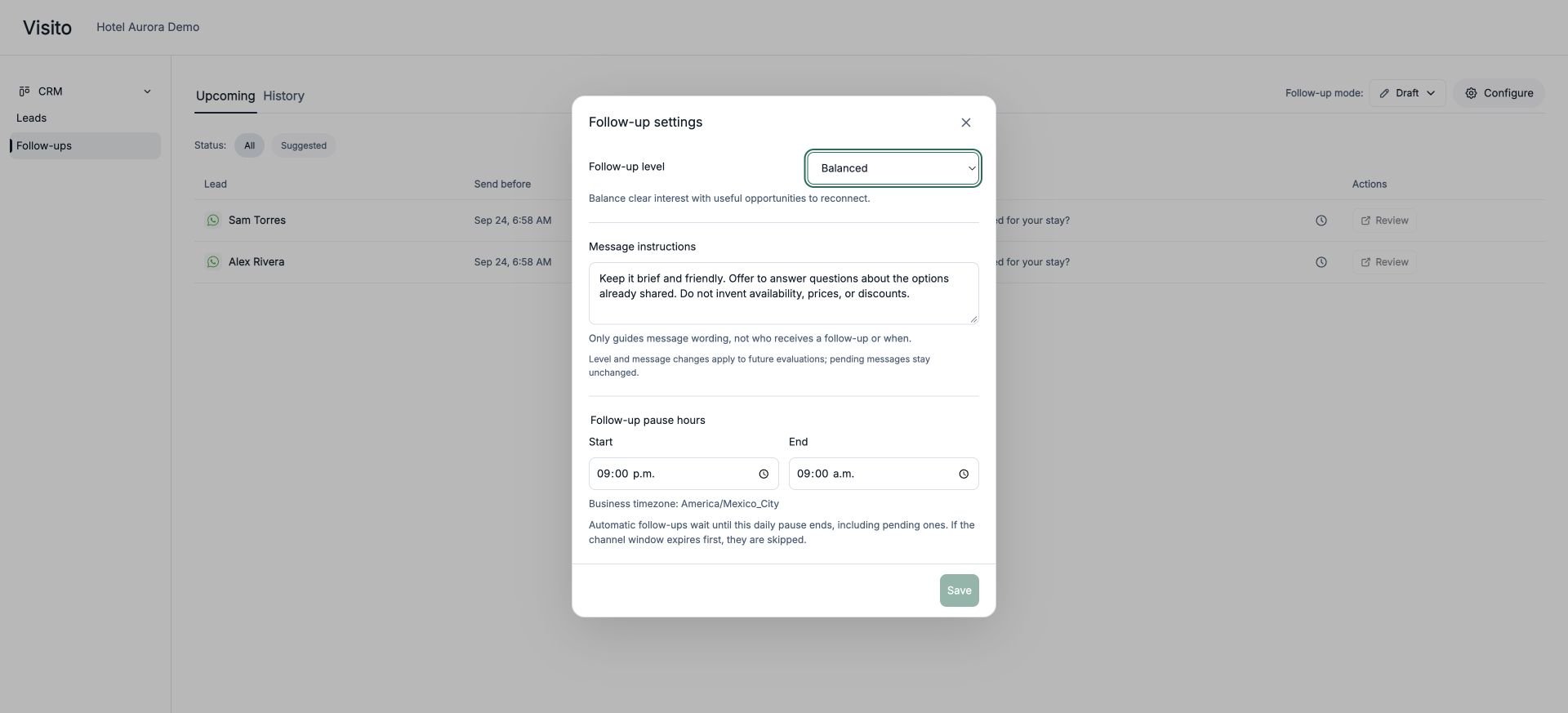
The screenshot uses a fictional demo workspace. The example hours and timezone are illustrative; use the values appropriate for your business.
Follow-up level
The level controls how selective Visito is when assessing an eligible conversation.
This is not a message frequency or a guaranteed number of follow-ups. Every level respects opt-outs, human intervention, completed outcomes, channel restrictions, and the other eligibility checks. A published pipeline also adds its lead definition and stage permissions. A paused published CRM stops follow-ups at every level.
Message instructions
Use Message instructions to guide wording, tone, or what the message should avoid. For example:Keep it brief. After sharing a quote, ask whether the customer has any questions. Do not offer discounts or invent availability.These instructions guide the draft alongside your workspace’s Personalization settings. They do not decide who receives a follow-up or when it is sent. To change eligibility, use the follow-up level and, if your pipeline is published, its lead definition and stage permissions. Changing the level or instructions applies to future evaluations. It does not rewrite pending messages or replace an operator’s edits. Review an existing draft directly if its text needs changing.
Follow-up pause hours
Set Start and End under Follow-up pause hours to define a daily period without automatic follow-ups. Times use the Business timezone shown in the dialog, rather than your device’s timezone. For example, 21:00–09:00 in America/Mexico_City pauses automatic follow-ups overnight. A pending automatic message that becomes due during that period waits until the pause ends, provided it is still eligible and the channel window remains open. Pause hours also apply to automatic messages already pending. They do not schedule a manually approved Send for later; review its timing before approving it.What changes after saving?
Changing settings does not restore canceled, dismissed, or sent messages. Publishing or changing a pipeline also triggers a review of pending follow-ups against its rules; see CRM publication.
Return to managing follow-ups to choose a mode, review a draft, or check history.