
Knowledge Base or Assets?
If customers need both an answer about a policy and a copy of the policy document, prepare the information in Knowledge Base and the shareable file in Assets.
Upload your first asset
Supported formats are JPEG, PNG, WebP, and PDF, up to 10 MB per file. Check the Resource storage indicator before uploading a large collection. Word documents, spreadsheets, and videos are not supported as shareable assets; export an appropriate PDF or image instead.1
Choose the file
Select Upload asset and choose your image or PDF. You can also use Choose files or drag files into the upload area.
2
Describe what customers will receive
Enter a specific Title and Description. For example:
- Title: Arrival guide
- Description: Check-in and check-out times, reception location, and early arrival information for Example Hotel.
3
Choose the business scope
Select the business the file belongs to. Use All businesses only when the same file is appropriate across your workspace.
4
Upload and check the result
Submit the upload, then open the asset to review its preview, metadata, and status. It must be Ready and Active to be eligible for sharing. New uploads can already be active; verify the switch rather than assuming another activation step is required.
Titles and descriptions help the AI find the right resource and can be visible to customers. Use public-facing wording. Do not put private notes, passwords, or instructions for the AI in these fields.
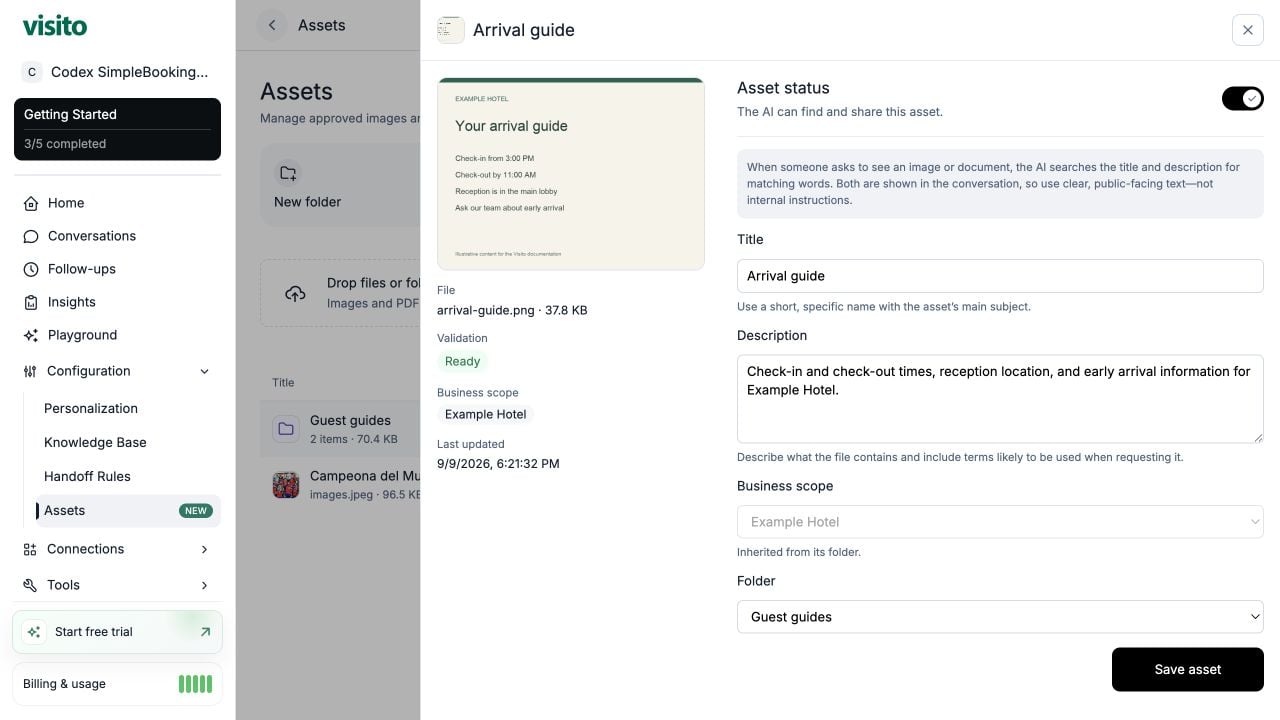
An uploaded example with a preview, Ready validation, active sharing, and descriptive metadata. Example Hotel content is illustrative.
Understand validation and active status
Validation and activation are separate. An active switch does not make an unsupported or blocked file shareable.
Turn an asset inactive to stop the AI from sharing it without deleting the file. If it belongs to a folder, both the asset and folder must be active.
Share a collection with folders
A folder groups related files into one shareable collection. For example, Guest guides can contain an arrival guide and breakfast menu, while Queen Room can contain photos of that room and its bathroom.- Select New folder.
- Add a clear title and description for the collection.
- Choose its business scope and select Create folder.
- Open the folder and use Add files to select several images or PDFs, then submit the upload. You can also drop files into the folder.
- Open each uploaded asset to improve its title and description and confirm it is Ready and active.
- Use the ordering controls beside the files to put the most useful items first.
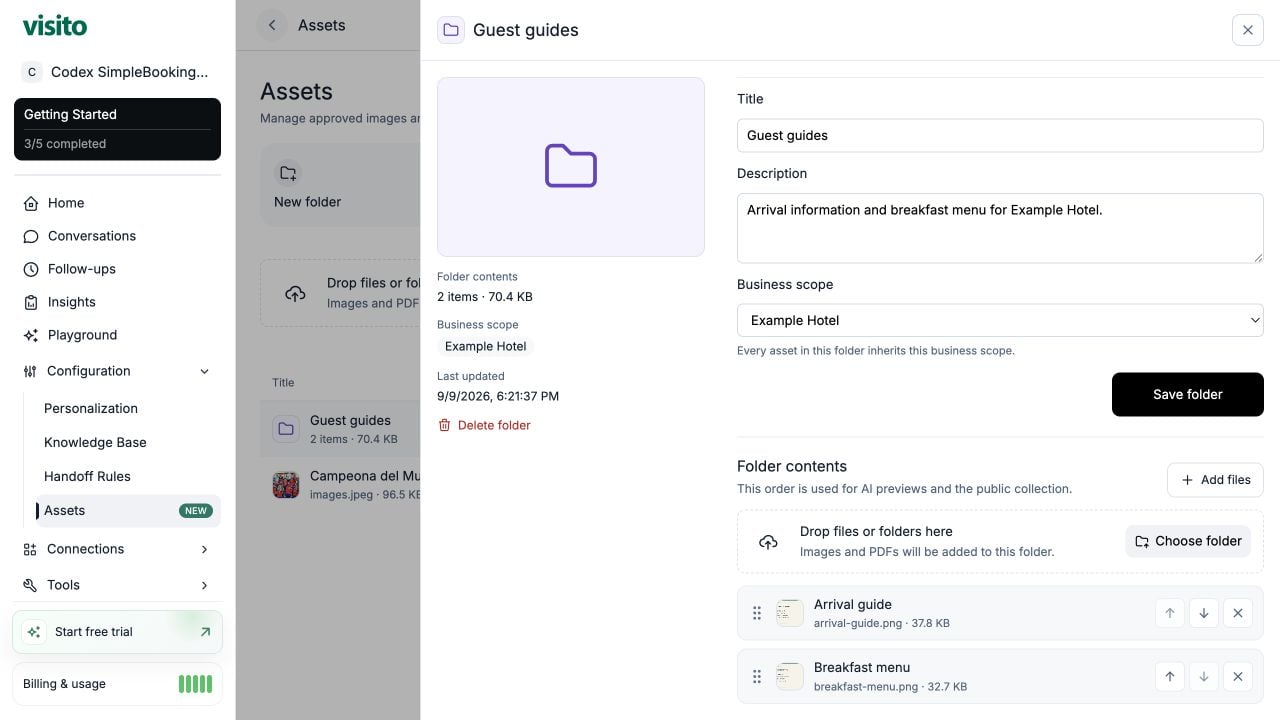
A populated folder with two related files. The order here controls AI previews and the public collection.
What the customer receives
You prepare the library in Assets. The AI shares a relevant file when a customer asks to see, receive, open, or download it; the Assets page is not a manual send composer. Try requests such as:- “Can you send me the arrival guide?”
- “Please show me the breakfast menu.”
- “Can I see the guest guides for Example Hotel?”
Test before relying on sharing
- Confirm that the asset is Ready, active, and scoped to the business you are testing. Check folder activation too.
- Start a fresh chat in Playground and explicitly request the file using natural wording.
- Check that the response identifies the correct content. Test a second phrasing, such as “Please send the check-in information”.
- Test through your connected customer channel to verify the actual image, PDF, or link delivery. A Playground result alone does not prove delivery in WhatsApp or another channel.
- Open the shared file or collection and check the contents and order.
- Ask for a file you have not uploaded. The agent should acknowledge that it cannot find it instead of sharing an unrelated item.
Update or retire content
Open an asset to edit its title, description, or folder. Review scope whenever you move files. To replace an outdated file, deactivate it, upload the replacement, confirm Ready and active status, and test again. Deactivation or deletion can make previously shared secure access unavailable. Disabling a folder also disables access through its existing folder link. Re-enabling a folder does not restore its old link; request a new share.Troubleshooting
On mobile, open Settings → Assets for basic management. Use the web dashboard for bulk uploads, moving files, manual ordering, and deleting folders with their contents.