
Screenshots show fictional demo data, including example history outcomes. No customer information is shown.
Before you start
You do not need to publish a pipeline to use follow-ups. Choose Draft or Auto and Visito will assess conversations for commercial interest, a useful answer already delivered, and a concrete reason to reconnect. Without publication, Follow-ups shows messages and their conversations; it does not create opportunities or an automatic board. If you publish your CRM, your lead definition and open-stage permissions also apply. A stage’s permission allows consideration; it does not schedule a message for every lead. Pausing a published CRM stops its follow-ups without returning to the general criteria.Choose a mode
Use the Follow-up mode control at the top of the page. If you have not chosen a mode, it defaults to Off. Publishing your pipeline does not change this setting.
Switching Draft to Auto can schedule existing pending suggestions. Switching back makes pending scheduled messages available for review. Check Upcoming after changing modes. Changing a setting cannot recall a message already sent.
Set preferences and quiet hours
Select Configure next to the mode control, even if you have not published a pipeline. In Follow-up settings, you can choose the level, give writing instructions, and set a daily period without automatic sends. Level and message instructions apply to future evaluations without rewriting pending messages. Pause hours also apply to pending automatic sends.Review an upcoming draft
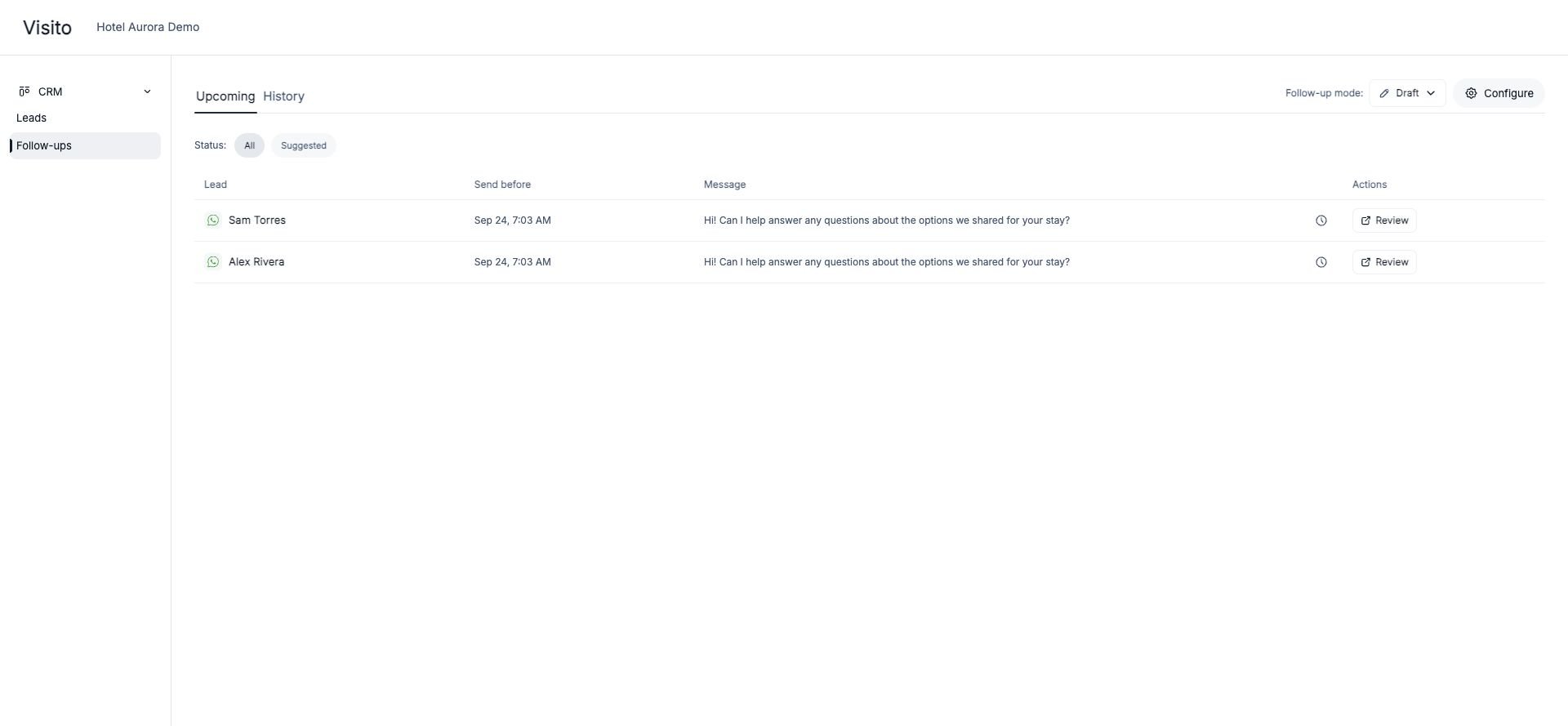
- Open Upcoming and find a suggested follow-up.
- Select Review to open the linked conversation.
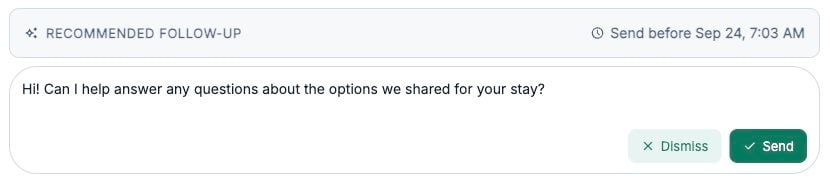
- Read the conversation and check the draft for accuracy. Edit it if needed.
- Select Send to send the approved message, or Dismiss if it is not appropriate.
Understand timing and eligibility
Visito chooses a suitable time within the permitted conversation window and applies quiet hours and channel checks. There is no single fixed delay for every lead, and more proactive settings do not override these checks. Sales follow-ups are excluded for support, requests that have not received an answer, rejection, opt-outs, human intervention, a completed purchase or process, and insufficient evidence. A more proactive level does not remove these exclusions. Automatic sending also requires an active destination channel with AI replies enabled. Closed opportunities, customer opt-outs, expired windows, and other conversation restrictions can prevent a send. Having a lead card alone does not guarantee a follow-up.Review history
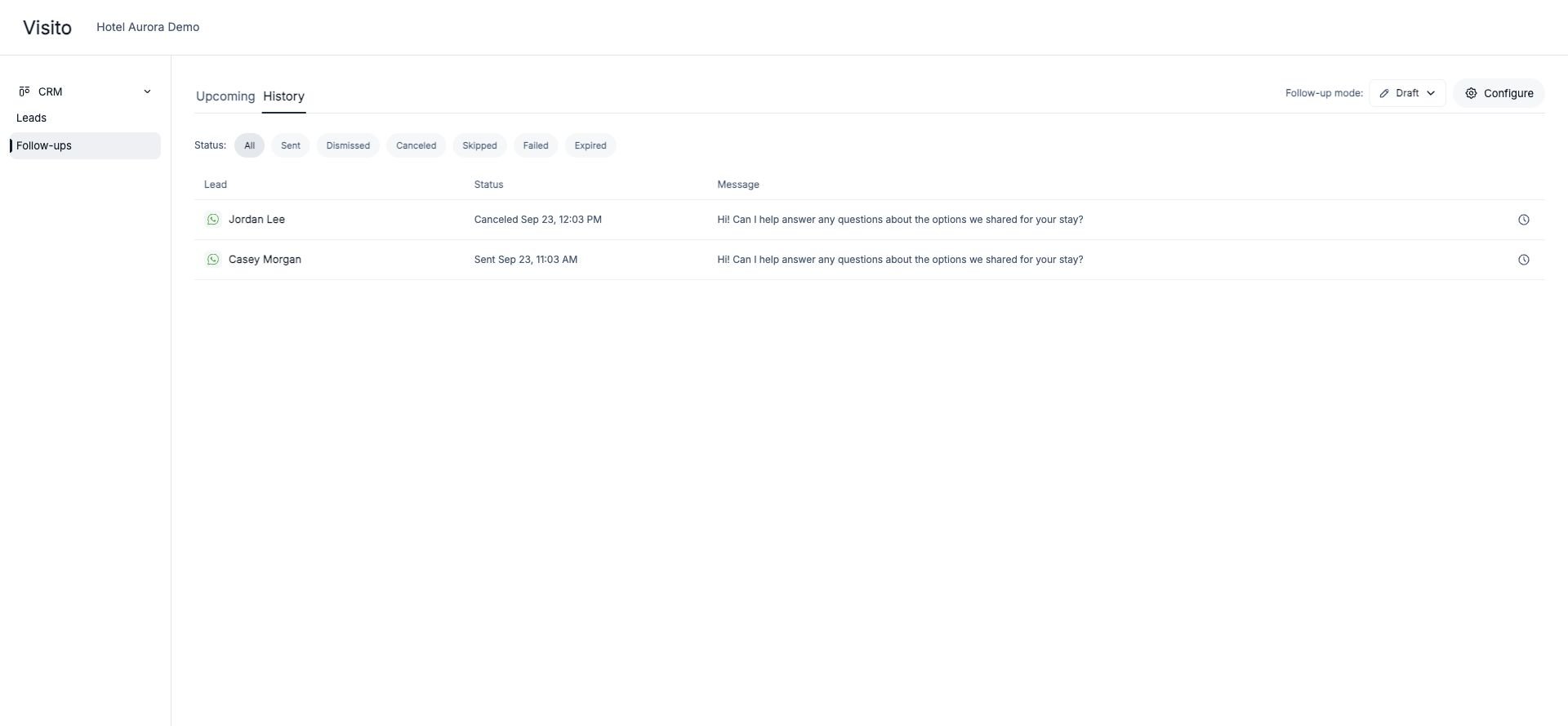
- Sent means the outbound reply was accepted; check channel delivery information if you need delivery confirmation.
- Dismissed / Canceled means a pending recommendation or send was stopped.
- Skipped / Expired means it was not sent because a condition or deadline no longer allowed it.
- Failed means an attempt encountered an error; inspect the conversation before retrying manually.
Personalization and credits
Draft text also uses the workspace’s Personalization settings, such as tone, emoji, response length, conversation scope, and custom instructions. An automatically sent follow-up consumes one credit after the outbound reply is accepted. Canceled and expired follow-ups do not consume credits. Approving a draft is a manual message and is not charged as an automatic follow-up. See how Visito credits work for other billable events.Why is there no follow-up?
Check these in order:- The mode is Draft or Auto.
- There is commercial interest, a useful answer already delivered, and a concrete reason to reconnect, with no exclusion preventing it.
- If the pipeline is published, it is active and the opportunity meets the lead definition, remains open, and is in a stage that permits follow-ups.
- The conversation is still within the channel window and credits are available.
- For Auto, the channel is active, AI replies are enabled, and pause hours have ended.
- Look in History for a cancellation, skip, expiry, or failure instead of only checking Upcoming.