
1. Add your system
Open Connectors → Add your own system → API-based. The Add your system modal contains the shared connection and all the actions you want to create now.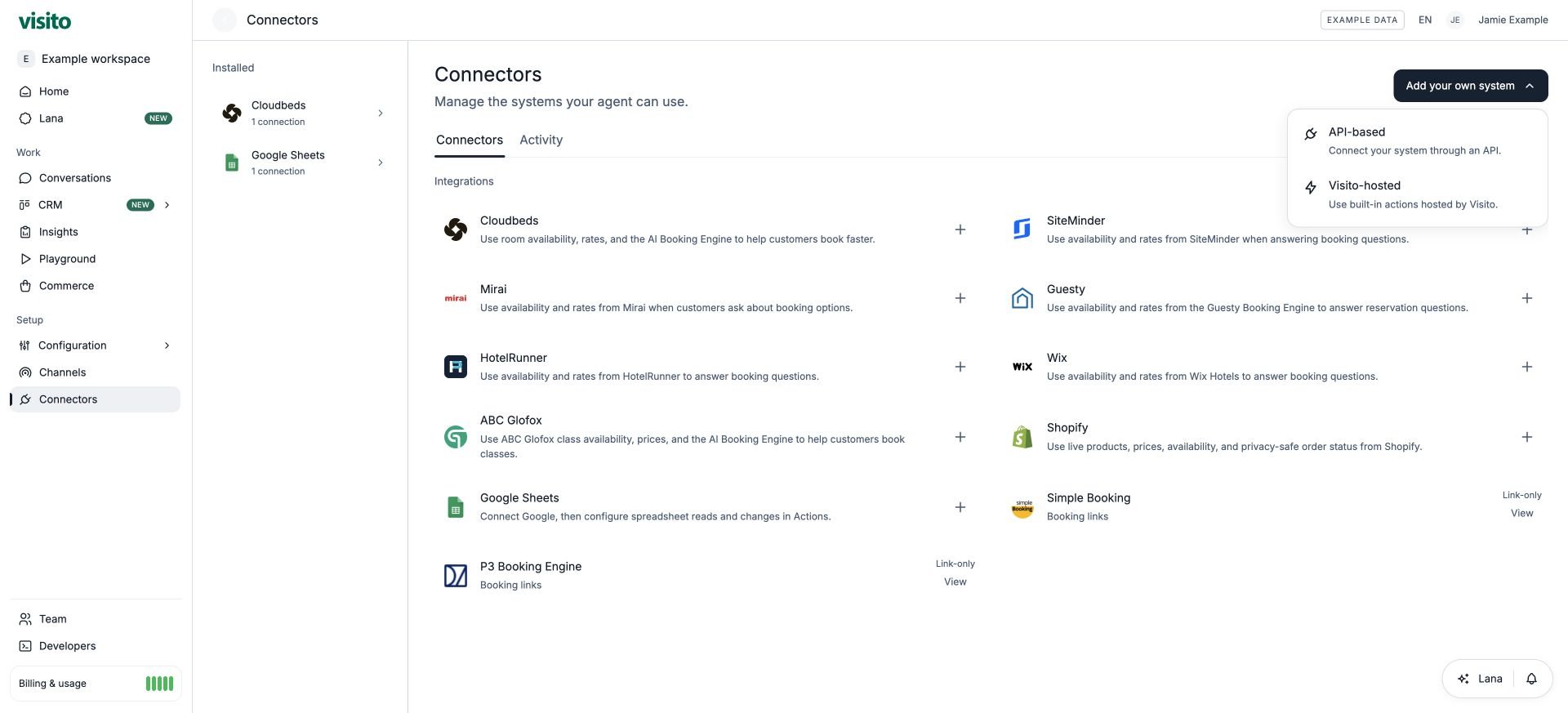
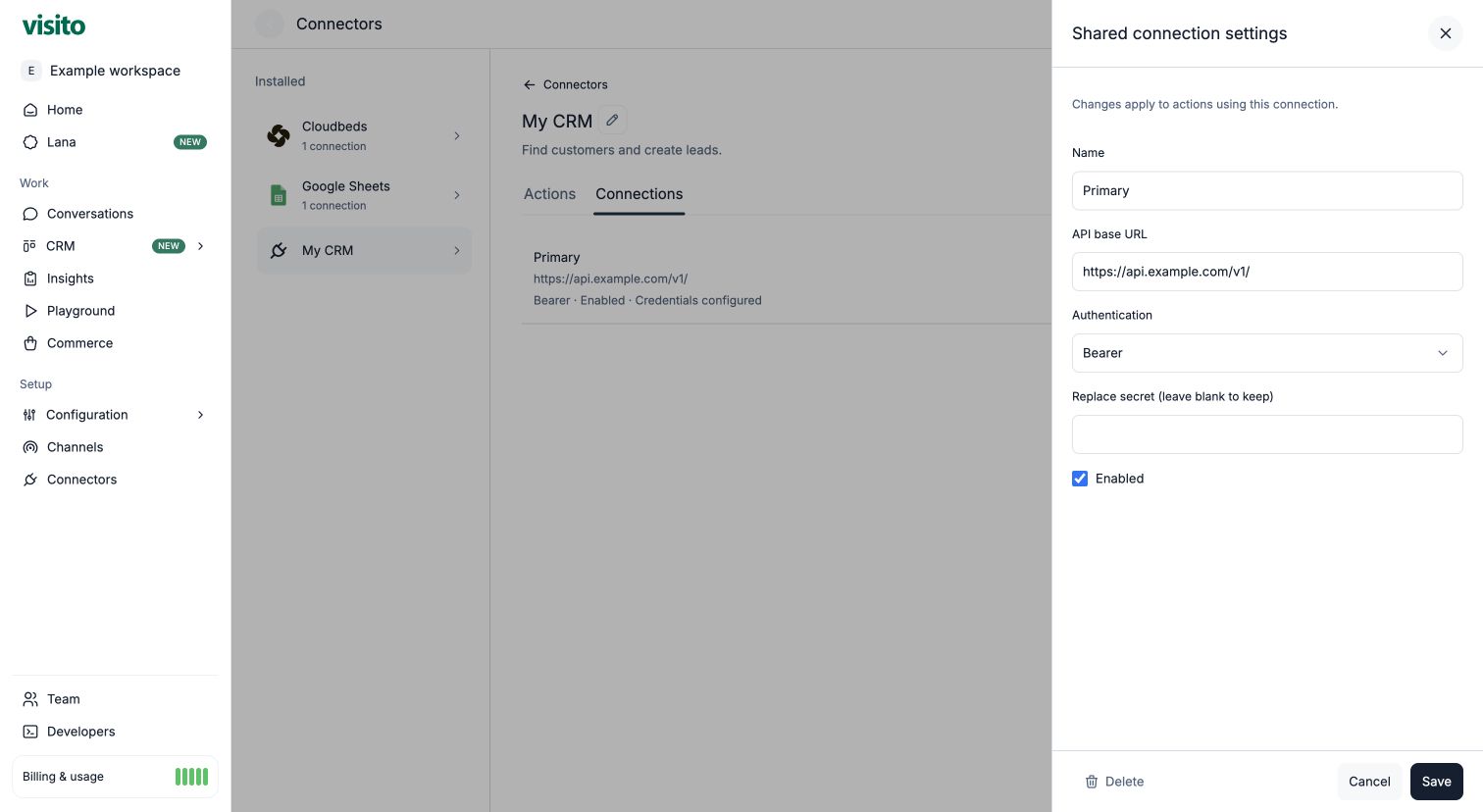
2. Configure the shared connection once
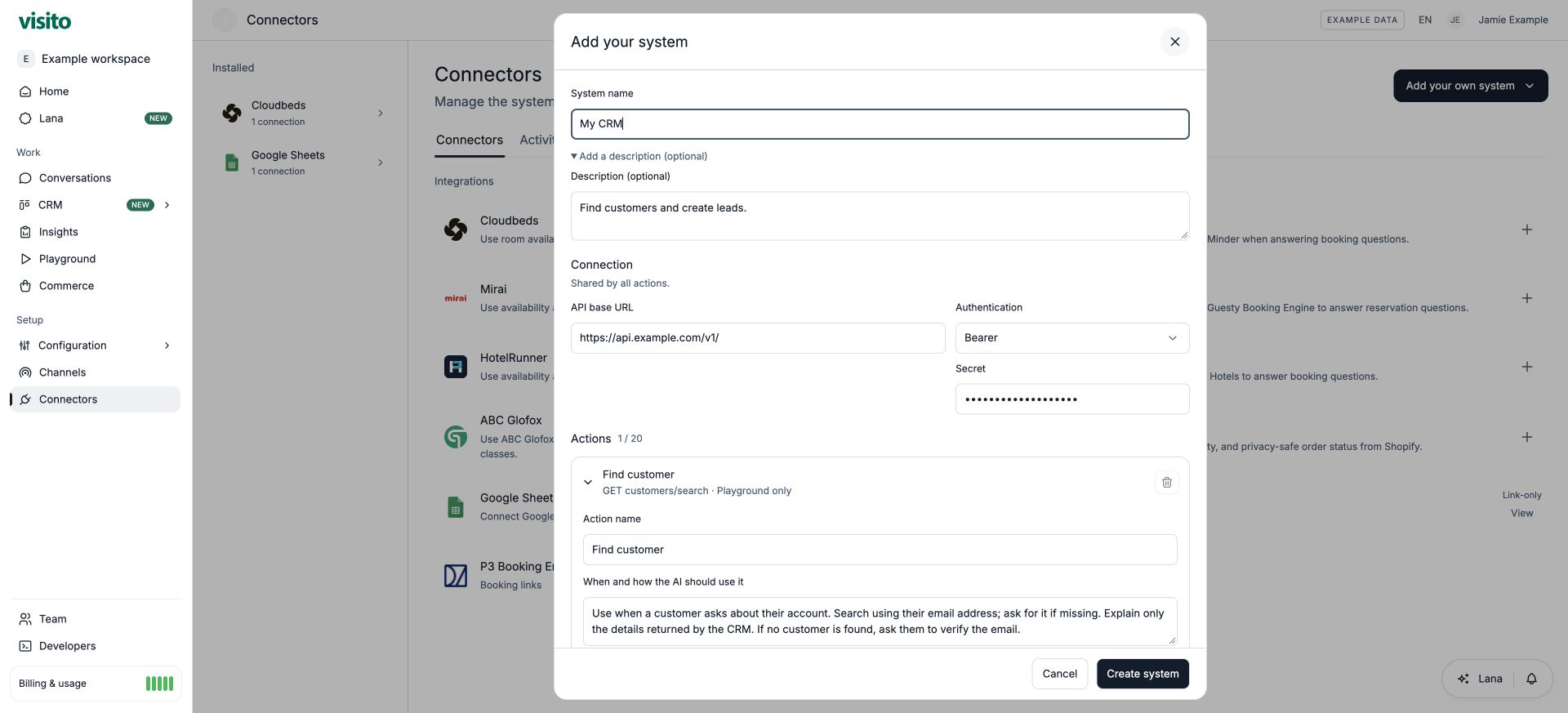
3. Define one or more actions
Each action describes one operation. Select Add action to add another in the same modal; you can create 1–20 at once. Expand an action to edit its settings.
For a customer lookup, use:
The resulting endpoint is
https://api.example.com/v1/customers/search. Enter a path relative to the base URL, rather than another full URL.
Explain when and how the AI should use it
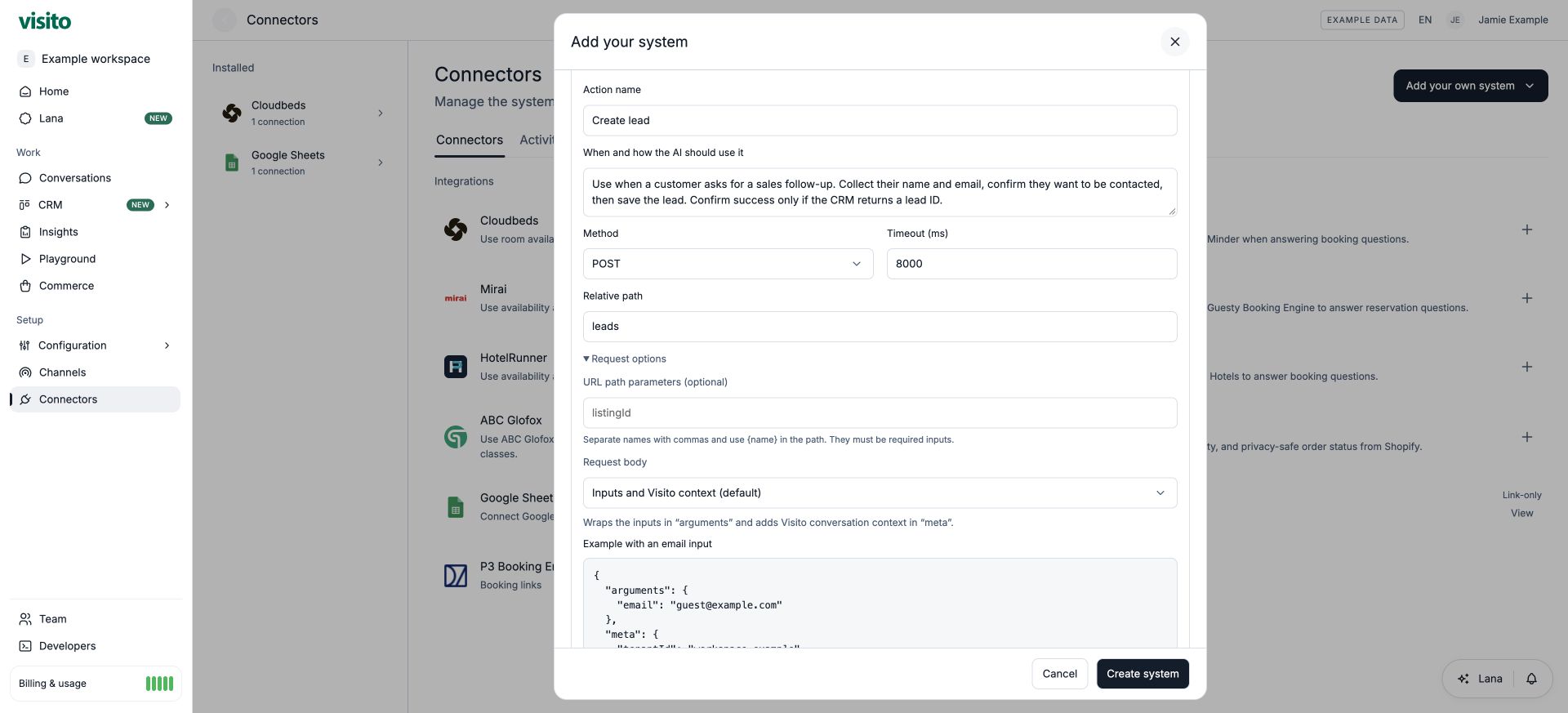
Write instructions that cover intent, missing inputs, confirmation, and the returned result. For example:leads. Its instructions should ask for the required details, obtain confirmation before requesting a follow-up, and confirm success only when the CRM returns a lead ID.
Define the inputs
In Parameters (JSON Schema), define the information the agent must supply. Use clear types, descriptions, formats, and required fields:Choose how inputs are sent
GET sends inputs as query parameters. For POST, expand Request options → Request body:
Default body, with an example email input:
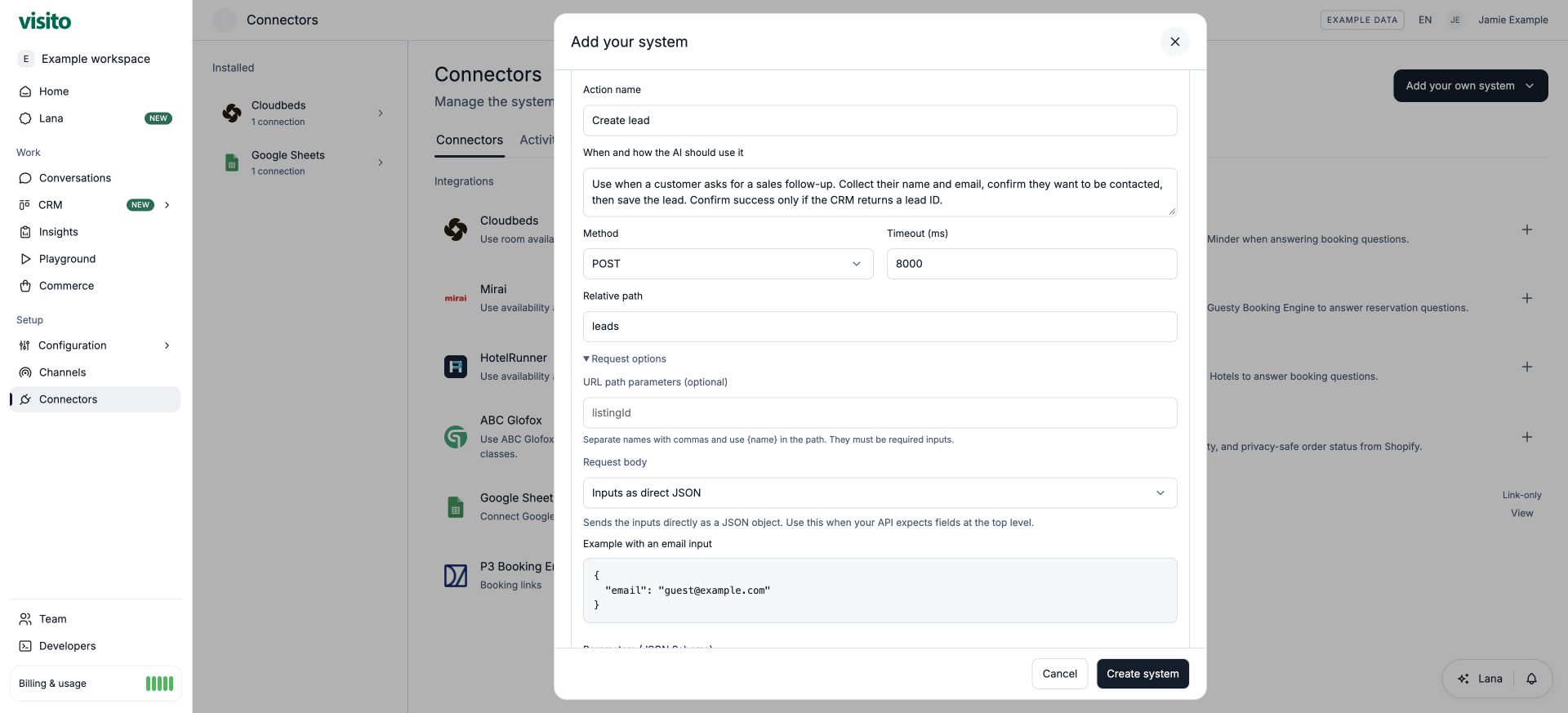
customers/{customerId}, add customerId to URL path parameters (optional) and make it a required scalar input in the schema. Separate multiple parameter names with commas. Use each placeholder as a complete path segment. Visito encodes the value into that segment and removes it from the remaining query or body inputs.
Set scope, Read only, and mode
Choose the businesses where the operation belongs. Use All businesses only when the same data and behavior apply throughout the workspace. Read only means the action retrieves information without changing data. Select it for Find customer or Check order status. Leave it unchecked for Create lead, changing a booking, deleting a record, or sending a message. This is a declaration of the operation’s behavior; it does not prevent your server from making changes. Your API must enforce that behavior.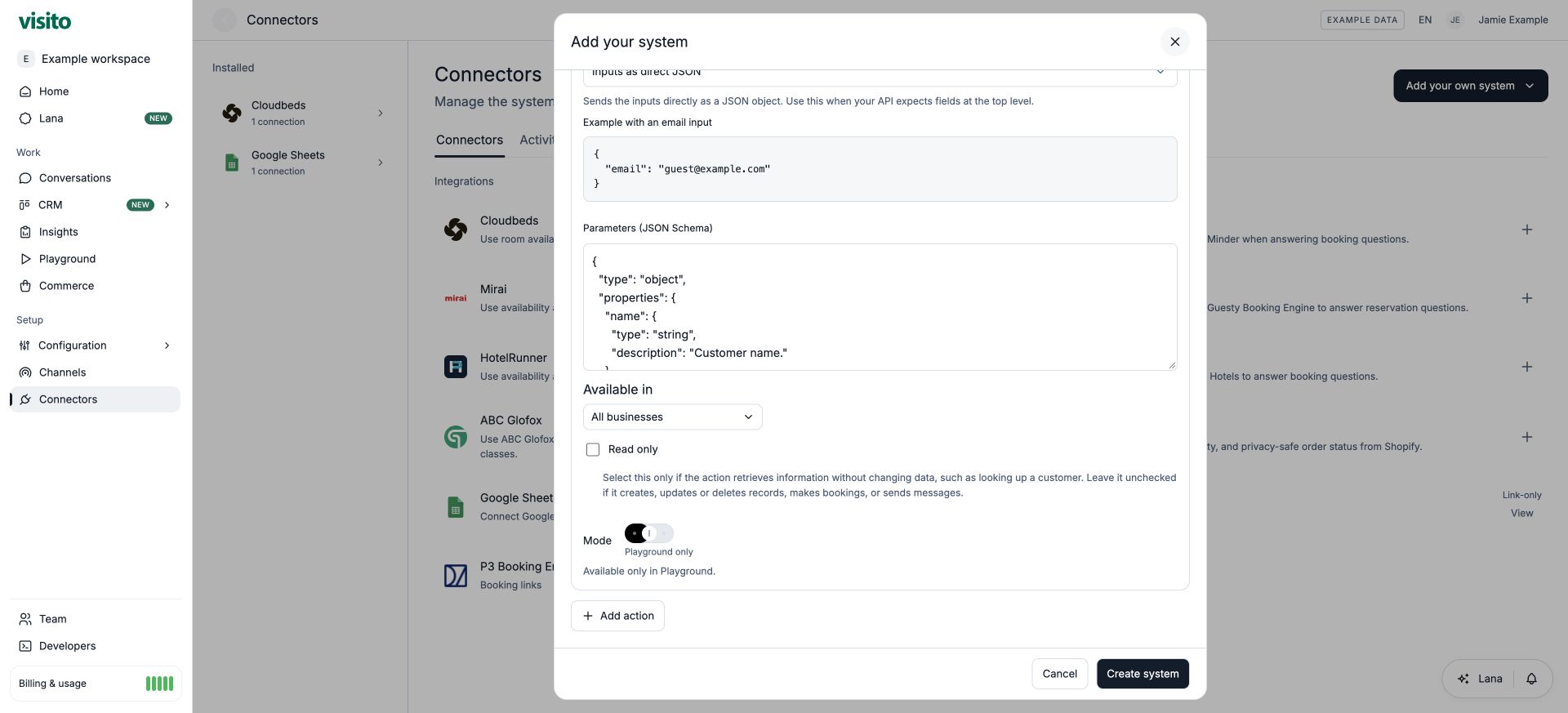
4. Save the system
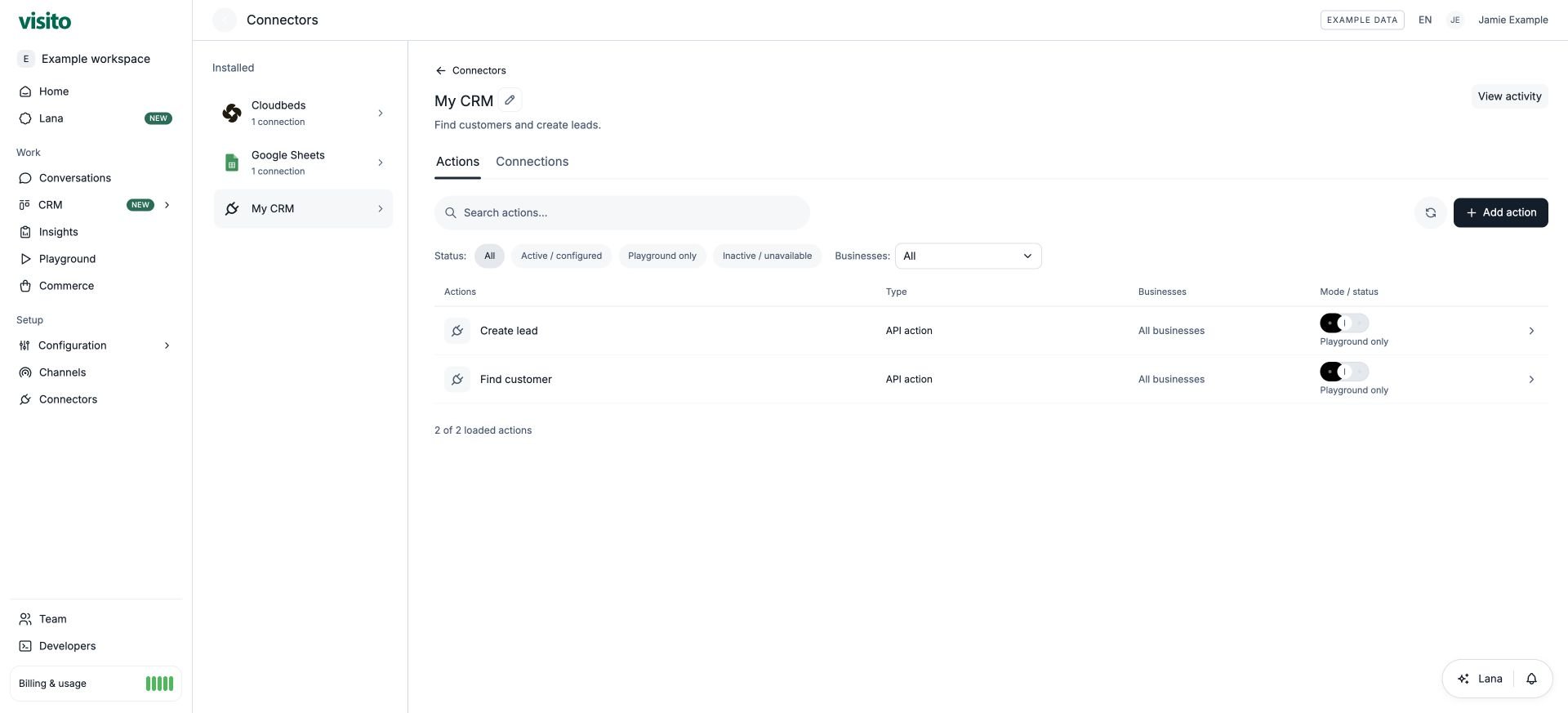
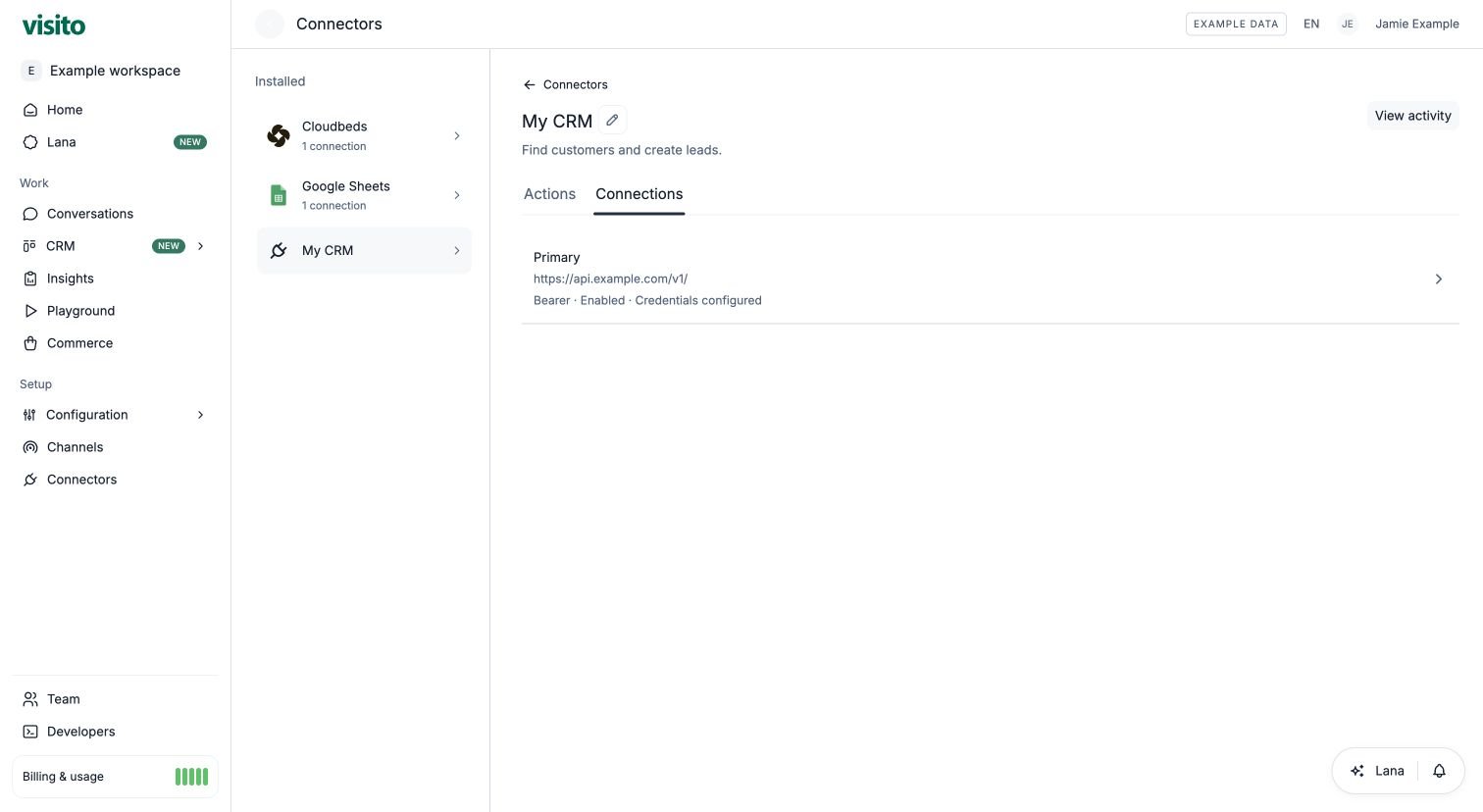
Review the shared connection and each action, then select Create system. The connector, its connection, and its initial actions are saved together. If validation fails, correct the highlighted settings and retry.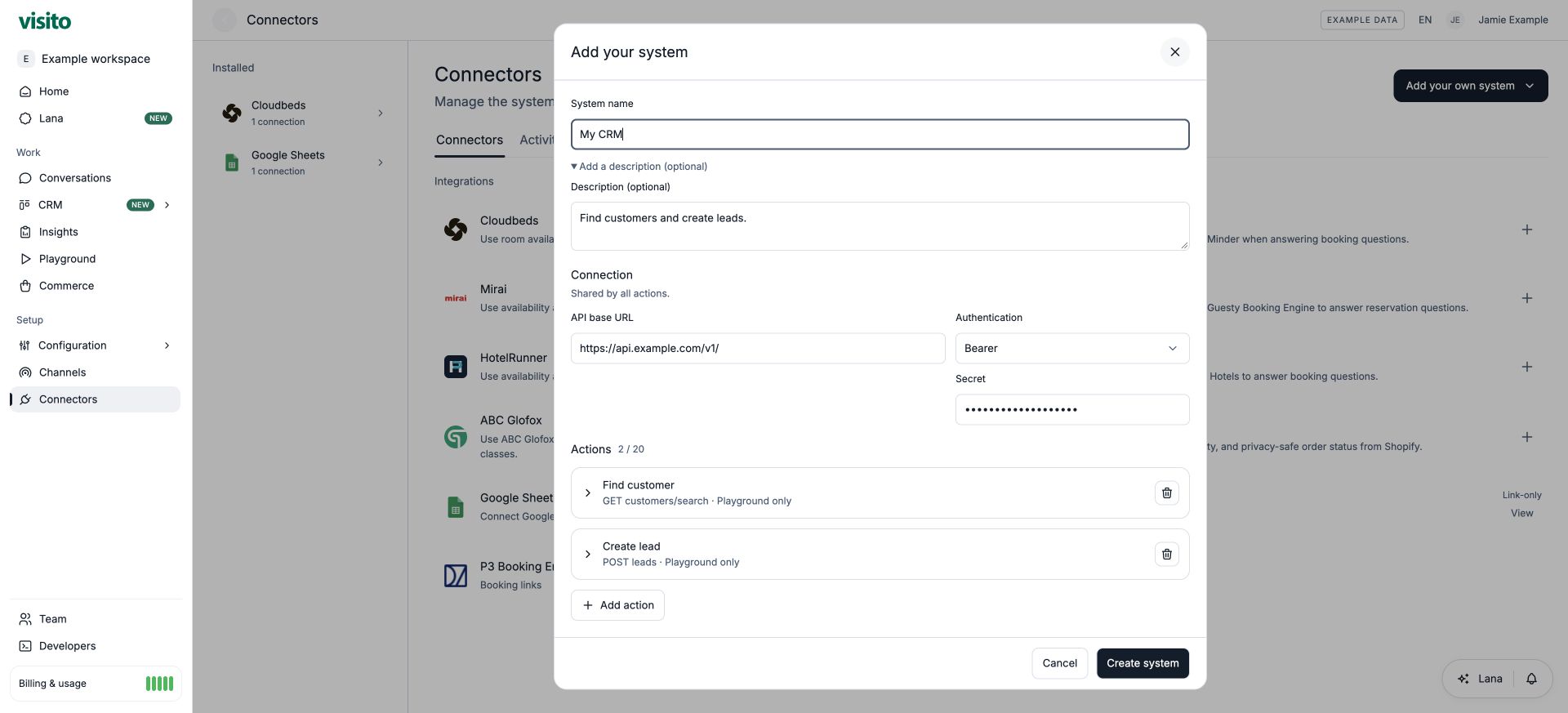
5. Test, inspect, and activate
API actions in Playground send real HTTP requests. Use synthetic records and a destination where the permitted operations are safe to test. Test a complete request, missing inputs, invalid values, no match, and a server failure. For writes, verify the actual destination record as well as the conversation. Select View activity to inspect the action’s parameters, response, status, and timing. Saved request data can differ from the complete transmitted POST wrapper; authentication is hidden or redacted. A completed request is not proof of a successful business operation. See Test and debug actions. After the conversation and destination checks pass, set the intended action to Active. Set it to Off to prevent future calls; this does not undo a request already in progress.Order status example
Collect an order number, send it to a server, explain the result, and trace the execution.